
Import Inventory Into Odoo
Bring PrestaShop stock levels into Odoo as an inventory adjustment in the instance warehouse.
Prerequisites
A confirmed instance with a Warehouse set.
Listing items linked to Odoo products (service and tracked products are skipped).
Method - 1: Manual Inventory Import
Go to the menu in Odoo.
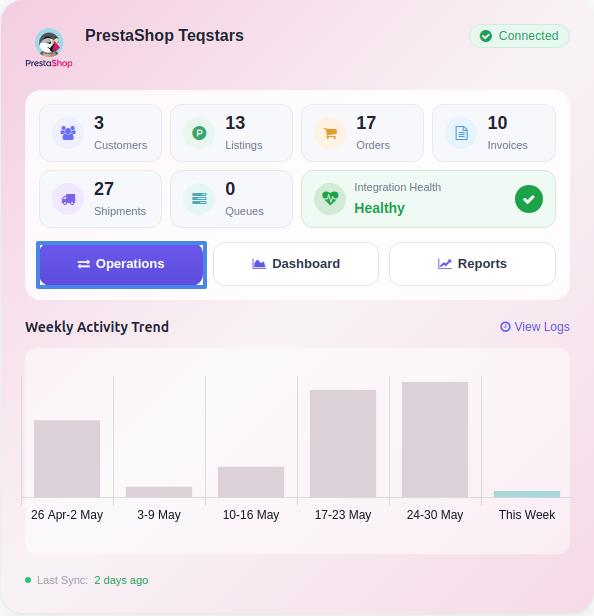
Click the Operations button from the instance record.
Choose Import as the operation type, then from Import Operation, select Import Inventory.
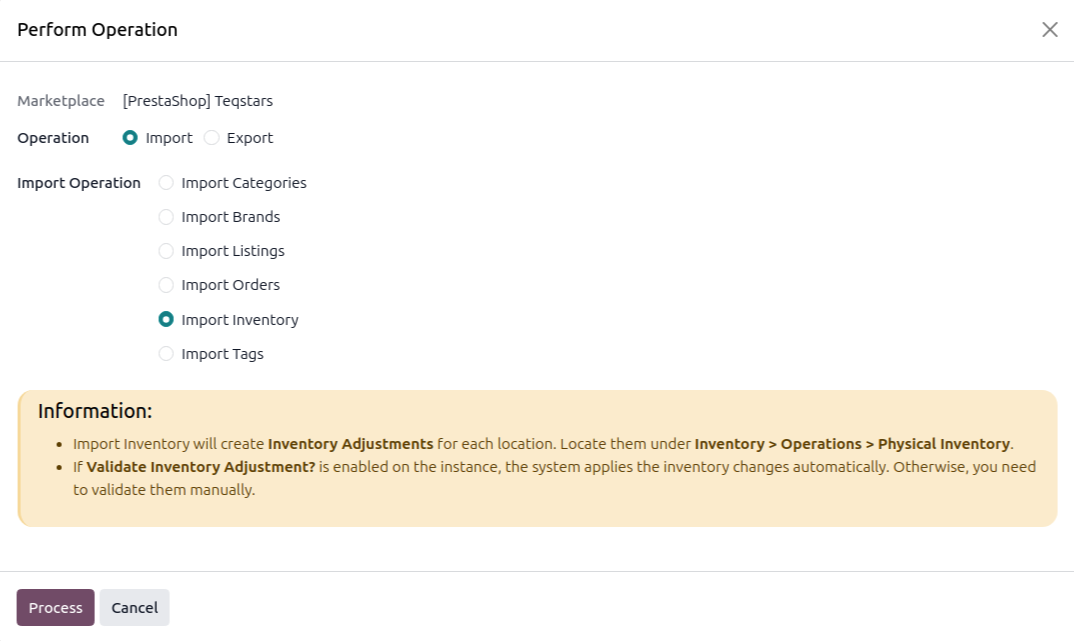
Click Process.
Stock is matched by PrestaShop product/combination id and written to the warehouse stock location. With Validate Inventory Adjustment? enabled the adjustment is validated automatically, otherwise process it from .
Note
The first import reads the full stock from stock_availables. Subsequent imports
read only what changed since the last run (via PrestaShop stock movements), so the
adjustment stays incremental.
Method - 2: Automatic Inventory Import
You can automatically import stock from PrestaShop at regular intervals using the Automatic Schedule action:
Go to your PrestaShop instance setting by navigating to .
Open the Automatic Jobs tab. In that tab you can configure the Import Product’s Inventory automatic action by setting Interval Number, Interval Unit, and then enable Active (daily by default).
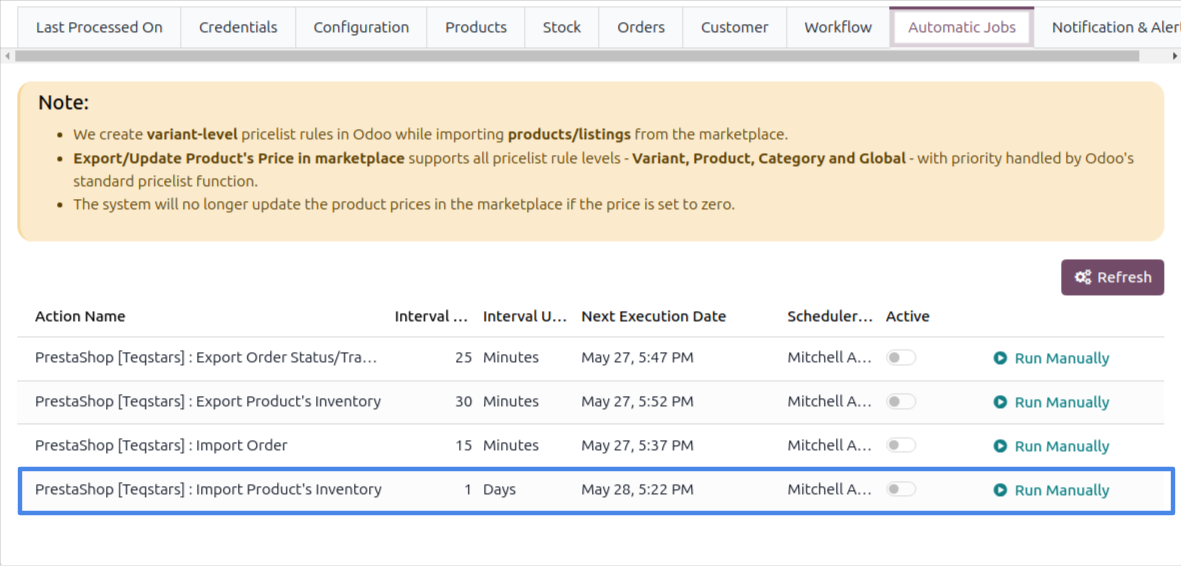
Once enabled, Odoo automatically imports stock from PrestaShop at the selected time intervals.
See also