
Buttons & Form Layout
Configure it on the role under , using the line for the relevant record type.
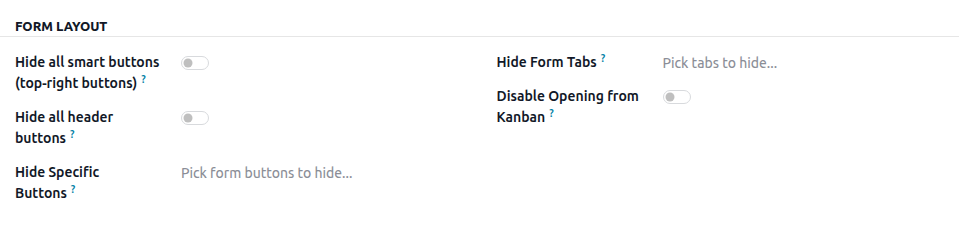
Hide specific buttons
Select the individual buttons you want to hide for the selected record type. The available buttons are detected automatically, so you can select them by name instead of entering them manually.
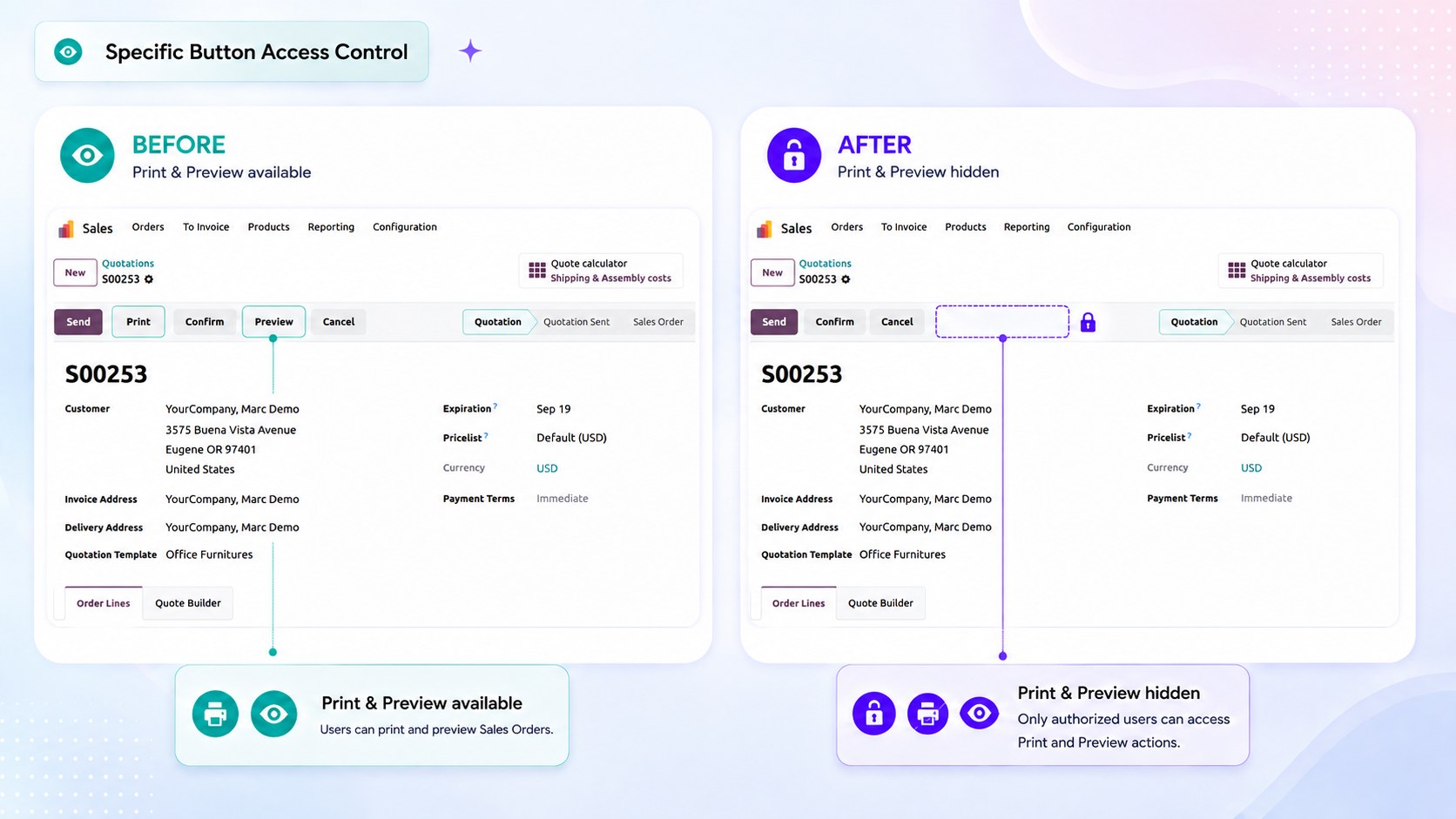
Use it for actions such as Confirm, Validate, Approve, or Reset to Draft that should only be available to specific roles.
Hide All Smart Buttons
Hides all smart buttons displayed in the center area of the form header. The space used by the hidden buttons is also removed, so no empty space is left behind.
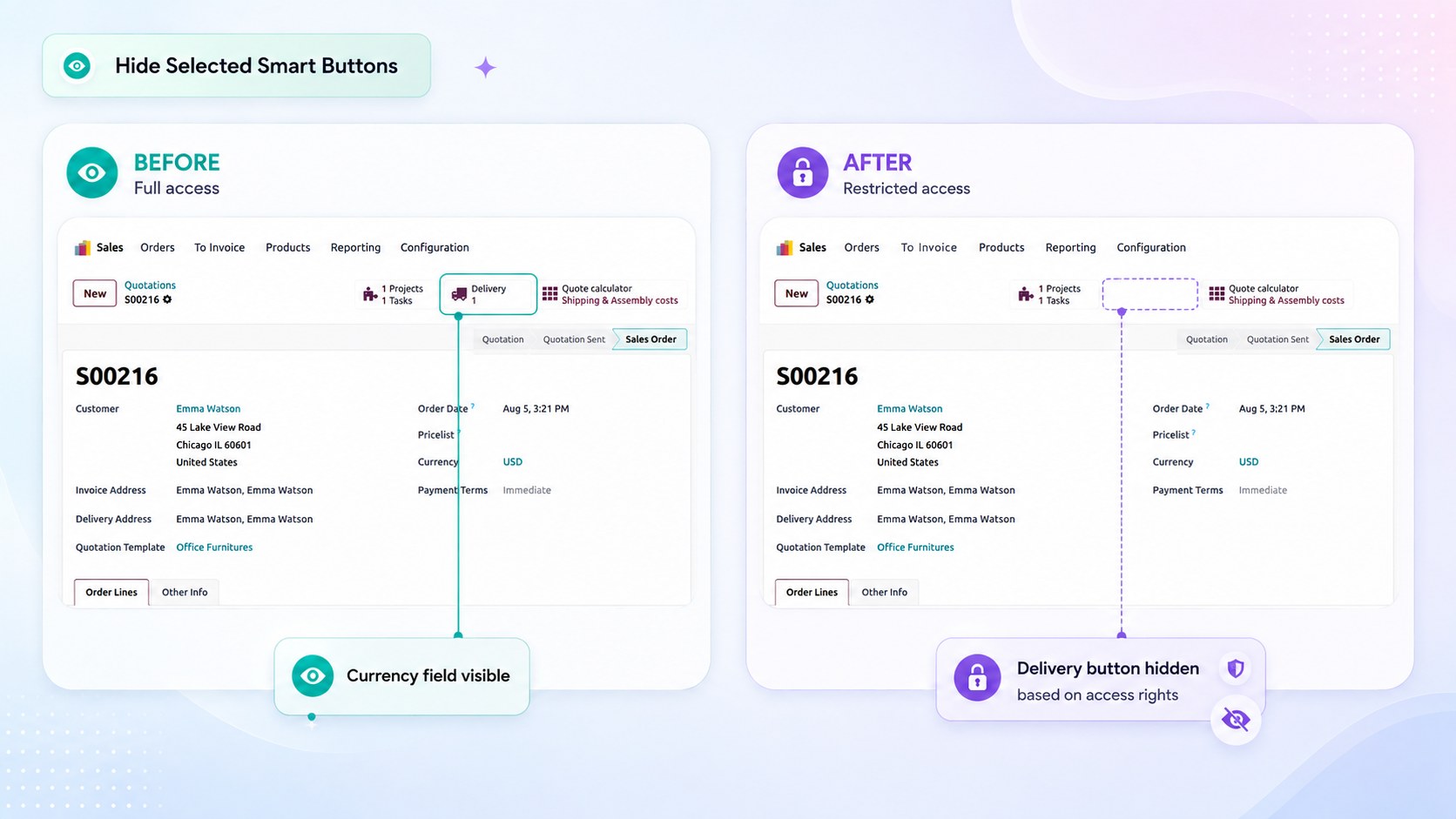
Smart buttons provide shortcuts to related records, such as Invoices, Deliveries, and Tasks. Hiding them prevents users from accessing related information they do not need.
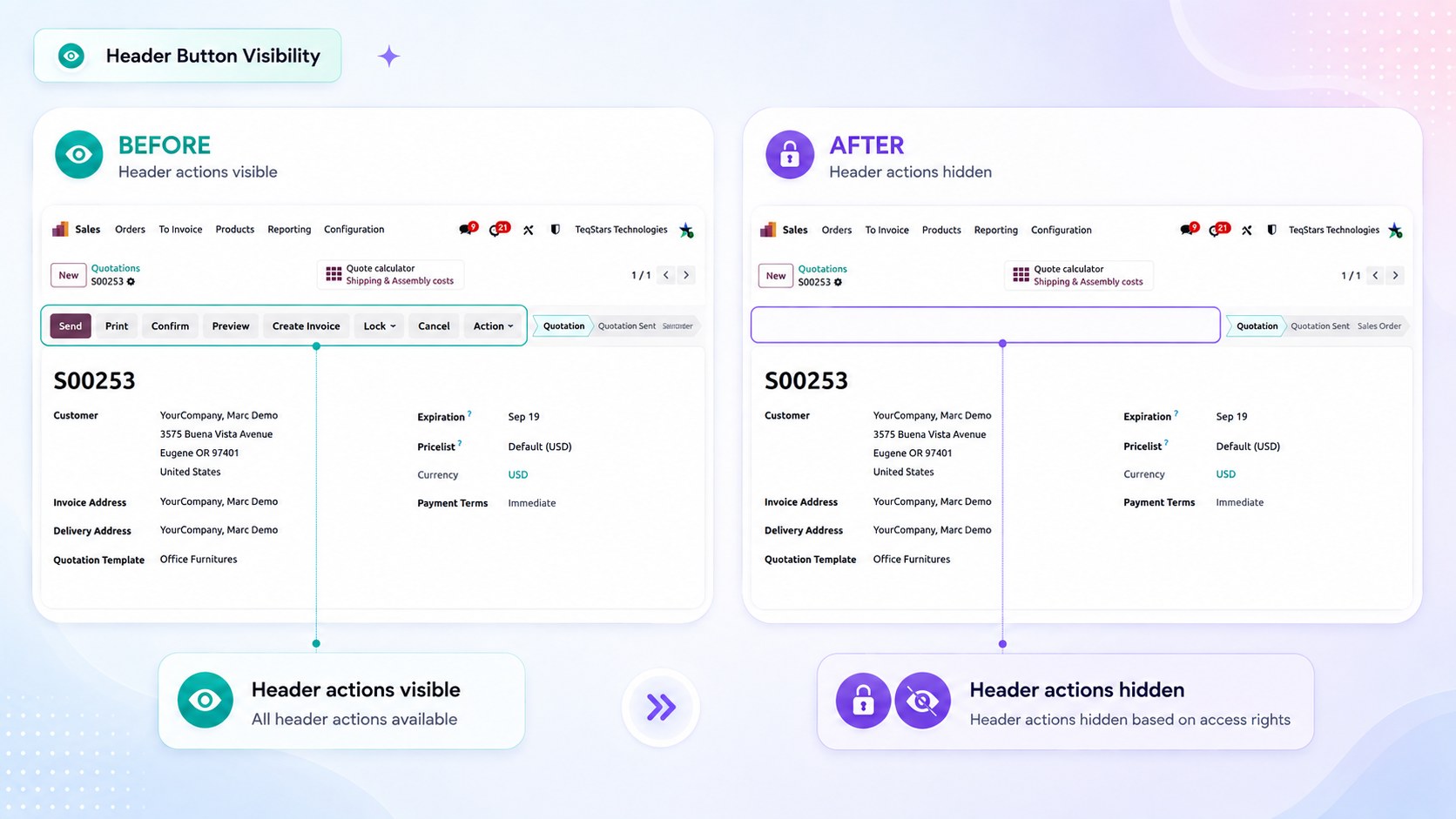
Hide all header buttons
Hides every action button in the form header, such as Send, Confirm, Print, and Cancel.
Note
The status bar stages stay visible, so the user can still see where the record stands in its process.
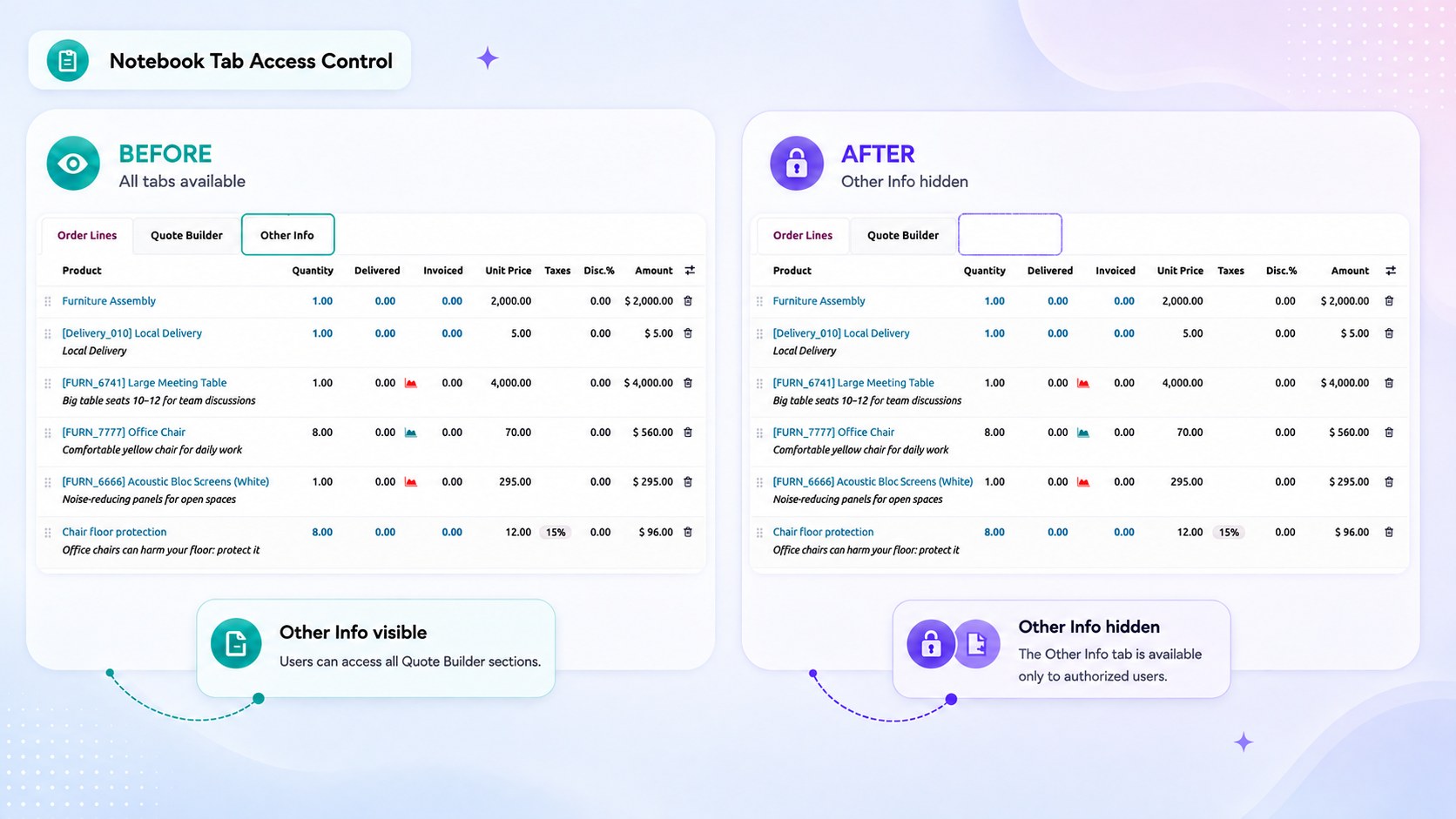
Hide form tabs
Hides the selected notebook tabs on the record type’s form.
On the Settings screen, the same option hides entire settings sections, which is a straightforward way to keep a role out of configuration areas that do not concern it.