
Export New Offers To Octopia
An offer is your price, stock, condition and delivery options for a product that exists in the Octopia catalogue. Export New Offers sends the full offer of listings that already have their product details on Octopia but no offer yet.
Prerequisites
The listing has an Octopia product reference, either imported or created with Create Products In The Octopia Catalogue.
The variant has a Barcode (GTIN) of 8 to 14 digits and an Internal Reference (SKU).
The listing has at least one delivery mode on its Delivery tab, see Delivery Options On A Listing.
The instance pricelist gives the product a price, and the listing has an Octopia Tax.
The listing item has a Condition.
Method - 1: From The Operations Wizard
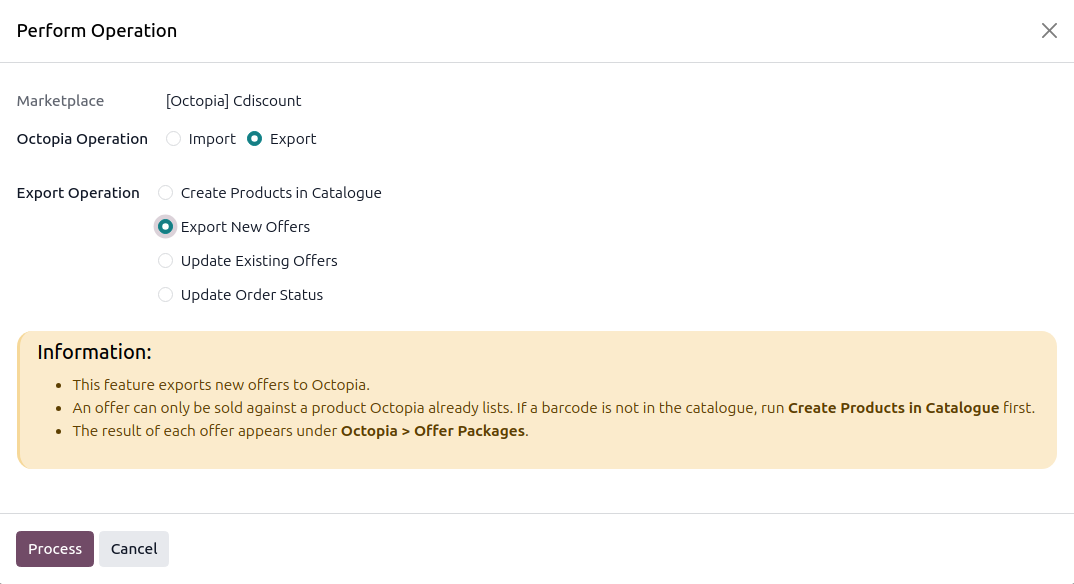
Click the Operations button on the instance card in .
Choose Export, select Export New Offers, and click Process.
Every listing of the instance that has a product reference and no offer yet is sent, with its price, quantity, delivery options and preparation time.
Method - 2: From The Listing View
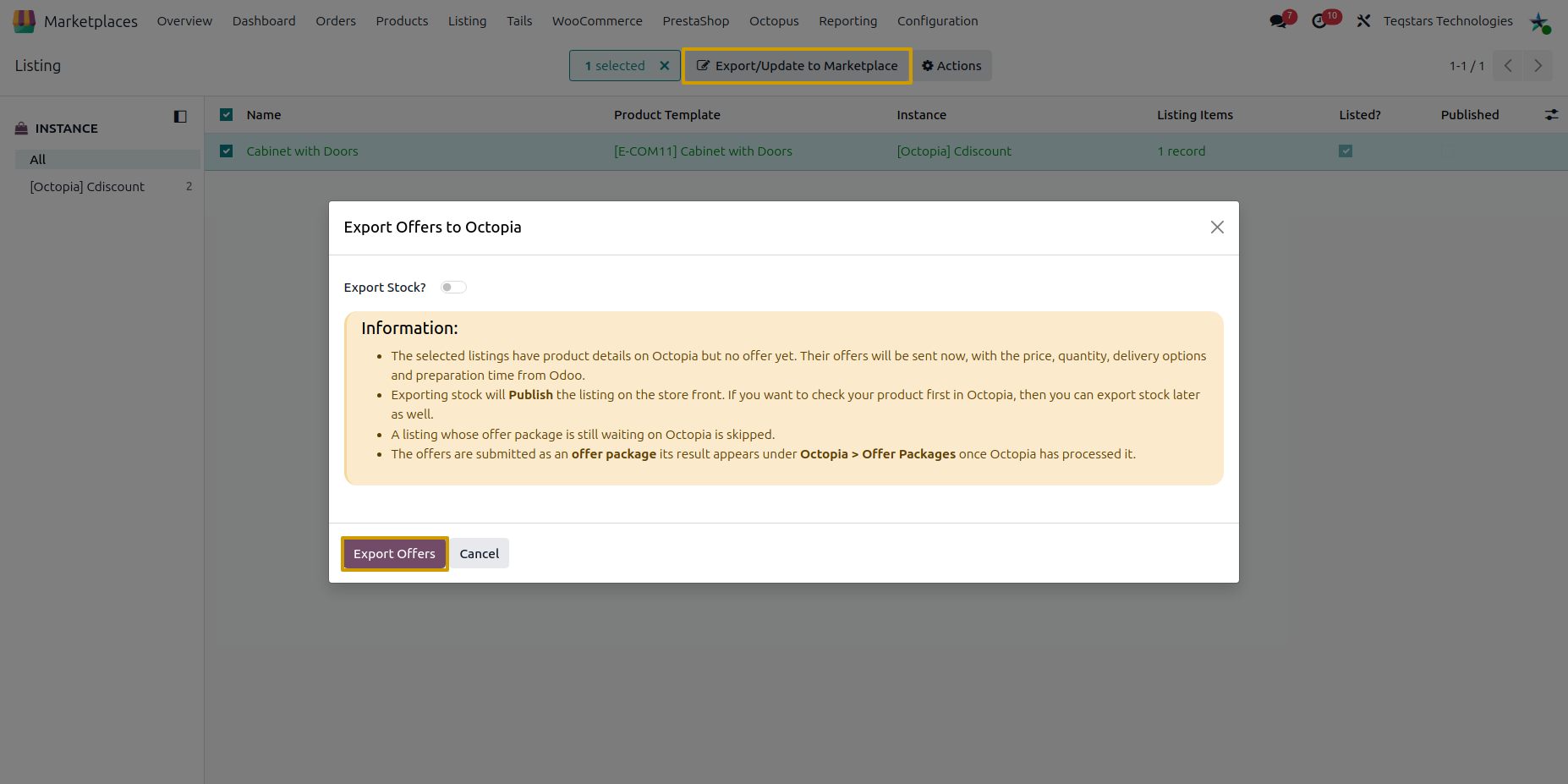
Open and select listings that are listed but have no offer. The Listed + No Offer (Octopia) filter finds them.
Open the Actions menu and choose Export/Update Listing in Marketplace.
In the Export Offers to Octopia wizard, switch Export Stock? on or off, then click Export Offers.
Note
Exporting stock publishes the listing on the store front. If you want to check your product on Octopia first, leave Export Stock? off and export the stock later. Without it the offer is sent with a quantity of zero.
What Is Sent
Each offer is sent in an Upsert package with:
Seller reference: the SKU of the listing item.
Product: GTIN and Octopia product reference.
Condition: from the listing item, or the instance default (New).
Price: from the instance pricelist, rounded to 2 decimals, with the taxes. VAT carries the rate of the listing’s Octopia Tax, Ecotax and Deatax are sent as zero.
Delivery modes: code, cost and additional unit cost of each mode on the listing.
Preparation time: the listing’s value, otherwise the instance’s.
Quantity: from Stock Based On, never negative.
Why An Offer Is Not Sent
Every problem is collected and shown together. An offer is held back when:
It is fulfilment managed. Octopia holds its stock and ships it, so only its price can be updated, see Update Existing Offers In Octopia.
The SKU or the barcode is missing, or the barcode is not 8 to 14 digits.
The GTIN has no product details on Octopia yet, send them first.
The condition Octopia reported cannot be sent back, and none is set explicitly.
No delivery mode is set on the listing.
The pricelist gives the product no price.
It is already part of an offer package Octopia has not finished processing.
Pictures are not part of an offer. On Octopia they belong to the shared product details.
Check The Upsert Package Result
Octopia does not save an offer directly. Everything you export is grouped into an offer package: the connector opens a package, uploads the offers into it (100 at a time, at most 50 000 per package), marks it Ready, and then reads back the outcome of each offer. Offers sent with Export New Offers travel in a package of type Upsert, which creates an offer or fully replaces an existing one.
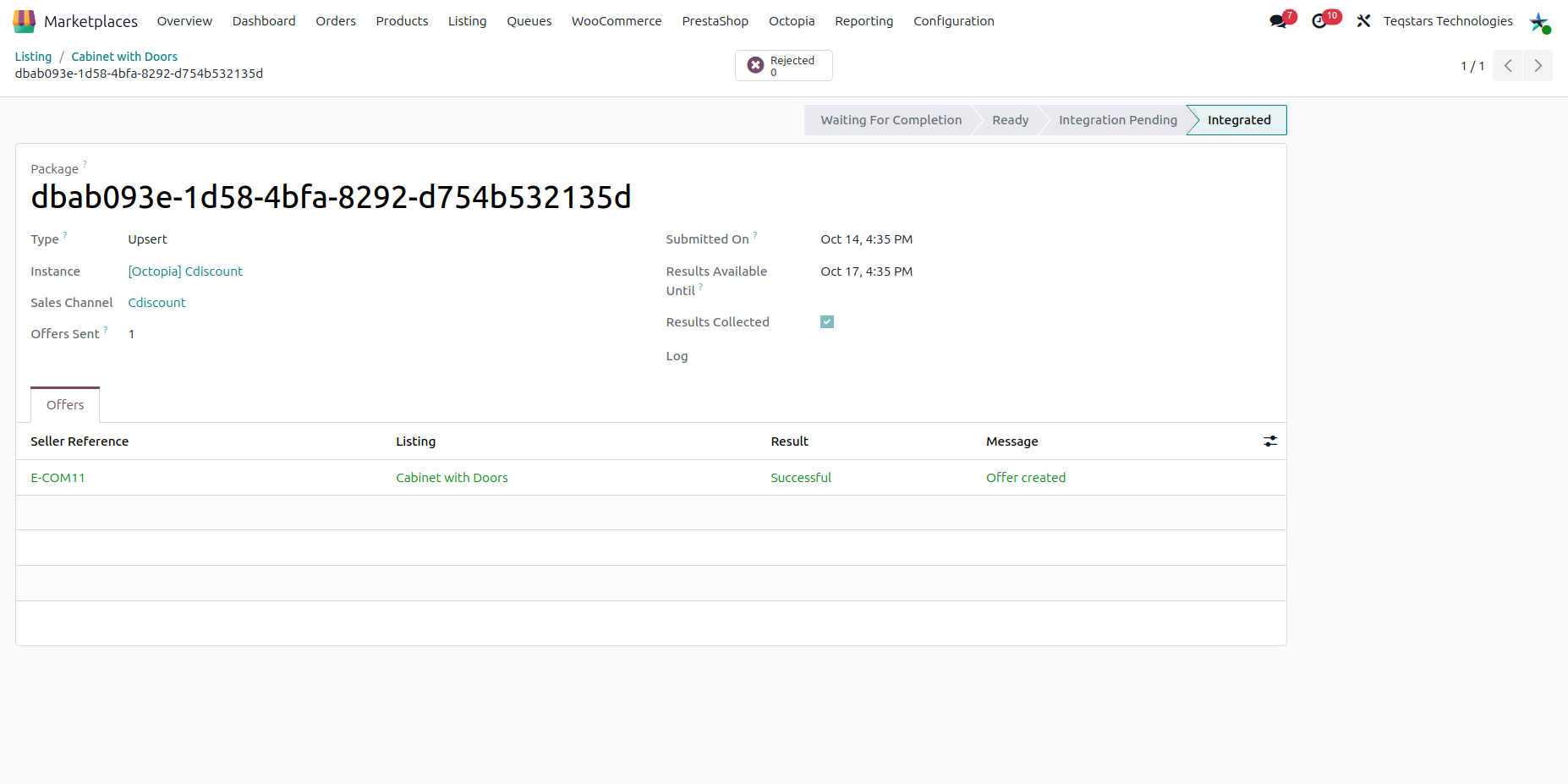
Every package you send is recorded at , or from the Offer Packages smart button of a listing. A package shows:
Package: The identifier Octopia gave the submission.
Type, Sales Channel, Submitted On and Offers Sent.
State: Waiting For Completion, Ready, Integration Pending and Integrated (Successful), or Rejected. The package is finished once it reads Integrated or Rejected.
Accepted and Refused: How many offers Octopia accepted (Successful) or refused. A Duplicated offer, the same seller reference sent more than once in a package, counts as refused.
Results Available Until: Octopia keeps the per-offer results for three days after the package finishes. After that they are gone for good, and the package is marked as expired.
Result Code and Result Message: What Octopia reported about the package as a whole.
The Offers tab lists each offer with its seller reference, the listing, the result (Successful, Rejected or Duplicated), Octopia’s message, and the exact data that was sent.
The result is read once when the package is sent, and then by the Check Created Products & Exported Offers scheduled action every 30 minutes. To read it at once, open the package and click Check Result. When the results are collected:
Accepted offers are marked listed on the listing, and their sent quantity is stored.
Refused offers are stamped on the listing with the reason, shown by the Refused By Marketplace filter. The stamp is cleared once the offer is accepted.
The Rejected smart button of the package opens its refused offers.
Use the Not Finished, Result Not Collected and Has Refusals filters of the package list to find packages that need attention.
Note
An opened package that is never marked Ready is discarded by Octopia after six hours.
Warning
A package that has been submitted to Octopia cannot be deleted until it is finished, otherwise its results could never be collected.