
Cancel Order In BigCommerce From Odoo
You can cancel a BigCommerce order from Odoo with an optional reason (logged in the Odoo chatter) and an optional automatic refund pushed back to BigCommerce. The connector flips the order’s status to Cancelled in BigCommerce so it appears as cancelled in the control panel.
When You Can Cancel In BigCommerce
The Cancel In BigCommerce button on the Sale Order is available only when:
The order is a BigCommerce order (linked to a BigCommerce instance).
The order has been cancelled in Odoo first (the Sale Order is in the Cancelled state).
The order has not already been cancelled in BigCommerce.
The order is not shipped or completed in BigCommerce — once a BigCommerce order reaches Shipped, Completed, or Manual Verification Required, BigCommerce no longer allows cancellation and the connector hides the button accordingly.
If you do not see the button, cancel the Sale Order in Odoo first (for example using the Cancel action on the quotation), then re-open the cancelled order and look for Cancel In BigCommerce.
How To Cancel The Order In BigCommerce
Cancel the Sale Order in Odoo. Open , locate the order, and click Cancel. The order moves to the
Cancelstate.Open the cancelled order and click Cancel In BigCommerce.
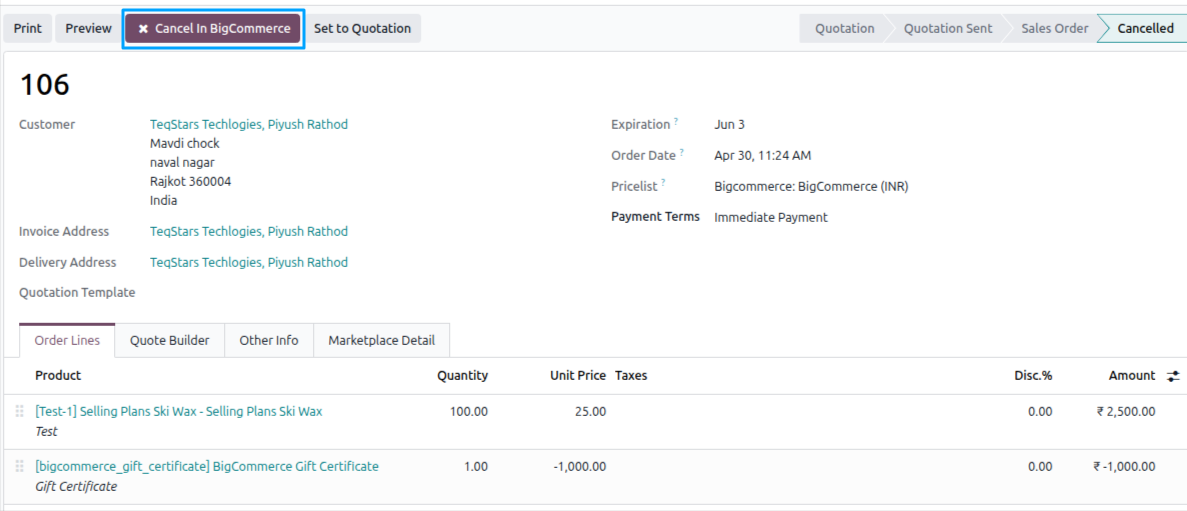
In the Cancel In BigCommerce wizard, fill in:
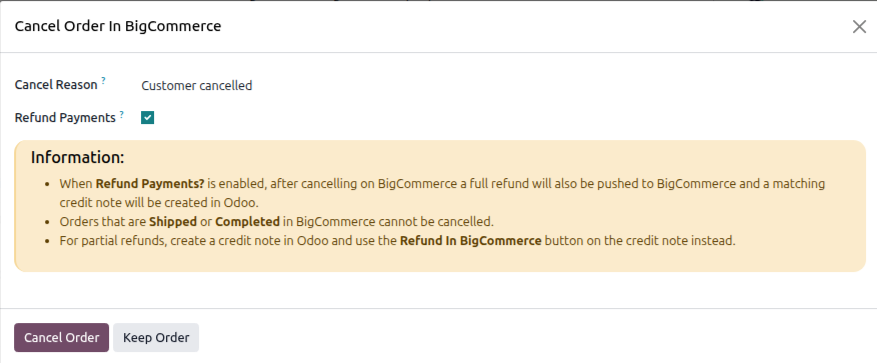
Cancel Reason (free text) — Reason recorded in the Odoo chatter for your audit trail. BigCommerce’s order cancellation API does not accept a reason field, so this is stored in Odoo only.
Refund Payments — When checked, the connector additionally pushes a full refund to BigCommerce alongside the cancellation. The resulting refund is imported back into Odoo as a credit note linked to the BigCommerce refund.
Click Cancel Order to send the cancellation to BigCommerce. On success, the BigCommerce order moves to the
Cancelledstatus and the Odoo chatter records the action.Click Discard to close the wizard without sending the cancellation.
If the order is already cancelled in BigCommerce (for example because somebody cancelled it manually in the BigCommerce admin), the connector logs a friendly notice and updates the Odoo order to reflect the marketplace state — no error is raised.
Note
Cancelling in BigCommerce is final for that order in the store.
The Refund Payments toggle is only useful when at least one captured transaction exists on the BigCommerce order. Orders that were never captured (gateway authorization only) cannot be refunded; the connector simply cancels the order in that case.
See also
Refund Orders From Odoo To BigCommerce (refund without cancelling)