
Issue Walmart Refunds From Odoo
There are two ways to refund a Walmart customer from Odoo:
Refund a return: the customer sent the goods back, and you refund against the return record. This is the usual case.
Refund an order: you refund without a return, for example after a delivery problem or a pricing mistake. This is done from a credit note.
Availability differs by marketplace:
Refund method |
United States |
Canada |
Mexico |
Chile |
|---|---|---|---|---|
Refund a return |
Yes |
No |
Yes |
No |
Refund an order via a credit note |
Yes |
Yes |
No |
No |
Note
Where a method is not available for your marketplace, its button is not shown. In Chile, where neither applies, issue the refund in Walmart Seller Center. The return still imports into Odoo so you can receive the goods back into stock, and you can record the credit note in Odoo yourself. See Walmart Supported Marketplaces.
Refund A Return
Note
Issuing a refund on a return is available for the United States and Mexico marketplaces. See Walmart Supported Marketplaces.
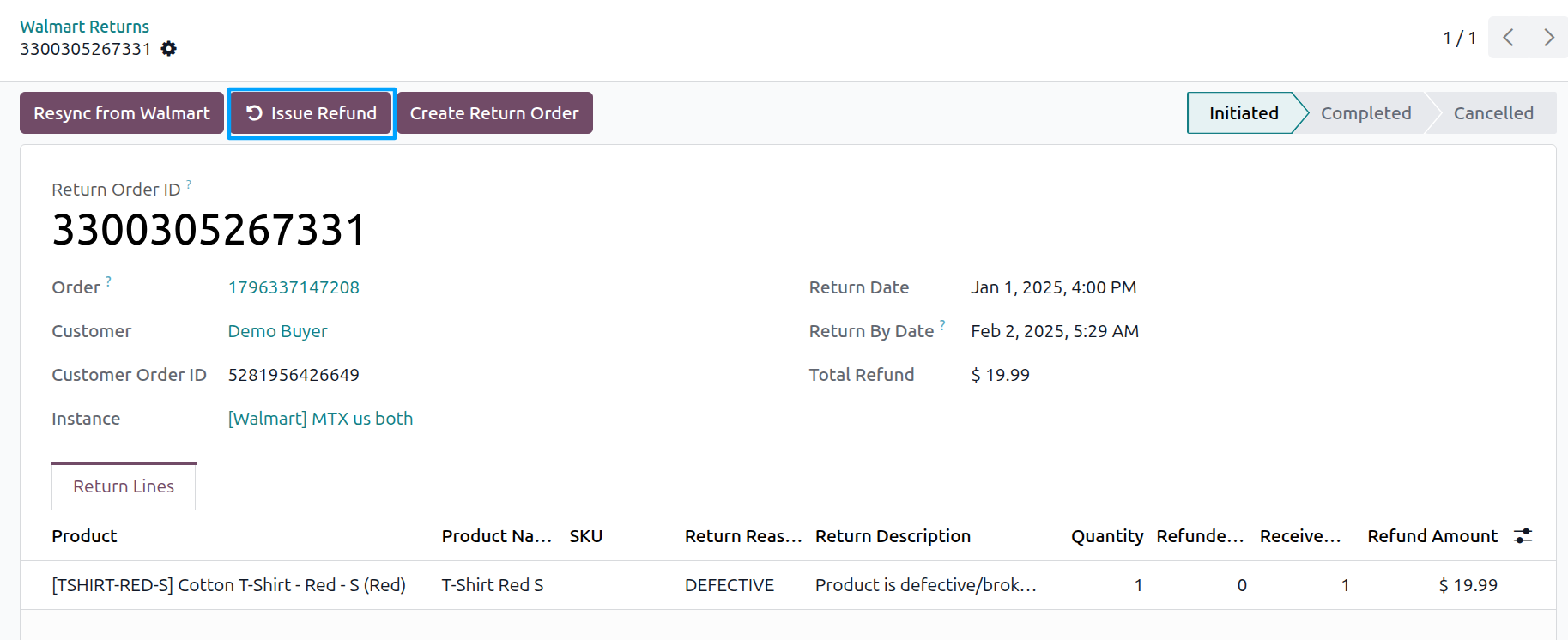
Go to and open the return.
If you are receiving the goods back into stock, do that first. See Import Walmart Returns In Odoo.
Click Issue Refund.
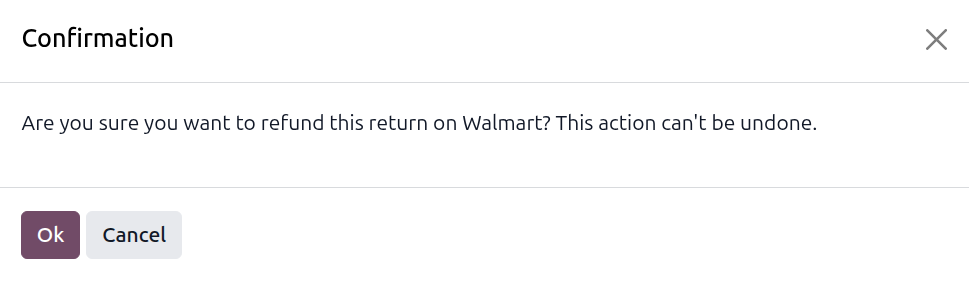
Confirm the dialog: “Are you sure you want to refund this return on Walmart? This action can’t be undone.”
The refund covers the quantity not yet refunded on each line, so the same item cannot be refunded twice.
What Happens After You Refund A Return
The refund is sent to Walmart.
A credit note is created in Odoo from the order’s invoice, limited to the quantities being returned, and posted.
The return moves to Completed, and the credit note is reachable from the Credit Notes stat button.
Note
If the order does not have a single posted customer invoice to reverse, the refund is still sent to Walmart, but no credit note is created. The return notes “No credit note was created. Post the order’s customer invoice, then create the credit note manually.”
Important
Issue Refund disappears once the return is Completed or Cancelled. A refund cannot be undone.
Messages you may see:
“Return … is already handled and cannot be refunded again.”: the return is already Completed or Cancelled.
“Every line on return … is already refunded.”: nothing is left to refund.
“There are no return lines to refund.”: the return has no lines.
“Failed to refund Walmart return …”: Walmart rejected the refund. Check the return in Seller Center.
Refund An Order From A Credit Note
Note
Refunding an order from a credit note is available for the United States and Canada marketplaces, and applies to seller-fulfilled orders only. See Walmart Supported Marketplaces.
Use this when there is no return to refund against.
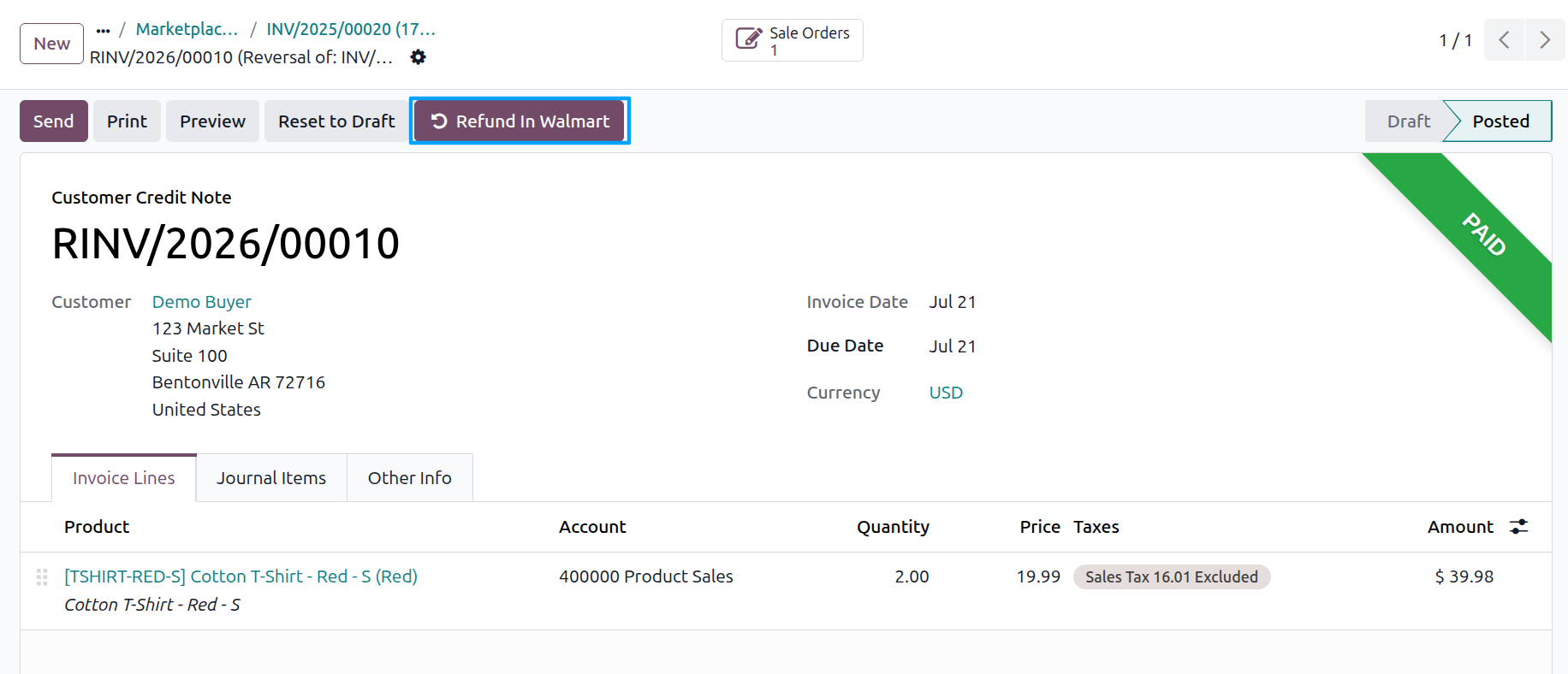
Create and post a credit note against the order’s customer invoice, containing the lines and amounts you want to refund.
Open the credit note and click Refund In Walmart.
In the Refund In Walmart dialog, choose a Refund Reason, optionally add Refund Comments, and click Refund.
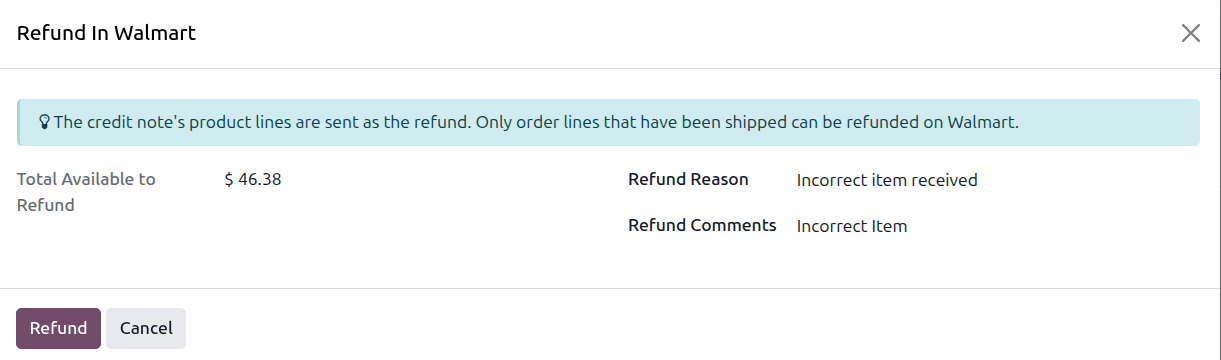
The dialog shows the Total Available to Refund, and reminds you that only shipped order lines can be refunded on Walmart. The credit note’s product lines are sent as the refund.
The reason list covers billing errors, damaged or defective items, delivery problems, customer-initiated changes, and general adjustments. Select the reason that best describes the refund. Walmart uses this information for its reporting.
Note
The amounts come from the credit note itself, so adjust the credit note before pushing it rather than trying to change the amount here.
What Happens After You Push The Refund
The refund is sent to Walmart.
The credit note is marked as refunded in the marketplace.
The order’s Walmart status is updated.
A note recording the amount is posted on the order.
Messages you may see:
“Please post the credit note before pushing it to Walmart.”: post it first.
“This credit note is already linked to Walmart refund …”: it has already been pushed.
“Cannot push refund: this credit note is not linked to an original invoice.”: create the credit note by reversing the customer invoice, not as a standalone document.
“This credit note is linked to multiple sale orders. Walmart refunds are issued per order. Please create one credit note per Walmart order before pushing.”
“Cannot push refund: the source order is not a seller-fulfilled Walmart order.”: WFS orders are refunded by Walmart.
“No valid refund lines found on credit note …”: none of the credit note’s lines correspond to a Walmart order line and there is no shipping amount either. A shipping-only credit note still refunds successfully; fee lines are the ones that cannot be refunded this way.
“Failed to refund Walmart order …”: Walmart rejected the refund.
Note
The button is hidden on a credit note that came from a return, because that refund has already been issued through the return.