
Shopify Payout Report
Payout reports bring Shopify Payments payout data into Odoo so you can match them to bank statements and reconcile with invoices. The connector uses Shopify’s GraphQL Admin API to fetch payouts and their transactions (charges, refunds, fees, etc.) and creates Shopify Payout records and, when configured, Bank Statement lines in Odoo.
Where To Find Payout Report
Go to to see the list of imported payouts.
Before You Start
Configure the Shopify payout instance settings:
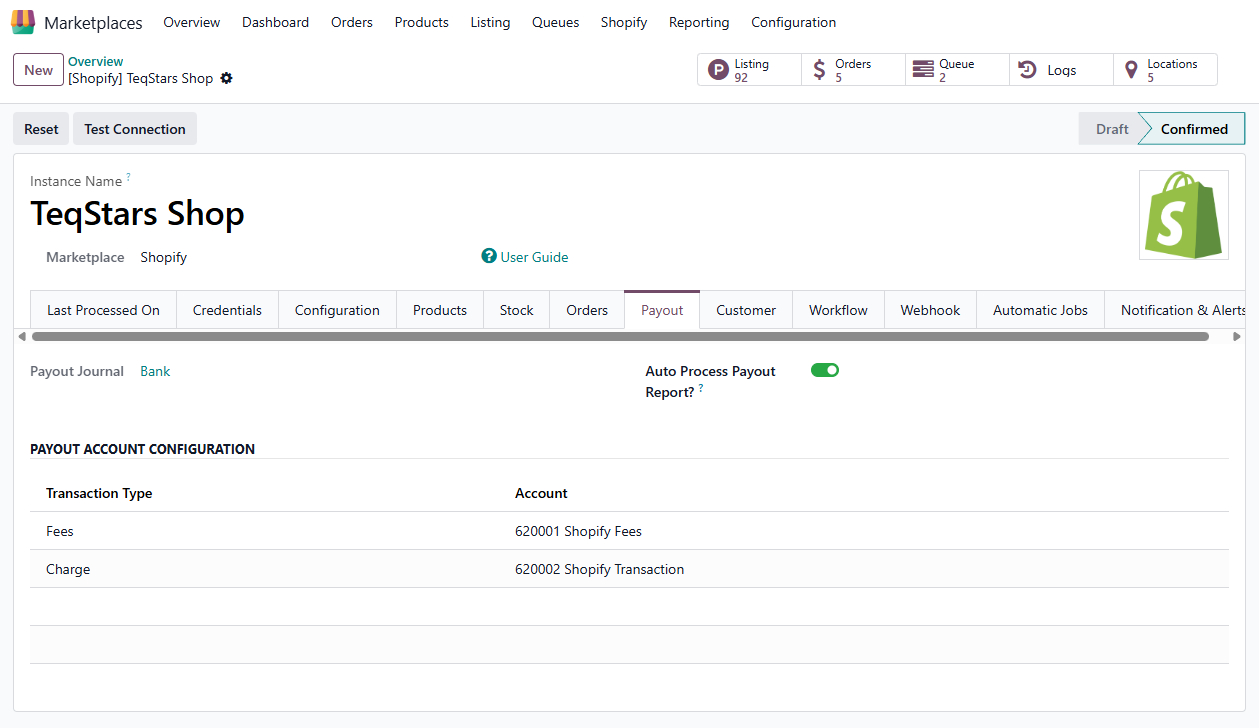
Payout Journal: In the instance, under Payout configuration, set the journal used for payout bank statements in Odoo.
Auto Process Payout Report?: If enabled, the connector will automatically try to reconcile payout lines with invoices when payouts are imported.
Payout Account Configuration: Map each Transaction type (e.g.
CHARGE,REFUND,FEES) to an Odoo Account. This is used when creating or reconciling bank statement lines for non-invoice transactions (e.g. fees). ForCHARGE,REFUND, andPAYMENT_REFUNDthe connector tries to match with sale order invoices/refunds.
These options are described under Payout configuration in the Create instance documentation.
Importing Payout Reports
Manual Import
Go to and open your Shopify instance.
Click Operations and choose the operation Import Payout Reports.
Set the Date Range (From / To) for which you want to fetch payouts. If you do not set a date, the connector typically uses Last Payout Imported On (or a default range) and fetches payouts with status PAID from Shopify.
Click PROCESS.
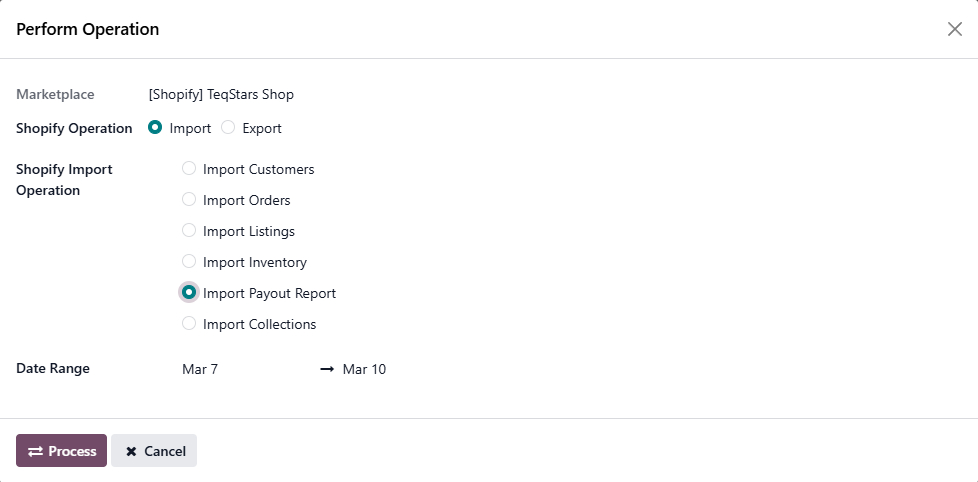
The connector fetches payouts in the given range from Shopify, creates Shopify Payout records and their Payout Lines (one per transaction), and optionally creates or updates a Bank Statement in the configured Payout Journal. You are redirected to the list of payouts.
Automatic Import (Scheduled Action)
Go to and open your Shopify instance.
Open the Automatic Jobs tab.
Find Import Payout Reports and set Interval Number, Interval Unit, and Active as needed (default is typically once per day).
When the job runs, it imports new payouts in the same way as manual import and uses Last Payout Imported On to avoid re-importing old data.
After Import Payout Reports
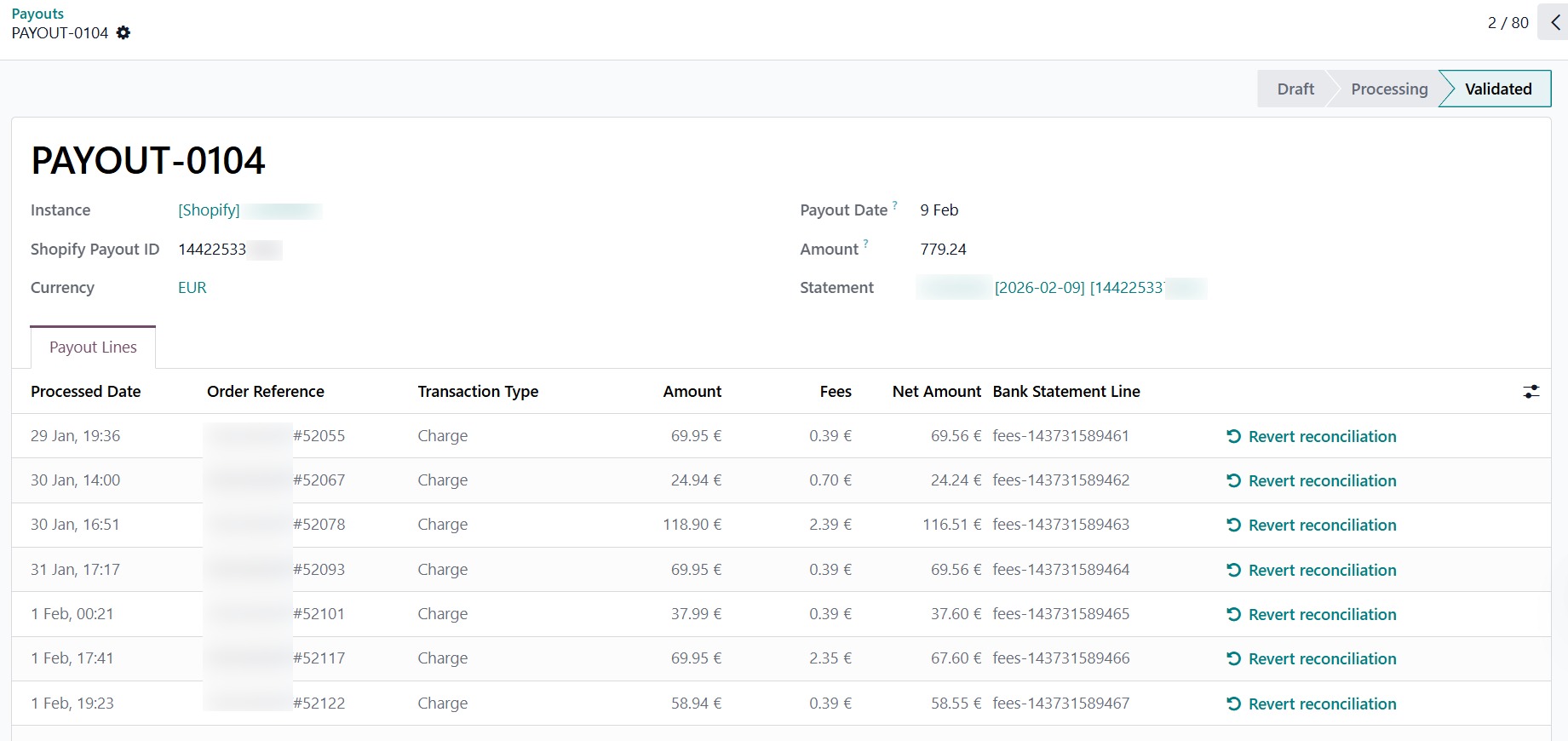
Payout list: Each record shows Payout Name, Shopify Payout ID, Instance, Currency, Payout Date, Amount, and Status (Draft / In Process / Validated).
Payout form: Open a payout to see:
Header actions: Post (to create/update the bank statement and move to In Process), Auto Reconcile, Reconcile, Reset to New (when applicable).
Payout Lines: Each line is a Shopify transaction (e.g. charge, refund, fee) with amount, order link, transaction type, and reconciliation status.
Bank Statement: Once posted, the payout creates or updates a bank statement in the instance’s Payout Journal; each payout line can have a corresponding statement line.
Payout Reconciliation
Auto Reconcile: Tries to match statement lines to invoices (for CHARGE/REFUND/PAYMENT_REFUND) or to the accounts set in Payout Account Configuration (for other transaction types). Only available when the payout is posted and not all lines are reconciled.
Reconcile: Opens the standard Odoo reconciliation flow so you can manually match statement lines to moves or accounts.
If Auto Process Payout Report? is enabled on the instance, reconciliation is also attempted automatically during import when possible.
Warnings On Payout Lines
Order not found: The transaction is linked to an order that does not exist in Odoo; it will not auto-reconcile with an invoice.
Invoice not found: No posted invoice (or refund) exists for the linked order for that transaction type; create and post the invoice/refund in Odoo, then reconcile manually or run Auto Reconcile again.
Invoice amount mismatch: The total of the relevant invoices does not match the transaction amount; you may need to adjust or reconcile manually.
Note
Payout Report and reconciliation apply to Shopify Payments. They are not used for external or third-party payment providers.