
Configure a ShipStation Delivery Method
Delivery methods are the bridge between Odoo sales orders / delivery orders and the ShipStation carrier catalogue. Each delivery method binds a Store, Carrier, Service, and Package along with shipment-level options (confirmation, insurance, content type, etc.).
Create the Delivery Method
Navigate to and click New.
Shipping Method: choose a meaningful name for the delivery method (for example
FedEx Ground - US DomesticorUPS Next Day Air). This is the label customers and salespeople see when picking a delivery method.Provider: choose ShipStation.
Delivery Product: service-type product used as the shipping line on sales orders.
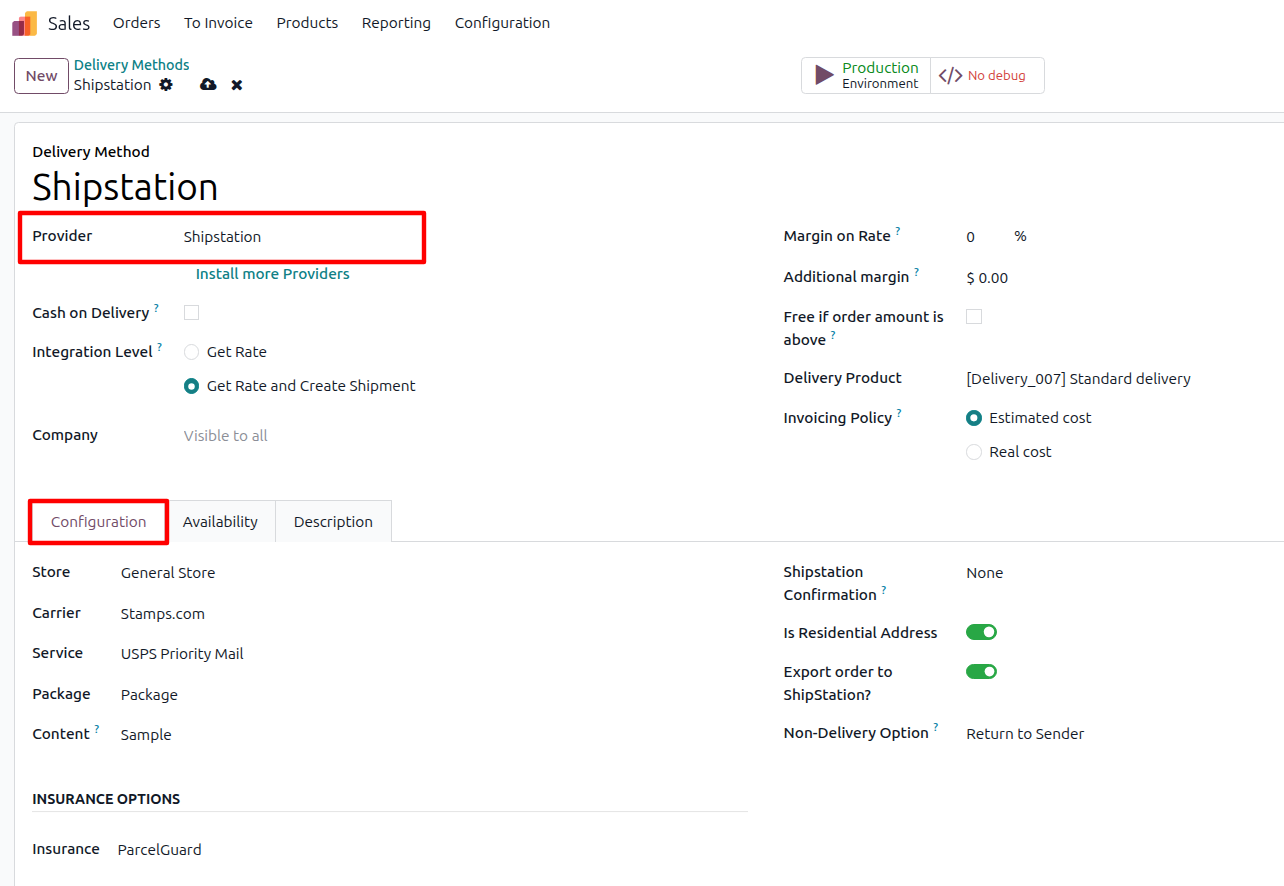
ShipStation Configuration Tab
Selecting ShipStation as the provider reveals the Configuration tab. Pick the Store first: the Shipstation Account is filled in automatically from it, and its API Version decides the carrier flow below. The carrier setup then differs by the account’s API Version, and a set of shipment options is common to both.
API v1: Single Carrier
On a V1 account, pick one Carrier, one Service, and one Package:
Carrier: choose one of the carriers imported from ShipStation (FedEx, UPS, USPS, etc.).
Service: choose the specific service offered by the chosen carrier (e.g. FedEx Ground). The list updates based on which Carrier you picked above.
Package: choose a single package template. When the package is marked as your own packaging, dimensions come from the linked Odoo package type.
Rate shipping then returns a rate based on what’s configured here: just that one service’s rate if a Service is selected, or a rate for every service of the selected Carrier if no service is set.
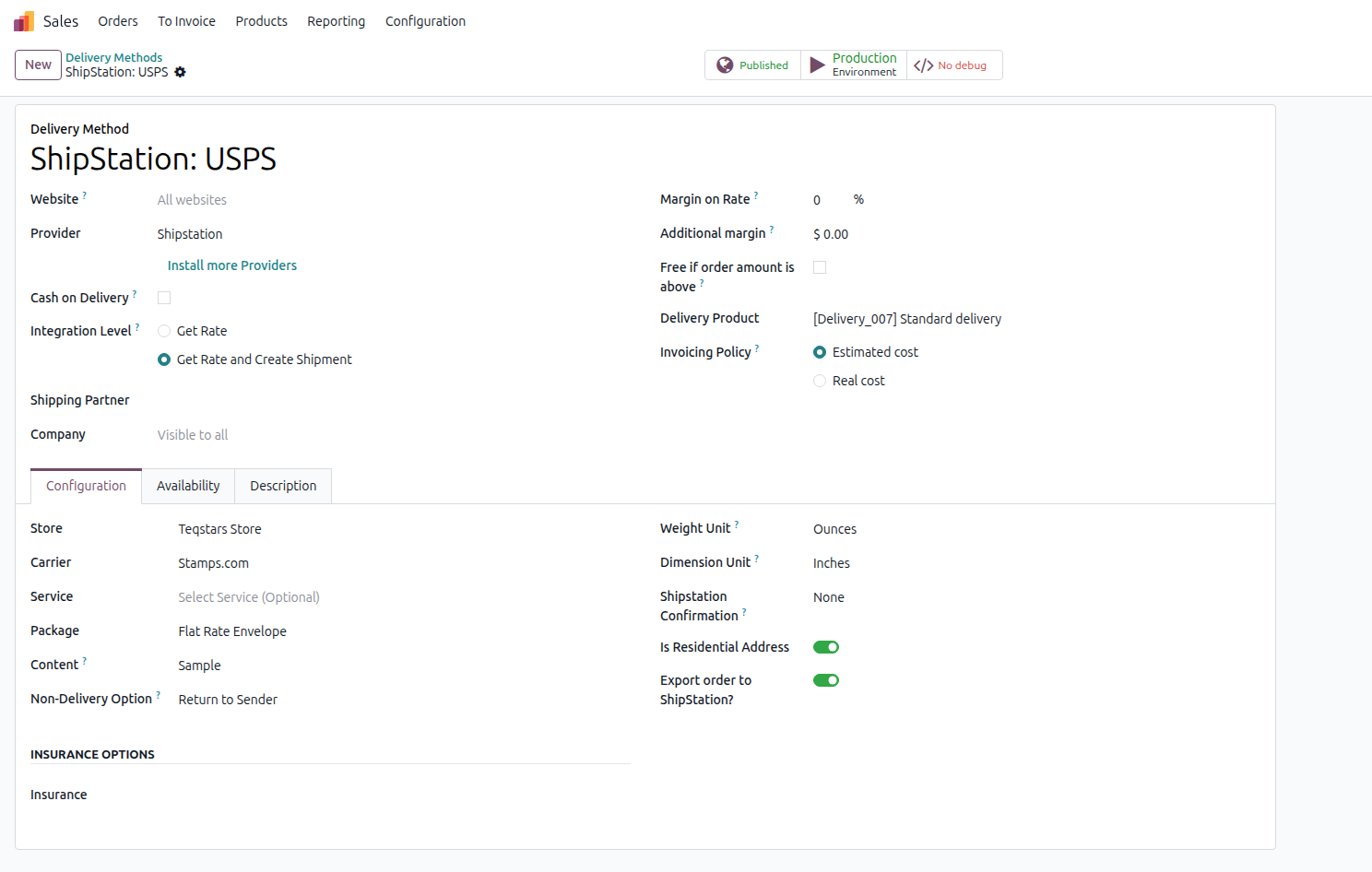
API v2: Multi-Carrier Supported
On a V2 account, pick multiple carriers, services, and packages so rate shipping can compare across them:
Carriers: choose one or more carriers to compare.
Services: choose the services to consider. The list updates based on which Carriers you picked above.
Packages: choose the package templates to consider.
Label Layout: choose the label size for generated labels, 4x6 (default) or Letter.
Rate shipping then compares rates across all selected carriers, services and packages in one call and preselects the cheapest.
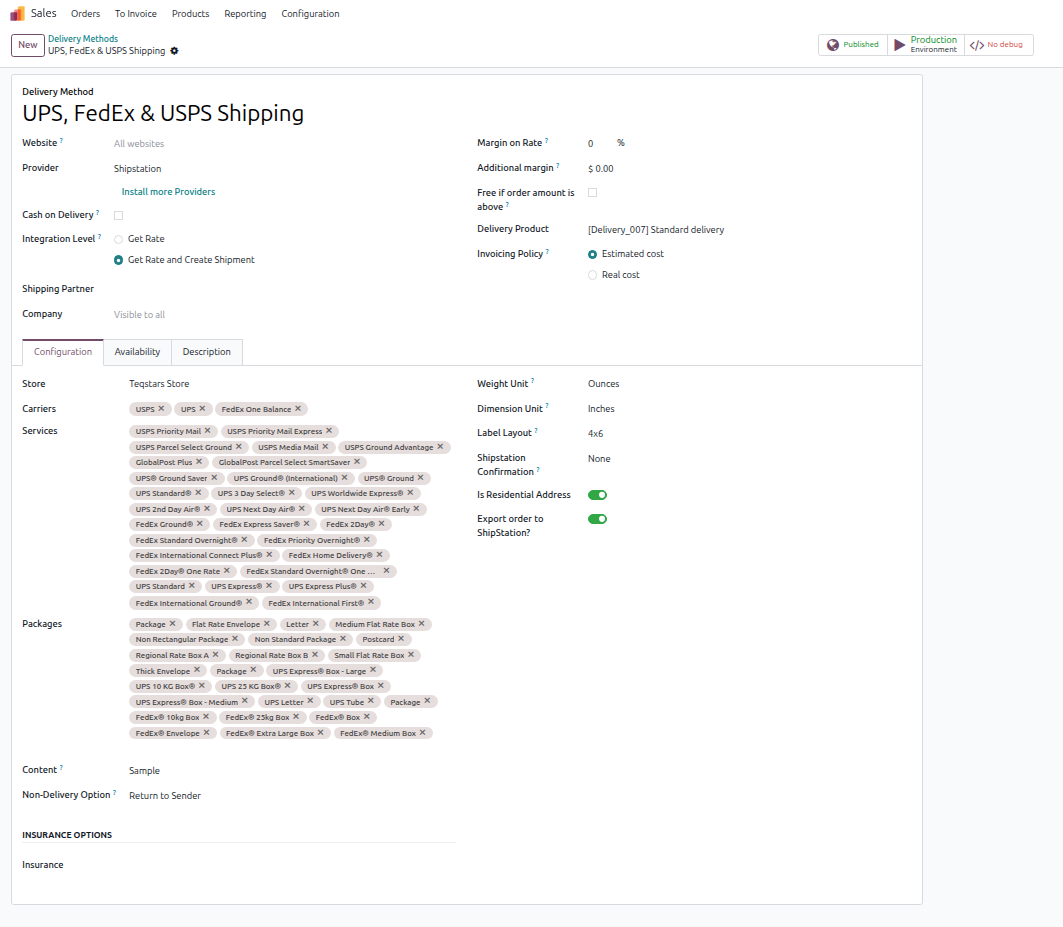
Common Shipment Options
The following options apply to both API versions:
Content: international content type, merchandise, documents, gift, returned goods, or sample.
Non-Delivery Option: return to sender (default) or treat as abandoned.
Confirmation: none (default), delivery, signature, adult signature, or direct signature.
Insurance: provider list depends on the API version. v1: Carrier, XCover, ParcelGuard, Shipsurance. v2: Shipsurance, Carrier, Third Party. Set None for no insurance.
Is Residential Address: toggle on to flag the destination as residential; this is forwarded to the carrier rating engine and affects price for several carriers.
Export order to ShipStation?: toggle on so the delivery order is automatically pushed to ShipStation when validated, instead of waiting for the manual export action.
Tip
On API v1, create one delivery method per carrier/service combination you actively quote. On API v2, a single delivery method can compare rates across several carriers at once, but keeping the Odoo list curated still makes checkout faster and easier to audit.
Carrier Balance Management
A few carriers (such as Stamps.com and Endicia) require a positive prepaid balance to print labels. Refresh the balance at (click Refresh on the carrier form) and top it up from the Add Funds wizard described in Top Up Carrier Account Balance.