
Create a PrestaShop instance in Odoo
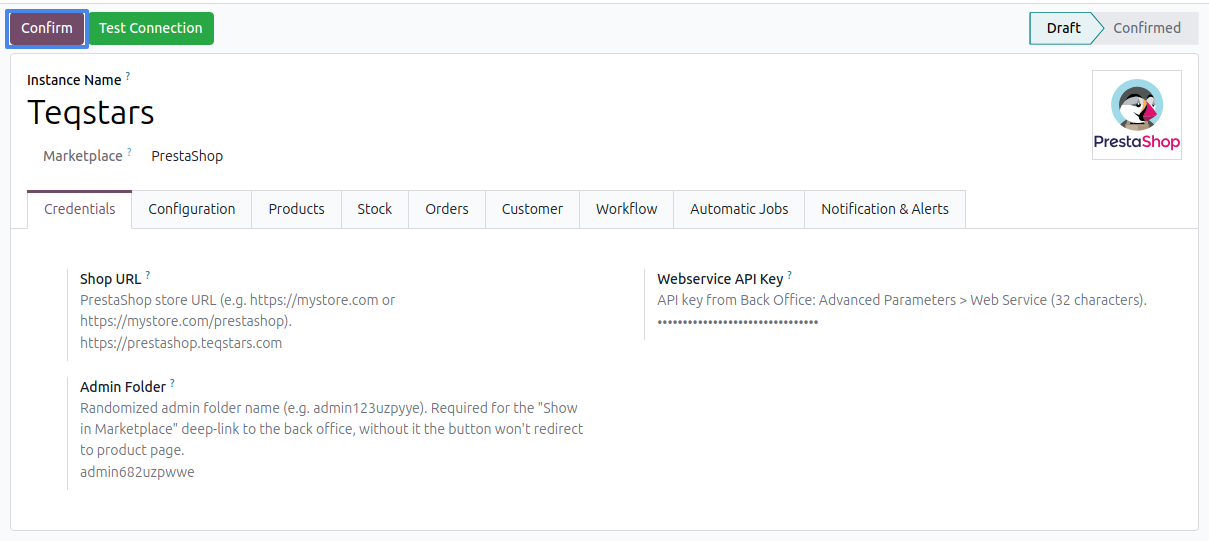
To create your PrestaShop instance in Odoo, navigate to and click New.
Choose a meaningful name (e.g.
TeqStars Store) and select PrestaShop in the Marketplace field.On the Credentials tab, fill in the Shop URL (including
https://), the Webservice API Key and, optionally, the Admin Folder. See Generate PrestaShop Credentials.
Tip
A guided onboarding wizard is also available for first-time setup and walks you through these same steps.
Configurations
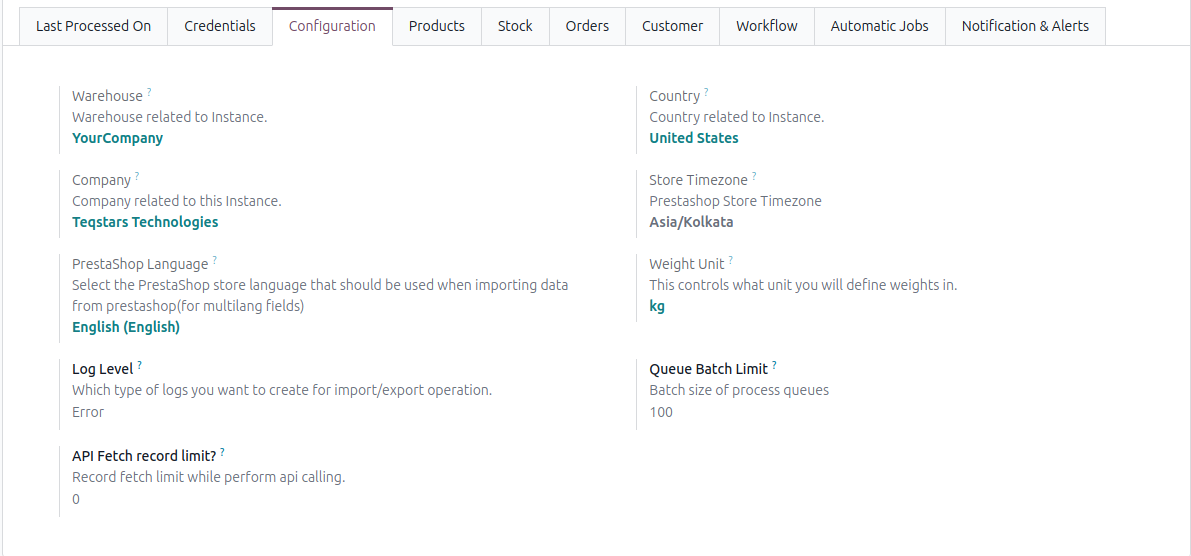
Warehouse — Default warehouse used for this instance.
Company — Company linked to the instance.
Log Level —
All,SuccessorError(default). Logs are at .Queue Batch Limit — Records processed per queue (default 100).
API Record Count: Records fetched per API call (capped at 500 by the connector).
Store Timezone — Your PrestaShop store timezone, used to align order and listing dates.
PrestaShop Language — Store language used when importing multilingual fields. Detected on confirm and editable afterwards.
Weight Unit — Unit used when syncing weights (kg, g, oz, lb).
Note
PrestaShop Version is detected automatically on confirmation and shown (read-only) on the Credentials tab.
Product Configurations
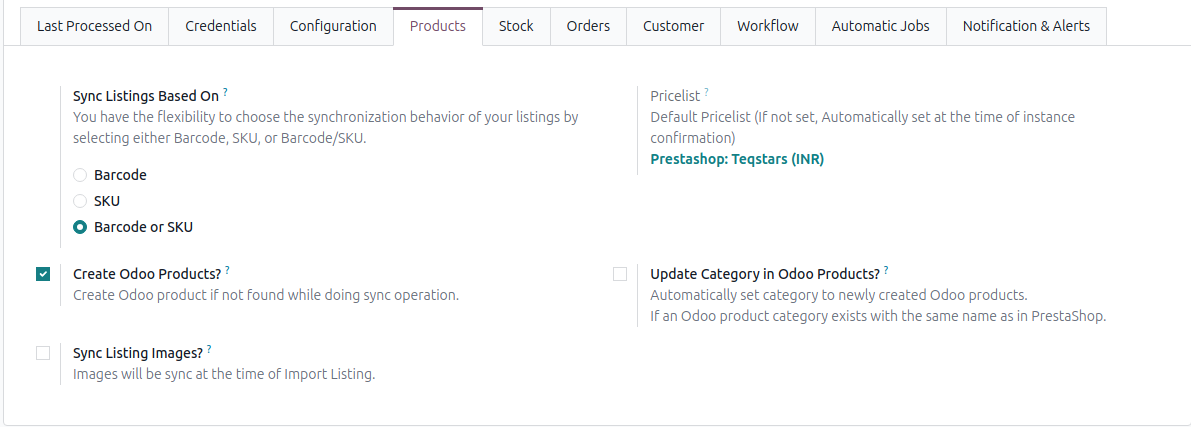
Pricelist — Pricelist used to read/write prices, set automatically to the store currency on confirmation.
Sync Product With — How Odoo matches products with PrestaShop: Barcode, SKU (reference) or Barcode or SKU.
Create Odoo Products? — Create a new Odoo product when no match is found.
Sync Listing Images?: Import listing image as well along with listing.
Update Category in Odoo Products? — Set the Odoo product category from PrestaShop when an Odoo category with the same name exists.
Tip
If you already maintain products in Odoo, keep Create Odoo Products? disabled and match by your chosen reference.
Stock Configurations
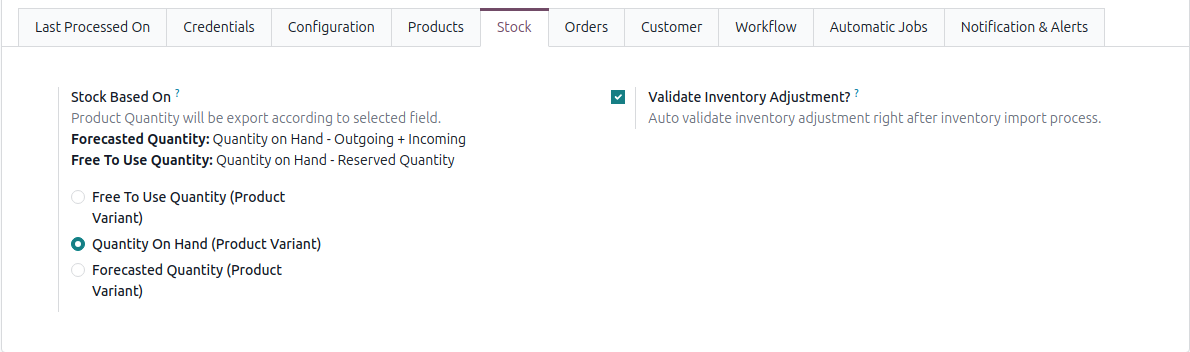
Stock Based On — Quantity exported to PrestaShop:
On Hand,ForecastedorFree To Use.Validate Inventory Adjustment? — Auto-validate the adjustment created when importing stock.
Tip
Forecasted = On Hand − Outgoing + Incoming.
Free To Use = On Hand − Reserved.
Orders Configurations
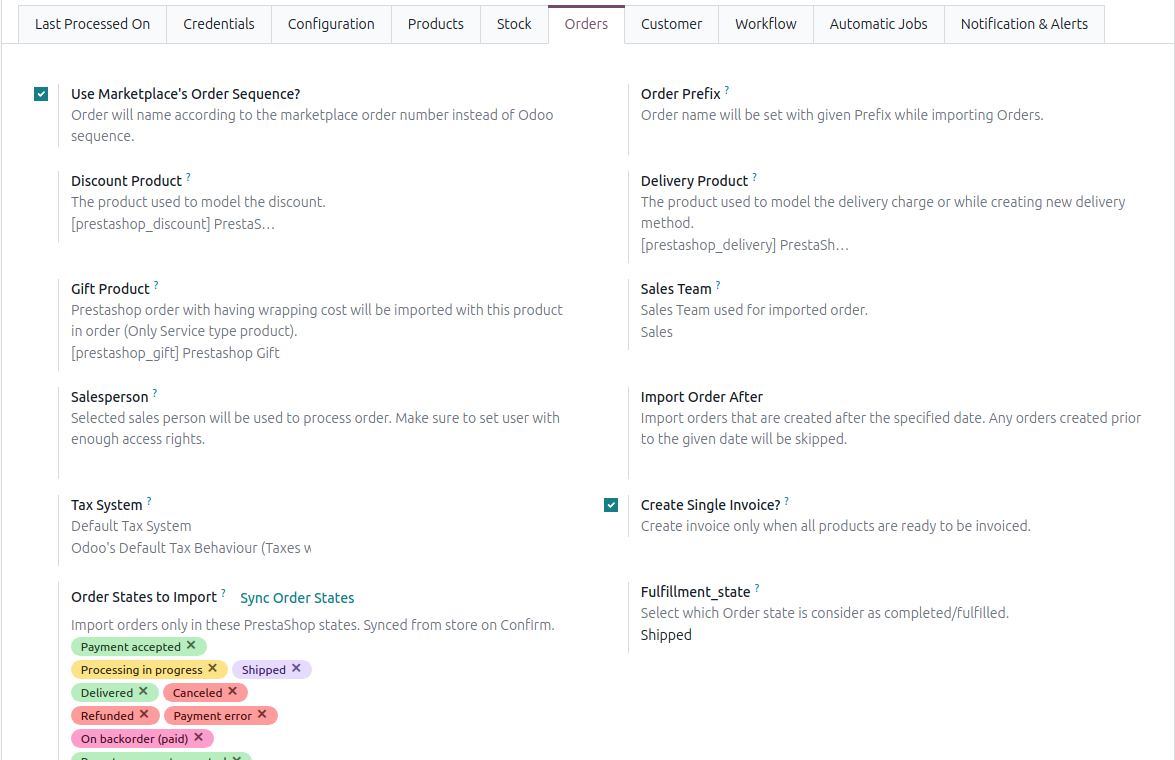
Order States to Import — Only orders in the selected PrestaShop states are imported. Synced from the store on confirmation, refine them anytime (use Sync Order States to refresh).
Fulfillment State — The PrestaShop order state pushed back when an Odoo delivery is fully validated (see PrestaShop Update Order Status from Odoo).
Use Marketplace’s Order Sequence? — Name Odoo orders using the PrestaShop order reference.
Order Prefix — Prefix added to imported order names.
Import Order After — Orders created before this date are skipped.
Salesperson / Sales Team — Assigned to imported orders.
Discount, Delivery and Gift Products — service products used for the discount, shipping and wrapping (gift) lines (some visible only in developer mode).
You can see all synced PrestaShop order states at .
Tax System Controls how taxes are applied to imported orders:
Odoo’s Default Tax Behaviour — Taxes are taken from the Odoo product. PrestaShop tax lines are ignored.
Follow Marketplace Tax — PrestaShop tax are mapped to Odoo taxes using the configured Tax Account and Tax Account on Credit Notes.
Follow Marketplace Tax and apply fiscal position mappings — As above, then the order’s fiscal position remaps those taxes.
To check which Odoo tax a PrestaShop tax uses, go to and look at the Odoo tax field.
Note
PrestaShop tax resolved during import are stored under so the same rate is reused on later orders.
Customer Configurations

Receivable Account — Default receivable account for customers created by the connector.
Create Company Contact? — Create a parent company contact when the order address carries a company name.
Order Workflow Configuration
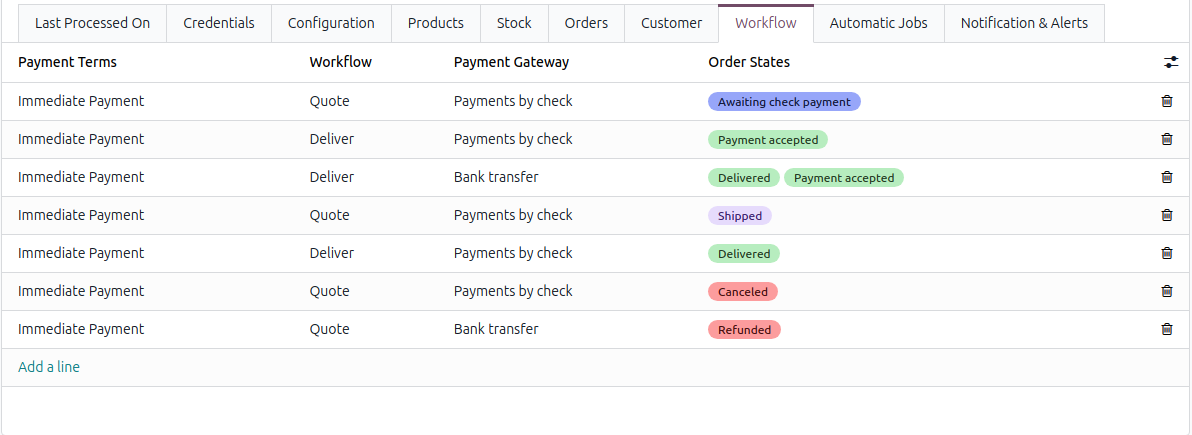
Define how imported orders are processed based on the PrestaShop Order States and Payment Gateway, on the Workflow tab.
Payment Gateway — PrestaShop payment method, synced from the store on confirmation.
Order States — One or more PrestaShop states that use this workflow.
Marketplace Workflow — The workflow to run (confirm, invoice, validate, register payment).
Payment Term — Applied to the order and customer.
Note
If no workflow matches an order’s state and payment gateway, the order is logged and skipped. The log line provides a shortcut to create the missing workflow.
Automatic Jobs Configurations
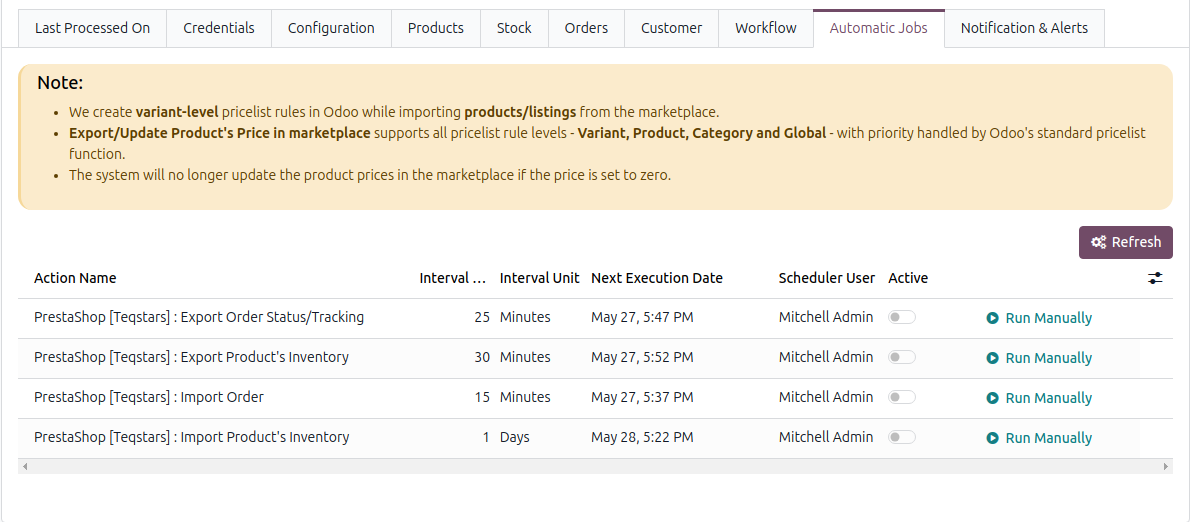
Scheduled actions run synchronization automatically per instance, each with an interval and an active toggle.
Import Orders: every 15 minutes.
Export Order Status/Tracking — every 25 minutes.
Export Product’s Inventory — every 30 minutes.
Import Product’s Inventory — daily.
Note
PrestaShop has no webhooks, all synchronization runs through these scheduled actions and the manual operations wizard. Avoid scheduling all jobs at the same interval to spread the load on your server.
Confirming the Instance
Once configured, click Confirm. Odoo verifies the API key and imports the store currency (setting the pricelist), the weight unit, the timezone, the store languages, the order states and the enabled payment gateways, the instance then becomes Confirmed.
See also