
Import Carriers and Services
Carriers are the parcel carriers wired into your ShipStation account (FedEx, UPS, USPS, DHL Express, Stamps.com, Endicia, etc.). Services are the shipping speeds offered by each carrier (e.g. FedEx Ground, UPS Next Day Air, USPS Priority Mail).
Carriers and services are imported automatically on first account confirmation. Use the manual flows below whenever you add or remove a carrier in ShipStation or whenever a carrier publishes new services.
The two imports are separate Operations wizard entries: run Import Carriers first, then Import Carrier Services.
How to Import Carriers Manually
Go to .
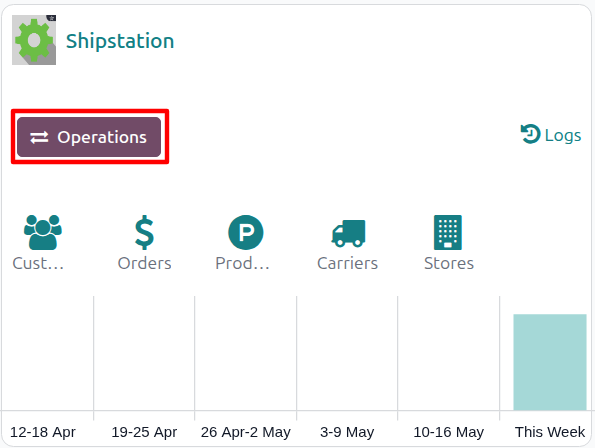
Click the Operations button on the target account’s kanban card.
Choose Import as the operation type, then from Shipstation Import Operation select Import Carriers.
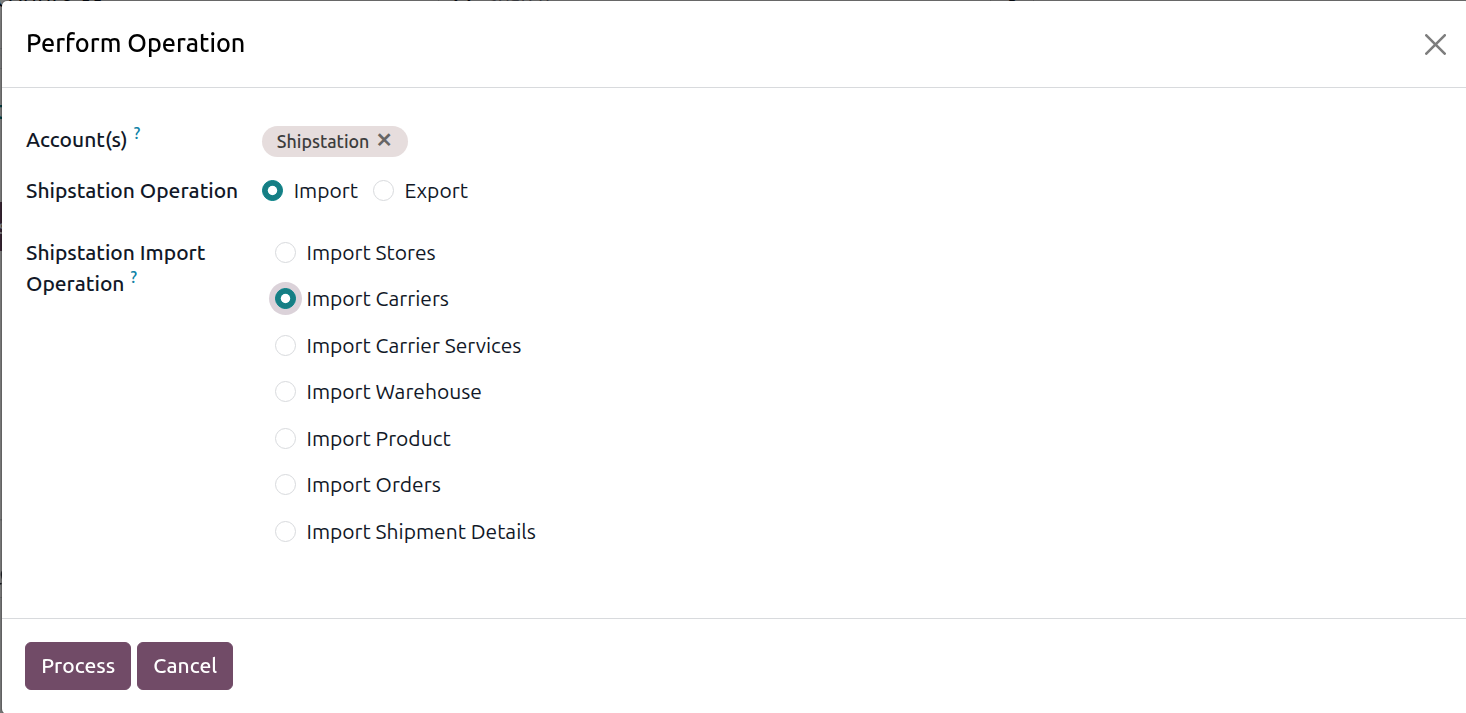
The wizard exposes the following options:
Account: the ShipStation account to run the operation on. Pre-filled from the kanban card you launched the wizard from.
Shipstation Operation: radio, Import or Export. Select Import for this flow.
Shipstation Import Operation: pick Import Carriers.
Click Process.
The connector fetches every active ShipStation carrier and creates or updates one Odoo record per carrier with name, code, account number, balance, primary flag, and the requires funded account indicator. As part of the same run, every newly-created carrier also has its package templates pulled in automatically (see Import Package Templates).
Carrier Refresh
Go to .
Open the carrier you want to update.
Click Refresh in the header.
The connector re-fetches that single carrier from ShipStation so the balance, account number, and primary flag stay current without re-importing every carrier.
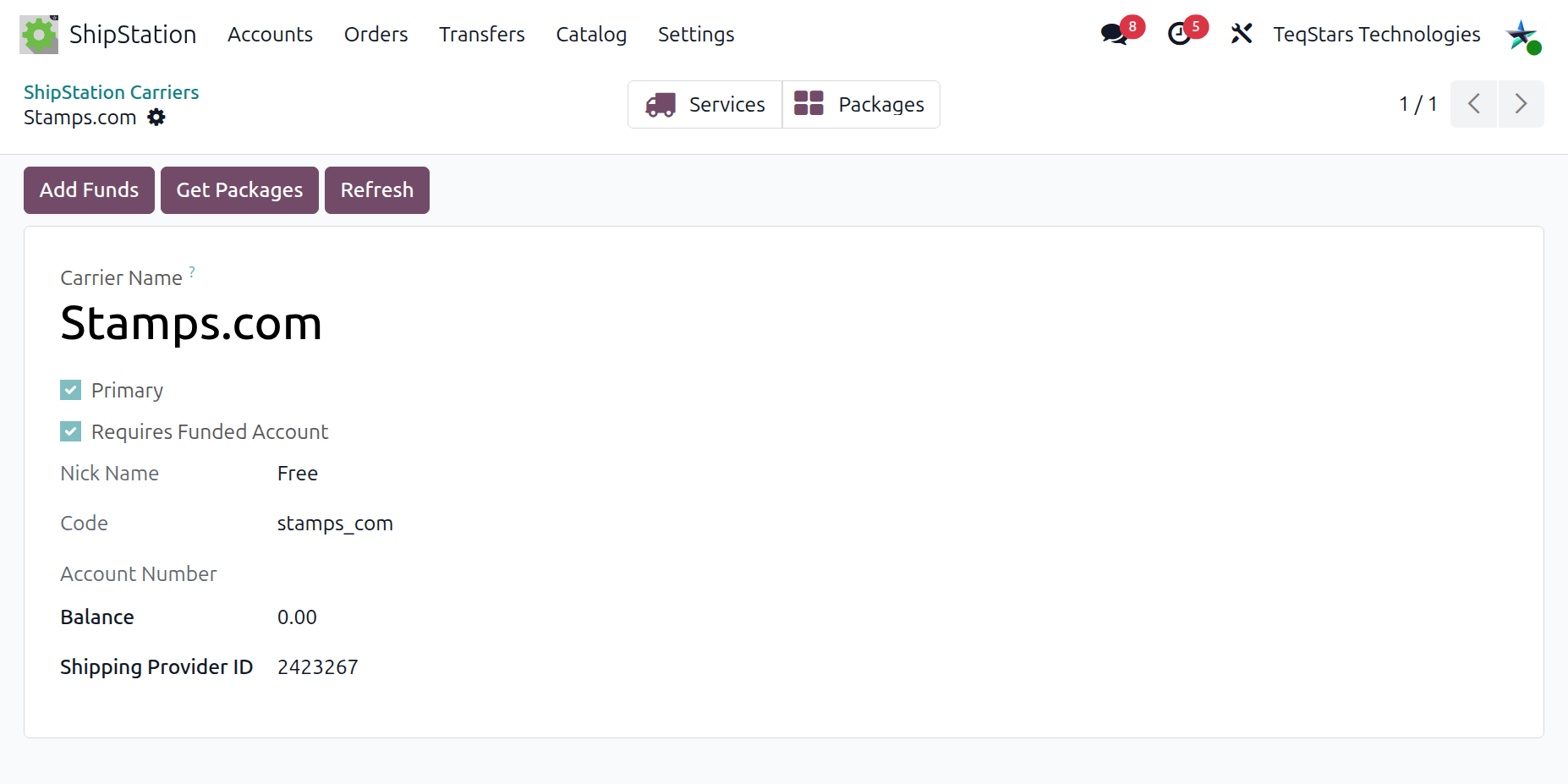
The carrier form exposes the following fields:
Carrier Name: the carrier name as it appears in ShipStation (FedEx, UPS, USPS, etc.).
Primary: whether the carrier is marked as primary in ShipStation.
Requires Funded Account: checked for prepaid carriers (Stamps.com, Endicia) that need a positive balance to print labels.
Nick Name: a user-defined alias for the carrier.
Code: the short ShipStation code for the carrier (
fedex,ups,stamps_com).Account Number: the carrier account number on file in ShipStation.
Balance: the current prepaid balance. Refreshed on demand via the Refresh button or top-up.
Shipping Provider ID: the internal ShipStation provider identifier.
The header buttons:
Add Funds: opens the wizard to top up the carrier balance (only relevant when Requires Funded Account is checked).
Get Packages: imports the package templates for this carrier from ShipStation.
Refresh: re-fetches the carrier from ShipStation and updates the balance and account number.
The stat buttons (top-right):
Services: opens the list of services filtered by this carrier.
Packages: opens the list of imported package templates filtered by this carrier.
How to Import Carrier Services Manually
Go to .
Click the Operations button on the target account’s kanban card.
Choose Import as the operation type, then from Shipstation Import Operation select Import Carrier Services.
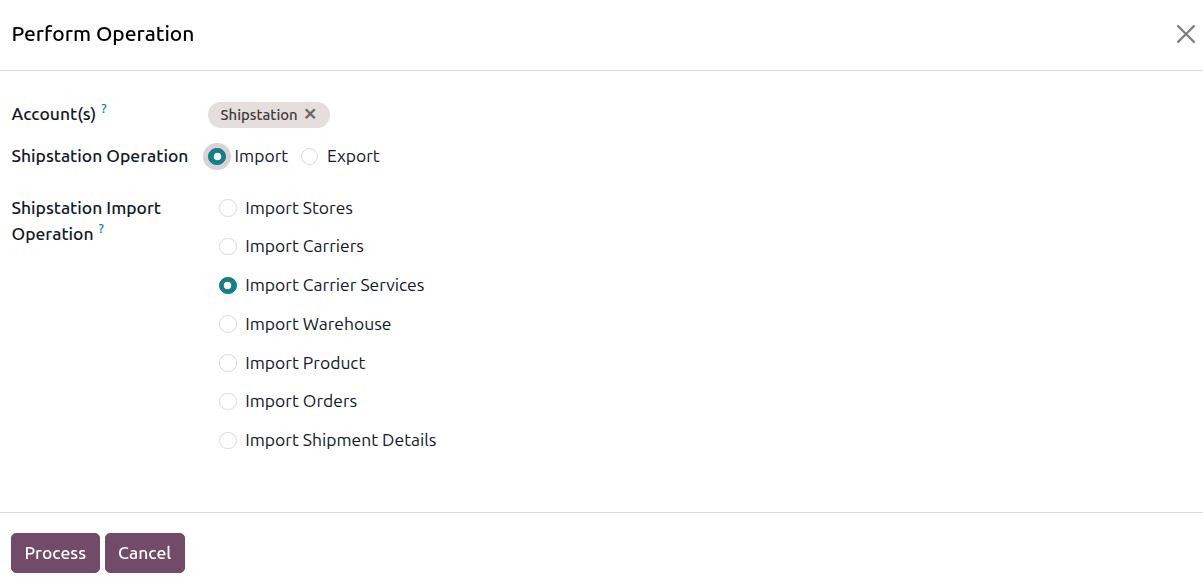
Click Process.
The connector iterates every carrier on the chosen accounts and populates the service catalogue with name, code, parent carrier, and the domestic/international flags.
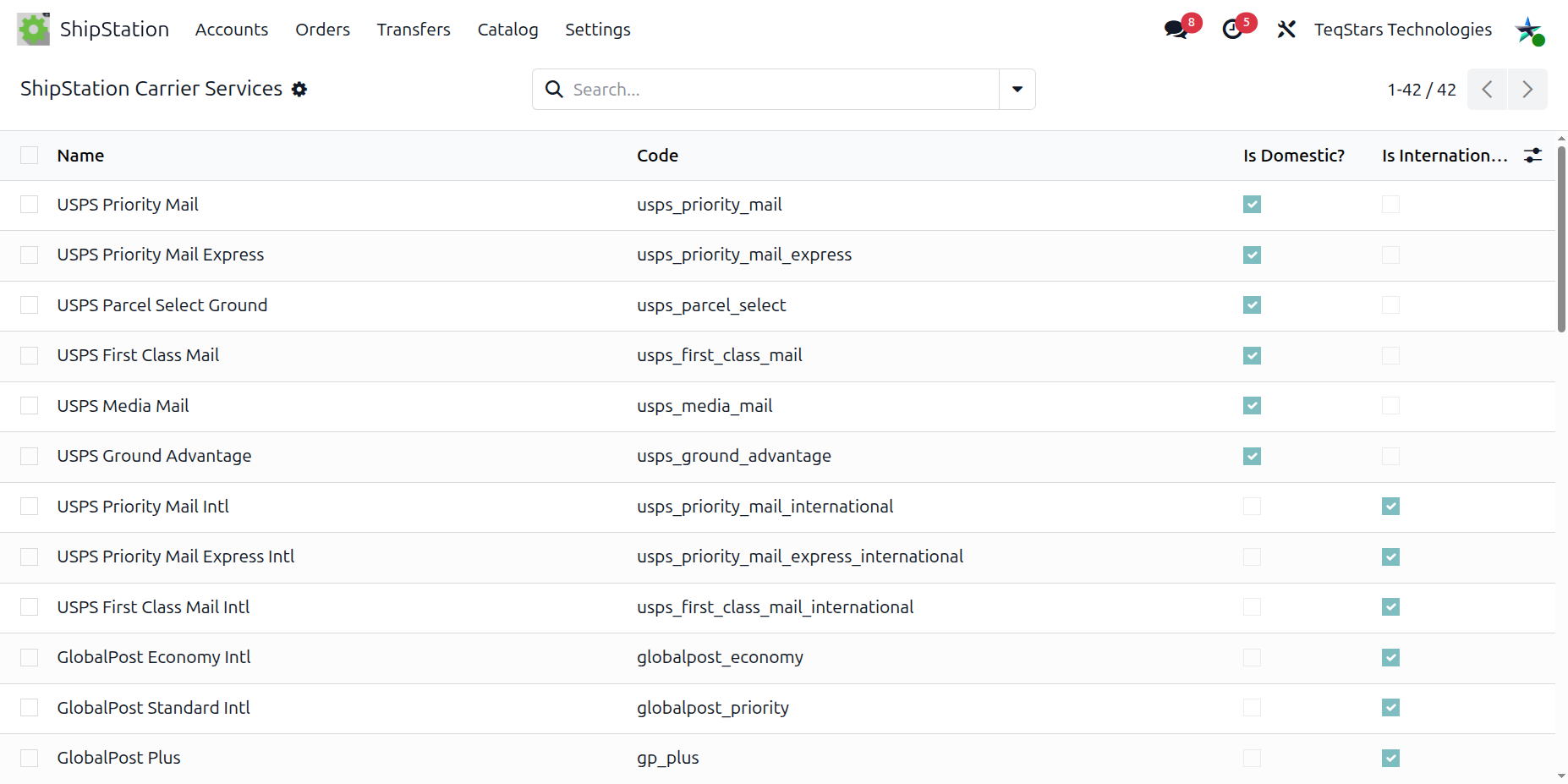
View Services / Packages from Carrier
The carrier form offers two helper buttons:
Services: opens the list of services filtered by the carrier.
Packages: opens the list of package templates for the carrier (see Import Package Templates).
Important
Run Import Carriers before Import Carrier Services. The service import iterates the carriers already on file in Odoo, so missing carriers means missing services.
Carriers with Requires Funded Account checked cannot print labels when the balance is zero. Top them up using the Top Up Carrier Account Balance wizard.