
Create Products In The Octopia Catalogue
Octopia’s catalogue is shared by every seller. An offer can only be sold against a product Octopia already lists, so when a barcode is not in the catalogue yet, its product details have to be created first. The connector checks every requirement on your side before anything is sent.
Note
Product details cannot be deleted once Octopia creates them, and they are always
submitted in French (fr-FR), the language a Cdiscount product must be
written in.
Step 1: Add Products To Listings
Go to and select the products.
From the action dropdown, choose Add to Listing.
In the popup, select the Octopia instance and click Add to Listing.
Step 2: Complete The Listing
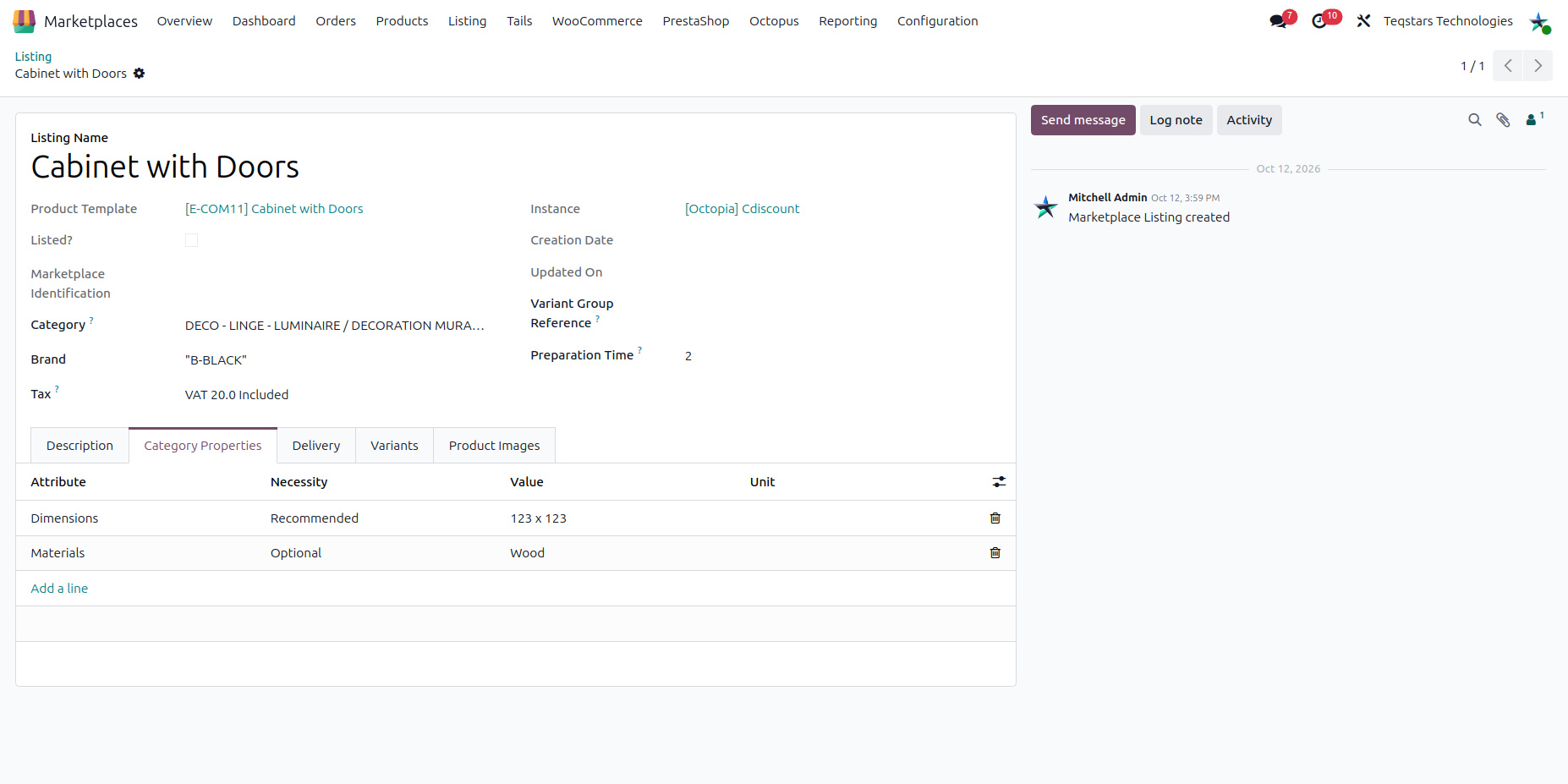
Open each listing and fill in what Octopia requires:
Barcode (GTIN): 8 to 13 digits, on the variant.
Internal Reference (SKU): At most 50 characters, on the variant.
Name and Description: The title is cut to 132 characters and the description to 2000. The Rich Marketing Description is optional and cut to 5000.
Category: A level 3 Octopia category.
Brand: Required only when the category is flagged Brand Mandatory. A brand made only of digits is refused.
Pictures: At least one, at most six, each reachable over HTTPS, at least 500 x 500 pixels and at most 5 MB.
Category Properties: A value for every Mandatory property of the category, plus Color and Size when the category is a variant category.
Variant Group Reference: Optional, groups products that are variants of each other.
Step 3: Send The Product Details
There are two ways to do it.
Method - 1: From The Operations Wizard
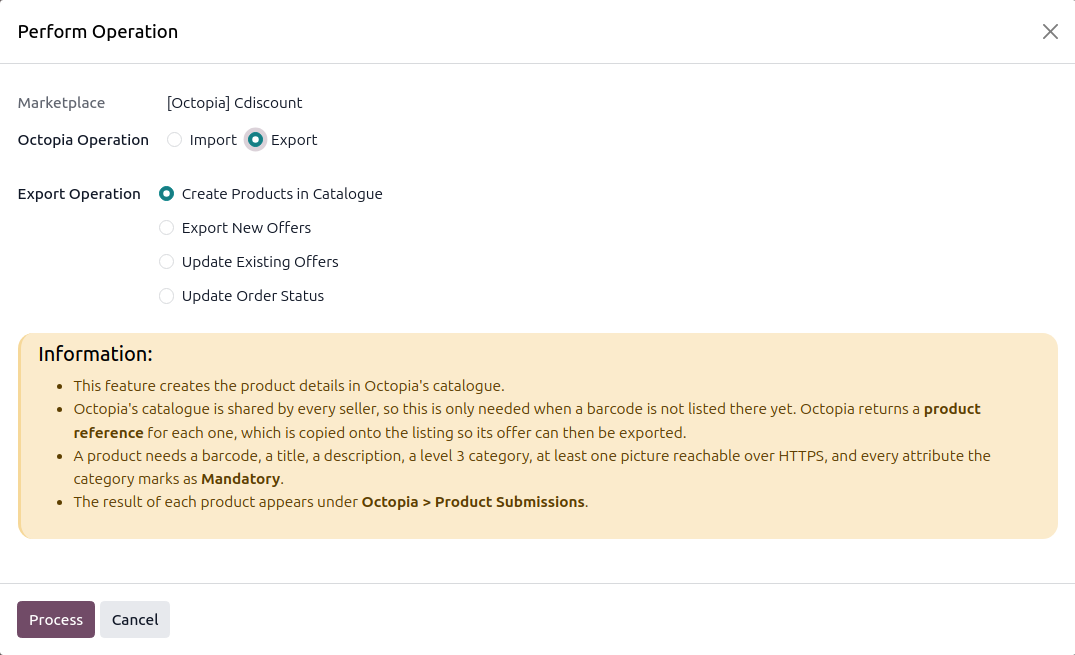
Click the Operations button on the instance card in .
Choose Export, select Create Products in Catalogue, and click Process.
All listings of the instance that are not in the catalogue yet are sent, or only the selected ones when the wizard is opened from a selection of listings.
Method - 2: From The Listing View
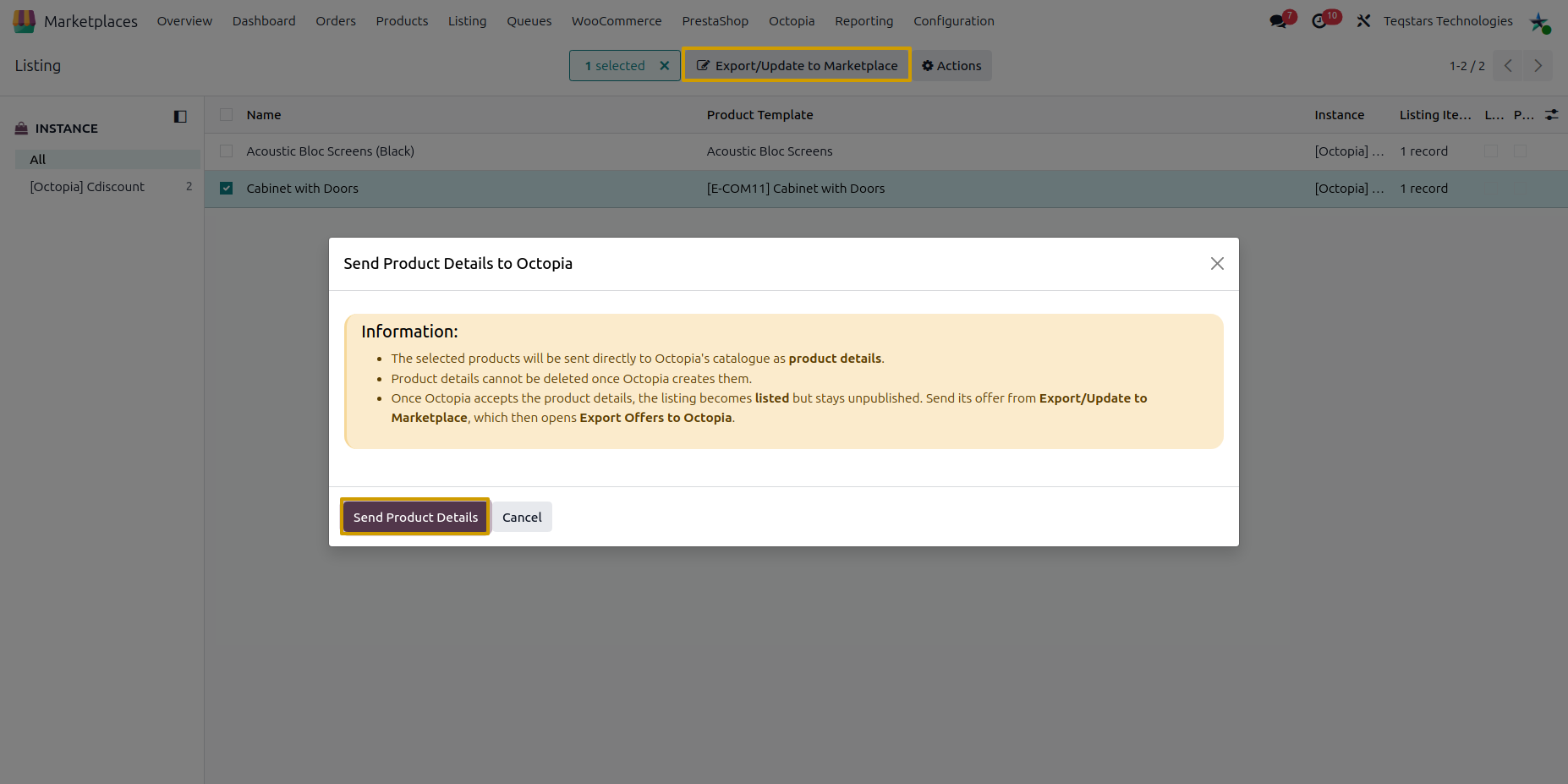
Open and select listings that are not exported yet.
Open the Actions menu and choose Export/Update Listing in Marketplace.
In the Send Product Details to Octopia wizard, click Send Product Details.
What Happens Next
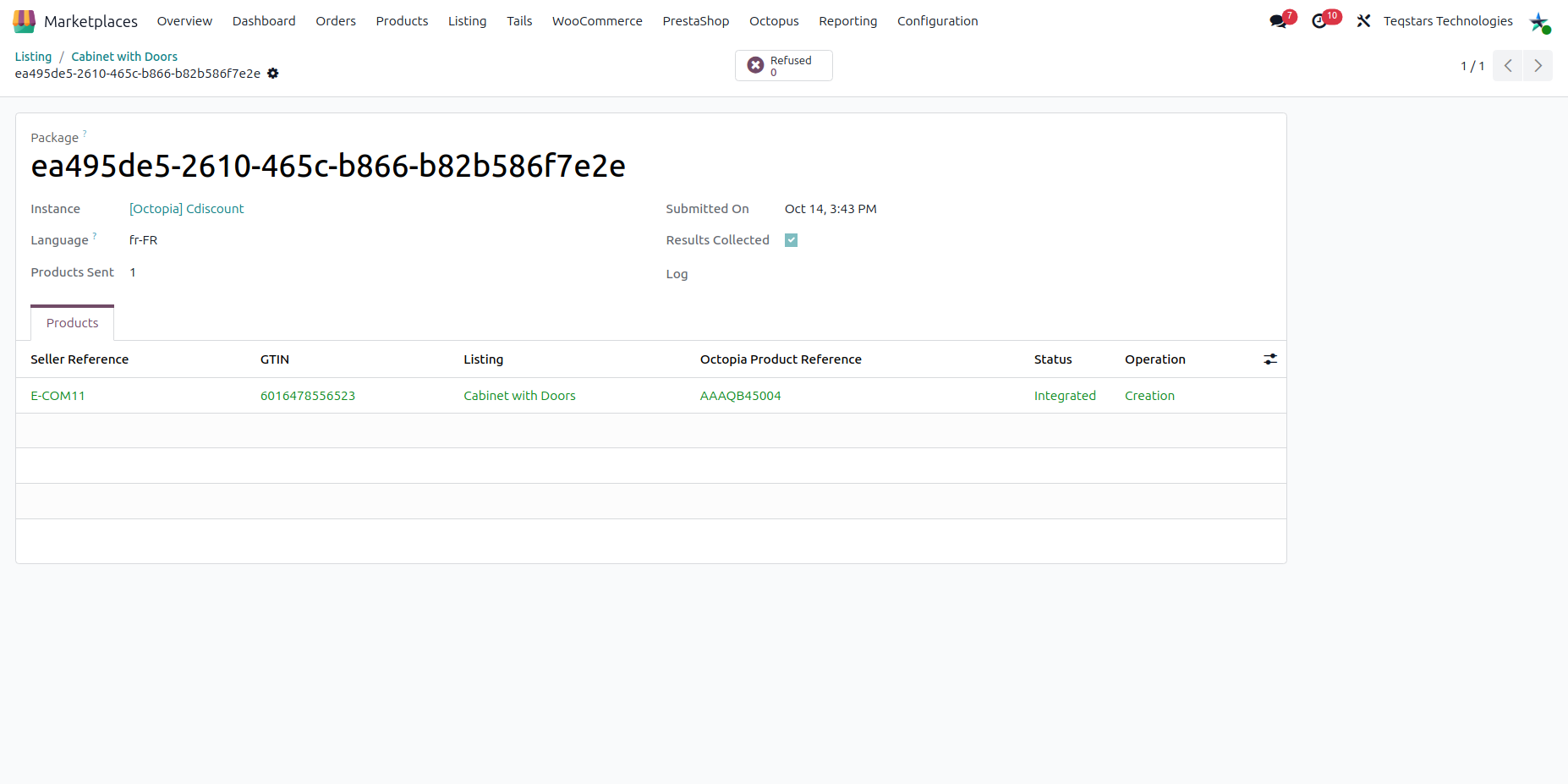
Octopia answers with a package number and the submission is recorded under , or from the Product Submissions smart button of the listing.
Octopia answers asynchronously. The result is read once when the submission is sent, and then by the Check Created Products & Exported Offers scheduled action. To read it at once, open the submission and click Check Result.
Once Octopia accepts the product details, Octopia’s product reference is copied onto the listing, which becomes listed but stays unpublished.
Send its offer next, see Export New Offers To Octopia.
A submission shows its Package identifier, the Language (always fr-FR),
Submitted On, Products Sent, how many were Accepted and Refused, and
Results Collected once every product has an answer. Its Products tab lists each
product with:
Seller Reference and GTIN.
Octopia Product Reference: The reference Octopia gave the product details, copied onto the listing automatically.
Status:
Validatedmeans Octopia accepted the details,Integratedmeans they are live in the catalogue,Refusedmeans they were rejected.Operation: Whether Octopia created new details, enriched existing ones, or found nothing to change.
Completeness: How complete Octopia considers the details, as a percentage. A low score usually means recommended attributes are missing.
Errors, Warnings and Information: What Octopia reported for the product, and Submitted Data, exactly what was sent.
Use the Result Not Collected and Has Refusals filters to find submissions that need attention, and the Refused smart button to see the refused products. When a product is refused, fix the detail on the listing and send it again, refused listings are also found with the Refused By Marketplace filter of the listing search.
Important
Up to 10 000 products can be sent in one submission.
A listing that already has an Octopia reference is not sent again.
A listing that is part of a submission Octopia has not finished processing is skipped and logged.
If nothing could be sent, the message lists every reason per listing, so you can fix everything in one pass.