
Update Catalogs To Shopify
After importing a catalog, you can change its prices, quantity rules, and volume pricing in Odoo and update those changes to Shopify. You can proceed to update catalog from Odoo to Shopify in three different ways:
Method - 1: From The Operation Popup
Go to the menu in Odoo.
Click on the
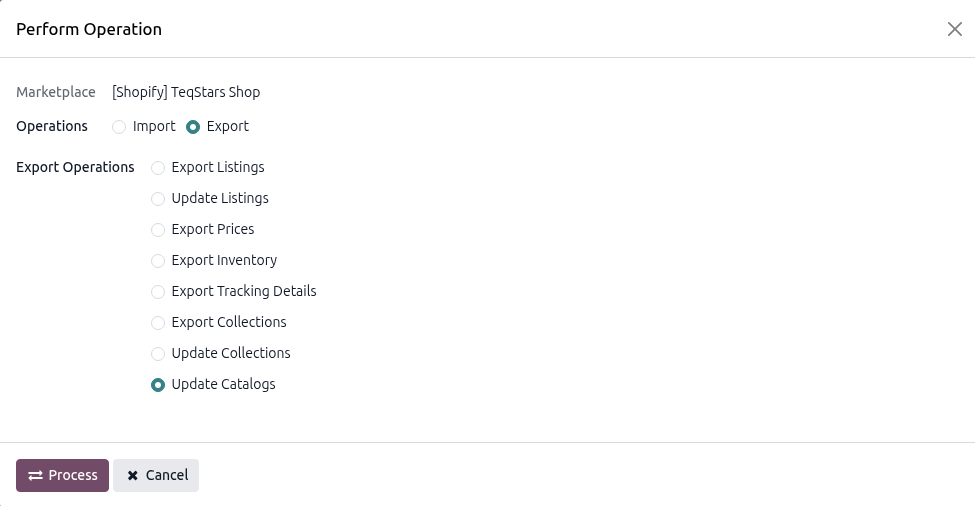
Operationsbutton from the instance record.Select Export Operation and then select Update Catalogs option.
Press
PROCESSbutton. This will update all catalogs of the instance to Shopify.
Method - 2: From The Catalog List View
Use this method to update one or more catalogs to Shopify directly from the list view.
Go to the menu.
Select the catalogs you want to update using the checkboxes.
Click the
Sync to Shopifybutton in the list view header. Confirm the action on the popup.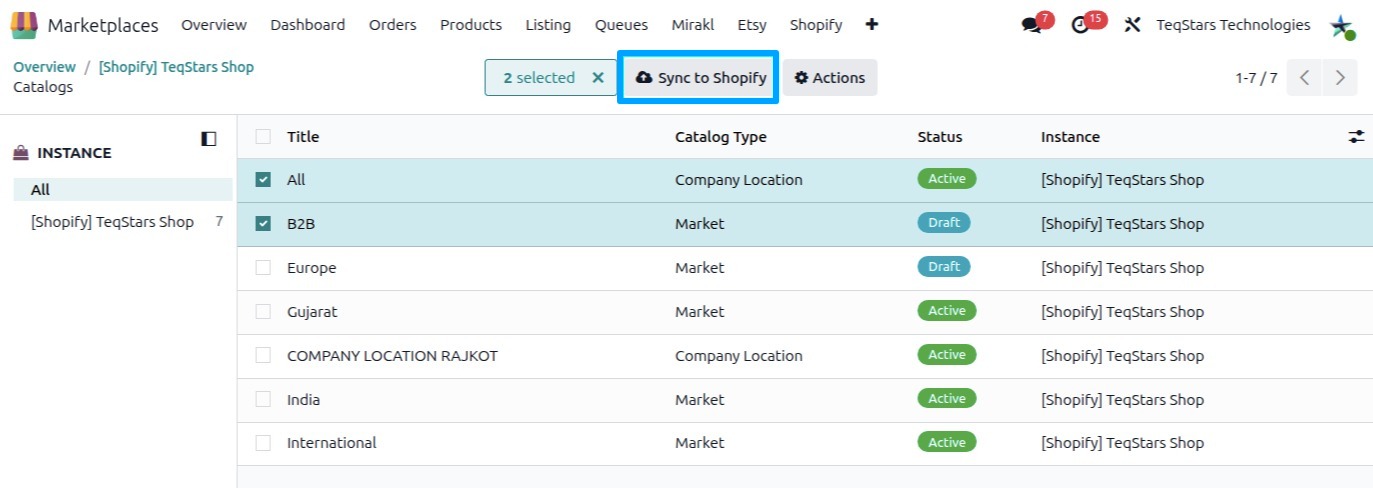
Method - 3: From The Catalog Form
Use this method to update one specific catalog to Shopify.
Go to the menu and open the catalog you want to update.
Click the
Sync to Shopifybutton on the catalog form view. Confirm the action on the popup.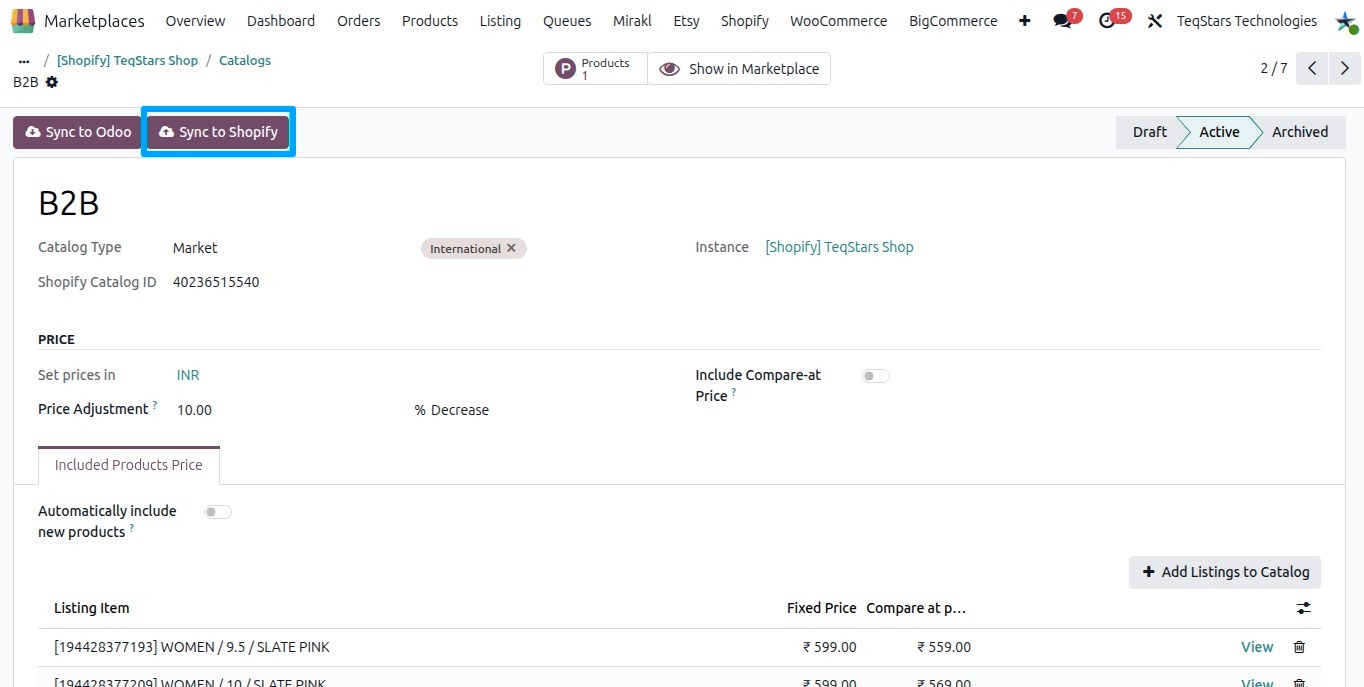
What gets updated on Shopify
When you update a catalog, the connector updates the below details on Shopify:
Title
Status (Draft / Active / Archived)
Market / Company Location
Automatically include new products
Price Adjustment (%) and its direction (Increase / Decrease)
Include Compare-at Price
Variant Prices
Quantity Rules (Minimum, Maximum, Increment)
Volume Pricing breaks
Add Listings to Catalog
You can add listings to a catalog from the Included Products Price tab.
Open the catalog and go to the Included Products Price tab.
Click the
Add Listings to Catalogbutton.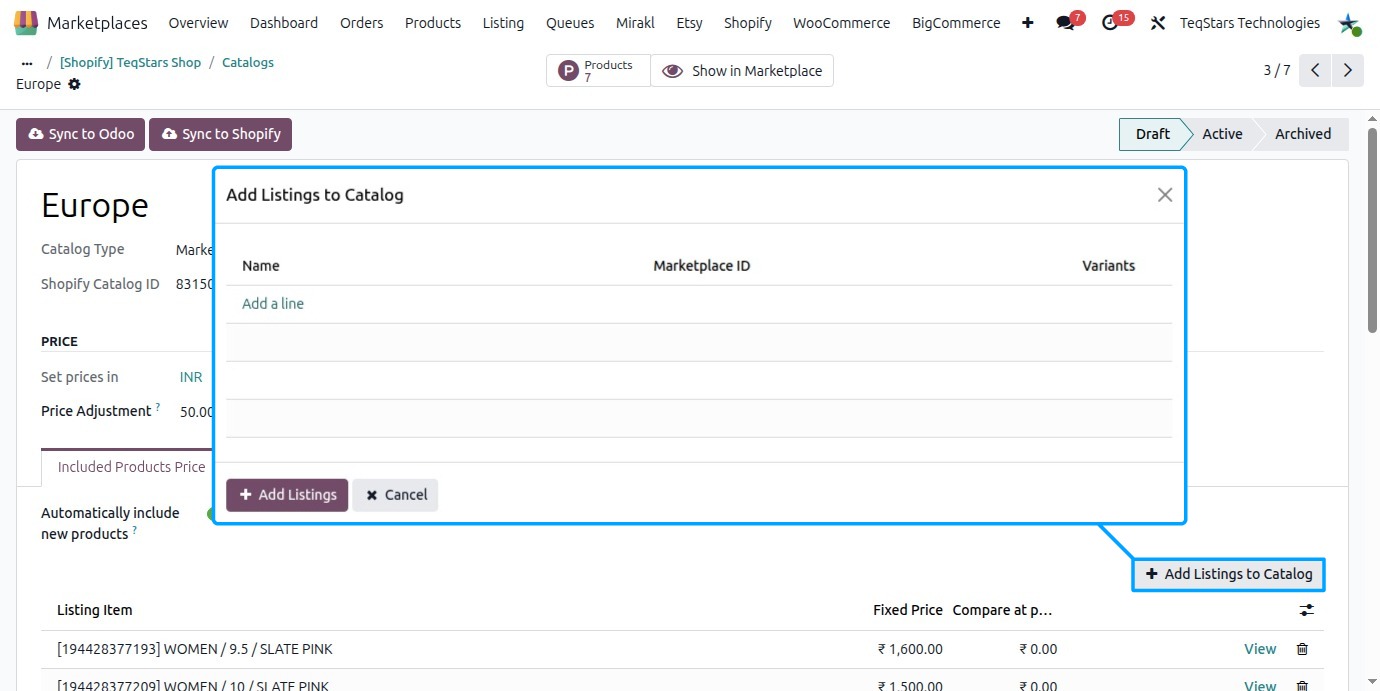
Select the listings you want to add and confirm. Every variant of each selected listing is added to the catalog.
Configure Quantity Rules and Volume Pricing
For each variant in a catalog, you can set Quantity Rules (Minimum, Maximum, Increment) and Volume Pricing (tiered price breaks).
Open the catalog and go to the Included Products Price tab.
On the variant line you want to configure, click the
Rulesbutton to open the Edit quantity rules and volume pricing popup.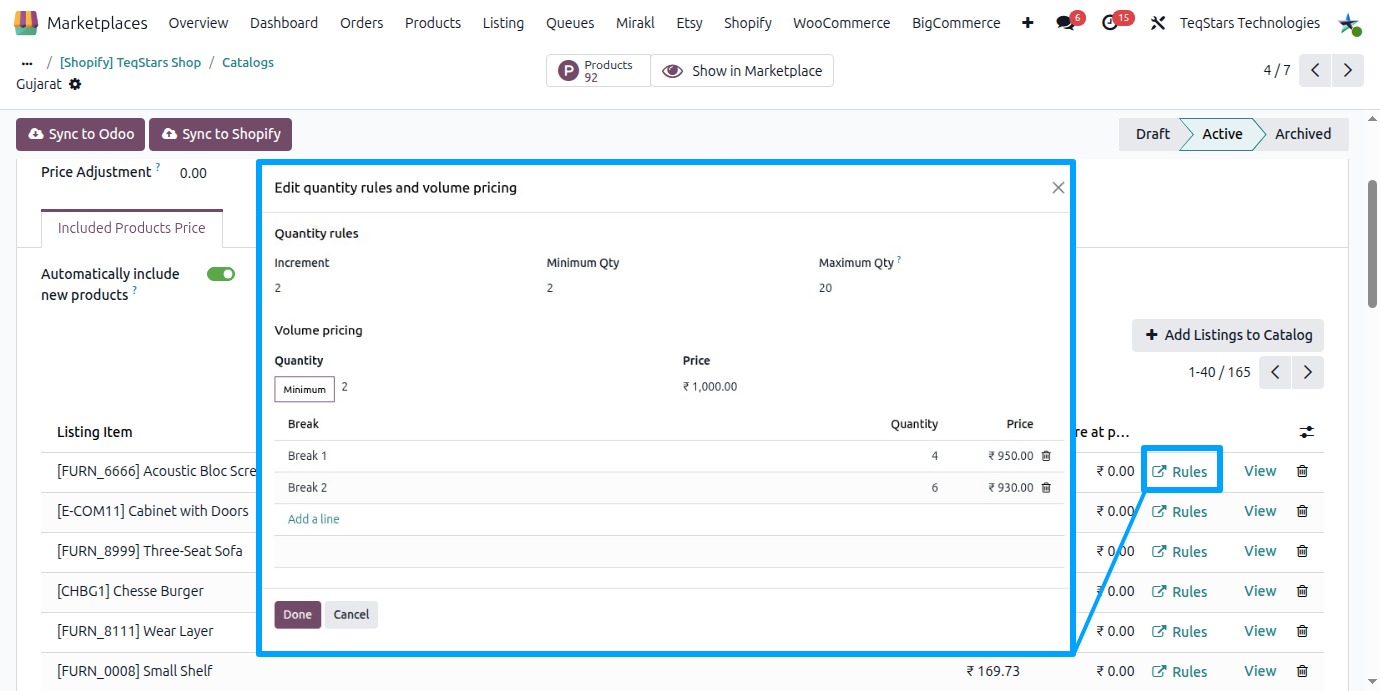
Quantity Rules
These control how many units a customer must buy.
Increment: The quantity must be ordered in multiples of this value. Must be 1 or more (default 1).
Minimum: The smallest quantity a customer can order. Must be 1 or more (default 1).
Maximum: The largest quantity a customer can order. Set 0 for no upper limit.
Note
The Maximum must be greater than or equal to the Minimum.
When the Increment is greater than 1, the Minimum and Maximum must both be multiples of the Increment, and the range between them must be divisible by the Increment.
Volume Pricing
Volume pricing applies a lower price when the customer buys at least a given quantity. Each tier (price break) has a Quantity and a Price.
Under Volume pricing, add a row for each break with its Quantity and Price.
Save the popup.
Note
The first break Quantity must be greater than the rule Minimum.
Each next break Quantity must be greater than the break above it.
The break Price must be greater than 0.
When a Maximum is set, a break Quantity cannot exceed it.
See also