
Fetch Data into Google Sheets
Extracting live data from Odoo into Google Sheets is performed using the interactive sidebar inside Google Sheets.
Fetch Workflow
Open your Google Spreadsheet.
Click from the menu bar.
The Fetch Odoo Data sidebar opens on the right side.
Select the desired Model from the dropdown list. The list only shows models the connector’s User can access.
The sidebar dynamically loads all accessible fields for that model.
Use the search box to filter fields, and select the checkboxes for the columns you want to import.
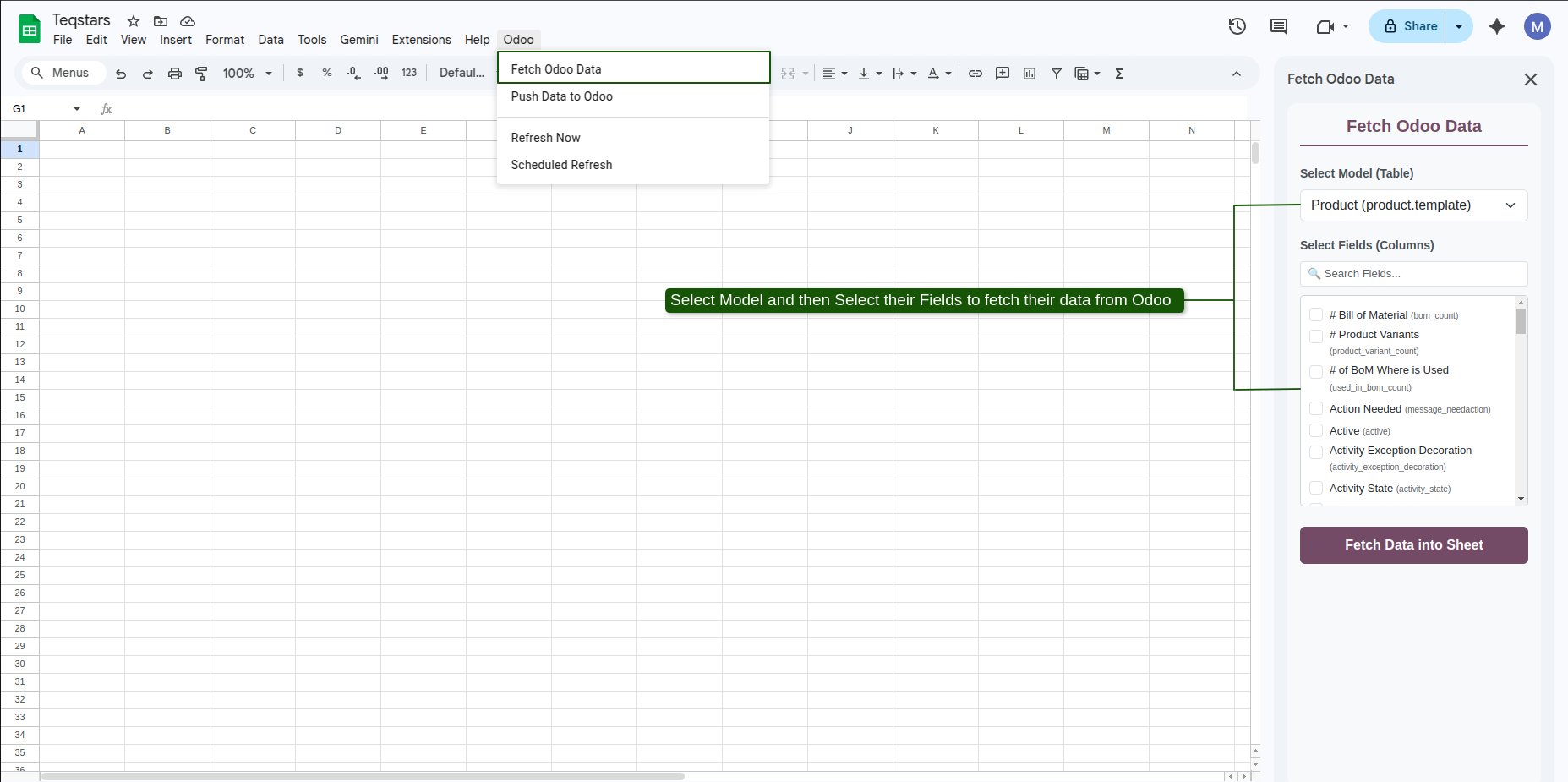
Click Fetch Data into Sheet.
What Happens Next
The connector creates or clears a worksheet tab named after the technical model name (e.g.,
sale.order).The header row is formatted with Odoo’s brand color (
#714B67) with bold white text.The
idcolumn is automatically prepended as the first column, ensuring tracking integrity for future updates.Columns are auto-resized for optimal display.
Note
If the active sheet tab already contains data, the fetch operation detects existing column headers and updates the dataset incrementally.