
Import Inventory In Odoo
Importing inventory from TikTok Shop to Odoo reads the stock levels TikTok Shop currently holds for your products and records them in Odoo as an inventory adjustment, in the stock location of the warehouse they are held in.
Use it to reconcile, or when a shop’s stock is brought into Odoo for the first time.
Note
This reads the stock of products you fulfill yourself. For stock held by TikTok Shop under Fulfilled by TikTok, see Import FBT Inventory In Odoo.
Important
Set the Stock Location on every sales warehouse that exchanges stock first. A warehouse without one is skipped; when none has one, the import is refused and says so in the log. See TikTok Warehouses.
Method - 1: Manual Inventory Import
Go to the menu in Odoo.
Click on the
Operationsbutton from the instance record.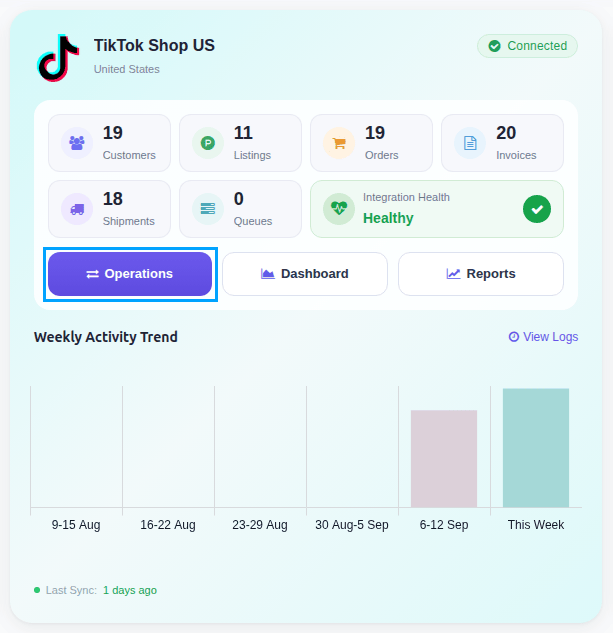
Select Import Operation and then select Import Inventory option.
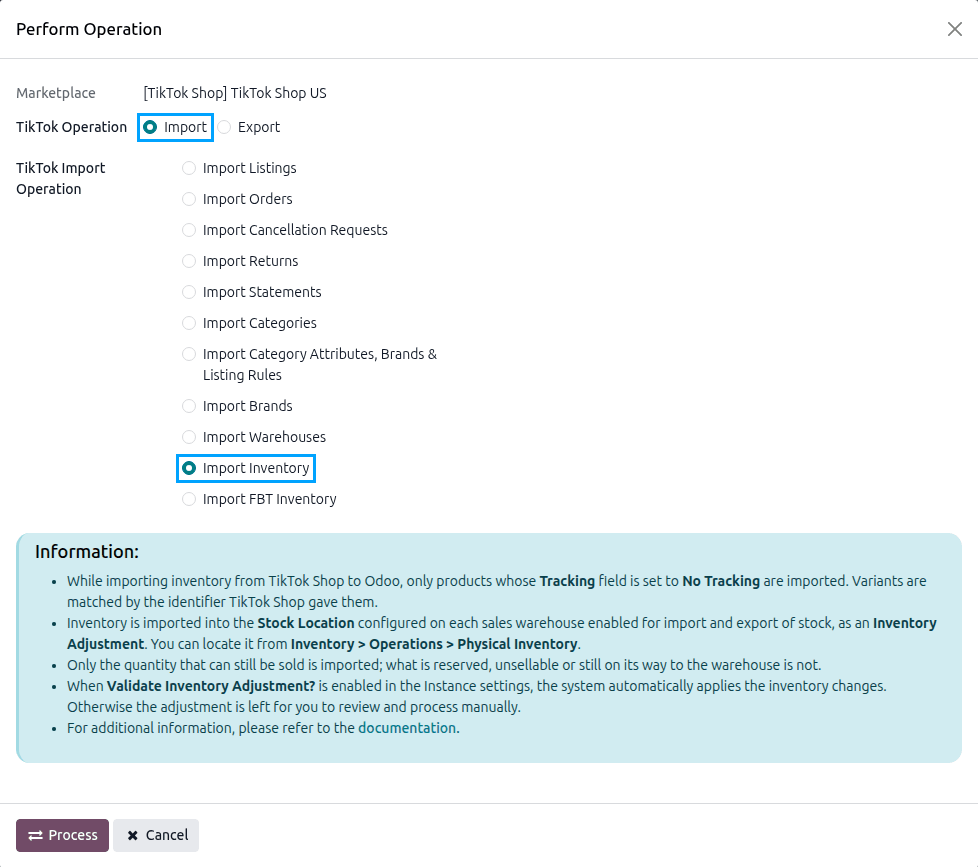
Press
PROCESSbutton.
Method - 2: Automatic Inventory Import
Go to your TikTok Shop instance setting by navigating to .
On the Automatic Jobs tab, configure the Import Product’s Inventory job by setting Interval Number, Interval Unit, and then Active.
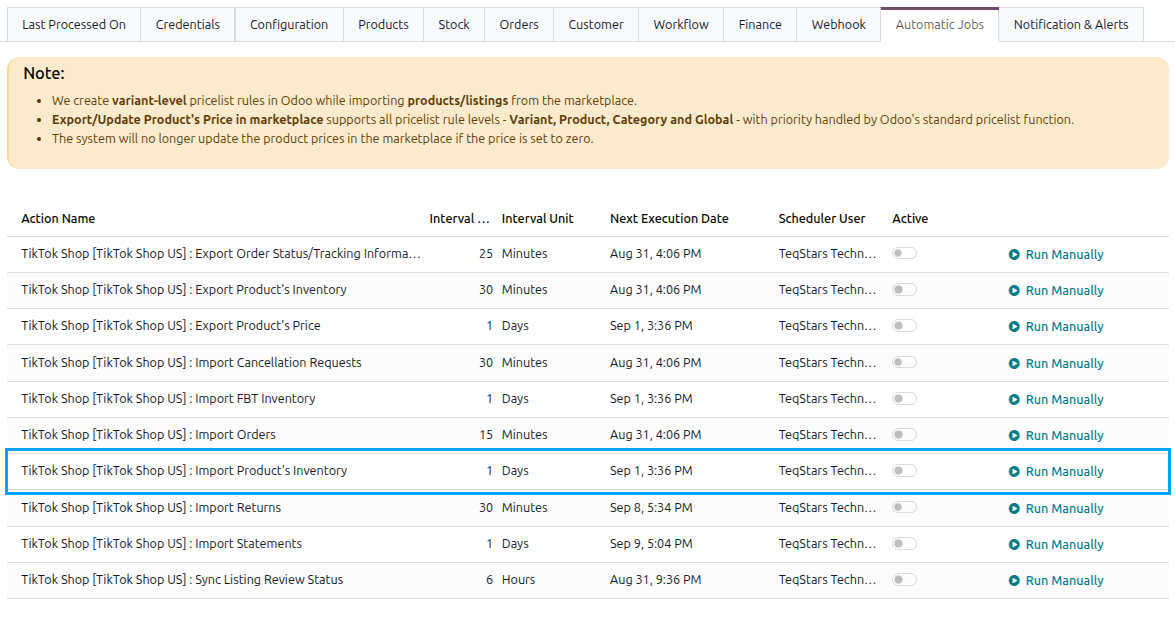
This scheduled action is created inactive and runs once a day by default. See Automatic Jobs.
What Is Written
Only the stock of sales warehouses that have Enable Import/Export Stock? switched on is read.
Products that are not stocked, or that are tracked by lot or serial number, are skipped.
TikTok Shop separates what can still be sold from what is already spoken for, and only what is available is written to Odoo.
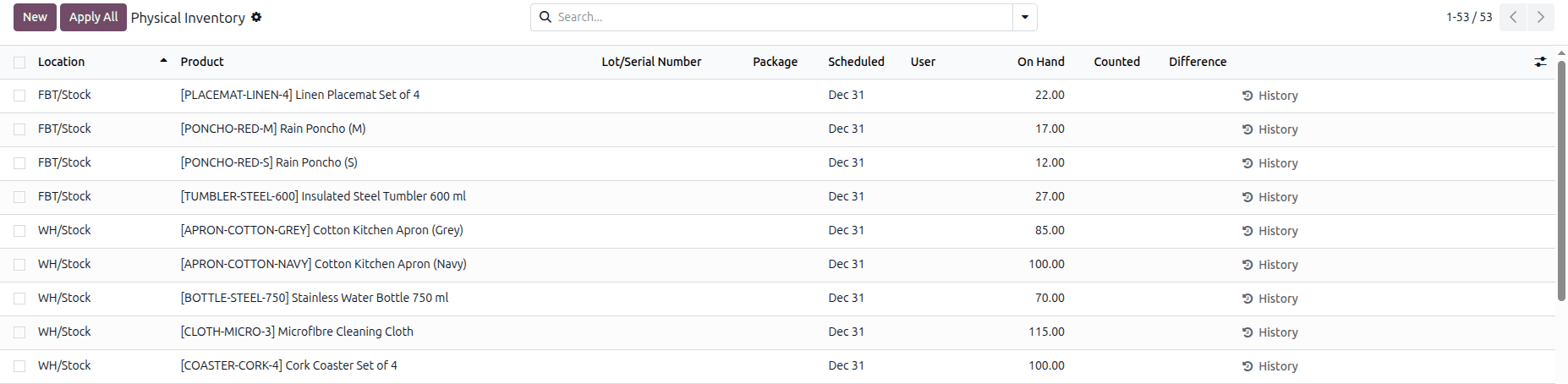
With Validate Inventory Adjustment? enabled on the instance the adjustment is applied for you; otherwise it is left for you to check and apply.
Warning
Importing stock overwrites what Odoo holds for those products in that location. On an Odoo that already tracks its own stock, export to TikTok Shop instead of importing from it.