
Job Queue and Logs
The connector processes heavy syncs in the background and keeps a full record of what happened. Two tools help you monitor and troubleshoot, the Job Queue and the Logs.
Job Queue
Large operations (fetching audience members, importing campaign reports, exporting contacts, syncing products, exporting sale orders) are split into background jobs instead of running in one request. This prevents timeouts and lets big data sets sync gradually.
Open the queue from the Queue button on the account dashboard, or .

Each job is processed in order, oldest first, by the Process Queue Jobs (MailChimp) scheduled action (every 10 minutes by default). A job that fails is retried automatically up to three times before it is marked as Exception.
Tip
If a job is stuck or failed, open it and click Retry to run it again. Persistent failures usually point to a data problem (invalid email, missing SKU). Check the Exception Message on the job form, or the Logs, for the exact reason.
Logs
Every sync writes a MailChimp Log with its outcome (success or error), so you always know what happened and why. Open them from the Logs button on the account dashboard, or .
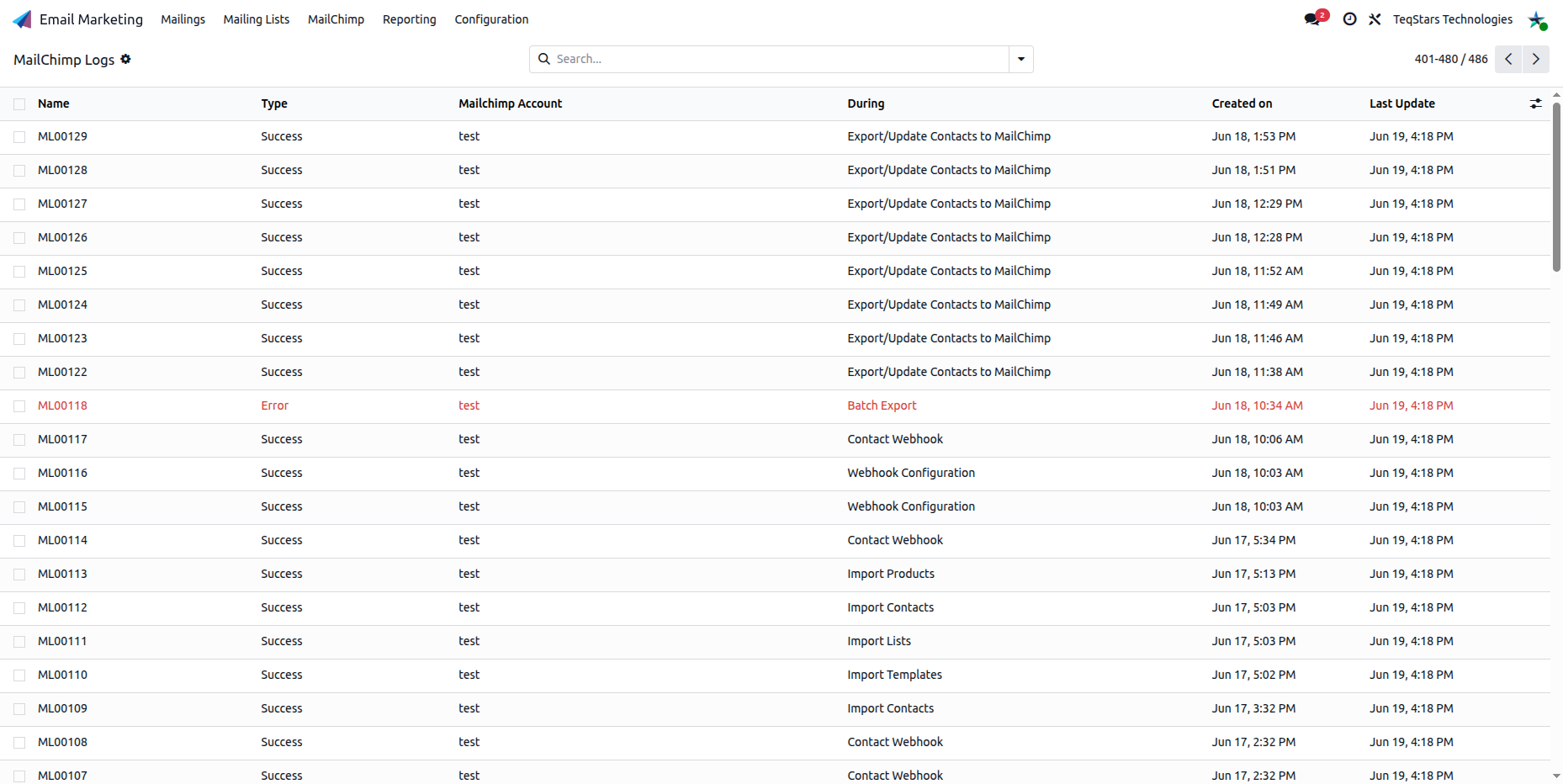
Each log records:
Type:
SuccessorError.During: The operation (Import Lists, Export Contacts, Contact Webhook, Batch Order Export…).
Lines: One row per record, with the contact/order Name, an optional Event Type for webhook logs (Subscribe, Unsubscribe, Profile, Cleaned, Delete), the raw MailChimp Description (for example “Please provide a valid email address.”), and a link back to the related record.
For batch operations (auto-export of contacts, sale order export), the log also tracks a Batch Status that moves through Pending, Preprocessing, Started, Finalizing and Finished. If a batch takes longer than expected, click Manully Process on the log to poll MailChimp for the result manually.
Note
Logs are written for scheduled and batch operations. A manual Export/Update shows the error directly on screen instead.
Note
MailChimp logs and queue entries are cleaned up automatically. Records older than 2 months are removed on their own, so both stay relevant without any manual cleanup.