
Calculate Sales Tax with Quick Calc Taxes
US companies using QuickBooks Automated Sales Tax can pull live rates onto an Odoo document instead of maintaining tax tables by hand. The Quick Calc Taxes button asks QuickBooks what tax applies to this customer, these products and this shipping address, and writes the answer back onto the document lines.
Use it
Open a draft sale order or customer invoice.
Make sure it has a Customer and at least one product line.
Click Quick Calc Taxes.
The connector returns the applicable rates and applies them to every product line, replacing whatever taxes were there.
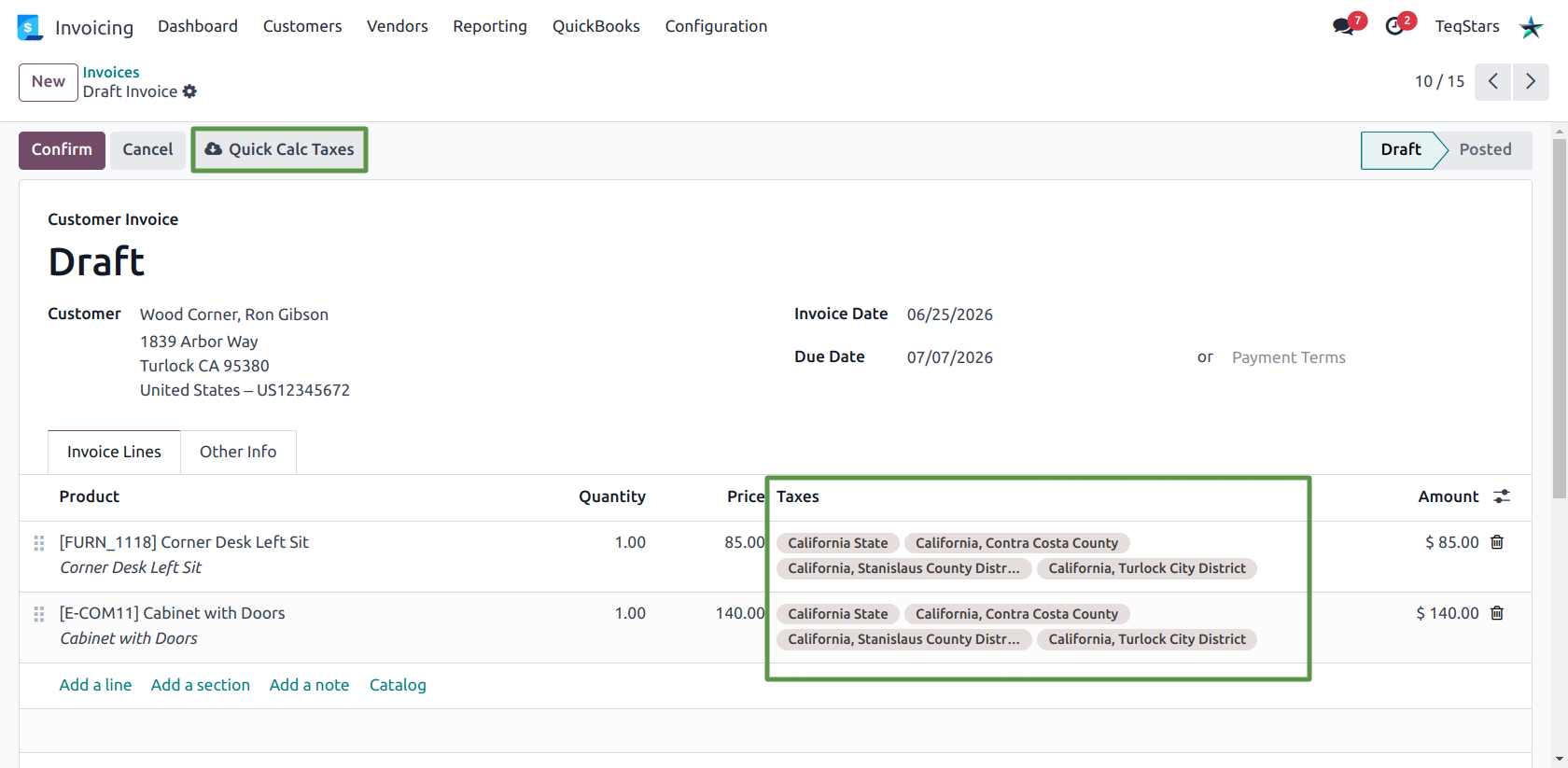
QuickBooks Automated Sales Tax returns the full breakdown, so a US address typically comes back as several taxes — state, county, city and special district — each applied to the line.
Requirements
A Confirmed QuickBooks connection for the document’s company.
Automated Sales Tax enabled in QuickBooks.
The document must be in Draft.
At least one product line.
The customer’s shipping address must have both a country and a state. Without them QuickBooks cannot determine a tax jurisdiction, and the button stops with an error.
Important
Quick Calc Taxes works on sale orders, customer invoices and customer credit notes only. It is not available on vendor bills.
How rates become Odoo taxes
Each rate QuickBooks returns is reconciled against your Odoo taxes:
An existing Odoo tax already carrying that QuickBooks tax code is reused.
Otherwise, an Odoo sales tax with the same name and percentage is reused, and the QuickBooks code is stored on it.
Otherwise, a new Odoo sales tax is created with the QuickBooks rate name and percentage, and a tax mapping row is added.
New taxes are created as tax excluded, for the document’s company, and — where the rate name identifies one — linked to the matching federal state.
Note
The first run in a new jurisdiction creates a handful of Odoo taxes. Later documents for the same area reuse them, so the tax list stops growing once your usual territories are covered.
Warning
To read the live rates, the connector creates a temporary invoice in QuickBooks and deletes it immediately afterwards. If the deletion fails, a warning is written to the log naming the QuickBooks ID so you can remove it manually. Check if you see a stray invoice in QuickBooks.
Note
Customers and products used on the document are pushed to QuickBooks as part of this call, because QuickBooks needs them to price the temporary invoice. Products without a SKU stop the calculation with an error listing them.