
Install the Advanced MCP Server
Before you can connect any AI tool to Odoo, the Advanced MCP Server module must be installed on your Odoo database.
Prerequisites
A running Odoo instance (Enterprise on-premise, Odoo.SH, or Community).
An Odoo administrator account.
A publicly reachable URL for the Odoo instance if you plan to connect cloud-based AI tools (Claude.ai, ChatGPT) — they need to reach your MCP endpoint over HTTPS.
Note
The MCP Server module does not work on Odoo Online (SaaS) because Odoo Online does not allow third-party Apps.
Install the module
Log in to Odoo as an administrator.
Open the menu.
Click Update Apps List from the top menu (developer mode required for this option).
In the Apps search bar, remove the default Apps filter and search for
Advanced MCP Server.Click Activate (or Install) on the module tile.
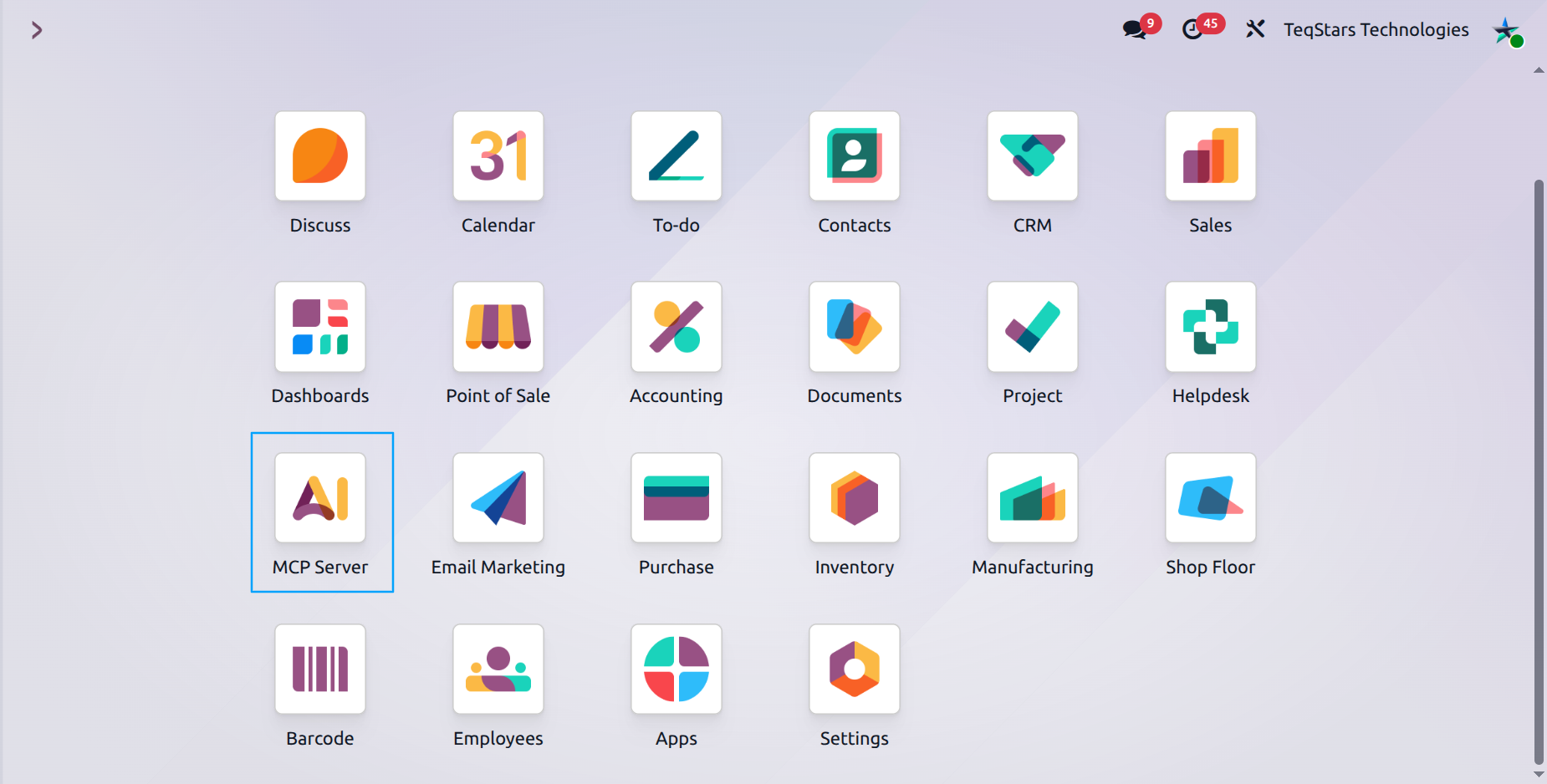
Once the installation finishes, the module is loaded — but the top-level MCP Server menu does not appear automatically yet. By design, it is hidden until at least one user has been granted access rights to it.
Grant MCP Server access rights
To make the menu visible, assign the MCP Server access right to your user (and any other user who will use the module):
Go to .
Open your own user record (and repeat later for any other user that needs access).
In the Access Rights (or Other) tab, scroll to the MCP Server section.
Pick one of the two roles:
MCP Administrator — full control over the module (server settings, every connection, every audit log, ontology, knowledge layer, events). Pick this for yourself if you are setting things up.
MCP User — day-to-day usage. Sees only their own connections, sessions, audit logs, and approval requests.
Click Save.
Refresh the browser. The top-level MCP Server menu now appears in the main Odoo navigation.
Tip
The two groups are detailed in User Groups & Access Rights. As a rule of thumb: grant MCP Administrator to yourself and your IT contact; grant MCP User to end users who will talk to the AI assistant.