
Offer Details On A Listing
Fill in the ManoMano category, the brand and the B2B and B2C offer details of a listing before it is written to the product feed.
ManoMano Category And Brand
Each listing has a ManoMano Category and a ManoMano Brand. ManoMano uses them to place your product in its catalog.
Go to and open the listing.
Choose the ManoMano Category.
Choose the ManoMano Brand.
Save the listing.
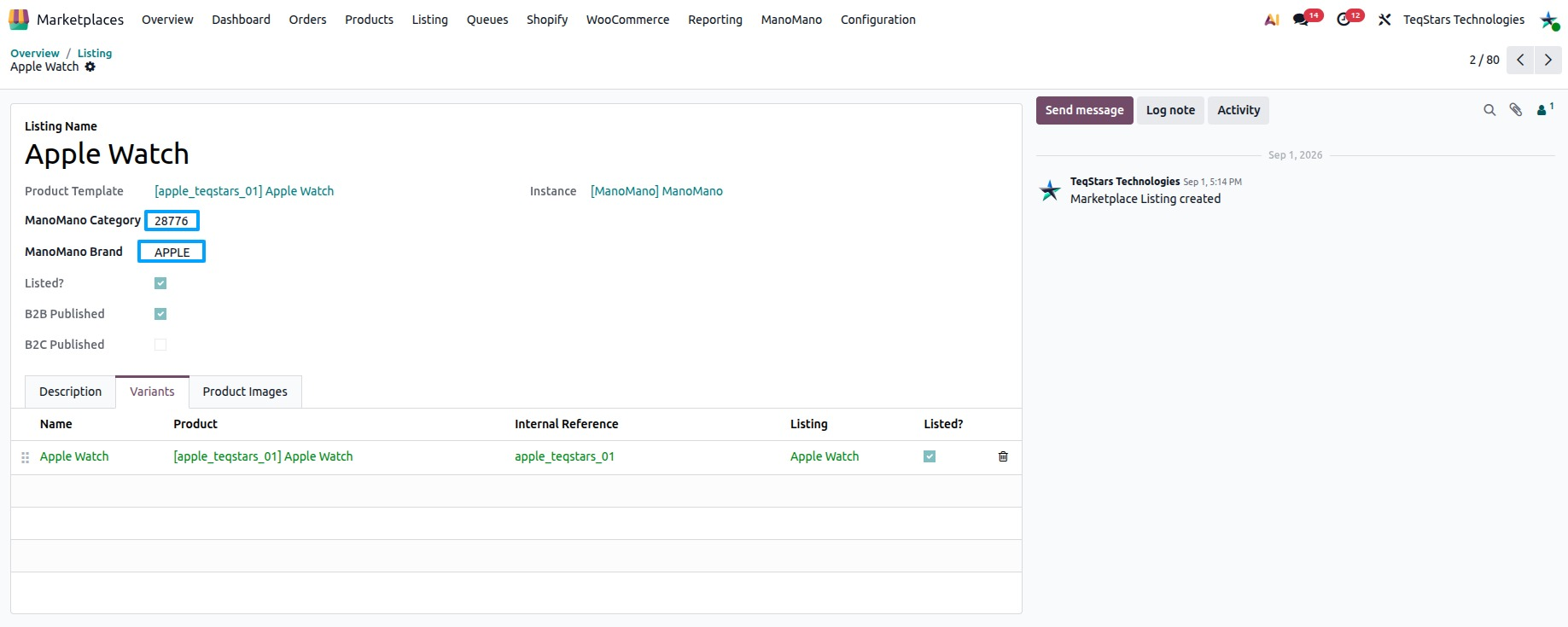
The categories come from ManoMano. Only a final node category can hold offers, so pick the deepest category that fits your product. To bring the category tree into Odoo, see Import Categories From ManoMano.
The brands also come from ManoMano. To bring them into Odoo, see Import Brands From ManoMano.
The listing also shows B2B Published and B2C Published, so you see for each contract whether the product is published on ManoMano.
The Listing Offer Tab
The offer details live on each listing item, in the Listing Offer tab. A listing item is one product or variant of the listing.
Go to , or open the listing and its Variants tab.
Open the listing item.
Open the Listing Offer tab.
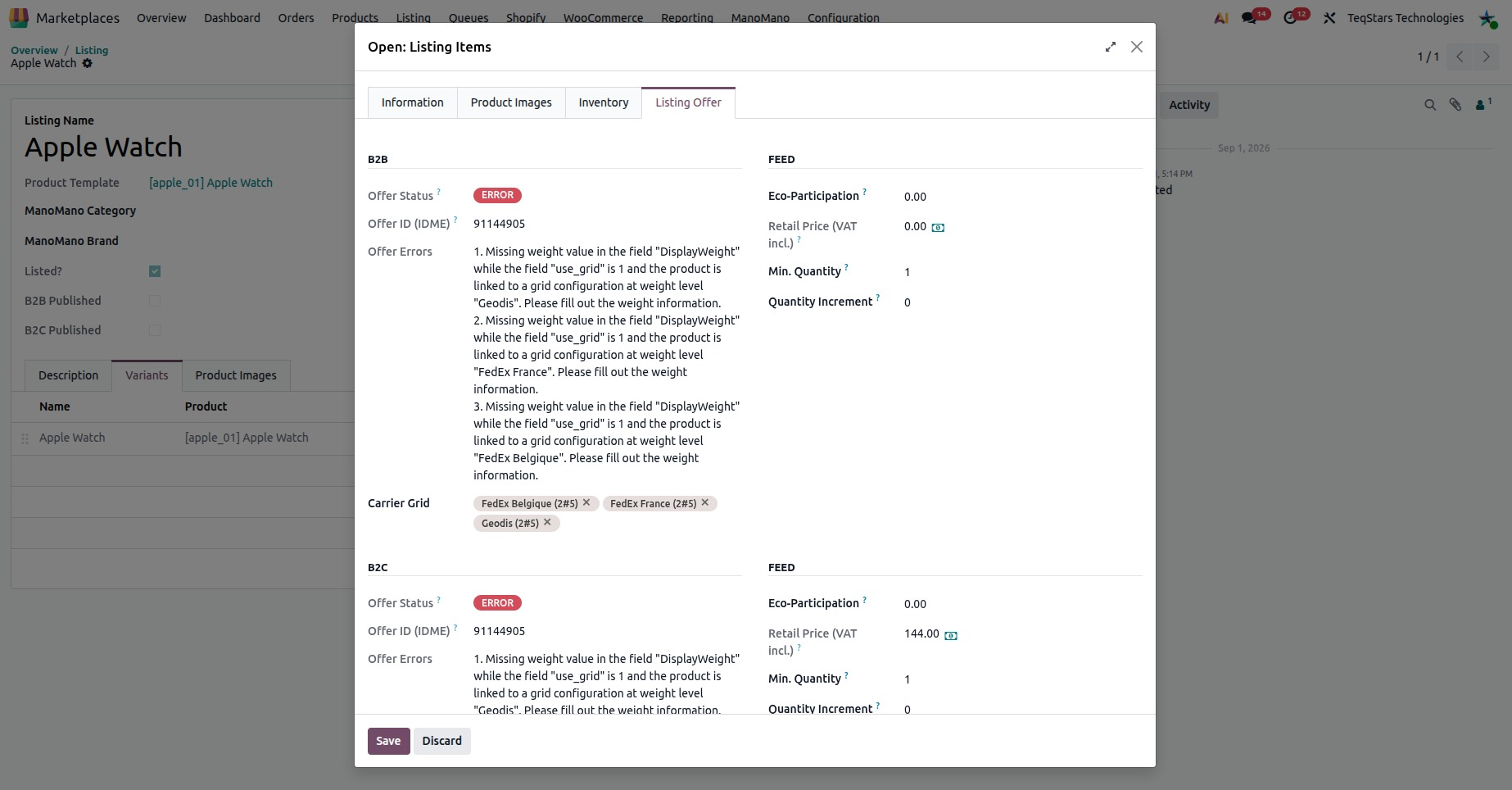
The tab holds two sets of fields, one for the B2B contract and one for the B2C contract. Each contract has its own price, retail price, eco-participation, quantities, carrier grid, offer status and offer ID. To set up the contracts, see ManoMano Seller Contracts.
Prices And Retail Prices
B2B Price is the price of this product from the B2B seller contract’s pricelist.
B2C Price is the price of this product from the B2C seller contract’s pricelist.
Retail Price (VAT incl.) (B2B) and Retail Price (VAT incl.) (B2C) hold the original, struck-through price shown next to a discounted offer price. Leave it at 0 to not show one.
The retail price comes from the contract’s retail pricelist. It is kept apart from the selling pricelist, so a discount can show the old price next to the new one.
To change a price from the listing item:
Click Change B2B Price, Change B2C Price, Change B2B Retail Price or Change B2C Retail Price.
Enter the new price and confirm.
The price is changed in the matching pricelist of that contract.
Note
If you see “No B2B seller contract with a pricelist is configured on this instance” (or the same message for B2C or the retail pricelist), open the seller contract and set its pricelist first.
To send new prices to ManoMano without waiting for the feed, see Export Price From Odoo.
Eco-Participation
Eco-Participation (B2B) and Eco-Participation (B2C) hold the French eco-tax amount for this product.
It is mandatory to sell on the French store.
Leave it at 0 if this product has none.
Minimum Quantity And Quantity Increment
Min. Quantity (B2B) and Min. Quantity (B2C): the minimum quantity a customer must buy.
Quantity Increment (B2B) and Quantity Increment (B2C): the step above the minimum quantity a customer can buy in, for example packs of 6. Leave it at 0 to not use packs.
The quantity increment must be lower than or equal to the minimum quantity.
Carrier Grid
Carrier Grid (B2B) and Carrier Grid (B2C) tell ManoMano how the product is shipped. You pick them from the carriers of the instance. To manage the carriers, see ManoMano Carriers.
A carrier grid is required. Without one, the product cannot be exported or updated, and Odoo shows “MANOMANO: At least one shipping grid (carrier) is required before these listings can be exported/updated.”
Offer Status And Offer Errors
These fields are filled from ManoMano. You read them, you do not type them.
Offer Status (B2B) and Offer Status (B2C): the offer update status on ManoMano. IN PROGRESS means it is being updated, ERROR means it is in error, COMPLETED means it is updated.
Offer Errors (B2B) and Offer Errors (B2C): the errors ManoMano returns for the offer.
Offer ID (IDME) (B2B) and Offer ID (IDME) (B2C): the ManoMano identifier of this offer or variant.
When the status is ERROR:
Read the Offer Errors of that contract.
Fix the offer details on the Listing Offer tab.
Update the listing again, see Update Products From Odoo.
Read the offer back from ManoMano to check the result, see Import Offers From ManoMano.
The Verify B2B Feed Status and Verify B2C Feed Status scheduled jobs check which offers are live on ManoMano. For more, see Export Products From Odoo.
Rules
Check these before you export or update a listing:
Every product needs at least one image. Without one, Odoo shows “MANOMANO: At least one image is required before these listings can be exported/updated.” and the scheduled feed generation skips the product.
Every product needs at least one carrier grid. Otherwise the scheduled feed generation skips it and lists the skipped SKU in the log.
The quantity increment must be lower than or equal to the minimum quantity.
The eco-participation is mandatory to sell on the French store.
The retail pricelist of a contract must be different from its selling pricelist, otherwise changing the price would also change the retail price.
Pick a final node category, because only those can hold offers.
You find the skipped products and other messages in .