
Configure Planzer Connector
This document provides a complete step-by-step guide to configure and use the Planzer connector in Odoo. Once the connector is set up, you can create parcel orders, generate shipping labels, and track shipments directly from your delivery orders.
Let’s begin with the configurations.
Configure Shipping partner
The shipping partner stores your Planzer account credentials and connects Odoo to the Planzer service. To configure a Shipping Partner in Odoo, navigate to and click on New.
The environment is managed on the shipping partner and is applied to every delivery method linked to it. To activate a Shipping Partner in the Production Environment, click the Test smart button at the top of the form. After doing so, the smart button changes to read Production.
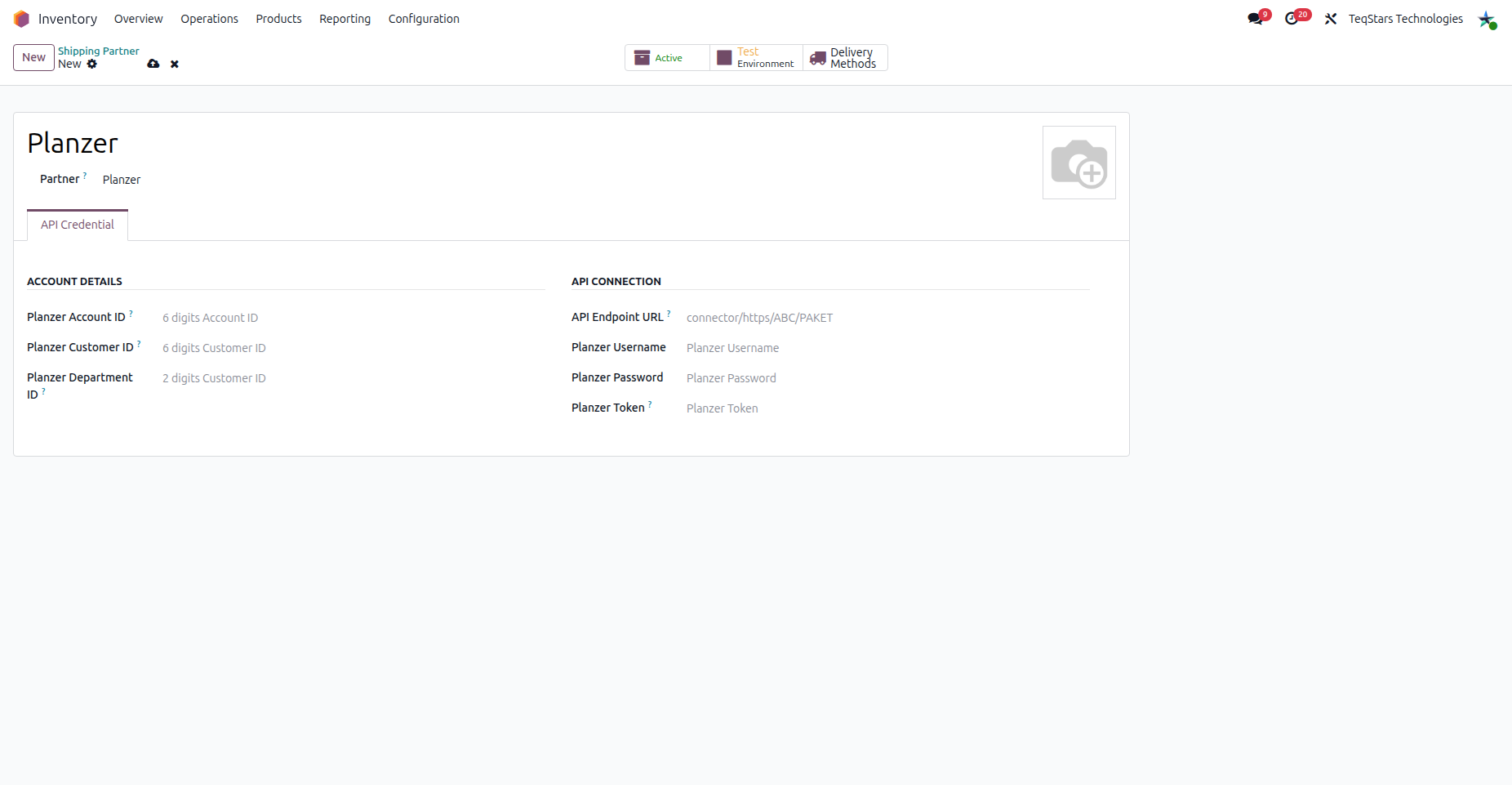
Shipping Partner Configuration
Name: Choose a meaningful name for your account (e.g.
Planzer).Partner: Select Planzer.
In the Account Details section, enter the identifiers provided by Planzer:
Planzer Account ID: Your 6-digit Account ID.
Planzer Customer ID: Your 6-digit Customer ID.
Planzer Department ID: Your 2-digit Department ID.
In the API Connection section, enter the connection details provided by Planzer:
API Endpoint URL: The endpoint path supplied by Planzer (e.g.
connector/https/ABC/PAKET).Planzer Username: Your Planzer username.
Planzer Password: Your Planzer password.
Planzer Token: Your Planzer access token.
Note
All credentials are issued by Planzer. Start with your test credentials to validate the workflow, then switch to your certified production credentials before shipping live orders.
See also
Contact your Planzer representative or the Planzer customer portal to obtain or certify your API credentials.
Configure Delivery Method
The delivery method defines how shipping is priced and how parcels are sent to Planzer. Click on Delivery Methods and then New, or navigate to and click on New.
Tip
Delivery Methods can also be accessed by going to .
Note
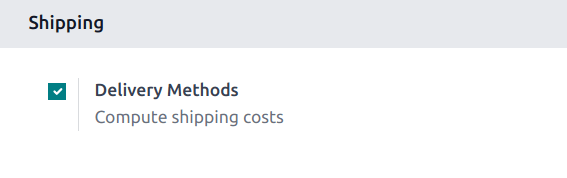
If the Delivery Methods option is not available from the Configuration drop-down menu, verify whether the feature is enabled by following these steps:
Go to .
Scroll to the Shipping section and enable the Delivery Methods feature by checking the corresponding checkbox.
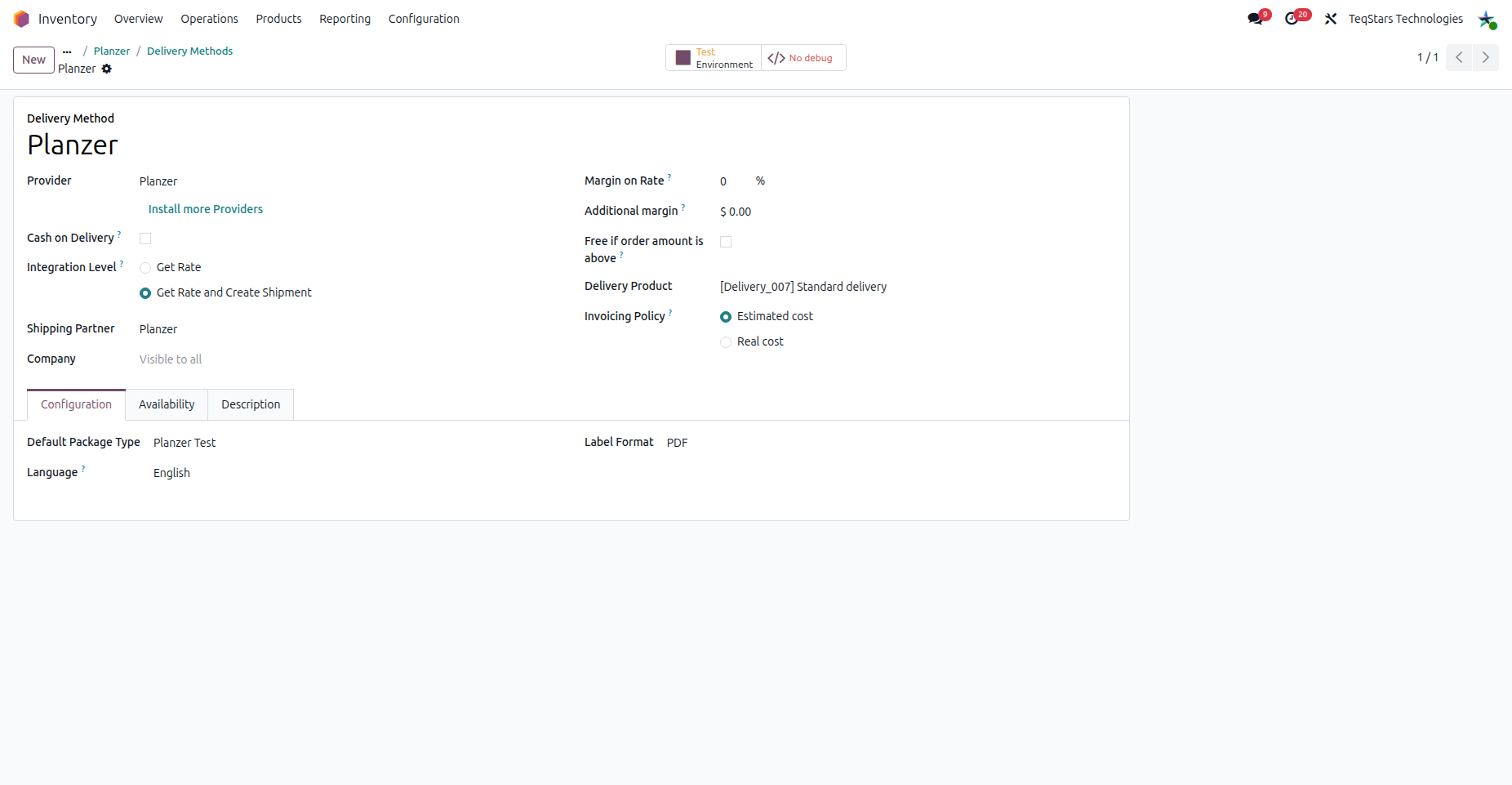
Fill in the main fields of the delivery method:
Delivery Method: Choose a meaningful name for the delivery method (e.g. Planzer with Fixed Price or Planzer with Based on Rules).
Shipping Partner: Select the shipping partner you configured.
Delivery Product: Assign or create the product that represents the shipping charge on the sales order line.
Important
Planzer does not support real-time rate calculation. You must configure pricing manually by choosing one of the supported providers:
Planzer with Fixed Price: Charges a predefined cost.
Planzer with Based on Rules: Calculates the charge from your Odoo shipping rules.
In the Configuration tab, fill out these fields:
Default Package Type: The package type whose dimensions and weight are used when generating the parcel.
Language: The language used for the Planzer parcel order (German, French, Italian, or English).
Label Format: Choose PDF for standard printing or ZPL (300 DPI) for Zebra label printers.
Important
To set a default package type, the Packages feature must be enabled in .
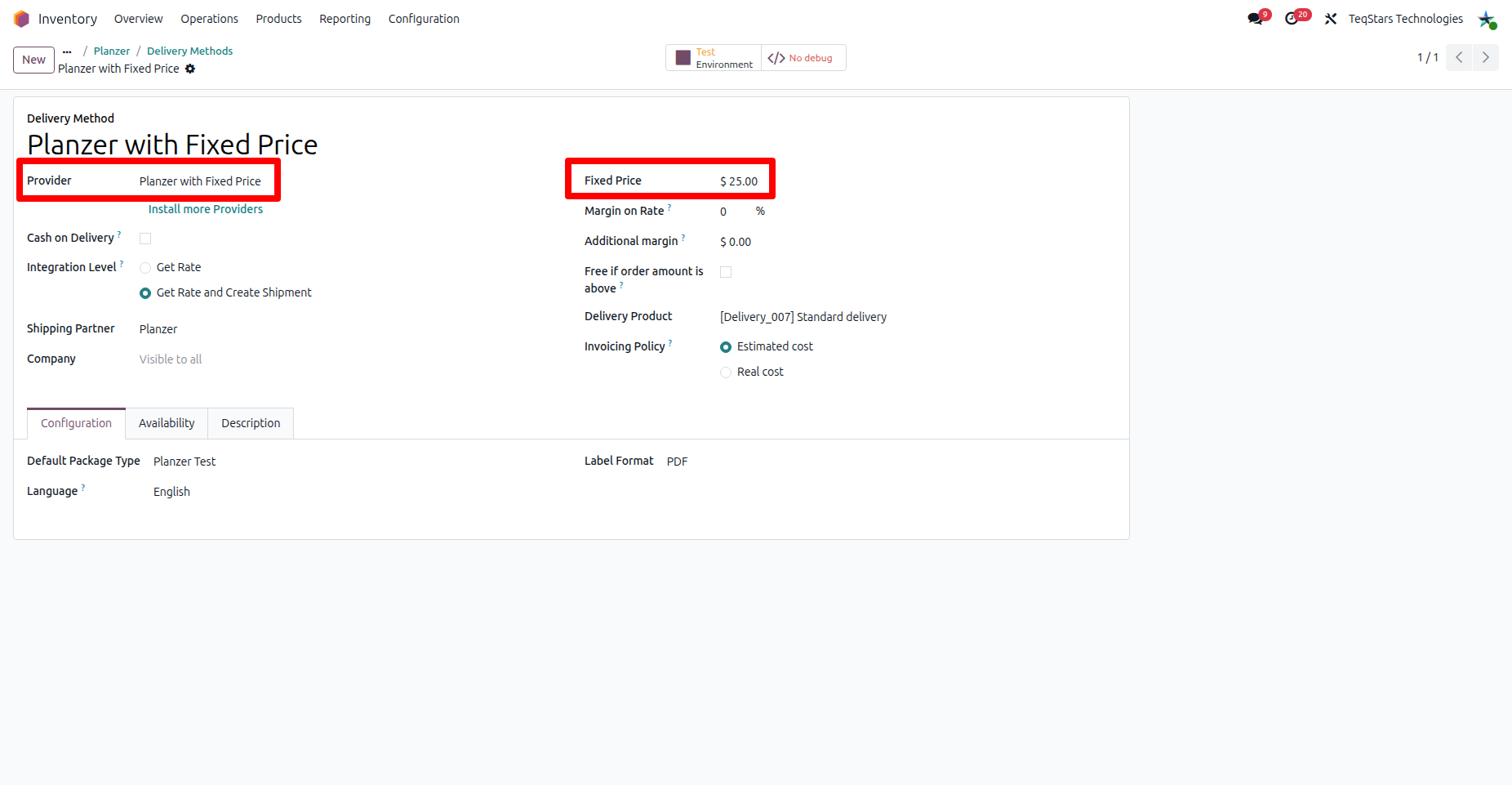
Planzer with Fixed Price
With the fixed-price method, the price of the assigned delivery product is charged as the shipping cost.
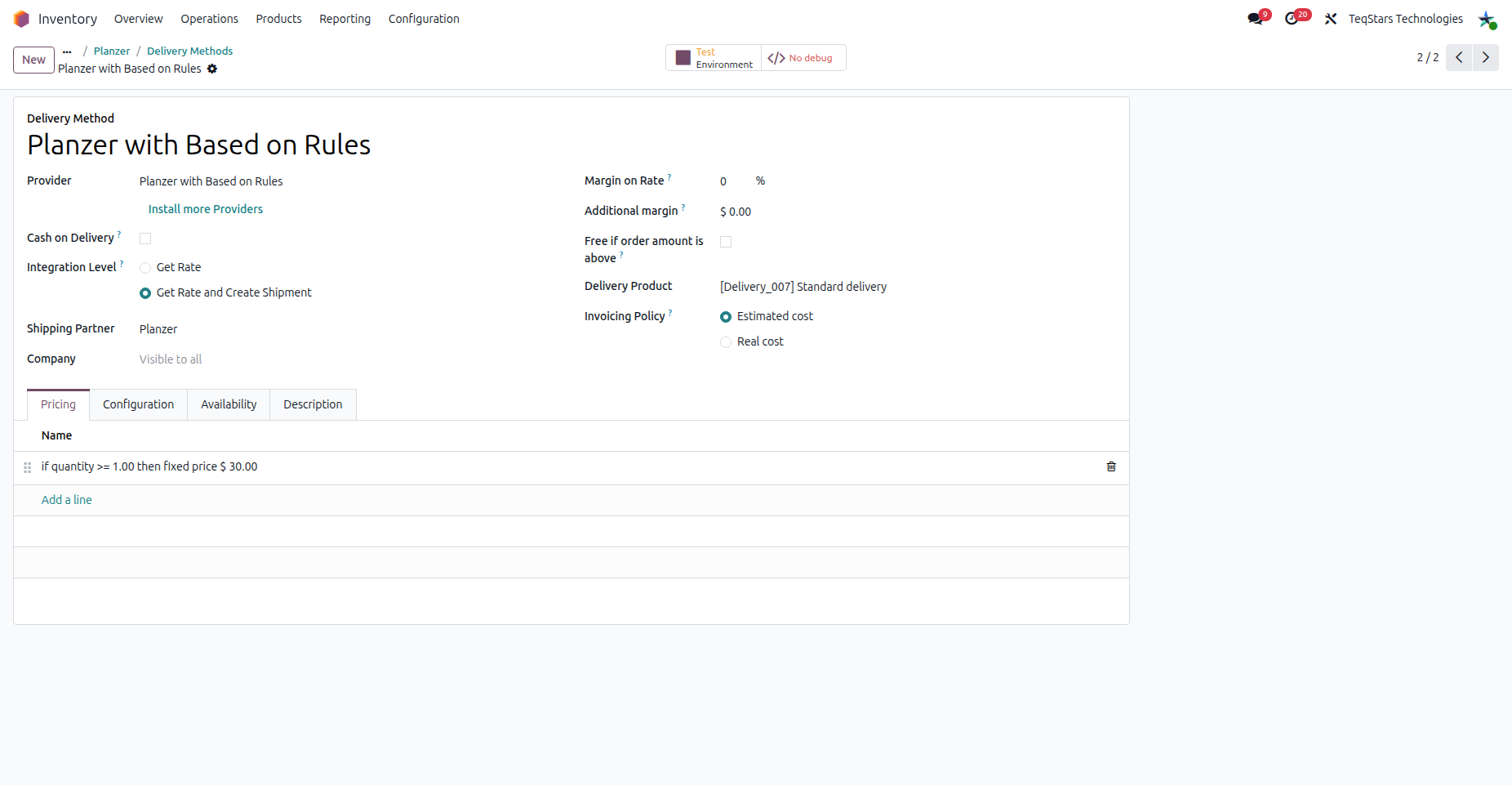
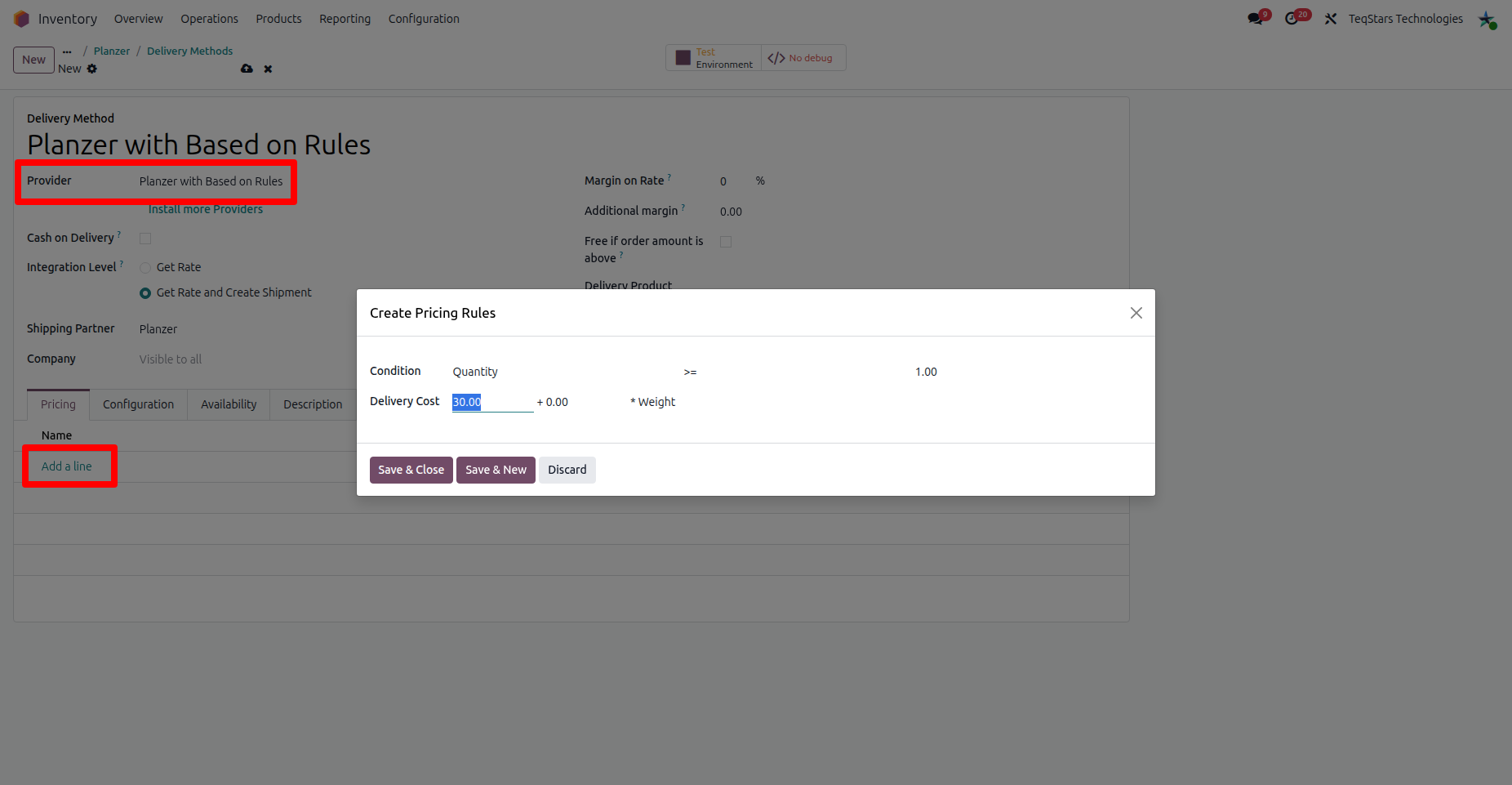
Planzer with Based on Rules
With the rule-based method, define pricing rules that calculate the shipping charge from order criteria such as quantity, weight or amount.
Use Delivery Method In Sale Order
To add a shipping cost to a Sales Order, click the Add Shipping button on the quotation and select the desired Planzer delivery method.
Shipping Method: Select the Planzer delivery method you configured (e.g. Planzer with Fixed Price or Planzer with Based on Rules).
Total order weight: Odoo calculates the order weight from the selected products, or you can enter it manually.
Get Rate: Since Planzer does not support real-time rate calculation, the rate depends on the delivery method you use.
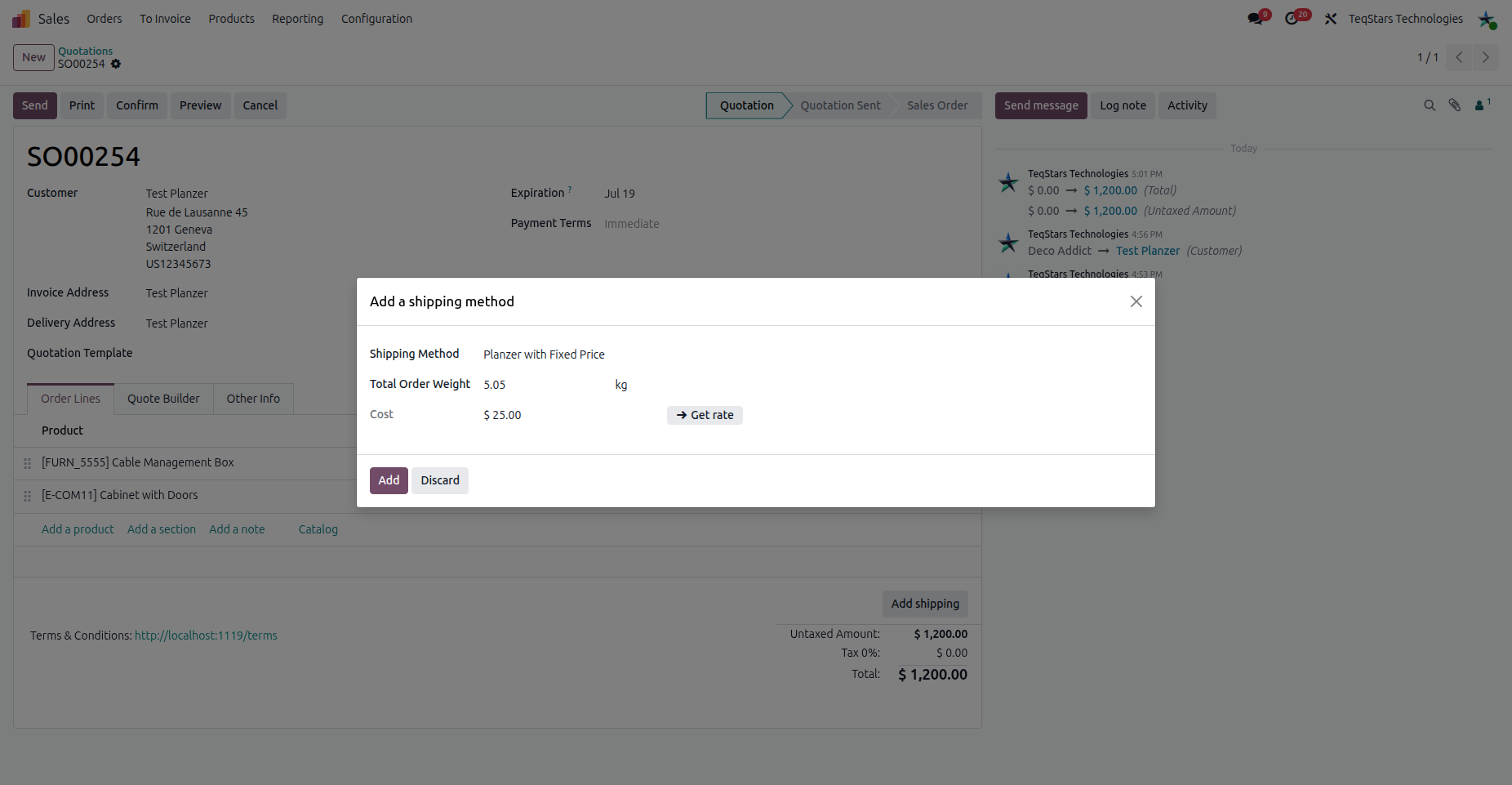
Planzer with Fixed Price
The predefined fixed price is applied.
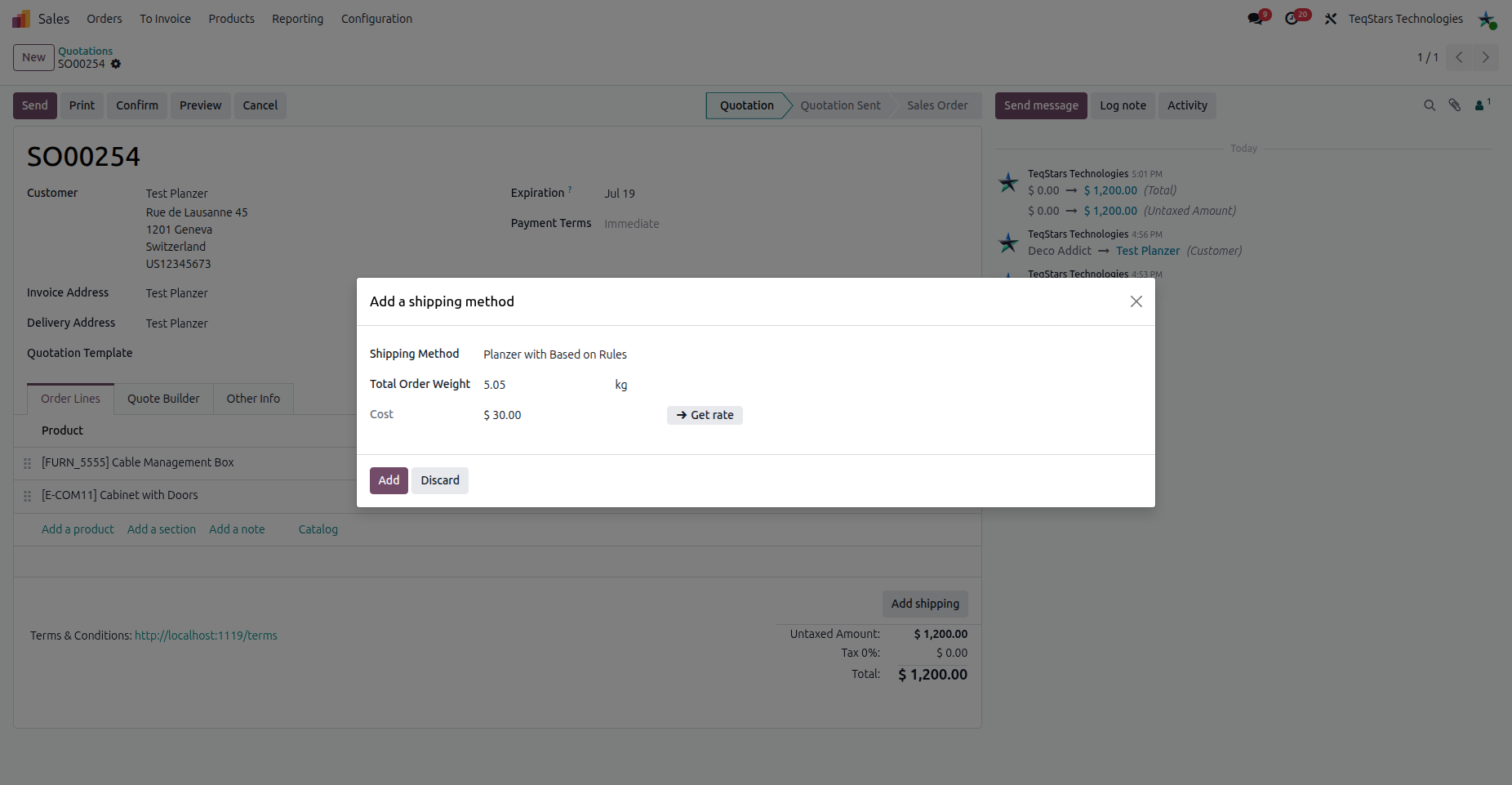
Planzer with Based on Rules
The price is calculated from your configured shipping rules.
Click the Add button to add the shipping charge to the sale order.
Use Delivery Method In Website Order
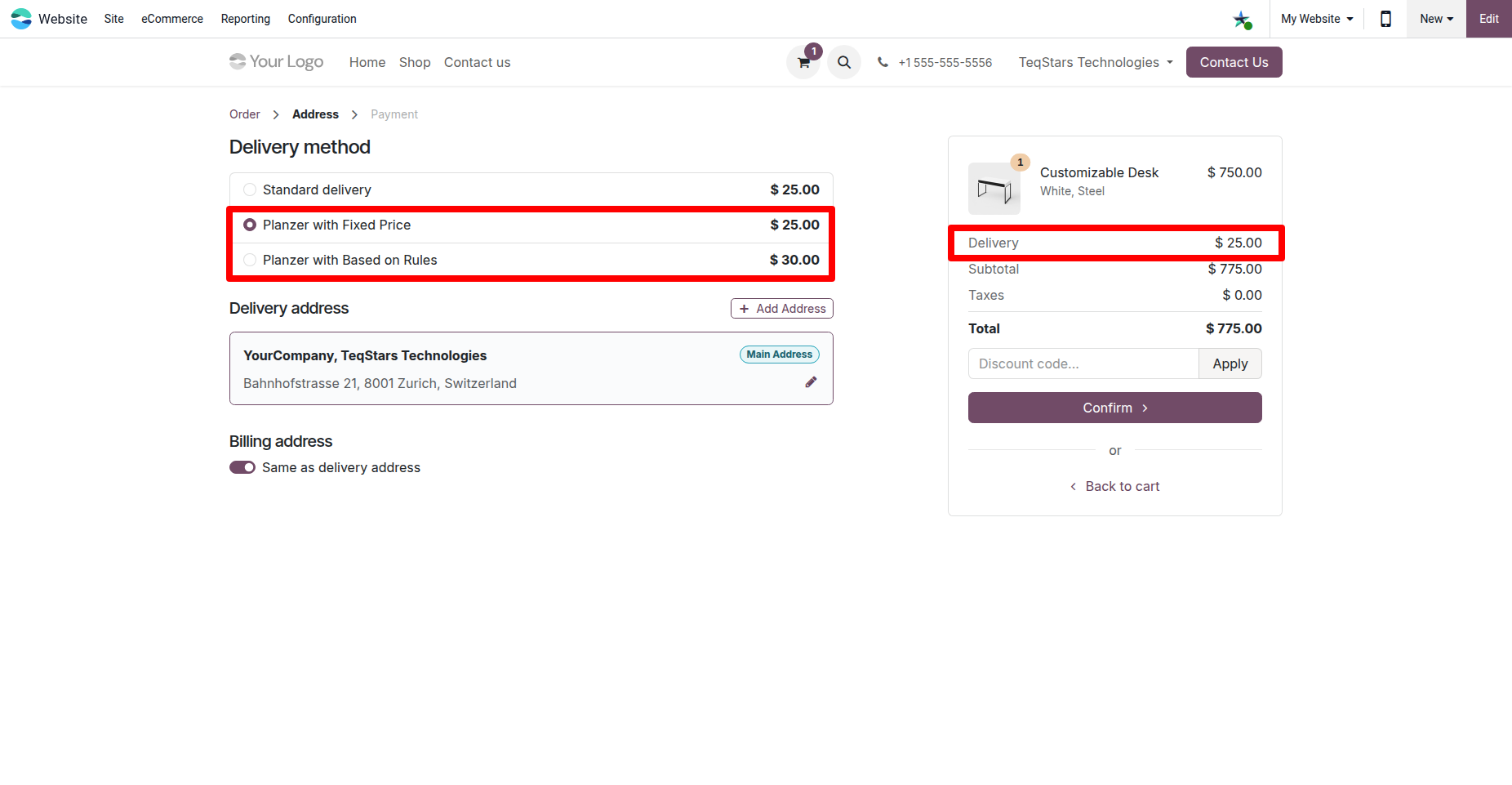
Customers can select the configured Planzer delivery method during checkout on your eCommerce website, based on your delivery method setup.
Multiple Package Handling
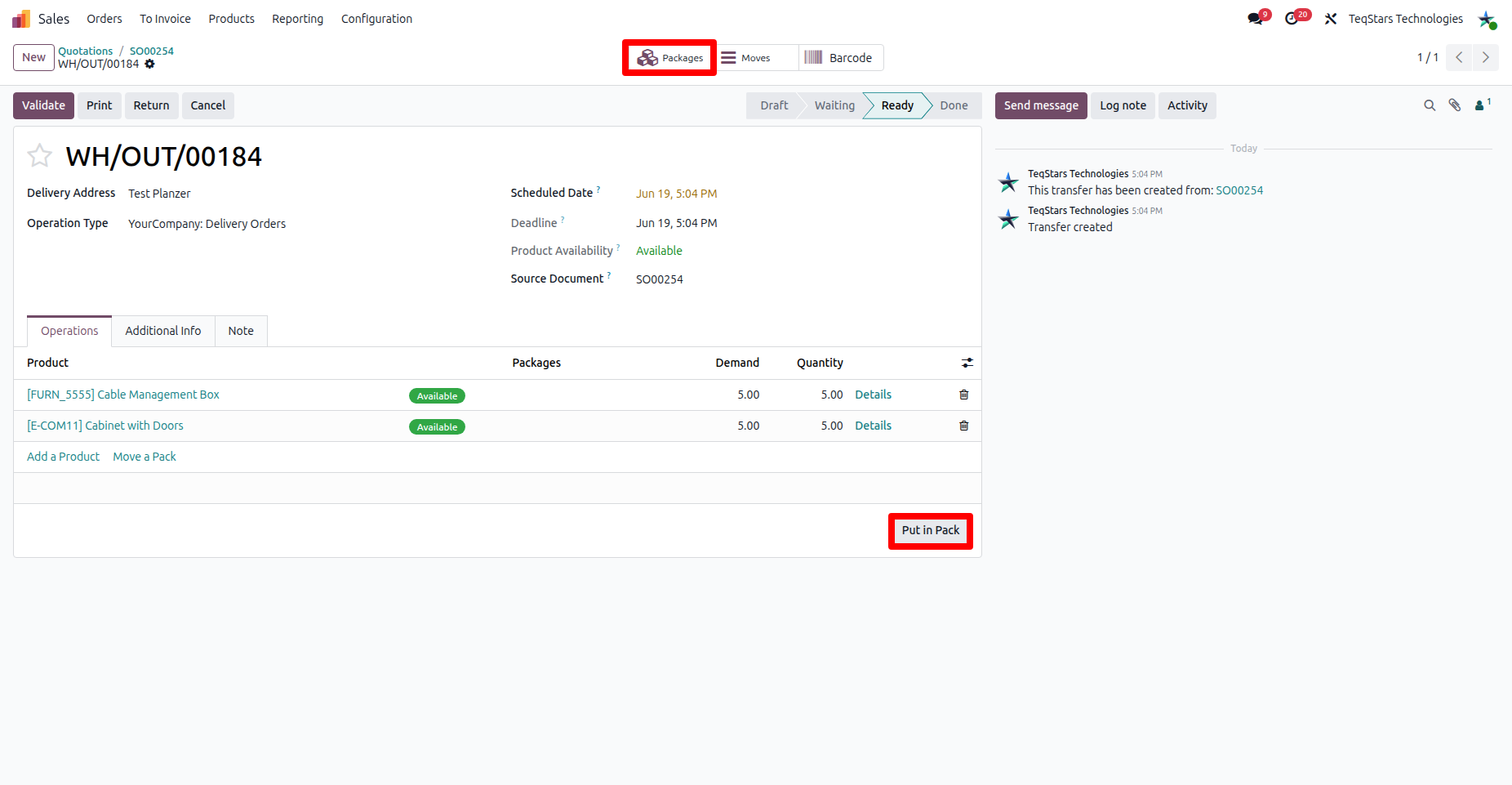
When an order ships in several boxes, use the Put in Pack operation to organize the products. Each package is registered with Planzer as a separate parcel with its own weight and dimensions.
Note
Each parcel is limited to a maximum weight of 30 kg.
Validate Delivery Order
After confirming the sale order, process the delivery order in the Inventory app.
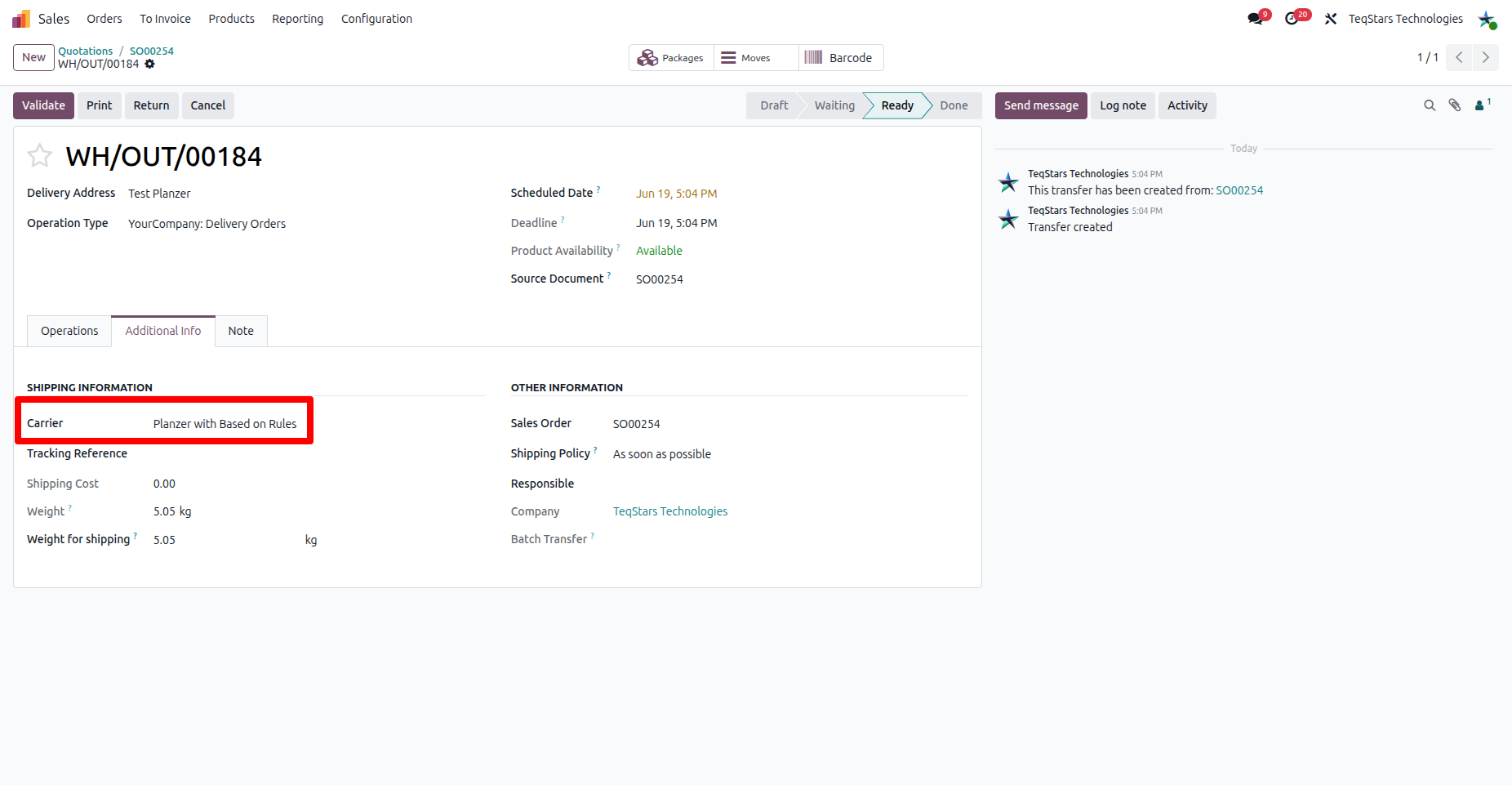
Carrier: Choose the Planzer delivery method you configured.
Click Validate to create the shipment in Planzer and generate the label.
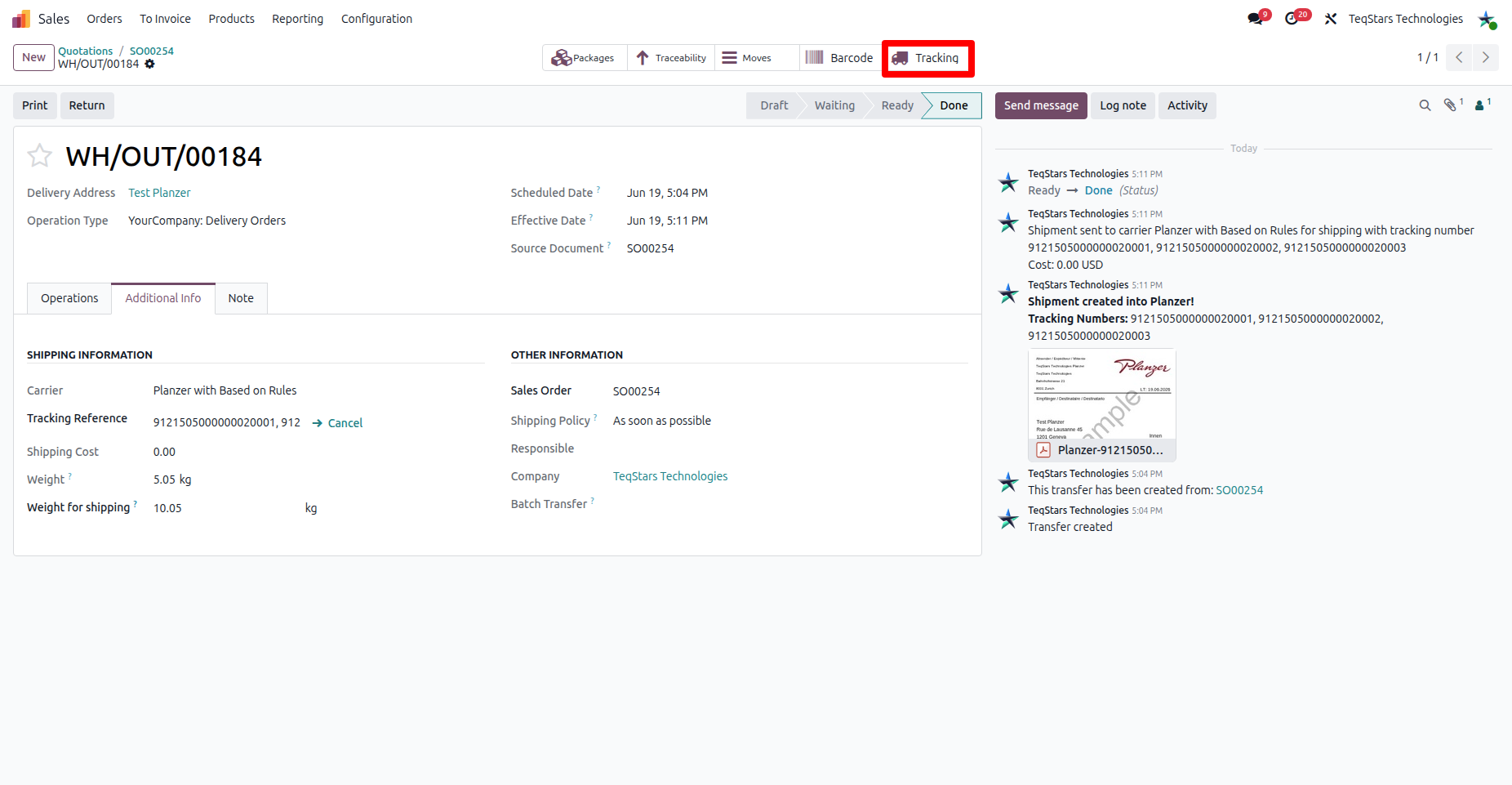
Tracking and shipping information in delivery order
Once the delivery order is validated, the shipment is registered with Planzer and the tracking and label information is recorded on the order.
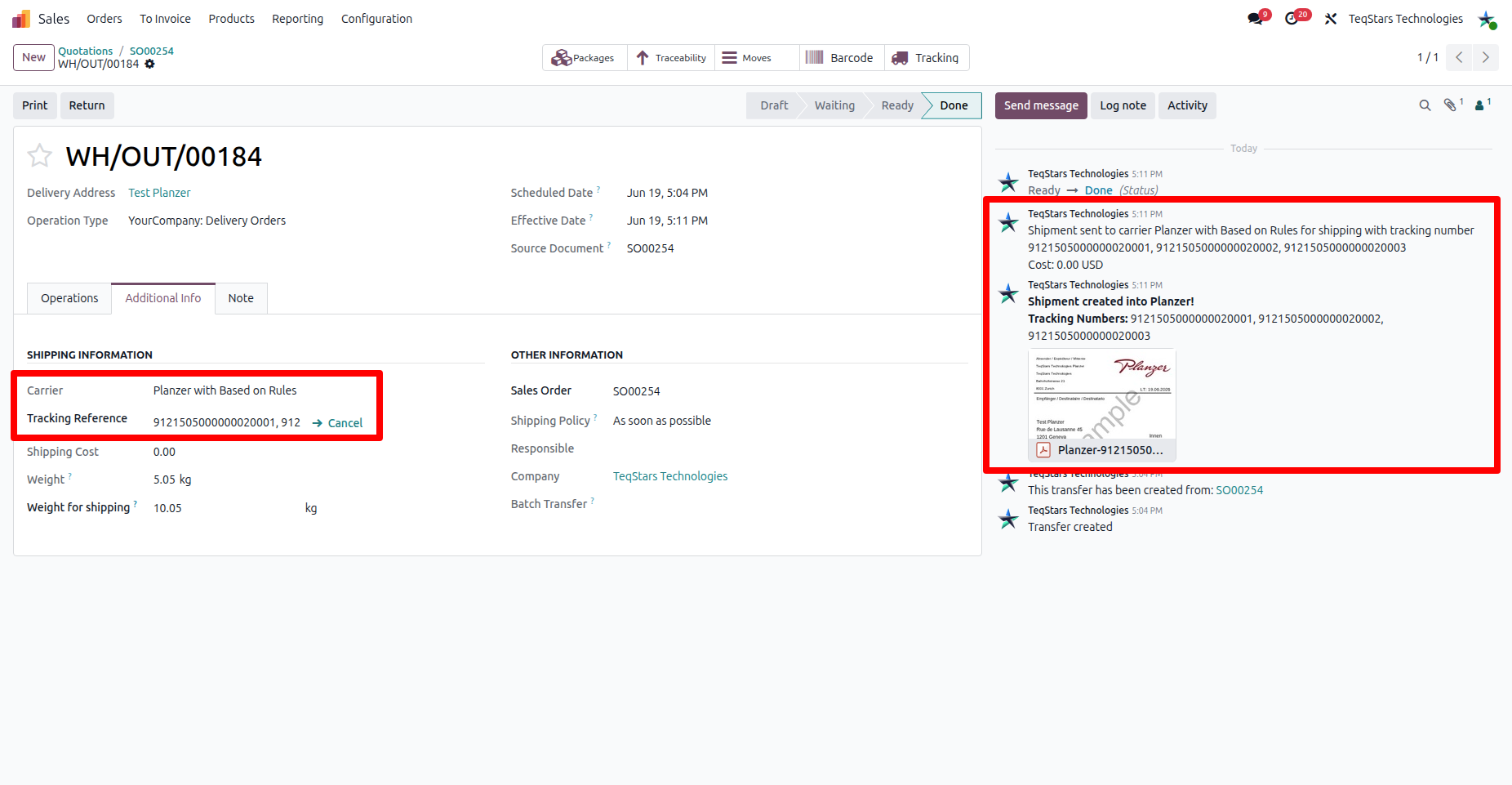
- After validation:
The Tracking number(s) are generated, and a message listing them is posted in the chatter.
The Shipping Label is attached to the delivery order chatter.
Realtime Tracking
When you click on Tracking, it will show the detailed status, location, and updates for the shipment, allowing you to stay informed on its progress in real-time.
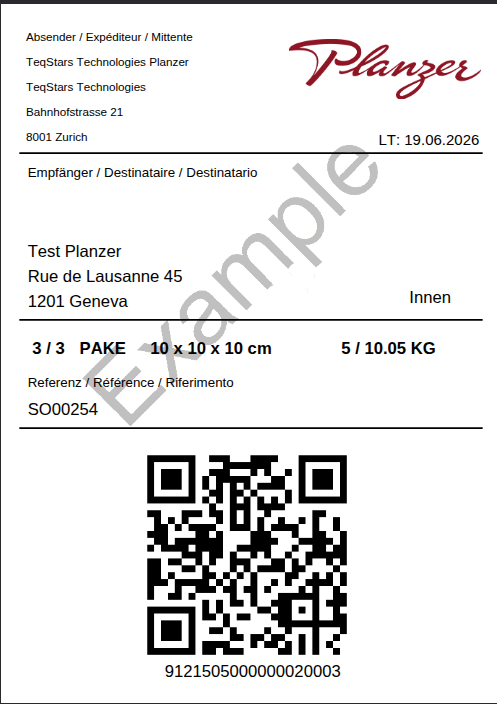
View Generated Label
Shipping labels are automatically generated in the chosen format (PDF or ZPL) and attached to the delivery order.
Cancellation
Warning
Planzer does not support shipment cancellation through the API. To cancel a parcel, log in to the Planzer customer portal and cancel it manually there.