
Configure Swiss Post (DIE Post) Connector
This document provides a complete step-by-step guide to configure and use the Swiss Post (DIE Post) connector in Odoo. Once the connector is set up, you can price shipping on your sale orders, create shipping labels and track shipments directly from your Odoo.
To see everything the connector can do, read Swiss Post (DIE Post) Connector Features.
Let’s begin with the configurations.
Configure Shipping Partner
The shipping partner stores your Swiss Post account credentials and connects Odoo to Swiss Post. You can add more than one shipping partner if you use more than one Swiss Post account.
Go to and click New.
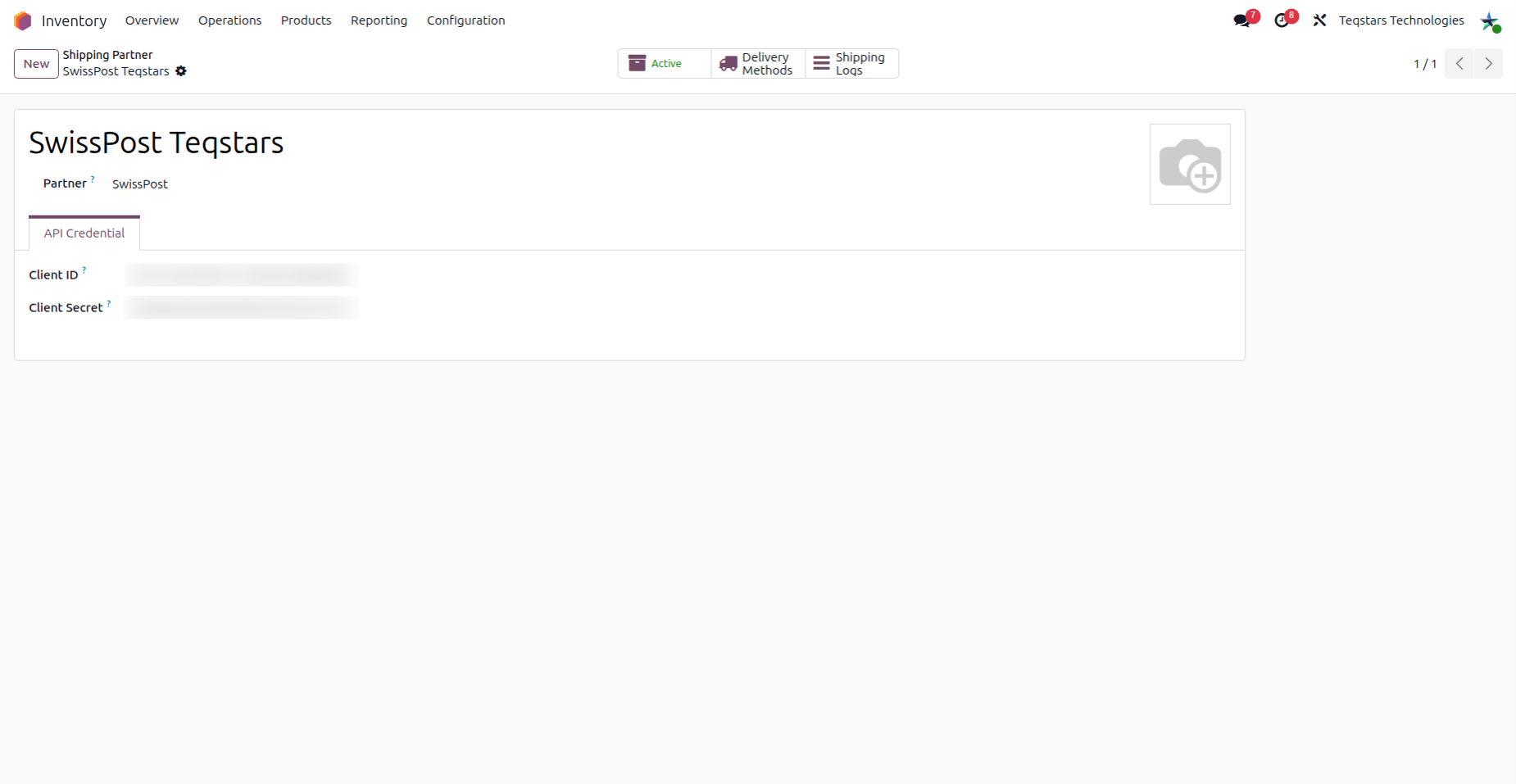
Fill in the required fields to connect your account:
Name: Choose a meaningful name for your account (e.g.
Swiss Post).Partner: Select SwissPost.
Open the API Credential tab and enter the credentials you get from the Swiss Post team:
Client ID: Your client ID from the Swiss Post team.
Client Secret: Your client secret from the Swiss Post team.
Save the shipping partner.
From the shipping partner, the Delivery Methods smart button opens the delivery methods linked to this account.
Check the Shipping Logs
Every request that Odoo sends to Swiss Post is saved in the shipping logs. Use them to find the exact request and response when a label or tracking request fails.
Go to and open your Swiss Post shipping partner.
Click the Shipping Logs button at the top of the form.
Open an entry to see the request URL, the request data and the response data.
Note
The Shipping Logs button is shown in developer mode only. Activate developer mode to see it.
Note
If you archive a shipping partner, you can no longer use it. Its delivery methods cannot reach Swiss Post until you restore it.
Configure Delivery Method
The delivery method defines how shipping is priced and how parcels are sent to Swiss Post. Click the Delivery Methods smart button on the shipping partner and then New.
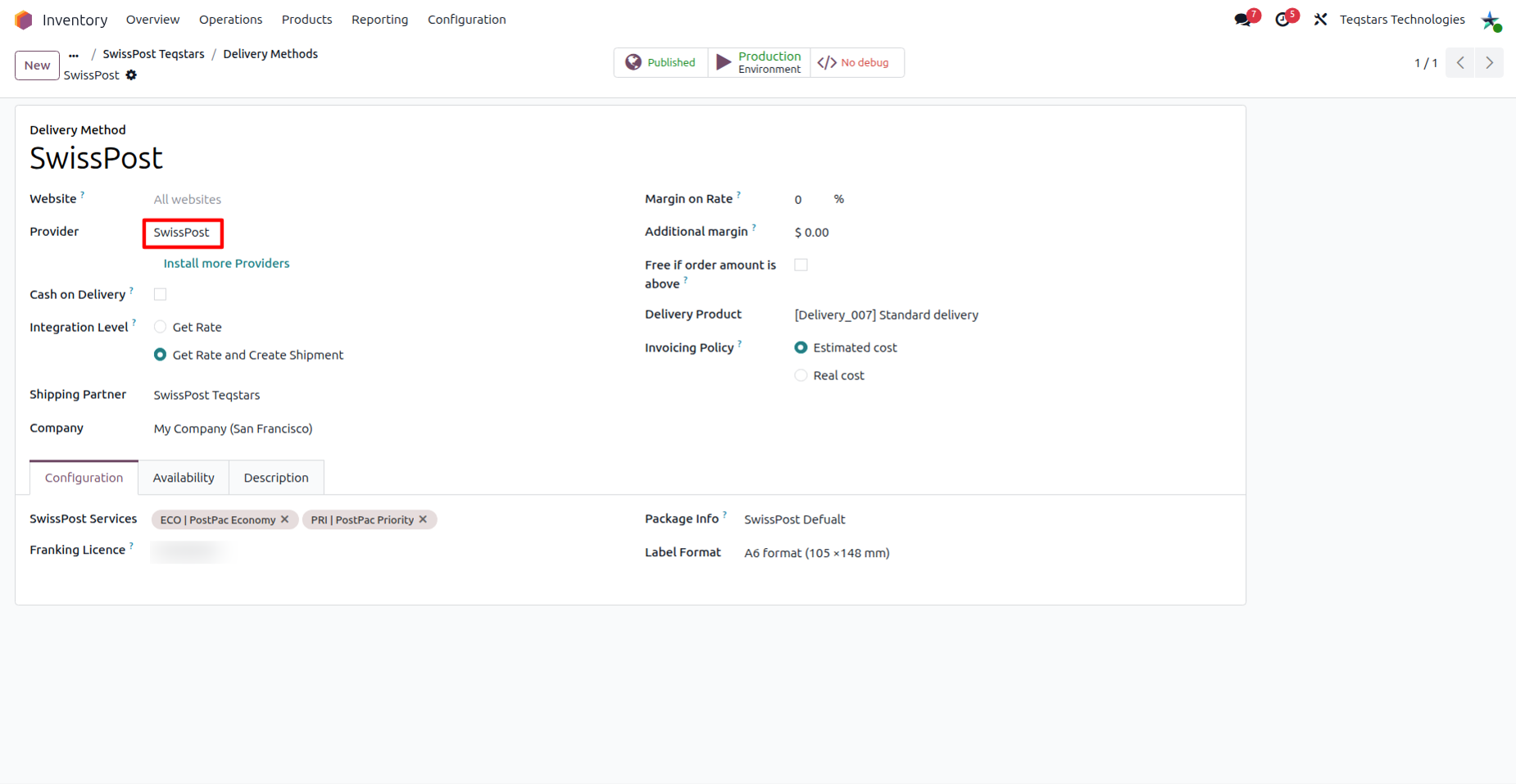
Fill in the main fields of the delivery method:
Delivery Method: Choose a meaningful name for the delivery method (e.g. Swiss Post with Fixed Price or Swiss Post with Based on Rules).
Provider: Choose how the shipping is priced (see below).
Shipping Partner: Select the Swiss Post shipping partner you configured.
Important
Swiss Post does not support live rate calculation. Choose one of these providers to get rates:
SwissPost with Fixed Price: Charges a predefined cost.
SwissPost with Based on Rules: Calculates the charge from your pricing rules.
If you choose plain SwissPost, Odoo shows the message “SwissPost does not support live rate calculation. Please use SwissPost – Fixed Price or SwissPost – Based on Rules to get rates.”
In the Configuration tab, fill out these fields:
Franking Licence: Your franking licence. You get it from the Swiss Post team. Swiss Post uses it to charge the shipment to your account.
SwissPost Services: The Swiss Post services to use for shipments sent with this delivery method.
Label Format: The size of the shipping label. Choose A5 format (148 × 210 mm), A6 format (105 ×148 mm) or A7 format (74 ×105 mm) to match your labels and printer.
Configure Delivery Method with Fixed Price
With the SwissPost with Fixed Price provider, every shipment with this delivery method costs the same fixed price.
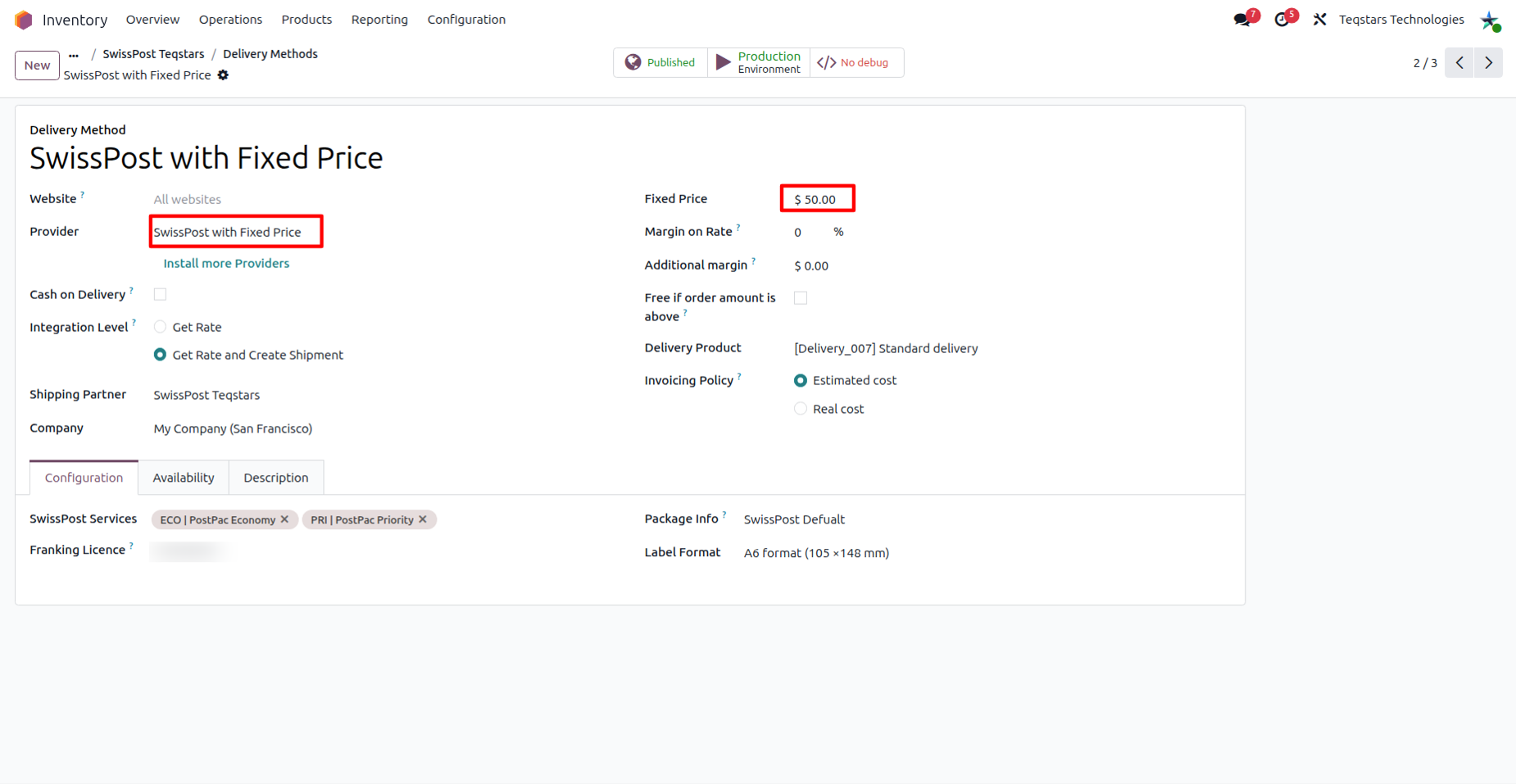
Open the delivery method and set Provider to SwissPost with Fixed Price.
Enter the fixed price you want to charge.
Fill in the Configuration tab as explained above and save.
Configure Delivery Method with Based on Rules
With the SwissPost with Based on Rules provider, Odoo calculates the shipping charge from the pricing rules you define.
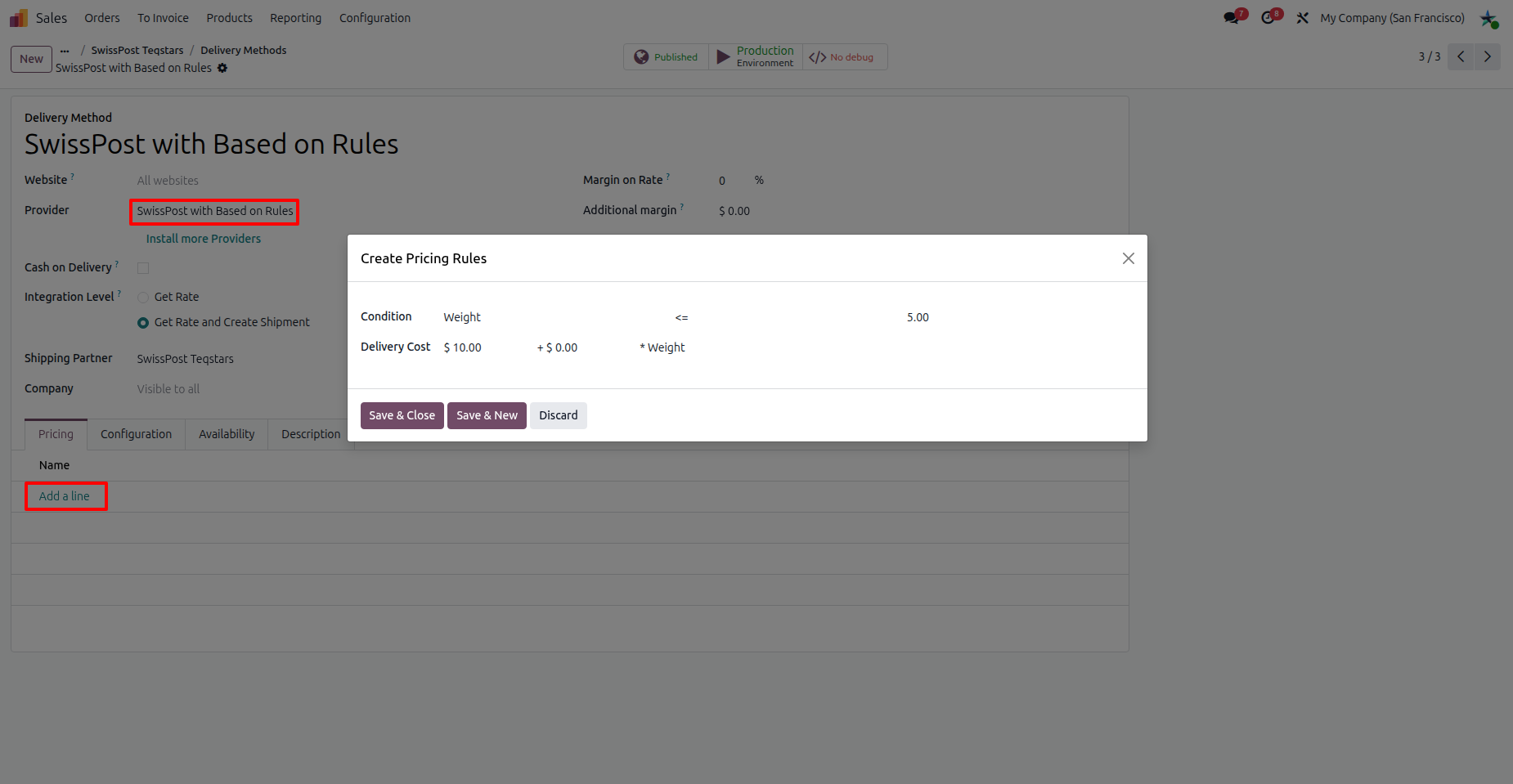
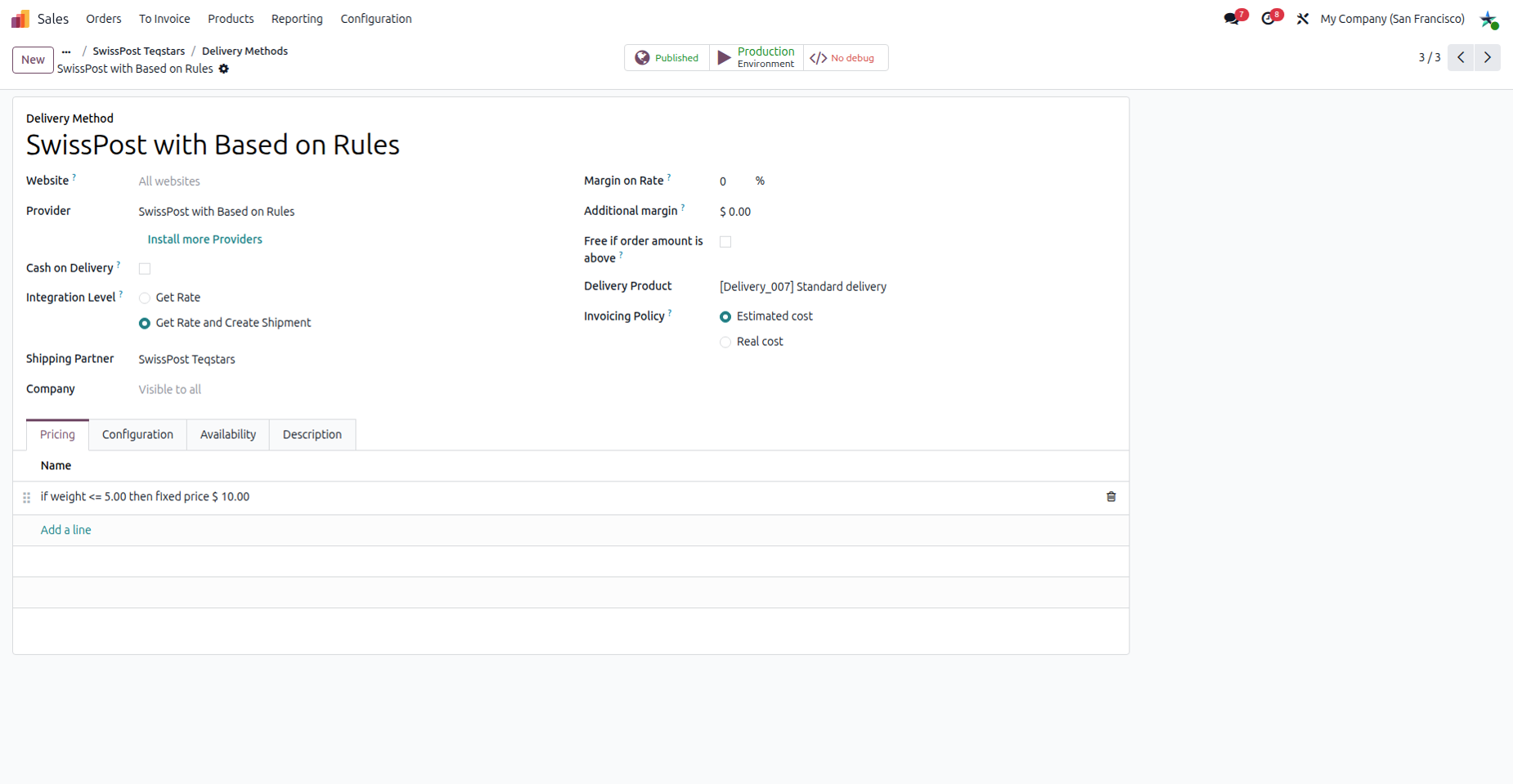
Open the delivery method and set Provider to SwissPost with Based on Rules.
Add your pricing rules.
Fill in the Configuration tab as explained above and save.
Use Delivery Method In Sale Order
You can add the Swiss Post shipping charge to a quotation before you confirm it.
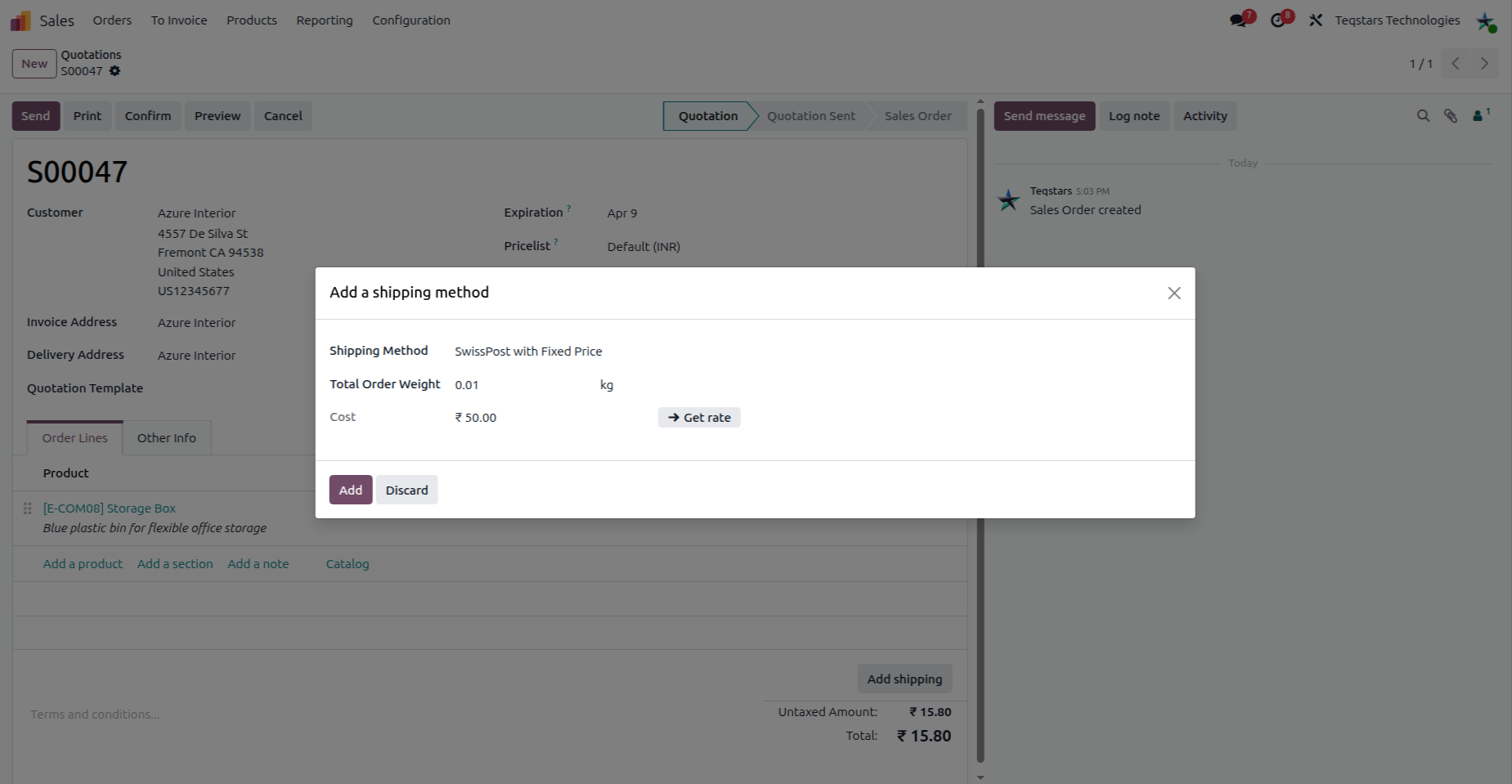
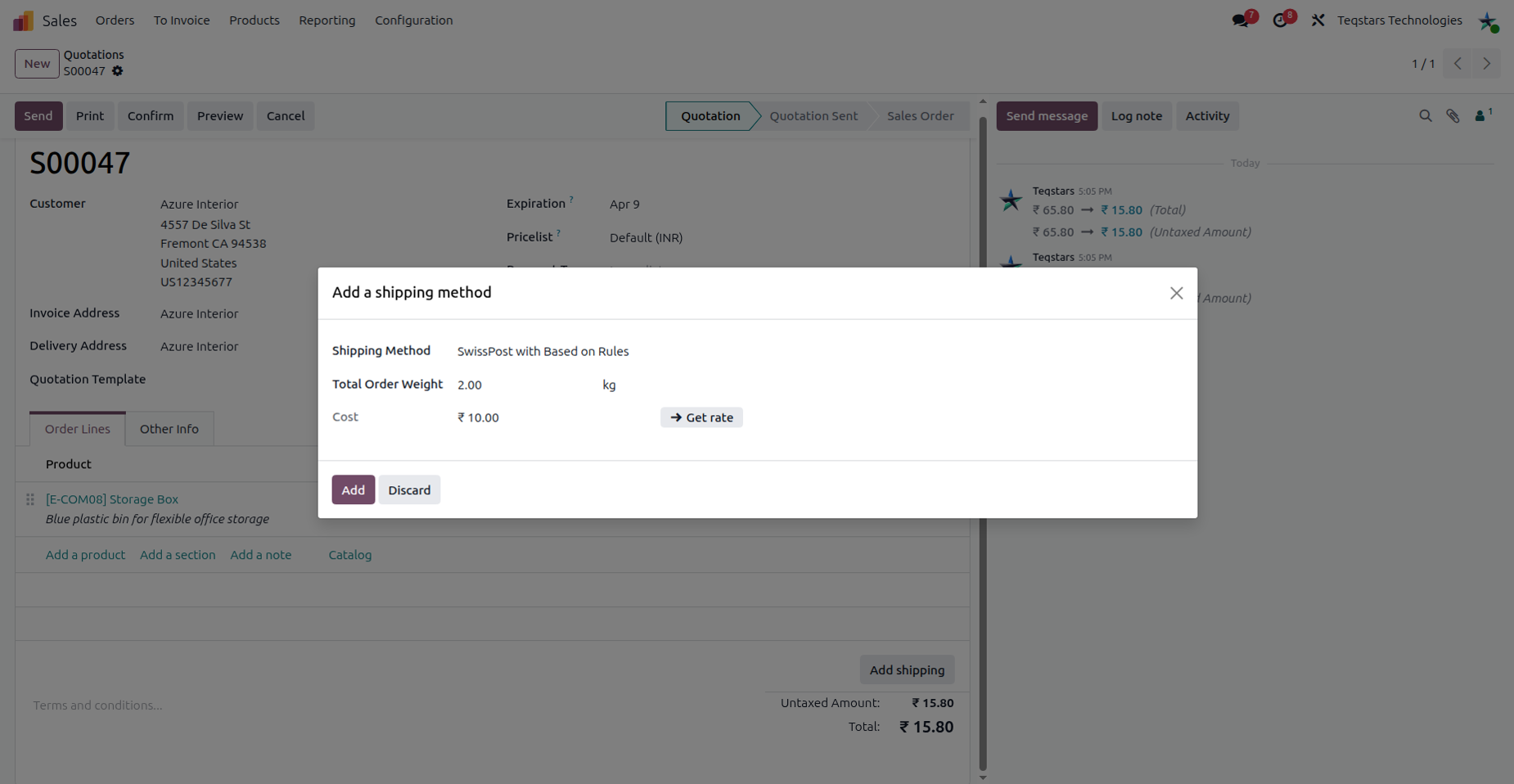
Open the quotation and select the Swiss Post delivery method you configured.
Get the rate. Since Swiss Post does not support live rate calculation, the rate depends on the delivery method you use:
SwissPost with Fixed Price: The predefined fixed price is applied.
SwissPost with Based on Rules: The price is calculated from your pricing rules.
Add the shipping charge to the sale order.
Note
If Odoo shows “Error: this delivery method is not available for this address.”, the customer’s address does not match the delivery method. Check the address or choose another delivery method.
Validate Delivery Order
After you confirm the sale order, process the delivery order in the Inventory app.
Open the delivery order and check that the Swiss Post delivery method you configured is set on it.
Click Validate.
Odoo sends the shipment to Swiss Post with the shipper and recipient addresses, the weight, your franking licence and the services set on the delivery method. Swiss Post creates the shipment and returns the tracking number and the label.
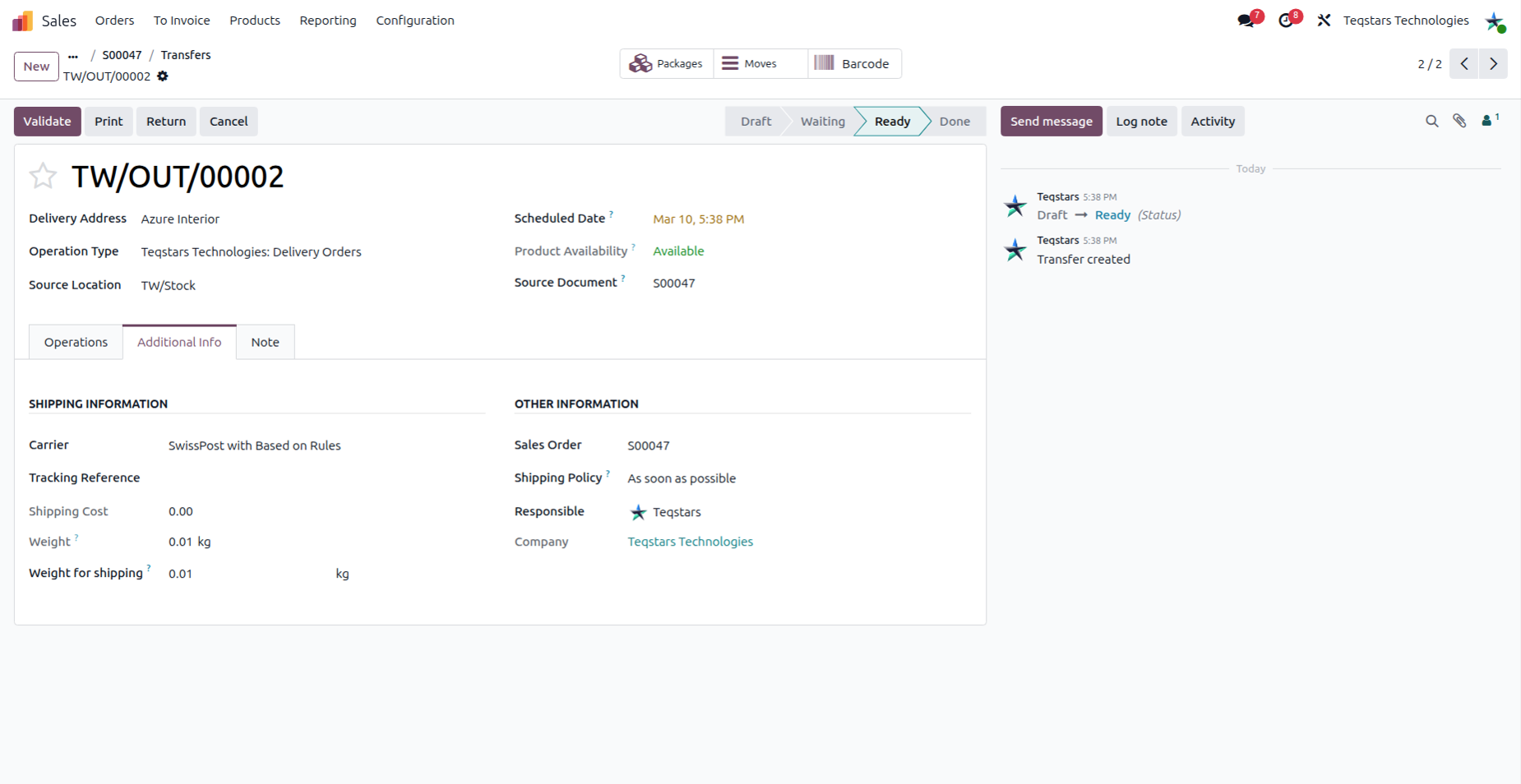
If the validation fails, check the message Odoo shows:
“Shipping weight is missing!”: Set a weight on the products or the packages and validate again.
“Network error contacting Swiss Post: …” or “Unexpected error contacting Swiss Post: …”: Odoo could not reach Swiss Post or got an unexpected answer. Check your connection and the Client ID and Client Secret on the shipping partner, then try again. Open the shipping logs to see what Swiss Post answered.
Tracking and shipping information in delivery order
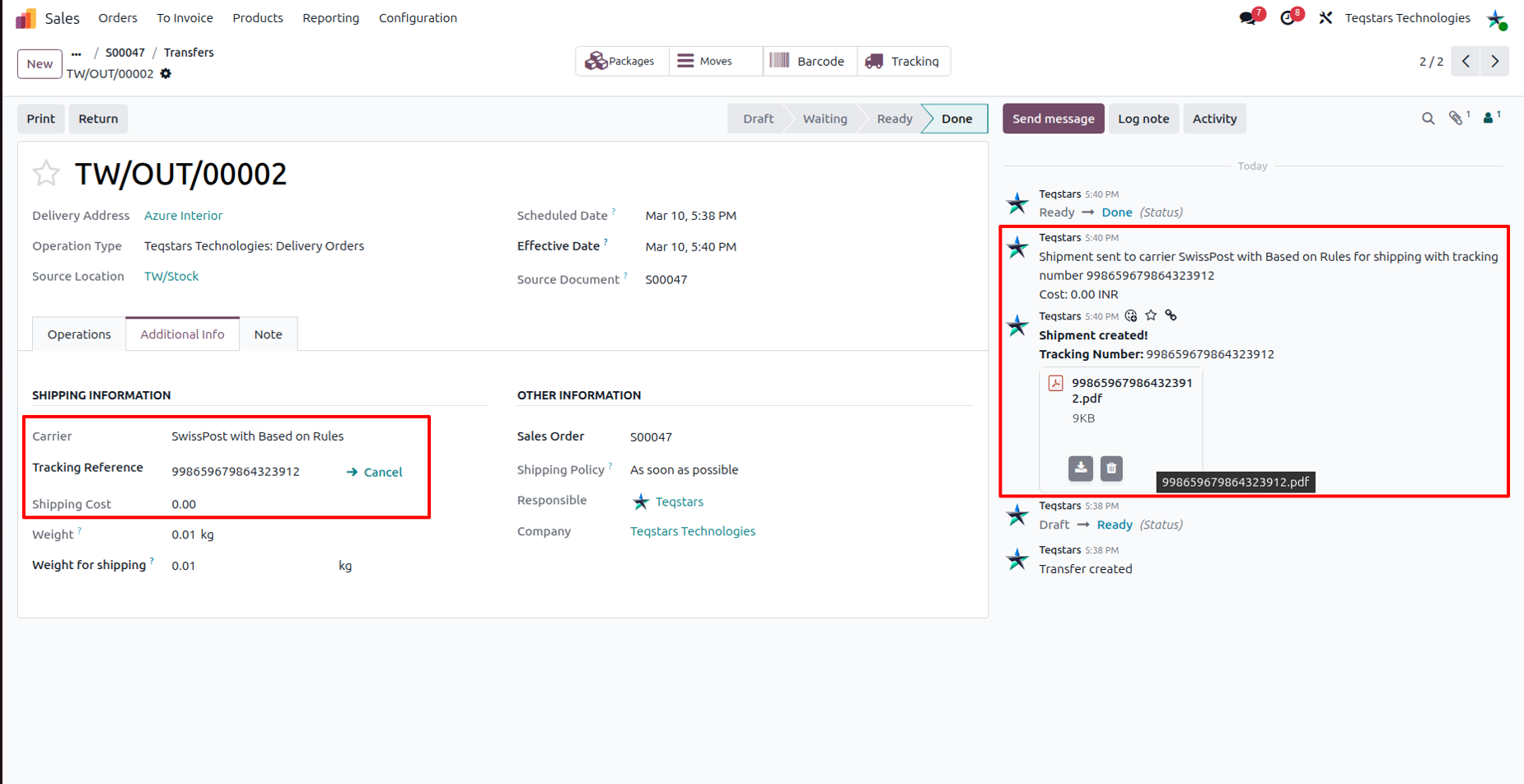
Once the delivery order is validated, the shipment is registered with Swiss Post and the tracking and label information is recorded on the order.
After validation:
The tracking number is saved on the delivery order.
A message “Shipment created!” with the tracking number is posted in the chatter.
The shipping label is attached to the delivery order chatter.
View Generated Label
Swiss Post creates the label in the Label Format set on the delivery method (A5, A6 or A7). Open the attachment in the delivery order chatter to view and print the label.
Track Shipment
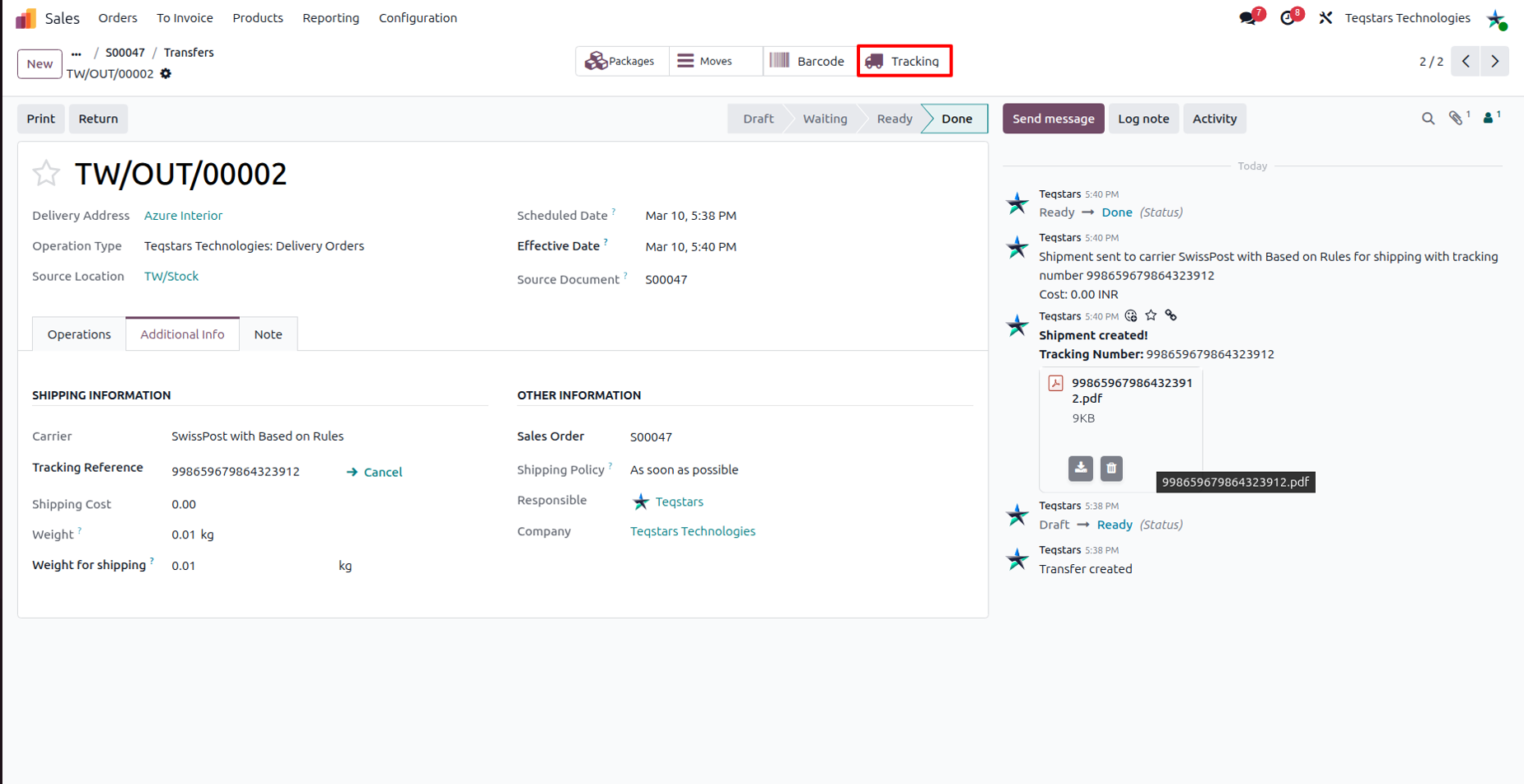
Click the tracking link on the validated delivery order. Odoo opens the official Swiss Post shipment list, where you can find the shipment by its tracking number and see its status and location.
Cancellation
Warning
Swiss Post does not support shipment cancellation from Odoo. If you try to cancel a shipment, Odoo shows “Shipment cancellation is not supported by Swiss Post.” Cancel the shipment directly with Swiss Post.