
Configure Shopify Location
In Odoo, when you confirm the instance, your Shopify Locations will be automatically imported into Odoo via Shopify’s GraphQL Admin API. Here are the key elements you need to set up for the first time when mapping locations in Odoo from Shopify.
To view your Shopify locations in Odoo, navigate to .
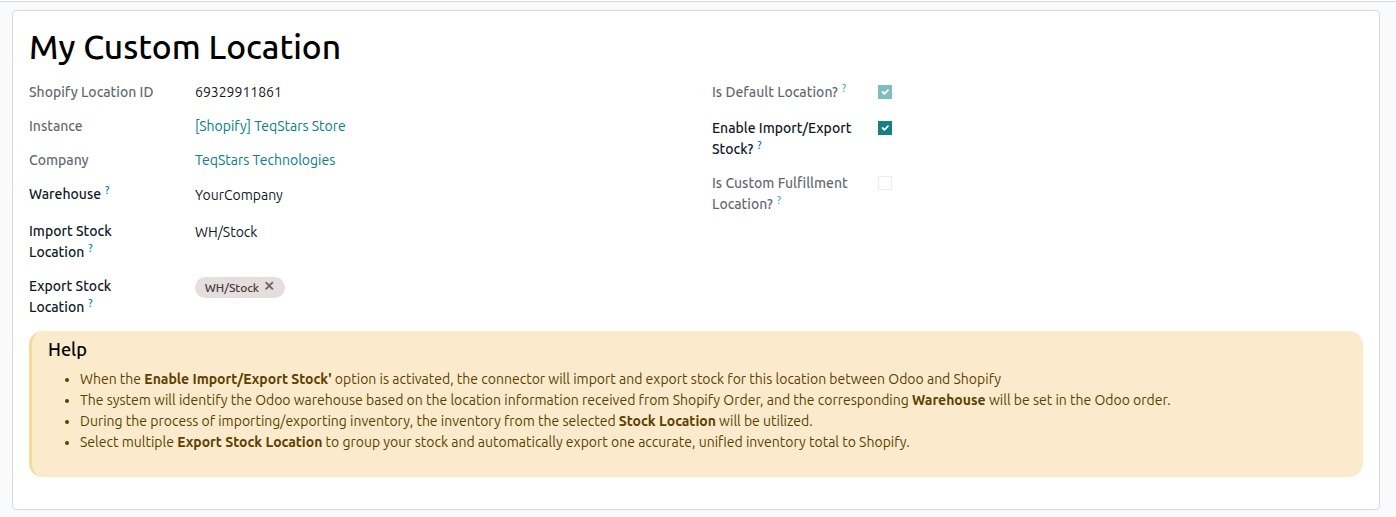
Warehouse
Select the Odoo warehouse that should be linked with this Shopify location.
Import Stock Location
Select the Odoo location where stock coming from Shopify should be stored.
Whenever stock is imported from Shopify, Odoo updates the quantity in this selected location.
This ensures that all incoming stock is recorded in the correct warehouse location.
Export Stock Location
Select one or more Odoo locations to use for stock updates.
Odoo checks the stock from all selected locations, combines the quantities, and sends the total stock to Shopify.
This allows you to manage stock from multiple locations while keeping Shopify updated with the correct total quantity.
Enable Import/Export Stock?
Turn this on to keep stock updated between Shopify and Odoo.
When enabled, Odoo uses the selected stock locations to receive stock from Shopify and send stock updates back to Shopify.
If disabled, stock will not be updated between Shopify and Odoo.
Note
If you need to refresh Shopify locations, reset the instance and confirm it again.
Warning
Shopify Limitation: Stock cannot be exported from Odoo to Shopify for external (third-party) locations.