
Accept ManoMano Orders From Odoo
When a customer places an order on ManoMano, the order waits in the Pending status until you accept it.
The ManoMano Connector lets you accept a pending order straight from its sales order in Odoo, with the Accept Order button.
Odoo sends the acceptance to ManoMano for the seller contract of the order (B2B or B2C), so you do not need to open ManoMano to do it.
Before You Start
The order must already be in Odoo. To bring ManoMano orders into Odoo, see Import ManoMano Orders In Odoo.
The order must carry its ManoMano Seller Contract. Odoo uses it to know on which contract (B2B or B2C) to accept the order. It is set when the order is imported.
The ManoMano Order Status of the order is Pending.
The ManoMano instance must have its API Key and seller contract IDs filled in on the Credentials tab. See Create a ManoMano instance in Odoo.
Accept An Order
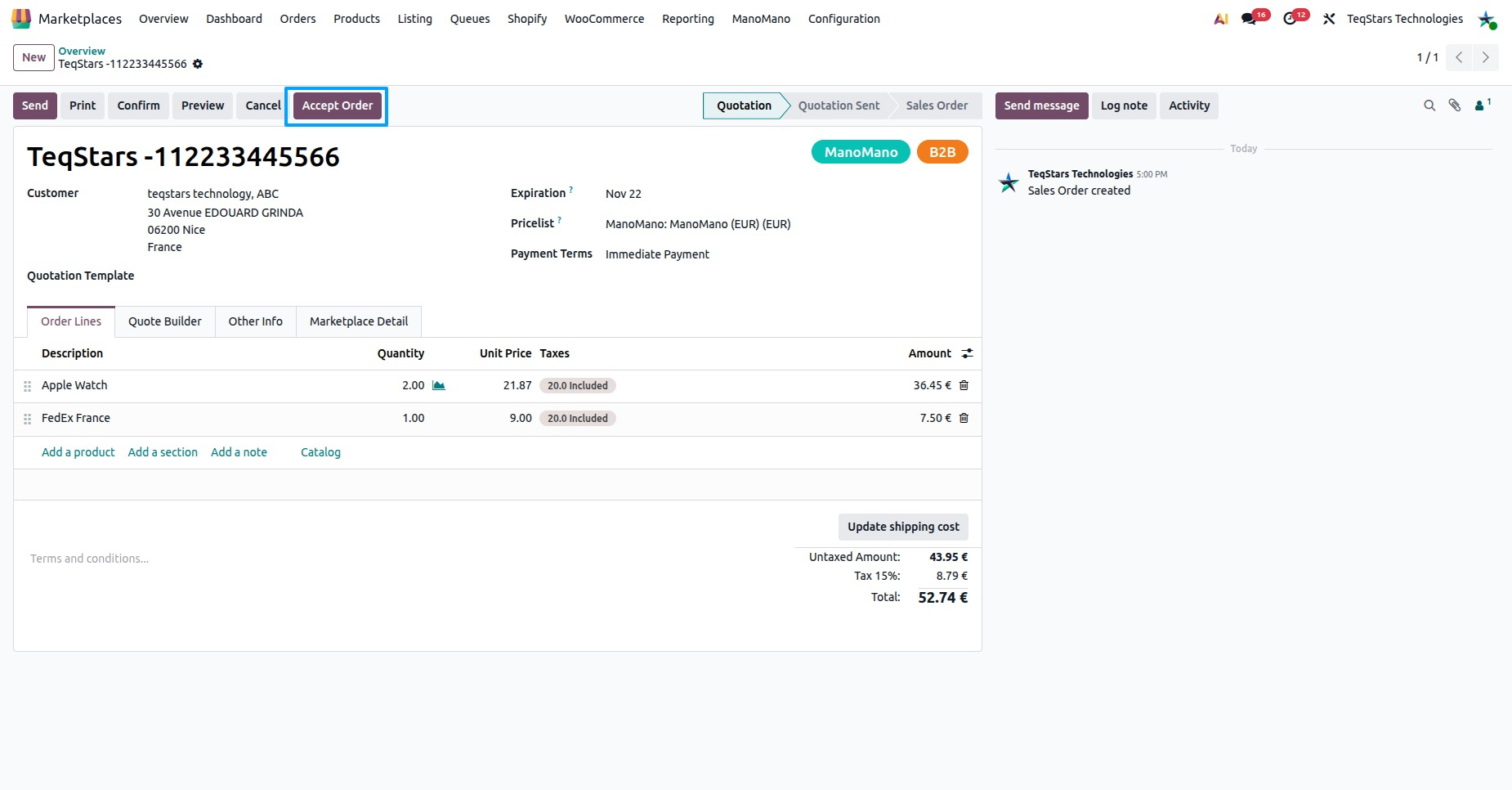
Go to and open the ManoMano order you want to accept.
Check the Marketplace Detail tab: the ManoMano Order Status is Pending and the ManoMano Seller Contract is set.
Click Accept Order.
Odoo sends the acceptance of this order to ManoMano for its seller contract.
After Accepting
When ManoMano accepts the request, Odoo posts a note on the order saying it was accepted in ManoMano, and records a success message.
You then prepare and ship the order as usual in Odoo. When the delivery is done, the shipment tracking is sent to ManoMano. See ManoMano Update Order Status From Odoo.
To refund all or part of a ManoMano order, see Refund ManoMano Orders From Odoo.
When the order could not be accepted, Odoo shows a message that tells you why:
No ManoMano seller contract reference is set on this order: the order has no ManoMano Seller Contract, so nothing was sent. Check that the order was imported from ManoMano.
Could not be accepted in ManoMano: ManoMano refused the request or could not be reached. The message gives the technical detail. Check the order on ManoMano, then try again.
ManoMano API Key is missing on instance: fill in the API Key on the Credentials tab of the instance.
ManoMano is temporarily unavailable: wait a few minutes and click Accept Order again.
You find the import and export messages of the instance in .