
Import Category Properties From Octopia
Category properties are the attributes Octopia asks for in a category: which ones are required, which units apply and which values are allowed. A product cannot be created in the catalogue while a mandatory property is missing.
How To Import Category Properties Manually
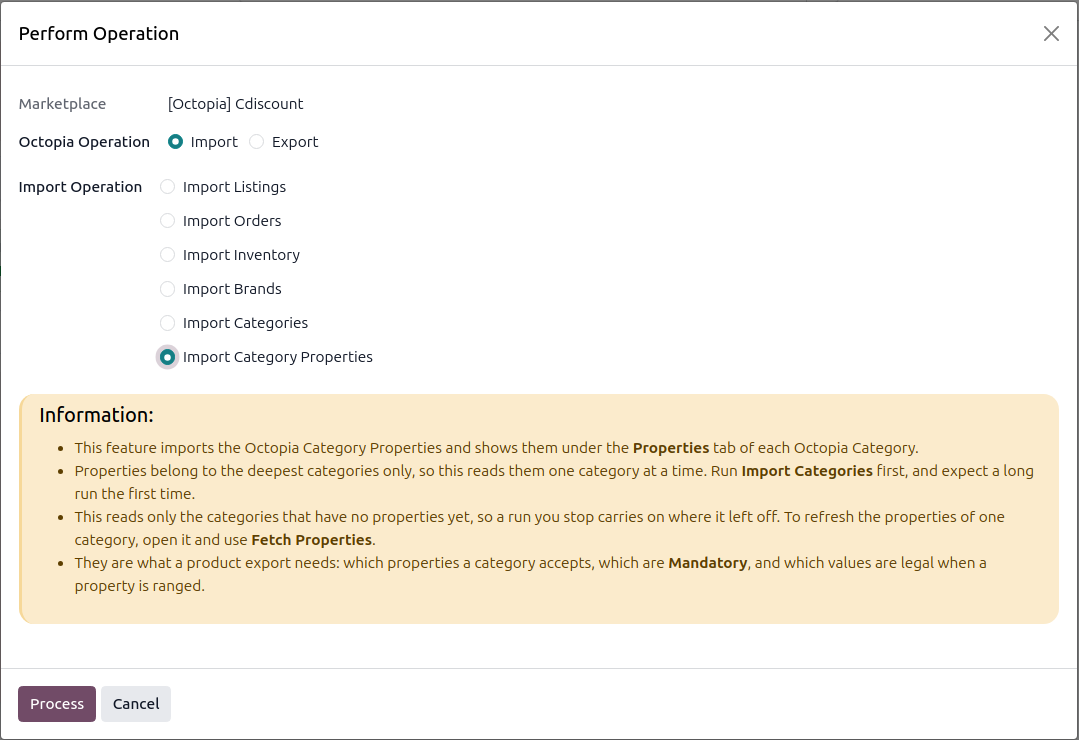
Run Import Categories From Octopia first, the properties belong to categories that must already exist.
Click the Operations button on the instance card in .
Choose Import, select Import Category Properties, and click Process.
The connector reads only the level 3 categories that have no properties yet, so a run you stop carries on where it left off. The first run reads one category at a time and can take a long while, so it runs in the background. The result is added to the logs when it finishes.
Note
Only one fetch per instance runs at a time. A second request while one is running is refused, or skipped and logged.
Refresh One Or More Categories
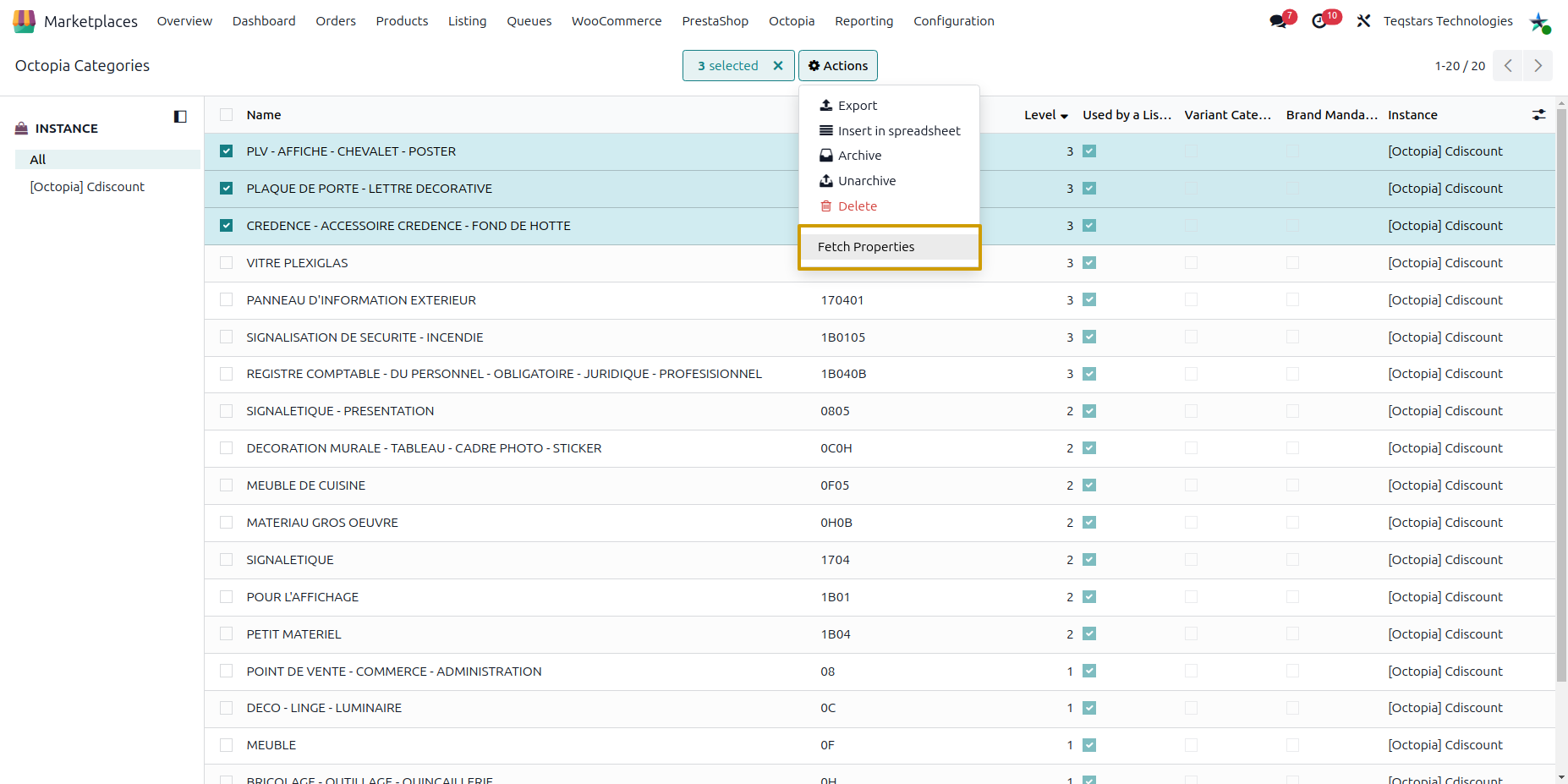
Go to .
Select level 3 categories, or open one.
Open the Actions menu and choose Fetch Properties.
A selection that contains a category of another level is refused as a whole.
Properties On A Category
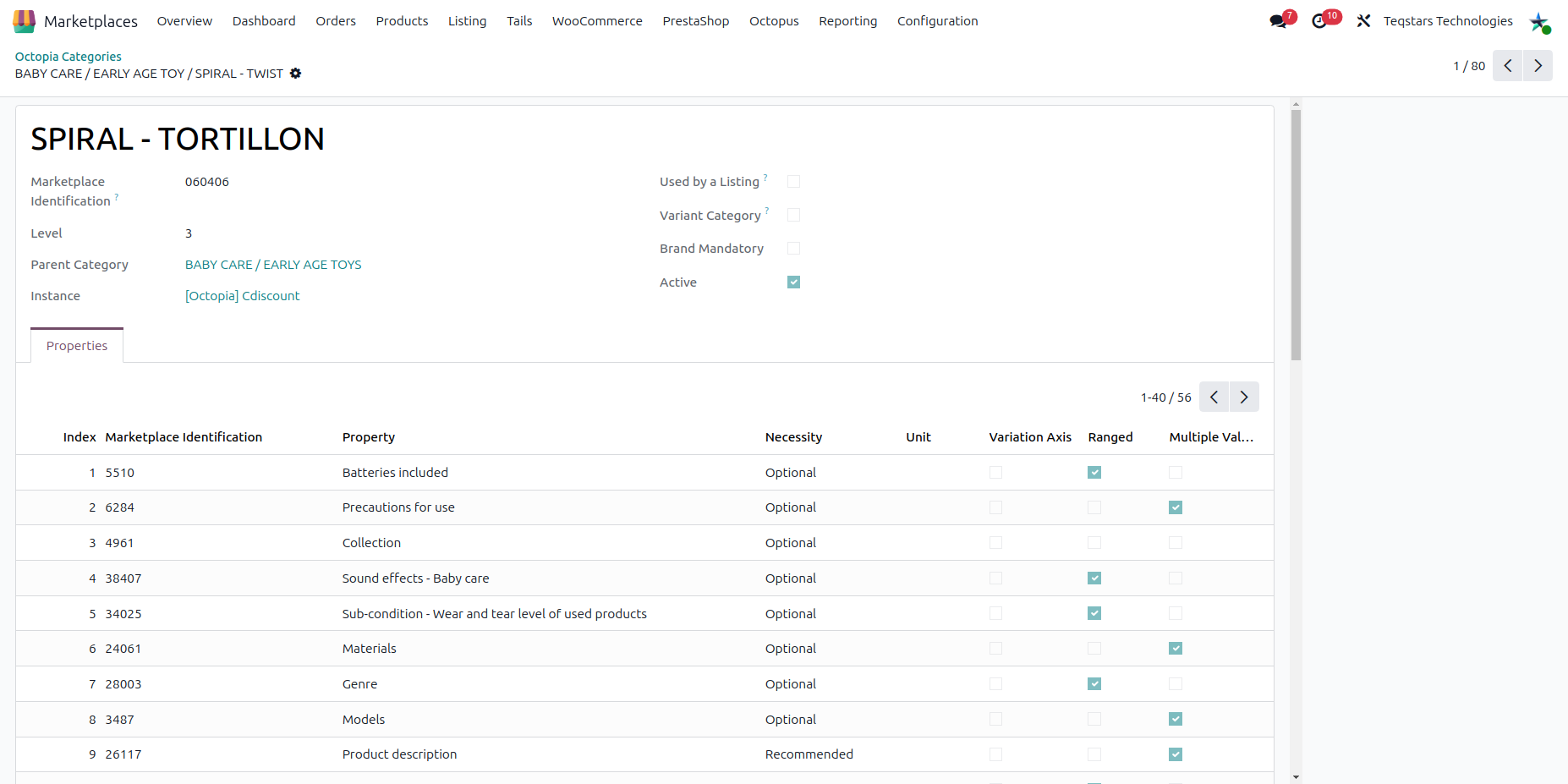
Open a level 3 category and use its Properties tab. Each property shows:
Index: The order in which Octopia lists the property.
Marketplace Identification: Octopia’s own code, which never changes whatever the language.
Necessity:
Mandatory,RecommendedorOptional.Unit.
Allowed Values: The only values Octopia accepts for this property. Empty means free text.
Variation Axis, Ranged and Multiple Values flags.
How Properties Are Used On A Listing
When you choose a category on a listing that is not on Octopia yet, a line is added on its Category Properties tab for every Mandatory property, ready for its value.
A Ranged property accepts only the values Octopia lists, so the value is picked from a menu instead of being typed. A property that allows several values accepts them separated by commas.
Properties are fetched on demand the first time a listing is imported or created in a category that has none.