
Process the Items Import Queue
Everything fetched from QuickBooks lands in the Items Import Queue before it becomes an Odoo record. The queue is where you review the raw QuickBooks payload, process it, and deal with anything that could not be imported.
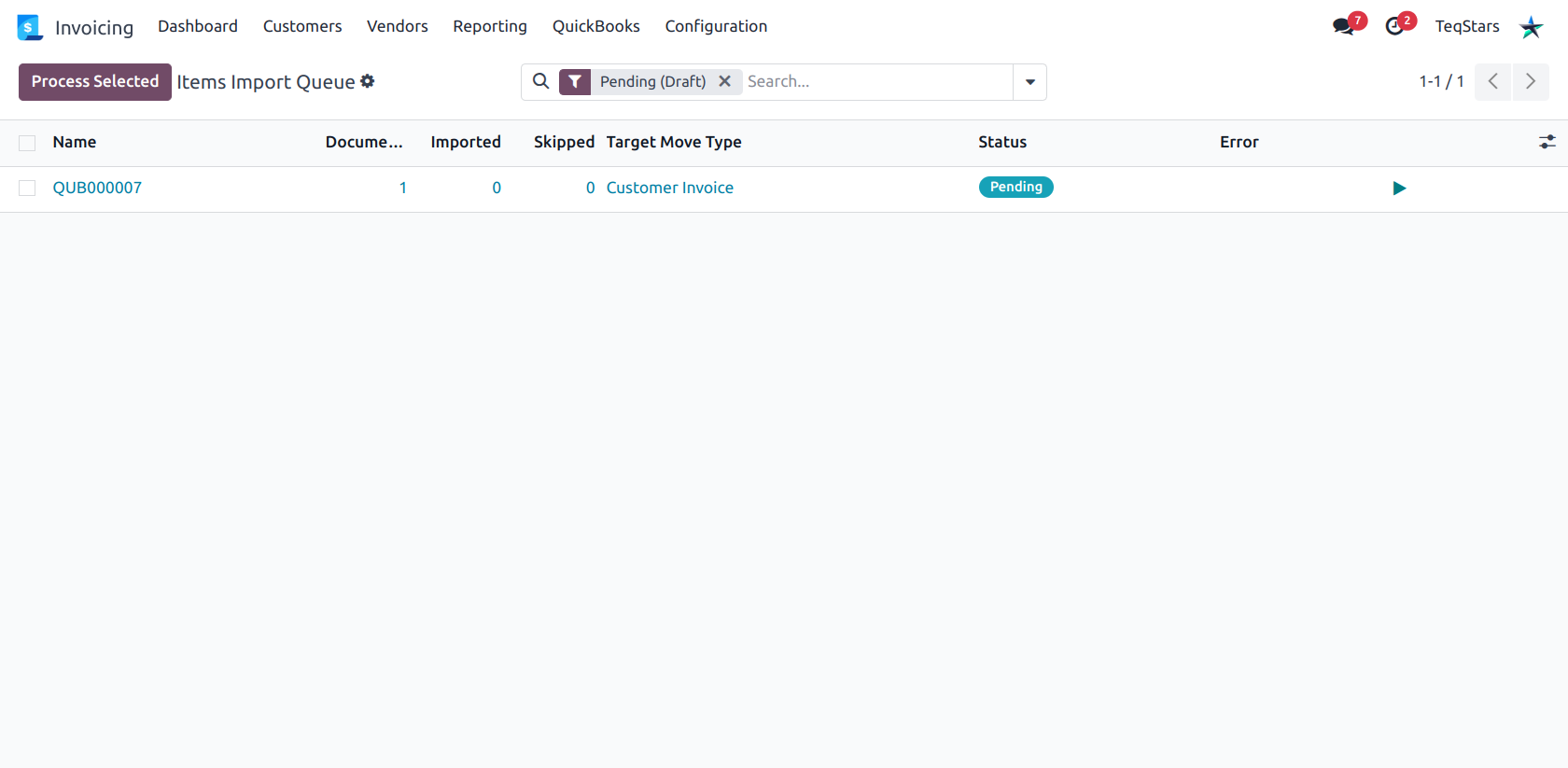
Open it at . The list opens filtered on Pending (Draft) rows.
How the queue is organised
A row — named QUB000001, QUB000002 and so on — holds up to 100 QuickBooks
documents of a single type, recorded in Target Move Type. Each document inside
it is a line on the Data Lines tab, processed and retried independently.
The list columns tell you how far a row has got:
Documents — how many QuickBooks records the row holds.
Imported — how many became Odoo records.
Skipped — how many failed.
Error — a per-document summary of what went wrong.
Row statuses
Status |
Meaning |
|---|---|
Pending |
Queued, nothing processed yet. |
Processed |
Every document imported successfully. |
Done with skips |
Some documents imported, the rest failed. |
Error |
Every document failed. |
Process the queue
One row — open it and click Process, or click the play icon at the end of its line in the list.
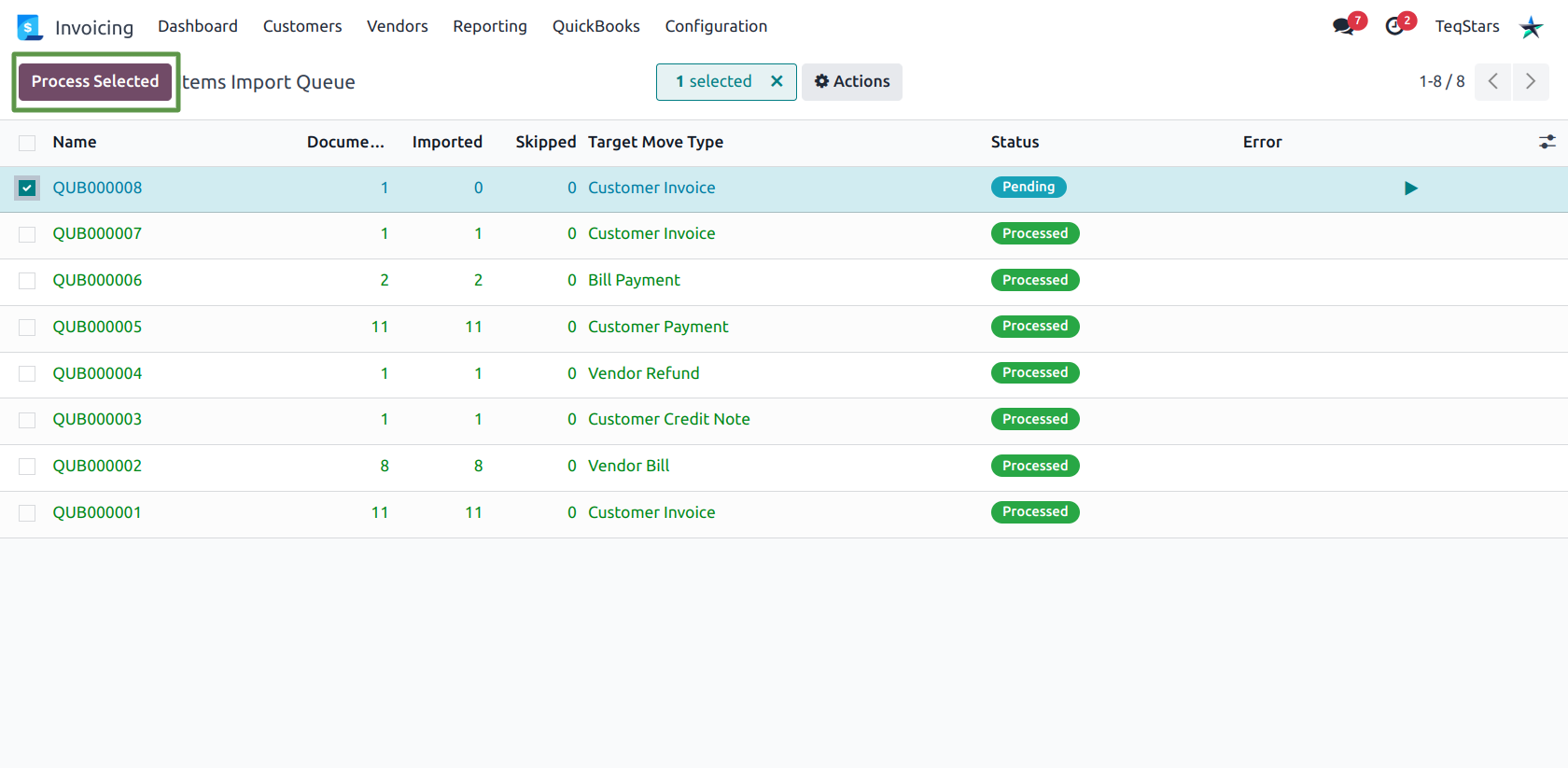
Several rows — tick them in the list and click Process Selected.
Automatically — turn on Enable Import Cron on the connection and the QuickBooks: Process Import Queue scheduled action drains pending rows every five minutes, up to Cron Batch Size documents per run. See Automation settings.
Note
Processing only touches lines that are not already Done. Re-processing a row after fixing a problem retries just the failed documents — the ones that already imported are left alone, and are never created twice.
Inspect a row
Open a queue row to see:
Data Lines: one line per QuickBooks document, with its Invoice / Document Number, QuickBooks ID, the Odoo record it created, Processed On time, and its own error message.
Raw JSON Payload — the exact payload received from QuickBooks.
Tip
The Odoo Record column on a Done line links straight to the invoice, bill or credit note that was created — the quickest way to check an import actually produced what you expected.
Fix and retry failures
A failed line keeps its error message, so you can see exactly why that document was rejected. Typical causes and fixes:
Error |
Fix |
|---|---|
No postable lines |
The QuickBooks document contains only sub-totals, group lines or zero-value discounts. Nothing to import — skip it. |
Payment could not be linked |
The invoice or bill it settles is not in Odoo yet. Import that document first, then re-process the row. |
Missing journal for a payment |
Set a Default Payment Journal on the connection, or create a bank journal for the company. |
After fixing the cause, process the row again. You can also edit the Raw JSON Payload of a failed row before re-processing, for one-off corrections.
Important
Rows are company-scoped. In a multi-company database, each row belongs to the company of the connection that fetched it, and only that company’s users see it.
Note
When a row ends in Done with skips or Error and failure notifications are enabled, an activity is raised for the responsible users with the full skip summary.