
Configure Shopify Metafields
Shopify metafields are custom fields on Shopify resources that store additional information not available in Shopify’s standard fields. The Shopify connector maps each Shopify metafield to an Odoo field, then synchronizes the values during the regular sync operations of each resource (import and export for Product and Variant, import only for Customer and Order).
Note
Before you begin, make sure metafield functionality is enabled on the instance. The master toggle Enable Metafield Functionality? and the per-resource Active toggles are described in Metafield Configurations.
Add Your First Metafield Mapping
The fastest way to see metafields in action is to wire up a single mapping end-to-end. The four steps below cover the full path from Shopify admin to a synced Odoo field.
Define the metafield in Shopify. In your Shopify admin, go to and add a metafield definition for Products, Variants, Orders, or Customers with a namespace, key, and type (for example,
custom.shelf_lifeof type Single Line Text).Fetch the definition into Odoo. In Odoo, open your instance from , switch to the Metafields tab, and click
Fetch Lateston the relevant resource card (Product Metafields, Variant Metafields, Order Metafields, or Customer Metafields). The new row appears in the mapping list.Map it to an Odoo field. Click
Configure Mapping, find the new row, pick a compatible Odoo Field from the dropdown, and keep Active turned on. The status badge should switch to Ready.Run the relevant import or export operation from the instance: Import/Export/Update Listings for Product and Variant, Import Customers for Customer, or Import Orders for Order. The metafield values are synchronized along with the resource data, so no separate metafield synchronization operation is required.
Tip
Once the mapping is Ready, every subsequent run of the matching operation keeps that metafield in sync automatically for that resource (Product, Variant, Customer, or Order). You only need to revisit this page when you add, rename, or remove a metafield definition in Shopify.
Configure Metafield Mappings
Fetch Metafield
This button retrieves metafield definitions from Shopify and updates the metafield mapping list for the selected resource.
Running Fetch Metafield adds new Shopify metafields to the list view and removes rows for metafields that were deleted in Shopify.
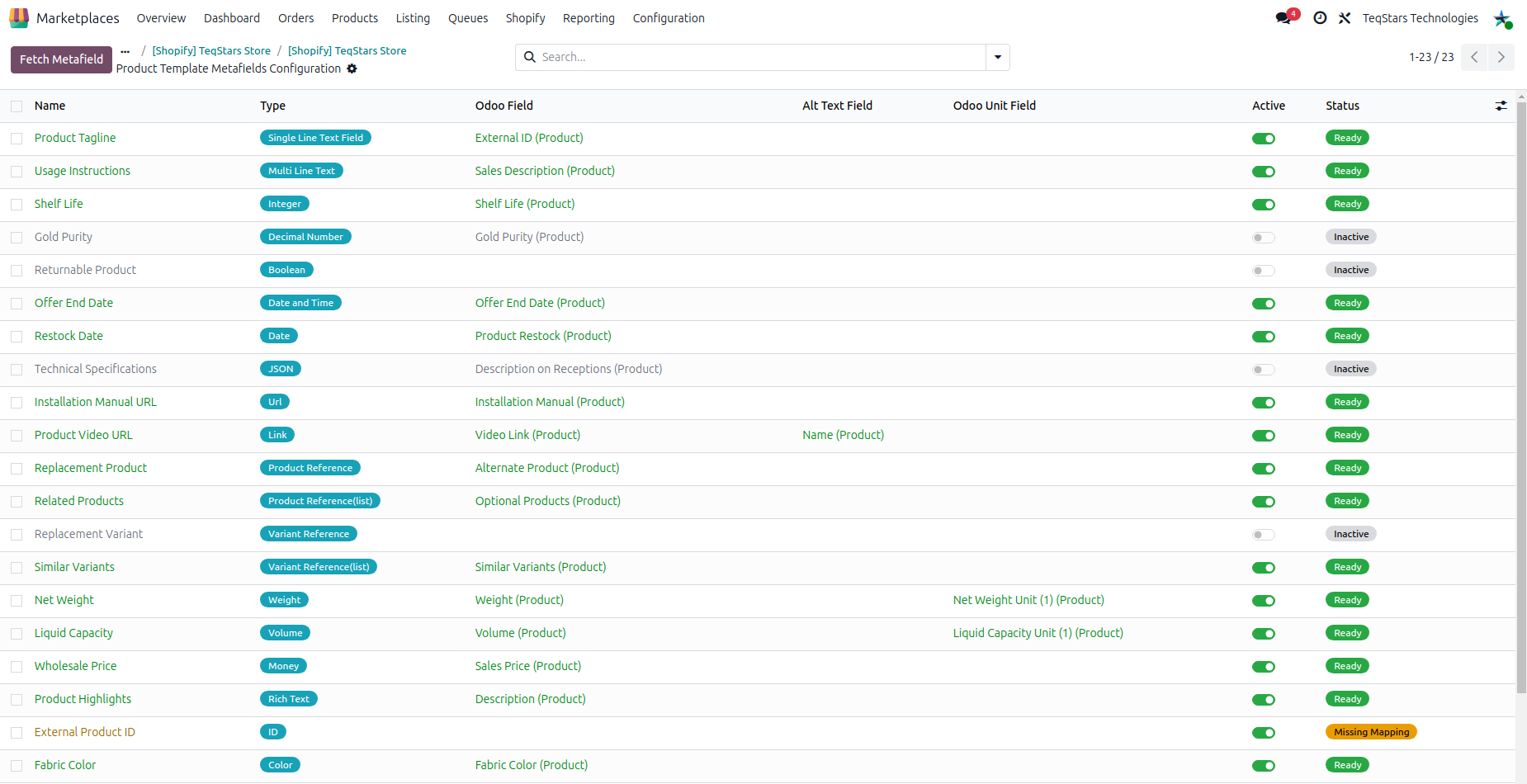
Each row in the mapping list view represents one Shopify metafield definition for the selected resource. The columns are described below.
Note
The
Fetch Metafieldbutton on the list view and theFetch Latestbutton on the resource card both trigger the same action.Name, Namespace, Key, Type
These fields display metafield information fetched from Shopify. The values are read-only and cannot be modified in Odoo.
Odoo Field
Select the Odoo field where the Shopify metafield value should be stored. The available fields depend on the selected metafield type.
This field is required for the mapping to participate in import and export. A mapping without an Odoo field selected is shown with the
Missingstatus and is skipped during synchronization.
Alt Text Field
Optional field used only for Shopify metafields of type Link. Select an Odoo field to store the anchor text for the link.
By default, this field is editable only for Link type metafields.
Odoo Unit Field
Automatically managed read-only field used only for measurement-type metafields. It stores the unit of measurement associated with the numeric value.
It is applicable only for Measurement types such as
weightandvolume. For example, in weight it stores units like kg, g, lb, oz, and in volume it stores units like l, ml, gal, fl oz.Its purpose is to ensure Shopify and Odoo stay aligned on measurement units during import and export operations.
Active
Enables or disables a mapping without deleting it. When turned off, the mapping is ignored during both import and export.
Status
Displays the current state of the metafield mapping. This value is managed automatically. The meaning of each status is explained in Status Badges below.
Note
A single Odoo field can be mapped to only one Shopify metafield. The connector validates this automatically when saving the configuration.
Tip
No compatible Odoo field available? The Odoo Field dropdown only lists Odoo fields whose type matches the Shopify metafield type. If nothing in the dropdown fits, create a custom field on the underlying Odoo model (product.template for Product, product.product for Variant, res.partner for Customer, sale.order for Order) via Odoo Studio or . The new field appears in the dropdown immediately.
Status Badges
Ready
Odoo field is selected and the mapping is active. It will be used for import and export operations for this resource.
Missing
No Odoo field is selected for the mapping. The mapping is ignored during synchronization until an Odoo field is picked.
Not Found
The metafield no longer exists in Shopify. The mapping is skipped during synchronization until it is removed manually or the metafield is recreated in Shopify with the same namespace and key.
Inactive
The Active toggle on the mapping is off. The mapping is preserved but is skipped during synchronization.
Tip
Use the search filters at the top of the mapping list (Ready, Missing, Active) or Group By → Status to quickly find rows that still need an Odoo field. The Ready count shown on the resource card is exactly the number of rows that will participate in import and export.
Supported Metafield Types
The connector supports the following Shopify metafield types. Each Shopify type only allows Odoo fields of the listed compatible types in the Odoo Field dropdown.
Shopify type |
Compatible Odoo field type |
Notes |
|---|---|---|
Single Line Text Field |
Char |
Shopify validations such as |
Multi Line Text |
Text |
Shopify validations such as |
Url |
Char |
The |
Link |
Char |
The |
ID |
Char |
Validation is not enforced in Odoo. Make sure the value matches Shopify’s expected ID format. Invalid values are rejected by Shopify. |
Color |
Char |
Validation is not enforced in Odoo. Make sure the value matches Shopify’s supported color format. Invalid values are rejected by Shopify. |
JSON |
Text |
The |
Rich Text |
Html |
Shopify accepts only its supported set of HTML tags in Rich Text metafields. Tags outside that set are automatically ignored from Odoo to Shopify during export. |
Integer |
Integer |
Validation such as |
Decimal Number |
Float |
Pass a valid decimal value as expected by Shopify. Validation is not enforced in Odoo. |
Rating |
Float |
Rating scale limits are not enforced in Odoo. Make sure values fall within Shopify’s supported rating range. |
Money |
Float or Monetary |
The currency is used from the Shopify instance’s configured Pricelist during both import and export. The Odoo field stores only the numeric amount. |
Boolean |
Boolean |
No additional validation. |
Date |
Date |
Validation rules such as |
Date and Time |
Datetime |
Validation rules such as |
Weight |
Float |
Odoo field used to store the measurement value (e.g., 1.5, 250, 2.75). The unit (such as kg, g, lb, oz) is automatically handled and stored in the Odoo Unit Field to keep the value consistent during import and export between Shopify and Odoo. |
Volume |
Float |
Odoo field used to store the measurement value (e.g., 1.5, 250, 2.75). The unit (such as l, ml, gal, fl oz) is automatically handled and stored in the Odoo Unit Field to keep the value consistent during import and export between Shopify and Odoo. |
Product Reference |
Many2one ( |
Any selected product reference whose listing is not present in Odoo is skipped during import and export, and the error is recorded in the logs. |
Variant Reference |
Many2one ( |
Any selected variant reference whose listing item is not present in Odoo is skipped during import and export, and the error is recorded in the logs. |
Product Reference (list) |
Many2many ( |
Only product references that exist as listings in Odoo can be imported or exported. Any references whose listing is not present in Odoo are skipped during import and export, and the error is recorded in the logs. |
Variant Reference (list) |
Many2many ( |
Only product variant references that exist as listing items in Odoo can be imported or exported. Any variant whose listing item is not present in Odoo is skipped during import and export, and the error is recorded in the logs. |
Important
List of values (the multi-value option on a Shopify metafield definition) is supported only for
Product Reference (list)andVariant Reference (list). All other metafield types in the table above (Single Line Text Field, Multi Line Text, Boolean, Link, Url, Color, JSON, Rich Text, Integer, Decimal Number, Rating, Date, Date and Time, Weight, ID, Money, Volume) do not support list values.The connector does not enforce Shopify metafield validation rules from Odoo. Shopify allows defining validation on a metafield definition such as minimum and maximum value, regular expression, and allowed values. These rules are not applied on the Odoo side; invalid values are rejected by Shopify during export and the error is recorded in the logs.
Resource-Specific Sync
For detailed synchronization behavior of each resource, including the operations through which metafield values are synced and any resource-specific limitations or behavior, refer to the following pages:
Product Metafields Management — Product and Variant metafields synchronized during product and variant import/export operations
Customer Metafields Management — Customer metafields synchronized during customer import operations only
Order Metafields Management — Order metafields synchronized during order import operations only
Where To Find Metafield Errors
Whenever a metafield is skipped or rejected (invalid URL scheme, malformed JSON, reference to a product that does not exist in Odoo, validation rule failure on the Shopify side, and so on), the connector records the reason in the Marketplace logs.
To review them, go to and filter by your Shopify instance. Each log entry tags the affected record (product, variant, customer, or order) along with the metafield name, the Shopify error message, and the queue line (where applicable) so you can re-run the operation after fixing the source data.
Tip
Bulk operations log a single high-level failure and then fall back to per-field writes so the rest of the metafields still go through. Check the log lines under the same log header to see exactly which fields succeeded and which were skipped.
Frequently Asked Questions
The Fetch Metafield action only adds new rows and removes rows for metafields that were deleted in Shopify. It does not update the name, key, namespace, or type of an existing row. To pick up a rename or a type change:
Delete the existing row in Odoo from the mapping list.
Click
Fetch Metafieldagain. The connector creates a fresh row with the new details.Re-select the Odoo Field on the new row.
The reference is skipped for that specific metafield and a log entry is recorded under . The rest of the parent record’s sync continues normally. The connector does not automatically queue the referenced product for import.
To fix it, import the referenced product or variant first, then re-import the parent record. The reference will resolve on the second pass.
No. That is the wipe-on-missing behavior working as designed. When Shopify no longer returns a value for a Ready mapping on any resource (Product, Variant, Customer, or Order), the connector clears the matching Odoo field so the two sides stay aligned. If you want to keep the Odoo value, either set the Active toggle on that mapping to off (so it is skipped on import), or change the value back in Shopify.
The mapping list is populated by Fetch Metafield, not in real time. Open the mapping list for the relevant resource and click Fetch Metafield (or Fetch Latest on the resource card) to refresh from Shopify. Also confirm that:
The instance state is Confirmed.
Enable Metafield Functionality? is on for the instance.
The per-resource Active toggle on the resource card is on.