Import Bol.com Shipments In Odoo
Pull shipment and tracking updates from Bol.com into Odoo for your open orders. This is essential when shipments are processed outside Odoo (for example, directly from the Bol.com Seller Dashboard) or for FBB orders fulfilled by Bol.com.
Note
FBR shipments cover open FBR orders shipped from outside Odoo.
FBB shipments cover open FBB orders fulfilled by Bol.com.
Method - 1: Manual Shipment Import
Go to .
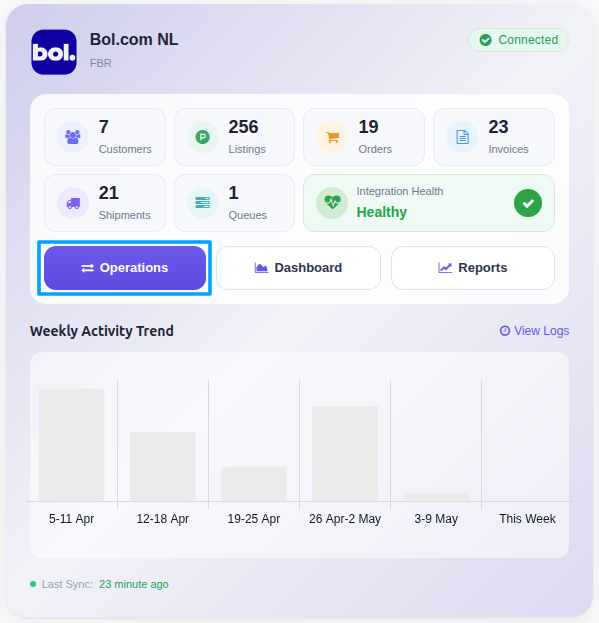
Click the Operations button on the instance card.
In the wizard, set:
Operation For:
FBR & FBB.Operation:
Import Shipments.
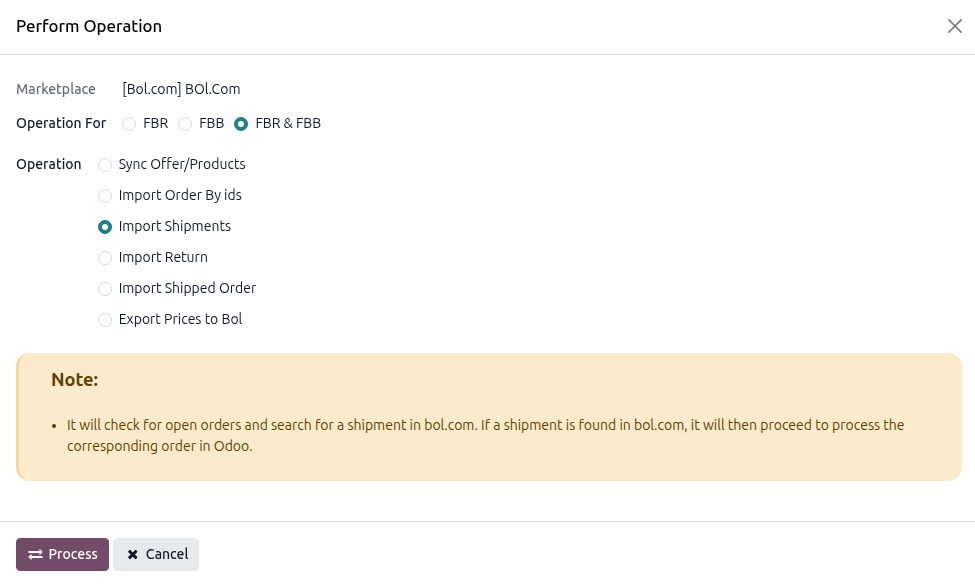
Press
PROCESSbutton.
The connector imports shipment data for matching open orders and marks the corresponding Odoo deliveries as done with the carrier and tracking reference returned by Bol.com.
How It Works
Which orders are checked: Bol.com orders of the instance that have an open outgoing delivery (state Waiting or Ready, not a backorder) for the selected fulfilment type. Fulfilled-at-import orders (see Import Bol.com Orders In Odoo) have no open delivery and are not touched.
What is applied: for each order the shipments found on Bol.com are read; the shipped quantity of every order item is set as done quantity and the delivery is validated. Kit (phantom BoM) products are exploded into their components when the Manufacturing app is installed. If only part of the order was shipped, a backorder is created for the remainder.
Carrier and tracking: the carrier is taken from the Bol.com transporter code (created automatically if it does not exist yet) and the tracking reference is filled from the shipment. The Bol.com shipment number(s) are stored on the delivery.
No shipment yet: orders without a shipment on Bol.com are skipped and logged; they are checked again on the next run.
Errors: if processing an order fails, the error is logged and the order is excluded from further shipment imports. The delivery is not flagged; validate it manually.
Scope: shipments are read from Bol.com for the past 90 days only, so an open order that was shipped earlier than that is not found.
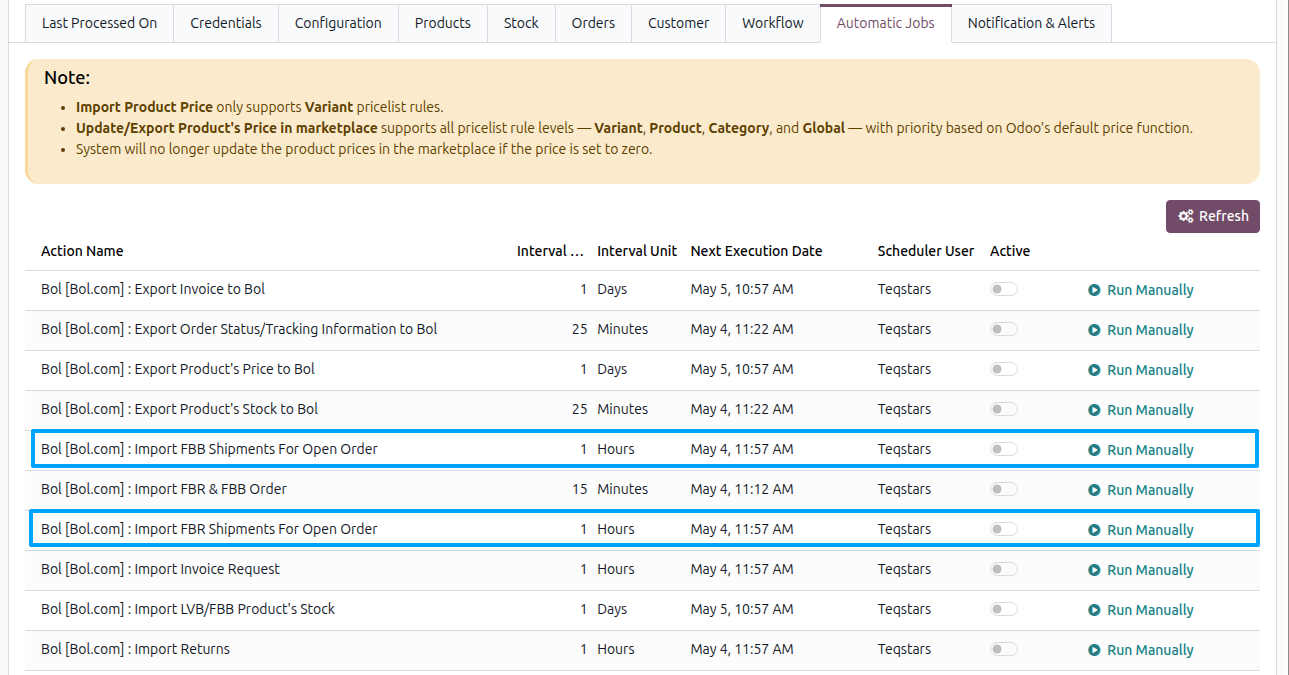
Method - 2: Automatic Shipment Import
Use the scheduled actions for hands-off shipment synchronization.
Go to and open the Bol.com instance.
Open the Automatic Jobs tab.
Configure either or both jobs:
Import FBR Shipments For Open Order: runs when Use Operation For on the instance is
FBRorFBR & FBB.Import FBB Shipments For Open Order: runs when Use Operation For on the instance is
FBBorFBR & FBB.
For each job set Interval Number and Interval Unit (default: every 1 hour) and toggle Active. The jobs are named Bol [instance name] : Import FBR Shipments For Open Order / Import FBB Shipments For Open Order and run only while the instance is confirmed.