
Login & Account Controls
Some access controls apply to the user account itself, not just to specific records or data. These controls let you decide when a user can log in, whether they can use the external API, and how to immediately stop their access when needed.
The role settings are configured under . The Kill Switch is available directly on the user record and can be used to immediately disable the user’s access.
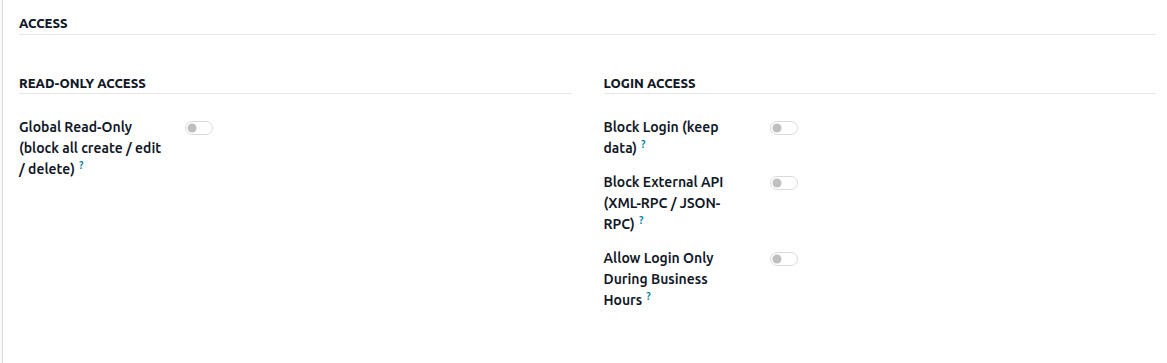
Block Login
Prevents the user from logging in to the system while keeping all of their records, ownership, and history intact. Nothing is archived or deleted, so the user’s existing data remains available and unchanged.
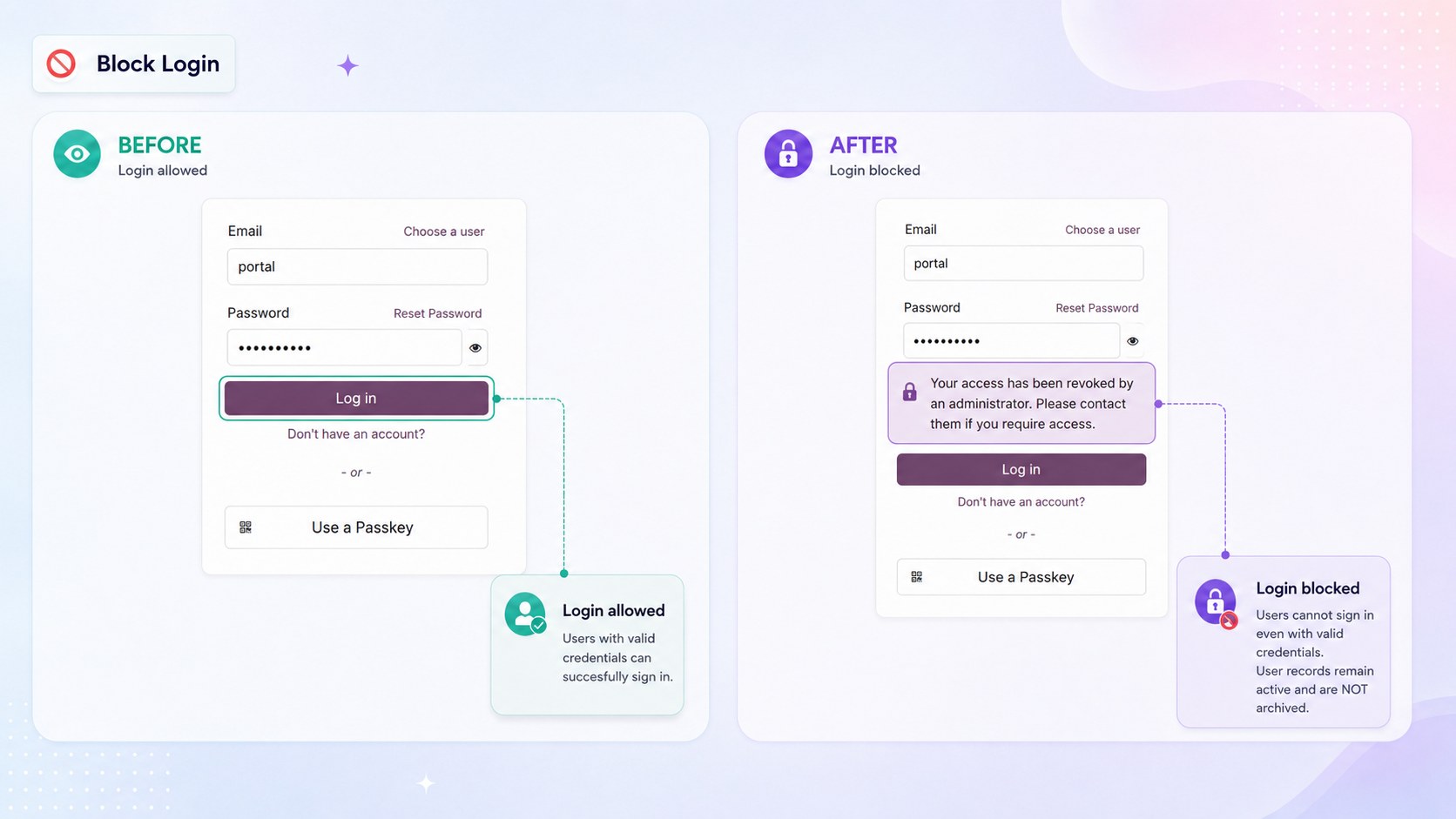
The login block applies to all authentication methods. If the user is already logged in, their active session is automatically ended on their next request.To block a user, assign the Block Login role to them. To restore access, simply remove the role.
Use it for: employees on long-term leave, accounts under review, or users who have left the company while their records and history need to remain unchanged.
Allow Login Only During Business Hours
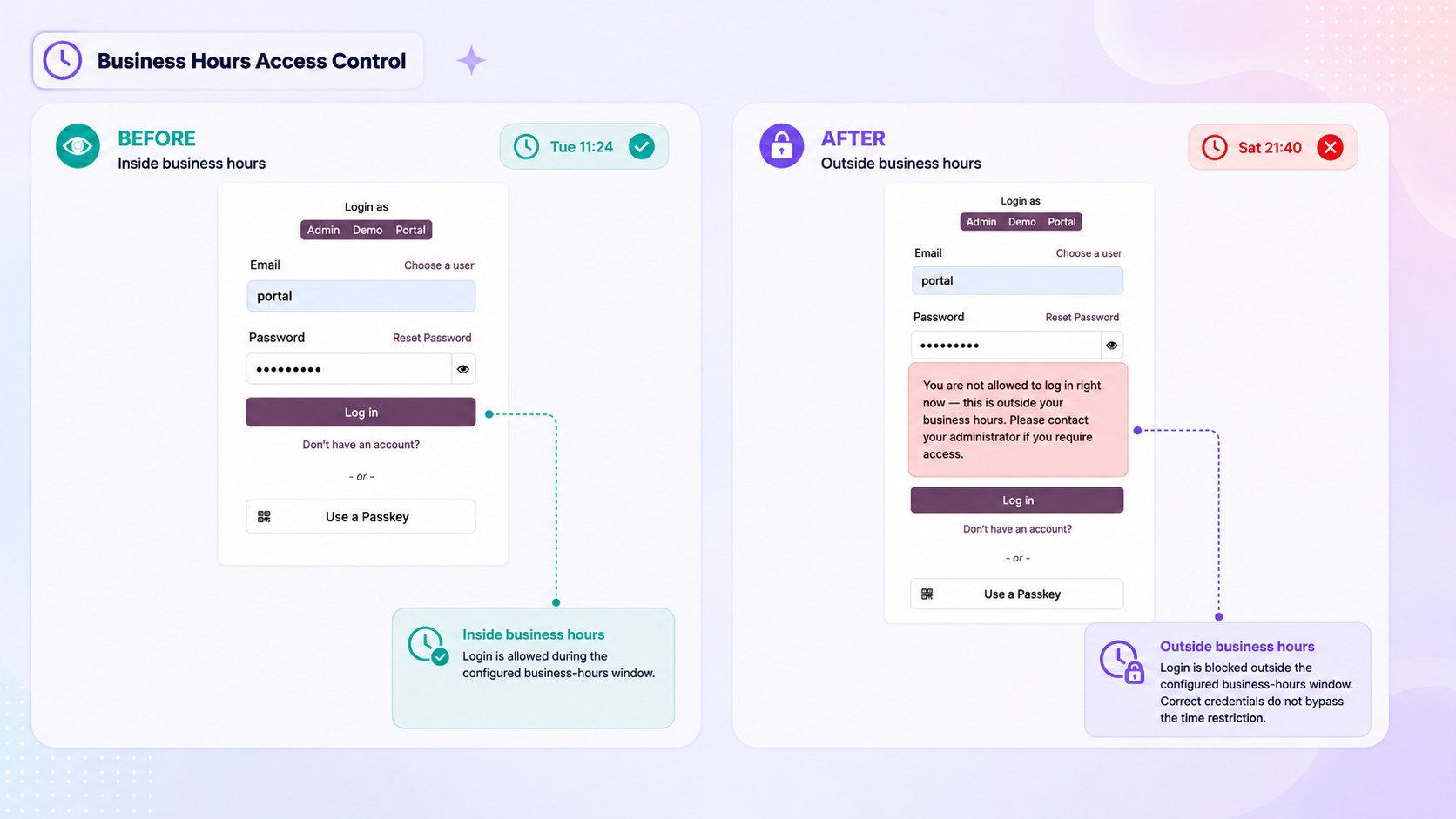
Allows login only on the selected days and between the selected hours.
Timezone — The timezone the window is evaluated in. Set it to your business timezone rather than the server’s.
From / To — The start and end of the allowed window.
Days — The weekdays on which login is allowed.
A login attempt outside the window is refused with a clear message, and a session that is still open when the window closes is ended on the user’s next action.
Note
When a user holds several roles with business hours, they may log in if any of those windows currently allows it.
Block External API
Prevents the user from calling Odoo over XML-RPC or JSON-RPC, while normal access through the web interface is unaffected.
Use it for two opposite situations:
A person who should work in the interface but must not have programmatic access.
An integration account that should be limited on the API side, while people keep working normally.
Tip
To restrict what the API may do with one specific record type instead of blocking it entirely, use the XML-RPC / JSON-RPC option on a Record Permissions line.
Kill Switch
Immediately revokes every Smart Access role the user holds, blocks them from logging back in, and logs them out of all open sessions.
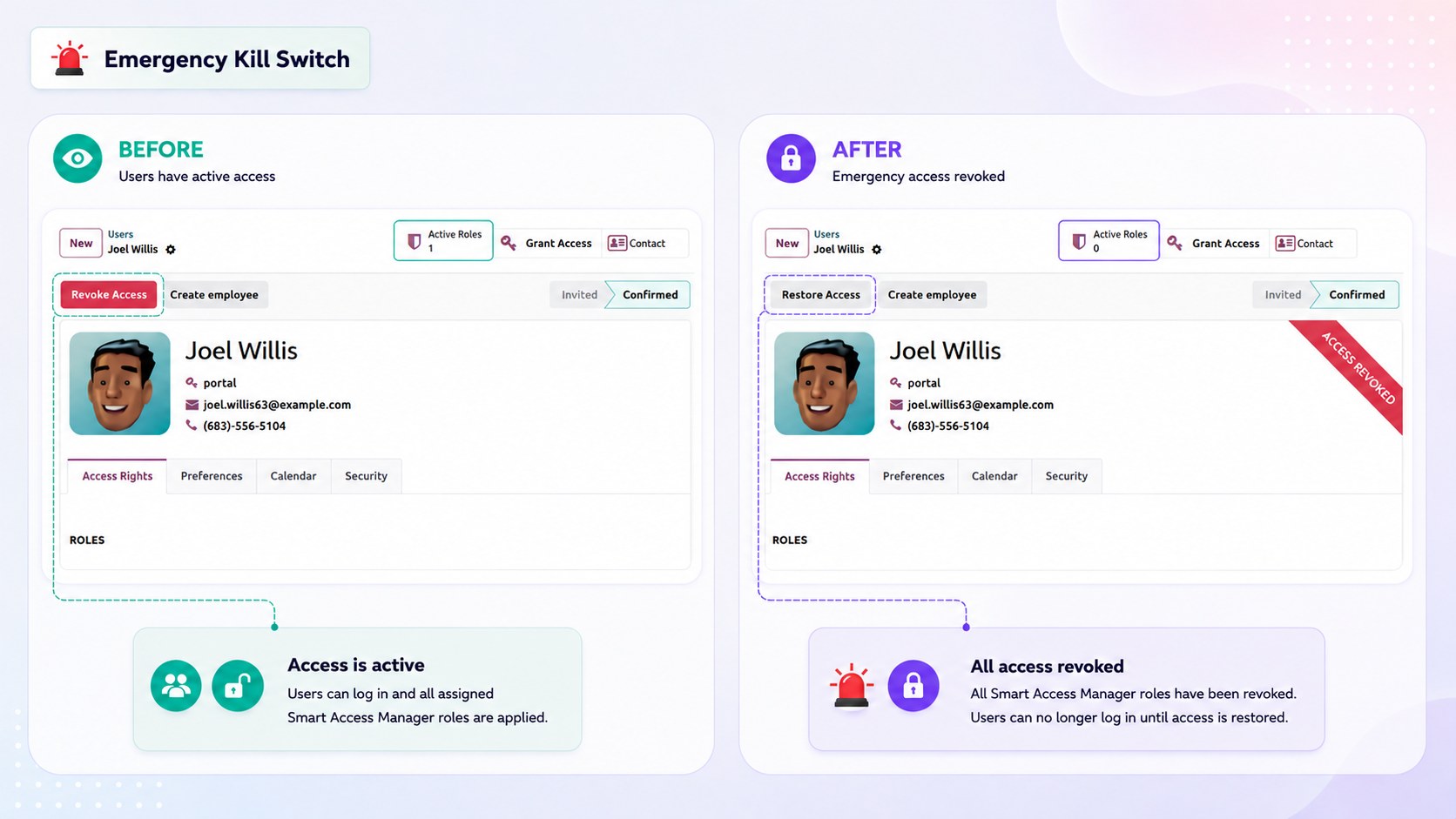
Use Revoke Access on the user under . A confirmation is asked first, and an Access Revoked ribbon then appears on the user form.
Use Restore Access to reverse it. Roles are not returned automatically and must be assigned again.
Use it for an immediate departure, a lost device, or a suspected compromised account.
Administrator protection
Important
Block Login, Global Read-Only, Block External API, and the Kill Switch do not apply to users who have Settings or Access Rights permissions.
Smart Access Manager prevents you from saving a role that would apply these restrictions to such users. This ensures that administrators cannot accidentally lock themselves or the database out of essential access.
To restrict an administrator, first remove their Settings / Access Rights permissions. You can then assign the required Smart Access Manager role.