
Import Products In Odoo
Before importing products, it’s necessary to configure certain product configuration in the Instance.
To import products in Odoo from Mirakl, please follow these steps.
Go to the menu in Odoo.
Click on the
Operationsbutton from the instance record.Select Import Operation and then select Import Listings/Offers option.
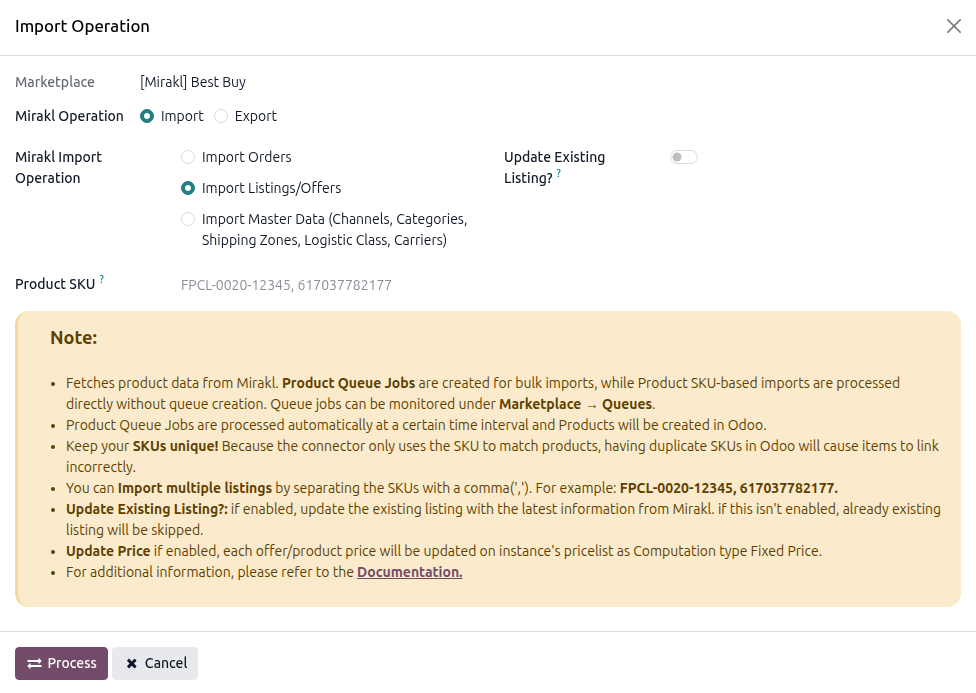
Within the product import operation, you’ll encounter below options.
Product SKU: Optionally enter one or more SKUs (comma-separated, e.g.
FPCL-0020-12345, 617037782177) to import specific offers/products only. Leave empty to fetch all offers/products from Mirakl.Update Existing Listing?: if enabled, update the existing listing with the latest information from Mirakl. if this isn’t enabled, already existing listing will be skipped.
Update Price?: If enabled, existing offer/product prices will be updated on the instance’s pricelist as Computation type Fixed Price. (Visible only when Update Existing Listing? is enabled.)
Press
PROCESSbutton.
This will start fetching product data from Mirakl and add it to the Product Queue for processing. A scheduled/cron job will then start processing the queues one by one. The job will fetch all the products. You can find the details of the last execution of the import operation under a particular instance’s Last Processed On configuration.
Important
The connector will search for existing products in Odoo based on the Sync Listings Based On configuration.
If a matching Odoo product is not found and Create Product If Not Found is enabled on the instance, a new product is automatically created from the Mirakl offer/product data. Otherwise the offer/product is skipped and an error is logged.
Failed queue lines display the exact error message and can be retried individually from .