
Export Price From Odoo
Exporting price from Odoo to ManoMano keeps the offer prices of your listed products in line with your Odoo pricing. The price is sent through the ManoMano Offers API, so it does not wait for the next product feed cycle.
Each export runs for one seller contract: B2B or B2C.
Note
Only listed products are sent. To list new products, see Export Products From Odoo.
ManoMano processes price updates in the background, so a new price may take a while to go live.
There are two ways to export price from Odoo to ManoMano:
Method - 1: Manual Export Price
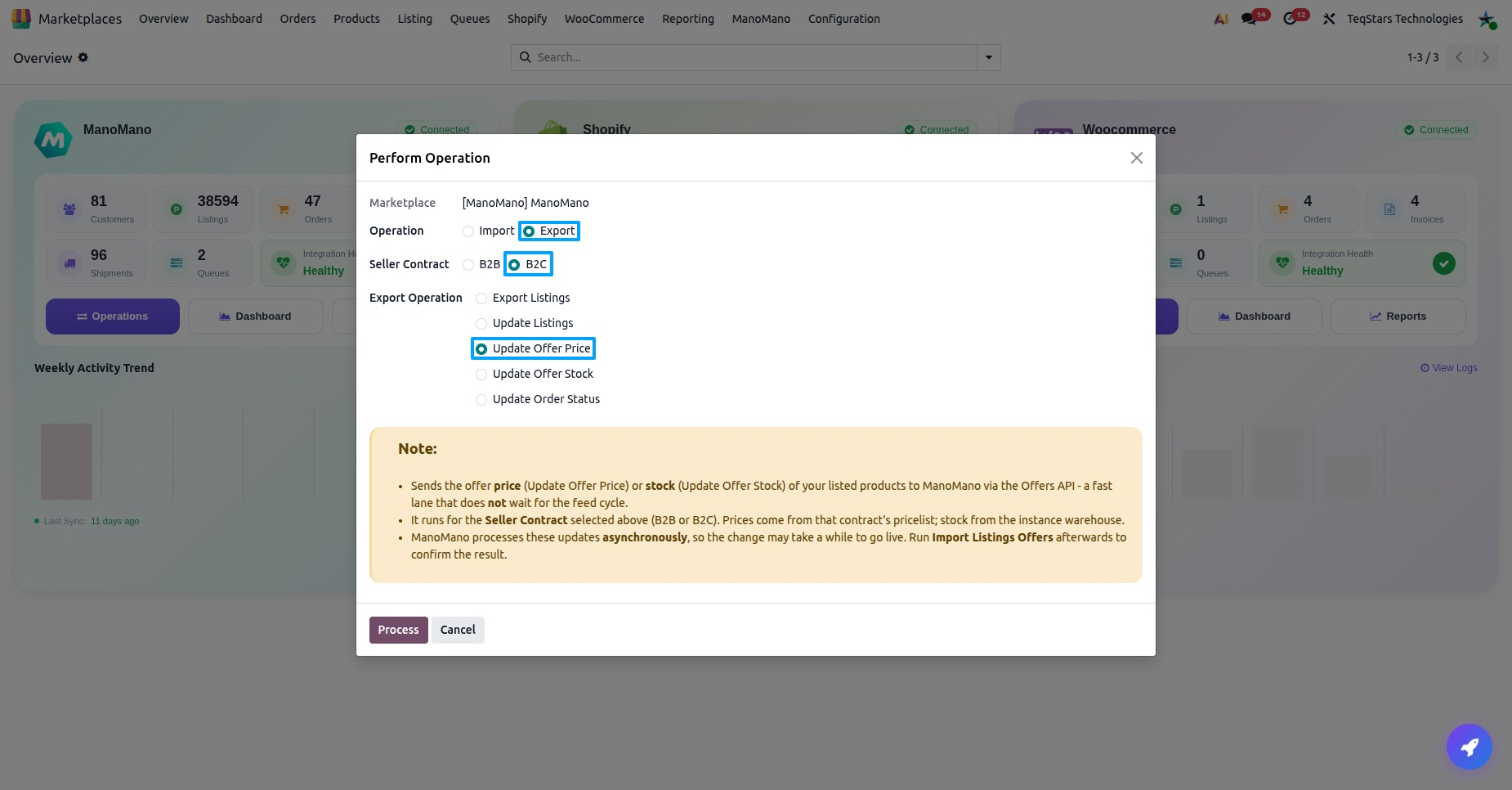
Go to the menu in Odoo and open the operations of your ManoMano instance.
Select Export and then select the Update Offer Price operation.
In Seller Contract, choose B2B or B2C. The prices come from the pricelist of this contract.
Press the Process button to send the offer prices of your listed products to ManoMano.
When ManoMano accepts the prices, the app shows a message such as “Successfully submitted 25 offer(s) across 1 contract(s) to ManoMano.”
Method - 2: Automatic Export Price
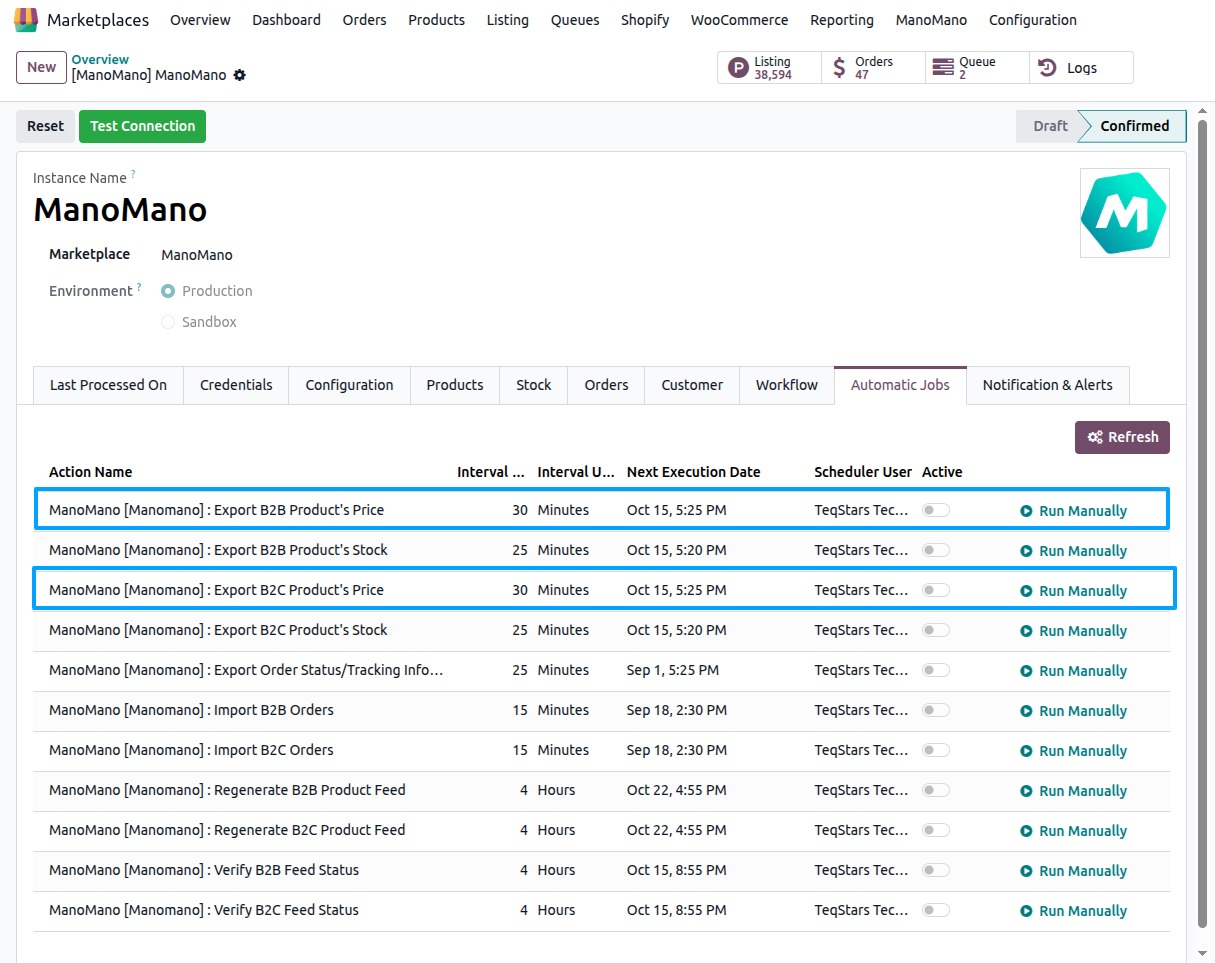
You can export prices to ManoMano automatically with the automatic jobs. There is one job for each seller contract:
Export B2B Product’s Price sends the prices of the B2B contract.
Export B2C Product’s Price sends the prices of the B2C contract.
Go to your ManoMano instance by navigating to .
Open the Automatic Jobs tab.
Find the Export B2B Product’s Price or Export B2C Product’s Price job, set when it should run and turn it on.
Once a job is on, Odoo sends the prices of that contract to ManoMano on the schedule you set. You can change the schedule at any time on the same tab. To send prices right away, use Run Manually.
On the Last Processed On tab of the instance, Last Listing’s Price Updated On (B2C) shows the date the listing prices were last updated on ManoMano.
How The Price Is Decided
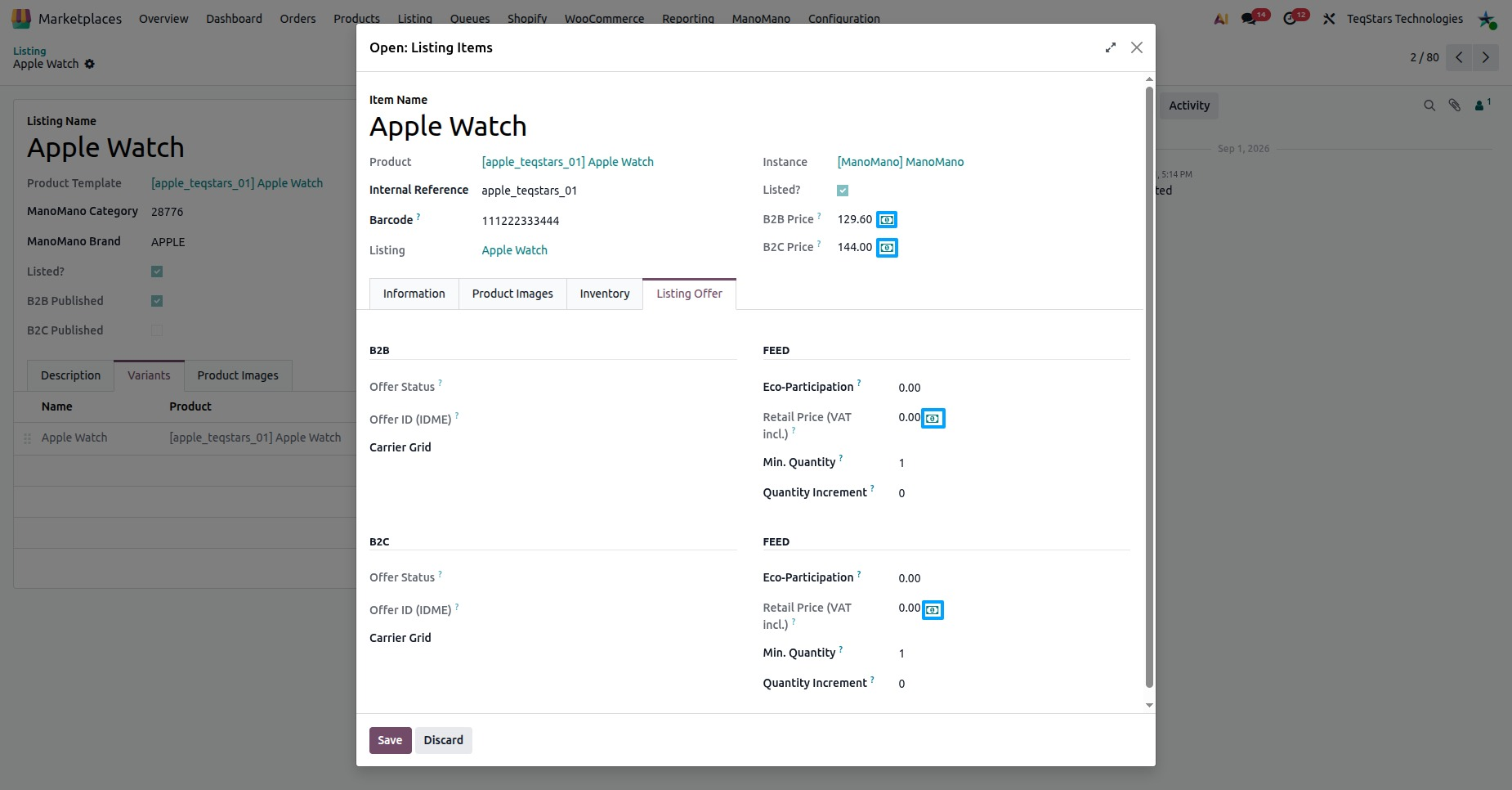
The price of each product comes from the selling pricelist of the chosen seller contract. You see it on the listing item as B2B Price and B2C Price. To set up the pricelists of each contract, see ManoMano Seller Contracts.
Change The Price And Retail Price Of A Listing
You can change the price of one product straight from its listing item.
Go to and open the product.
Click the button(Money icon) that is a next of Change B2B Price or Change B2C Price to set a new offer price for that contract.
Click the button(Money icon) that is a next of Change B2B Retail Price or Change B2C Retail Price to set the struck-through retail price shown next to a discounted offer price.
The new price is kept in the pricelist of the contract, and the retail price in its retail pricelist. Then export the price with Method 1 or let the automatic job send it.
Note
If the app shows “No B2B seller contract with a pricelist is configured on this instance.”, add the contract and its pricelists first. See ManoMano Seller Contracts.
After The Export
ManoMano processes the update in the background. Run Import Listings Offers afterwards to read back the price, stock and offer status and confirm the result. See Import Offers From ManoMano.
The offer status of each product is shown on the Listing Offer tab of the listing item. See Offer Details On A Listing.
If the export fails, check the following:
ManoMano rejected the update: the message lists the reason from ManoMano. Fix the product or price and export again.
The Credentials tab is incomplete: set the B2B or B2C Seller Contract ID in the Credentials tab and confirm the instance. See Create a ManoMano instance in Odoo.
The API key is missing: enter the API Key on the instance.
ManoMano is temporarily unavailable: wait a few minutes and try again.