
Import TikTok Shop Orders In Odoo
The TikTok Shop Odoo Connector allows you to import TikTok Shop orders into Odoo. This keeps your orders, inventory and accounting data in Odoo up to date.
Before importing orders, it’s necessary to configure certain order configuration and workflow configuration in the Instance.
You have the flexibility to import orders from TikTok Shop to Odoo, either through manual imports or automated processes.
Method - 1: Manual Order Import
Go to the menu in Odoo.
Click on the
Operationsbutton from the instance record.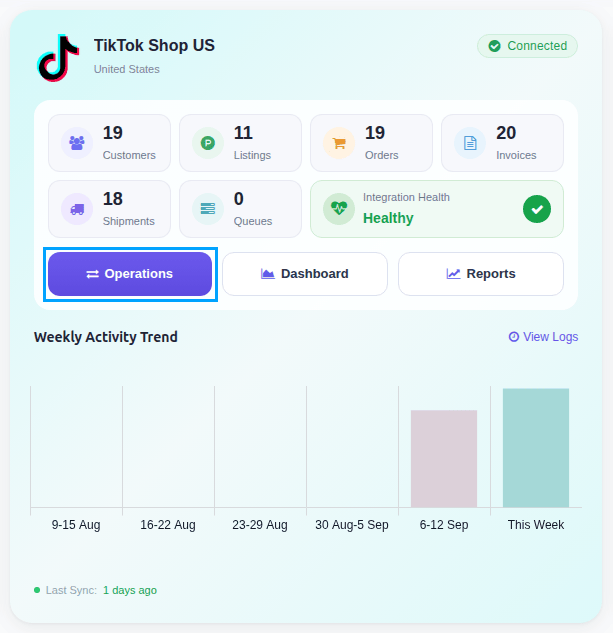
Select Import Operation and then select Import Orders option.
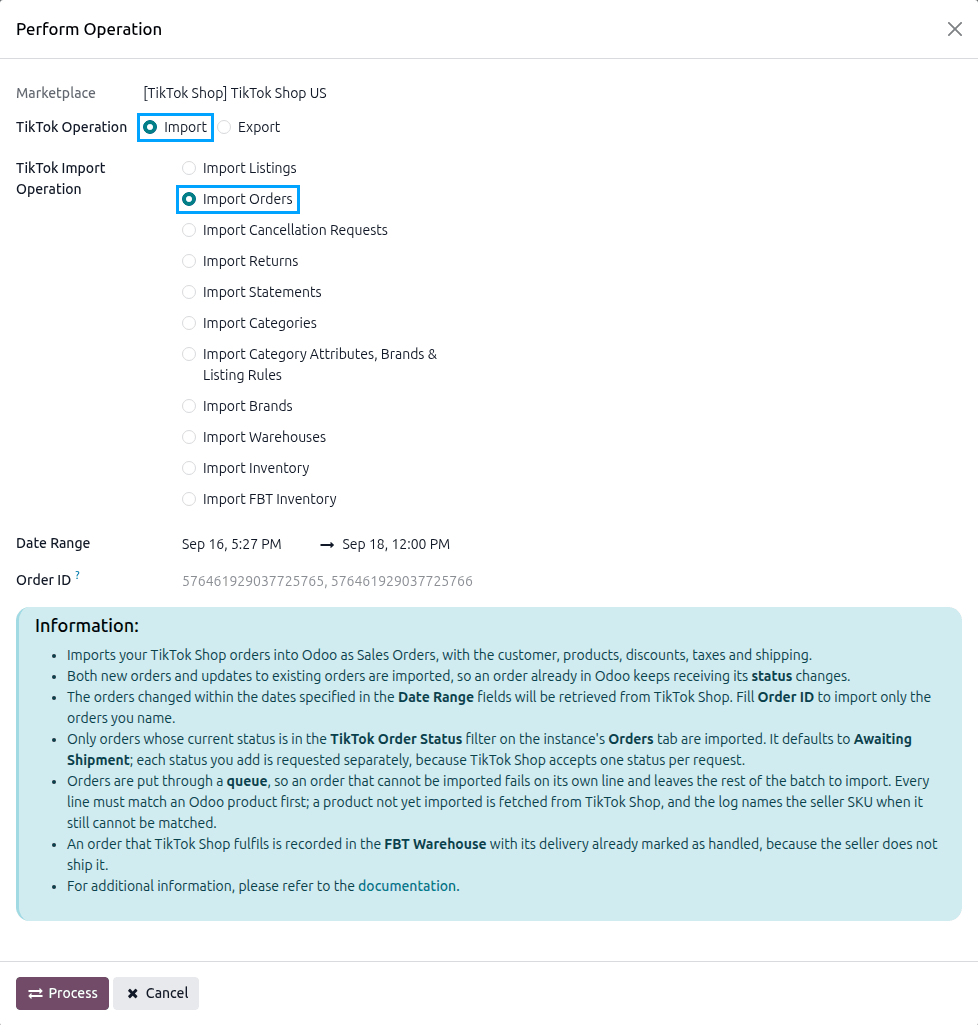
The order import operation has the following options:
Date Range: orders changed between the two dates, and whose current status is in the TikTok Order Status filter, are retrieved from TikTok Shop. The Date Range defaults from the last order import to now.
Order ID: you can import specific TikTok Shop orders by entering their IDs, separated with a comma (‘,’), like this: 576461929037725765, 576461929037725766.
Press
PROCESSbutton.
Orders named in Order ID are imported straight away and opened. Otherwise the import fetches the orders from TikTok Shop and adds them to the Order Queue Job for processing. The orders are created in Odoo based on the TikTok Seller Order Workflow, or the TikTok FBT Order Workflow for orders TikTok Shop fulfills.
Method - 2: Automatic Order Import
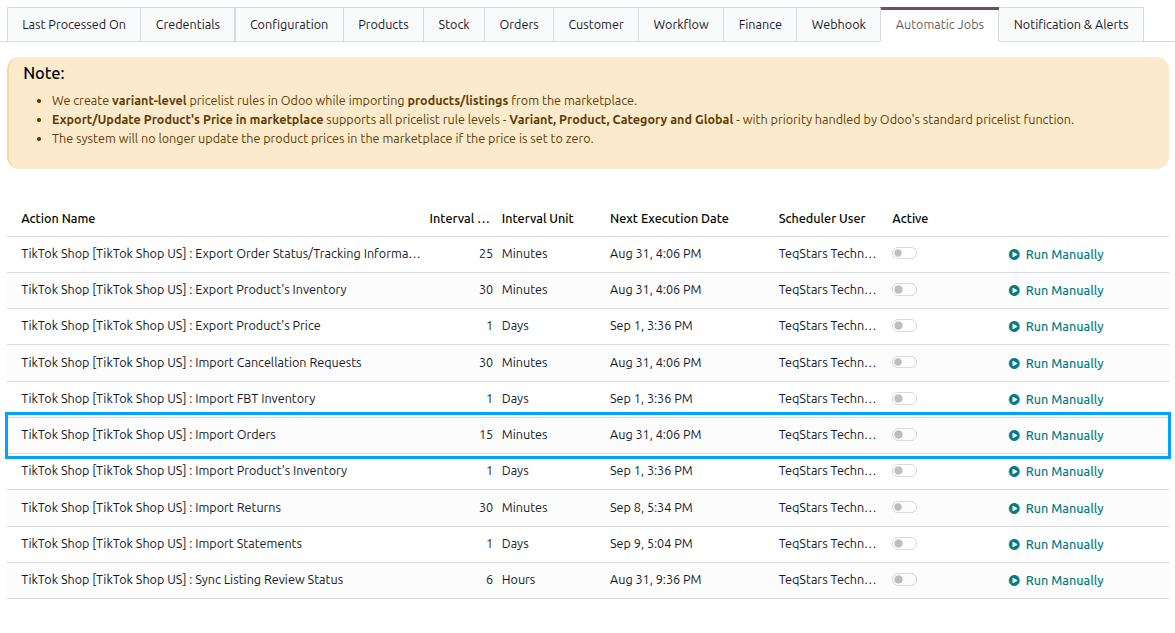
Order import from TikTok Shop to Odoo can be automated using the Automatic Schedule action, which enables you to define a specific time interval for executing the import process. This automation ensures that the latest orders from your TikTok Shop account are consistently created/updated in Odoo without requiring manual intervention.
Go to your TikTok Shop instance setting by navigating to .
Here you will see the Automatic Jobs tab. In that tab you can configure the Import Orders automatic action by setting Interval Number, Interval Unit, and then Active.
Note
The scheduled action is created inactive. Tick Active for it to run. It runs every 15 minutes by default. See Automatic Jobs.
Tip
With the Order Status Change webhook active, an order also comes in on its own as soon as TikTok Shop announces it. See Webhook Configurations.
Which Orders Are Imported
Important
Orders are only imported if their current TikTok Shop status is in the TikTok Order Status filter on the instance. A new instance has only Awaiting Shipment selected, so it imports orders waiting to be shipped and nothing else until you change it.
Orders are also skipped when:
The order was created before the date set in Import Order After on the instance.
The order’s fulfillment does not match the instance’s Fulfillment Type, such as a TikTok-fulfilled order on a seller-fulfilled instance. It is reported in the log.
An order already imported is not skipped: importing it again updates it rather than duplicating it.
Cancelled Orders
If an order has been cancelled on TikTok Shop, the order import cancels the corresponding order in Odoo when it reads that order again, noting “The order was cancelled on TikTok Shop.” in the chatter. The order is read again when Cancelled is in the TikTok Order Status filter, when it is imported by Order ID, or when the Order Status Change webhook reports it.
To cancel an order in the other direction, from Odoo to TikTok Shop, see Cancel Order In TikTok Shop From Odoo.
The Imported Order
The orders are listed under . The Marketplace Detail tab of an order shows what TikTok Shop reported for it.
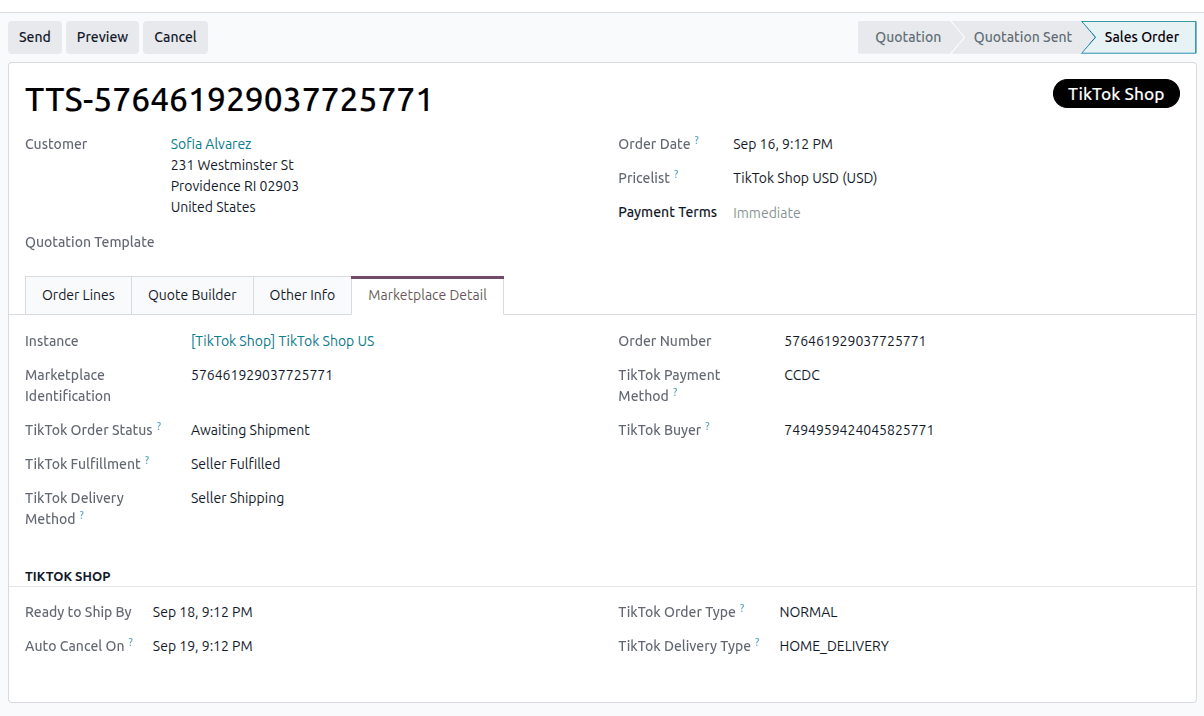
TikTok Order Status: where the order stands on TikTok Shop.
TikTok Fulfillment:
Seller Fulfilled,Fulfilled by TikTok, orFulfilled by Dilayani Tokopedia.TikTok Delivery Method: who provides the shipping service:
TikTok Shipping,Seller ShippingorDigital.Ready to Ship By and Auto Cancel On: when TikTok Shop expects the parcel, and when it cancels the order if nothing has shipped.
TikTok Payment Method and TikTok Buyer.
On Hold, Recipient Address Updated and Exchange Order.
The shipping charge is imported on the Delivery Product and fees such as the retail delivery fee on the Fee Product. Taxes follow the Tax System of the instance; in most markets the price the buyer pays already includes tax.
Note
Customers are created from the recipient address TikTok Shop reports. TikTok Shop masks the name on orders it ships itself and withholds the address on some orders. A customer is matched on name and address; the buyer’s TikTok Shop identifier is kept on the order as TikTok Buyer.