
Hide & Lock Fields
Control access to individual fields instead of restricting the entire record. You can hide fields, make them read-only, make them required, or control which values users can select.
This is useful when users need access to a record but should not be able to view or change sensitive information such as cost, margin, or salary.
Configure it from the role under .
Configuration
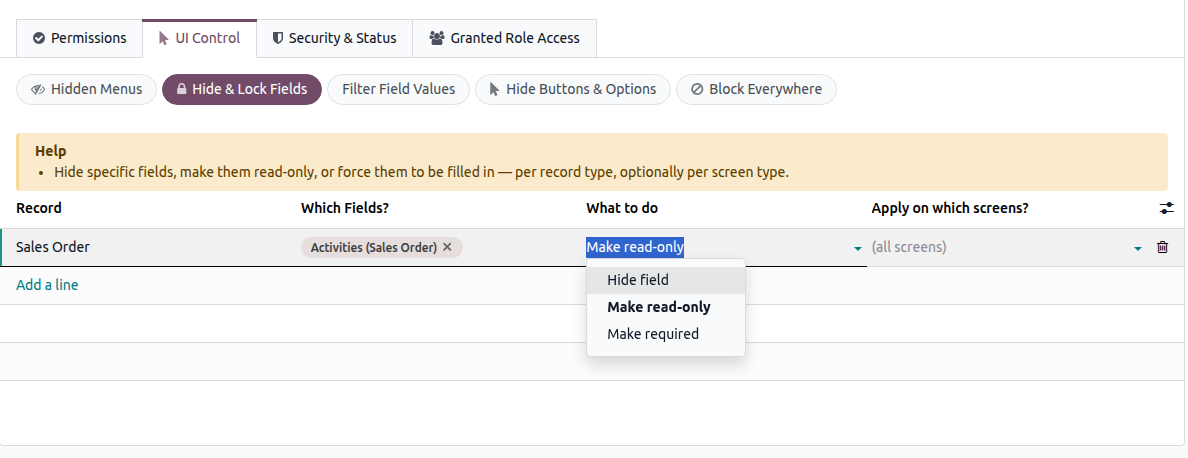
Record — Select the record type that contains the fields you want to control.
Which Fields? — Select one or more fields to which the rule should apply.
What to do — Select the effect to apply (see the options below).
Apply on which screens? — Select where the restriction should apply, such as Form, List, or Kanban. Leave it empty to apply the restriction on all available screens.
Note
Within one role, only one rule per record type and effect is allowed. Add all the fields that share the same effect to the same line.
Options
Hide field
Hides the selected field from the user.
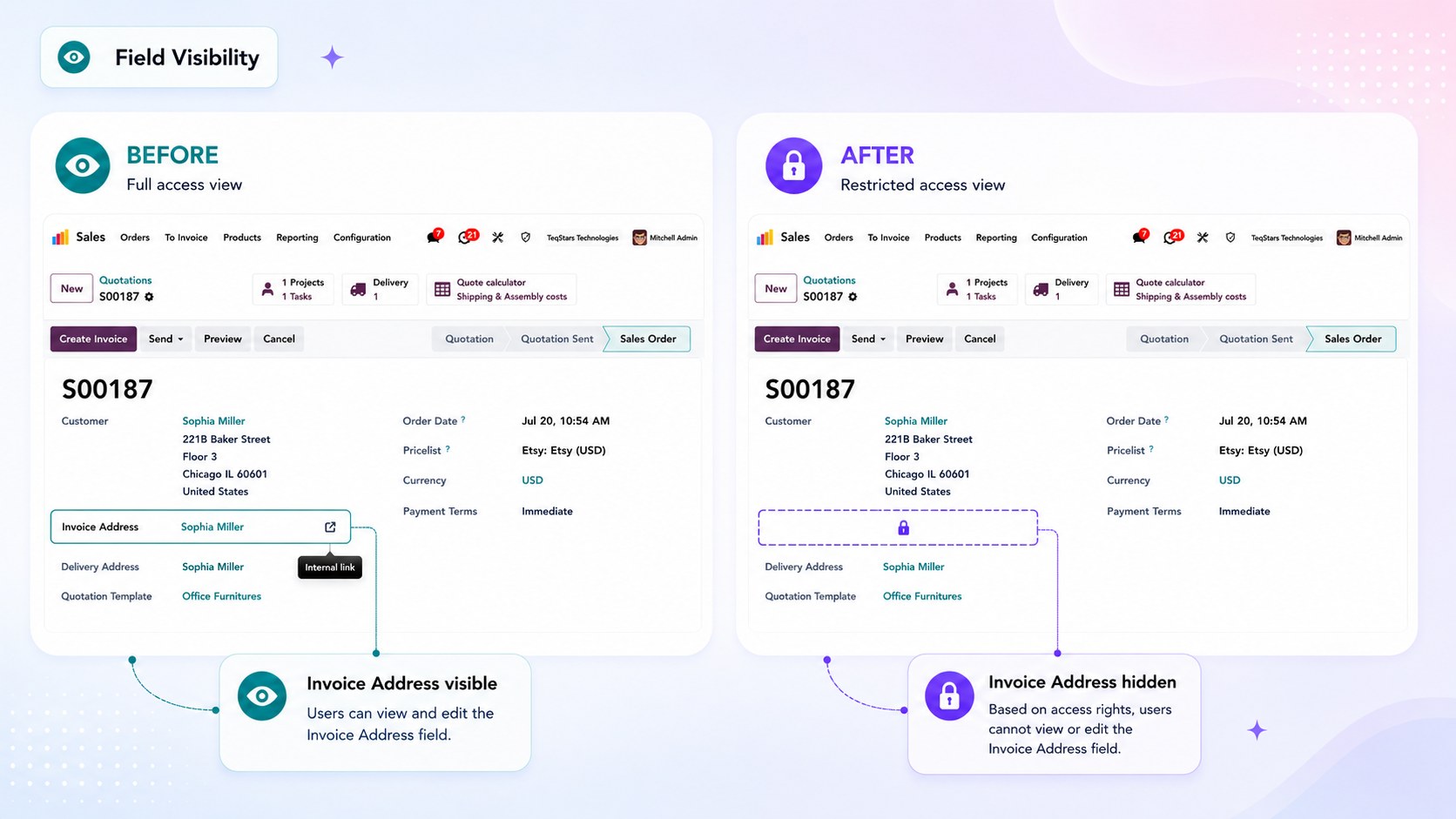
The value is also removed from the data itself, so a hidden field cannot be exported, cannot be grouped or aggregated, and is empty when read through the external API.
Make read-only
Keeps the field visible but prevents the user from changing its value.
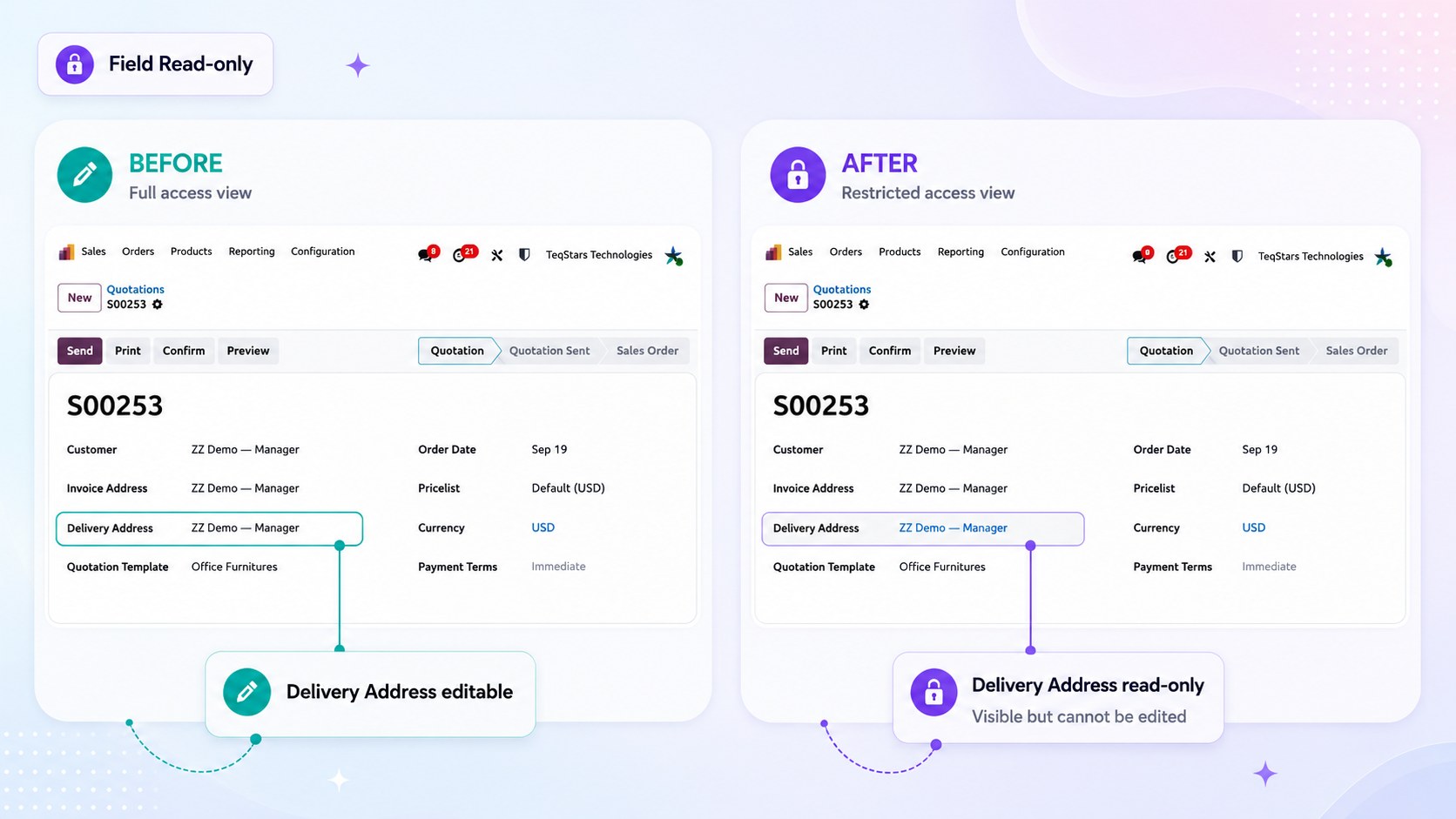
The restriction is enforced when the record is saved, so it also applies to changes made through an import or an integration.
Make required
Requires the user to fill in the field before the record can be saved.
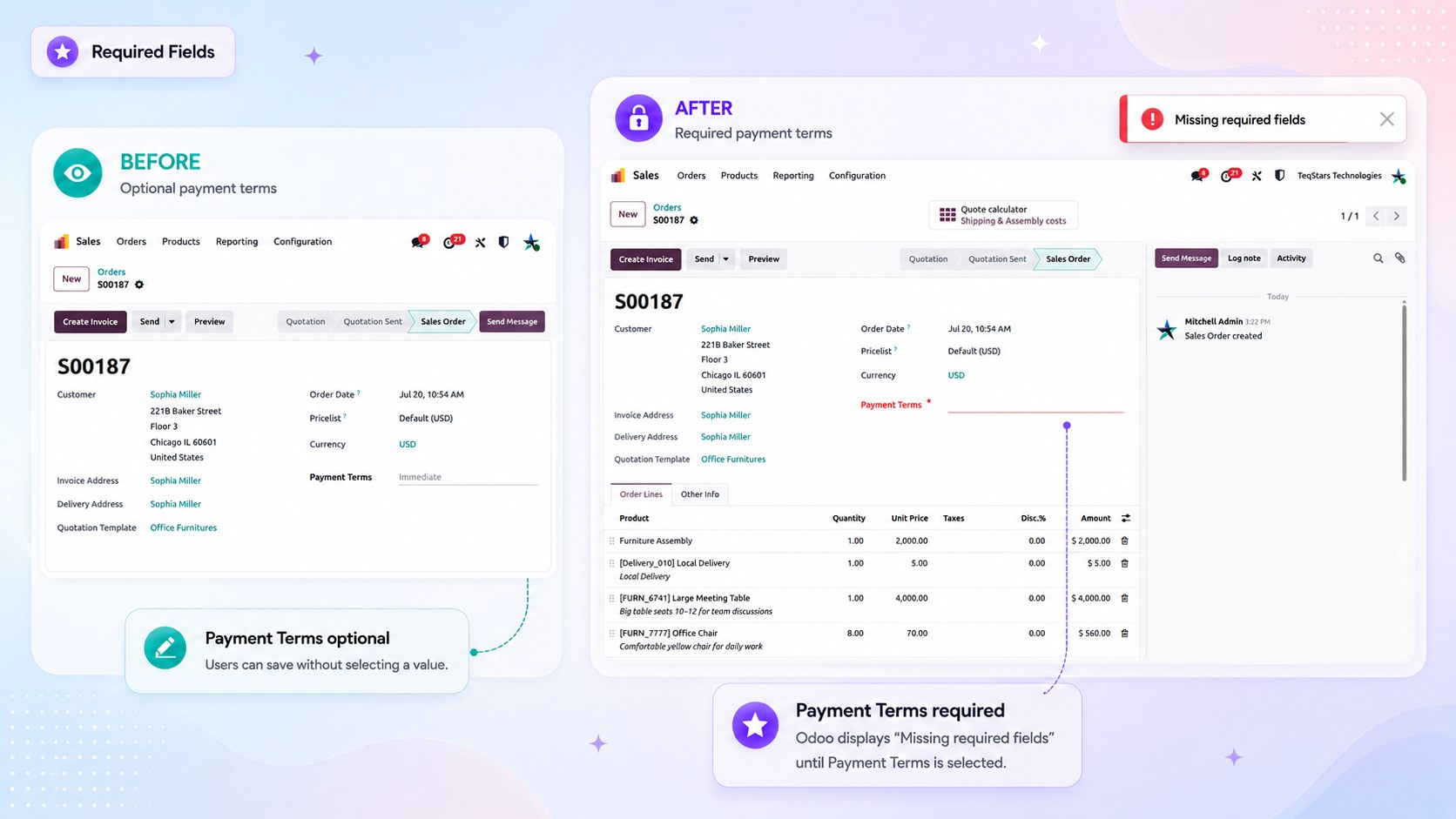
Use it to enforce information your process depends on, such as a reason for a discount or a reference number.
Remove open link (↗)
Removes the link that allows the user to open the related record from a relational field.
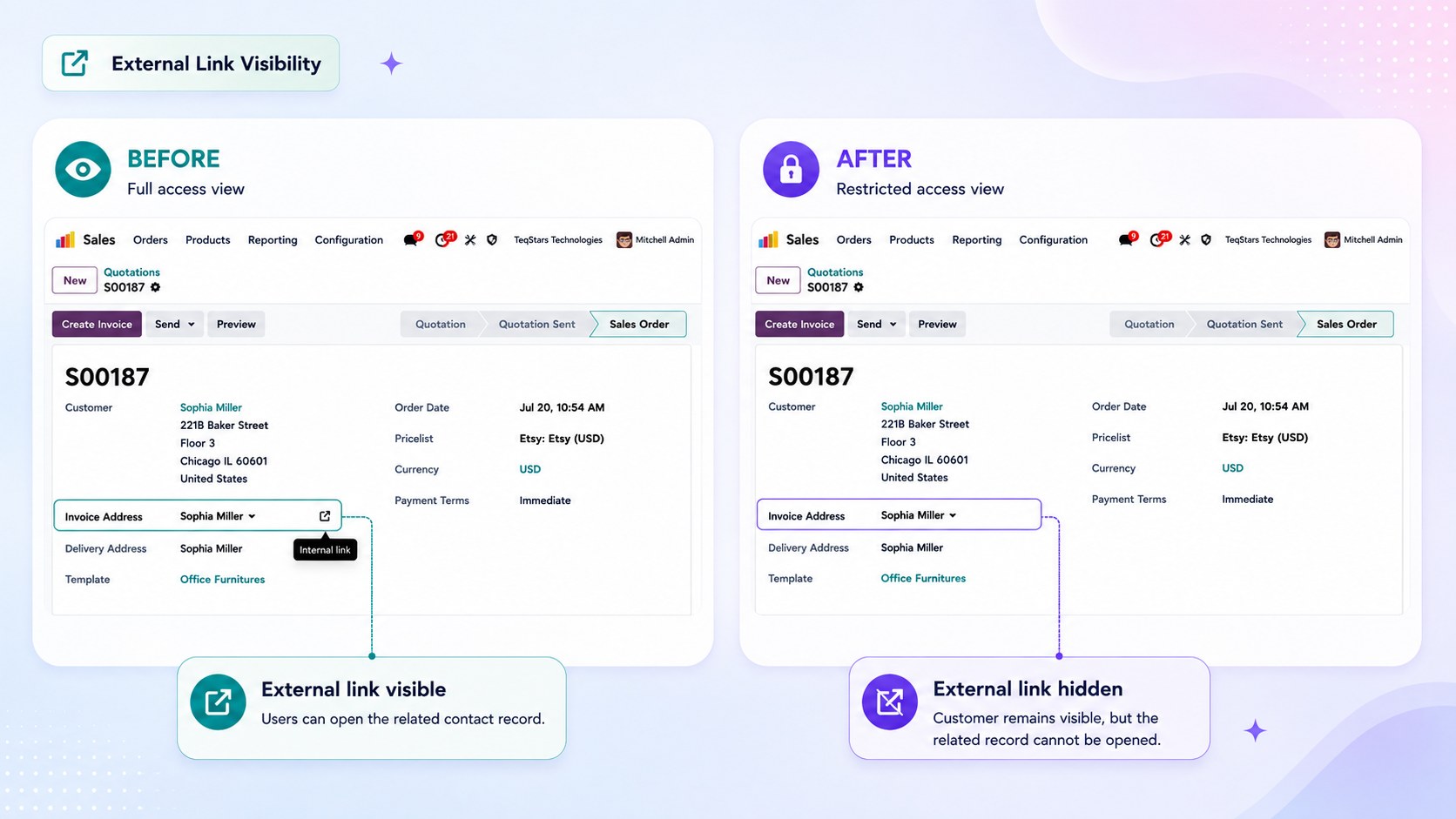
Available for many-to-one fields.
Remove Create / Create & Edit
Removes the quick-create options from relational dropdown fields, so the user can only select records that already exist.
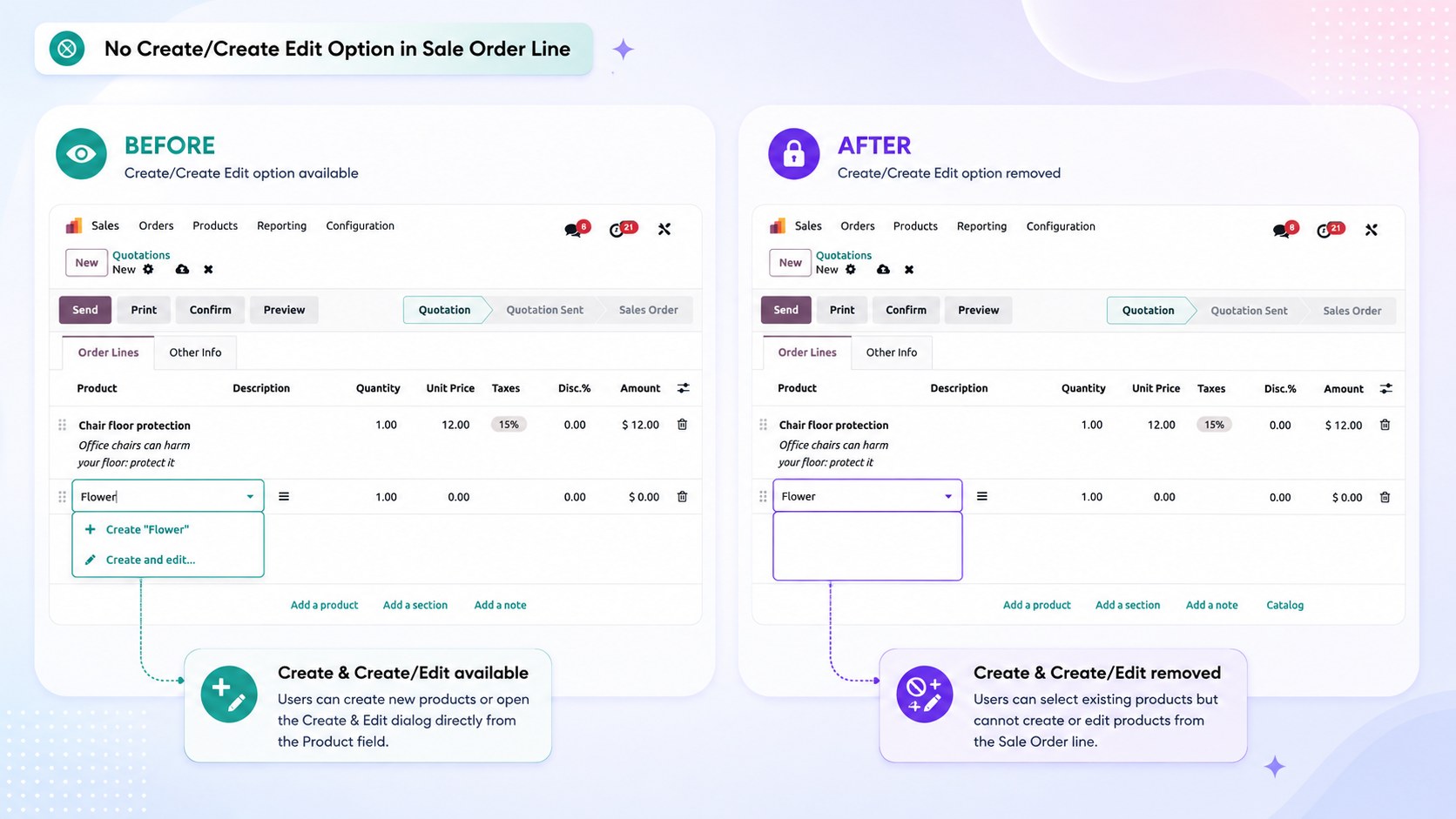
Use it to stop duplicate customers or products from being created directly out of another form.
Apply on which screens?
Restrictions can be limited to specific screens, so a field can be hidden in the list while staying visible on the form.
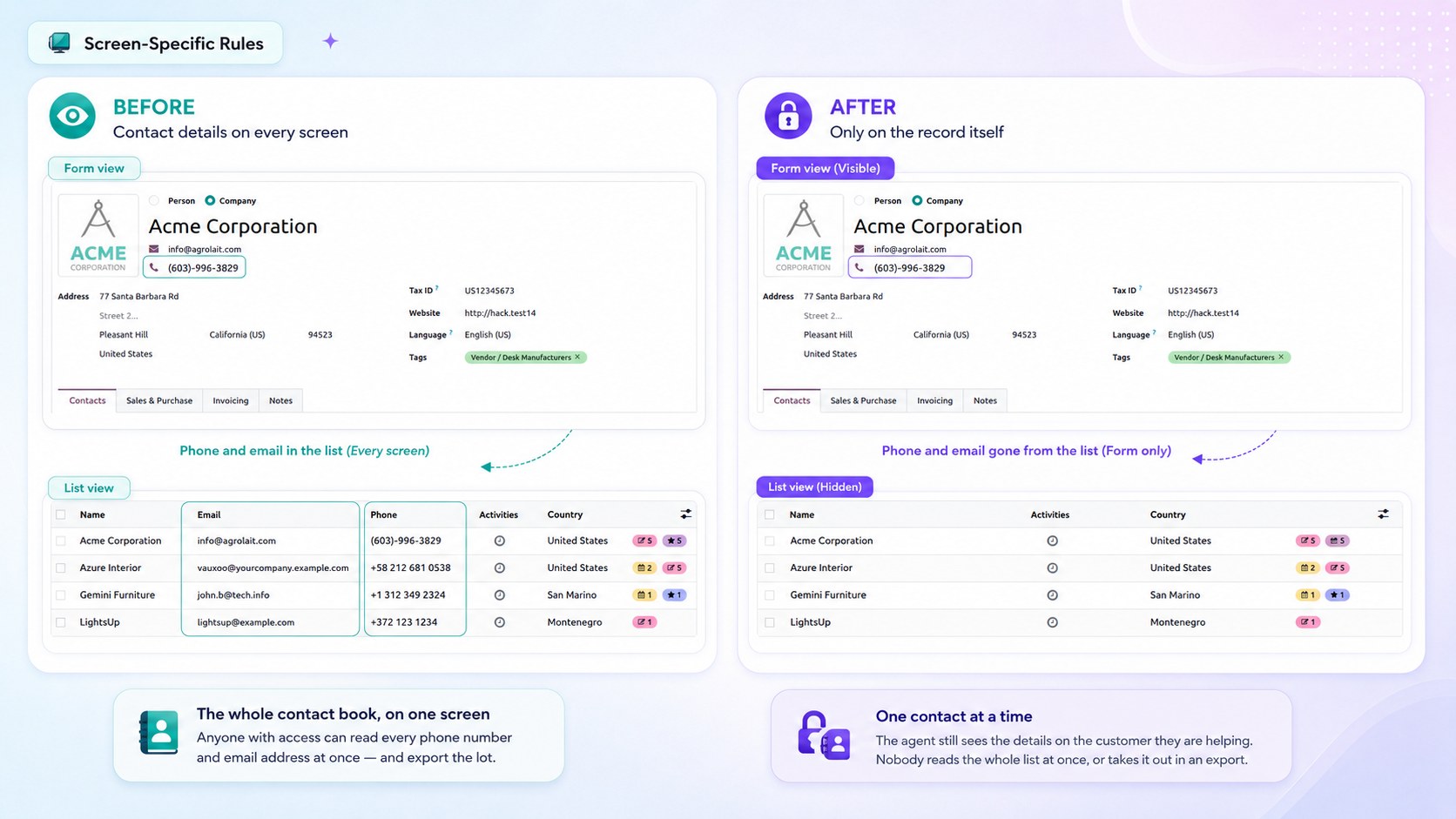
Only the screens where the selected fields actually appear are offered.
Important
If you select specific screens, the restriction applies only to how the field is displayed on those screens. If you leave Apply on which screens? empty, the restriction applies to the field’s data everywhere, including exports and external API access.
Combining rules
When multiple roles apply different restrictions to the same field, Smart Access Manager uses the, most restrictive setting:
Hidden takes priority over Read-only.
Read-only takes priority over Required.
The role form also reports any conflicts between roles, so you can review them.
See also