
Generate Shipping Labels
Label generation pulls a printable PDF from ShipStation, attaches it to the delivery order, and stamps the carrier-issued tracking number on the order, all without leaving Odoo.
How to Generate a Label
Go to .
Open the delivery order you want to label. It must be in Ready state and use a ShipStation delivery method.
Click Validate in the header.
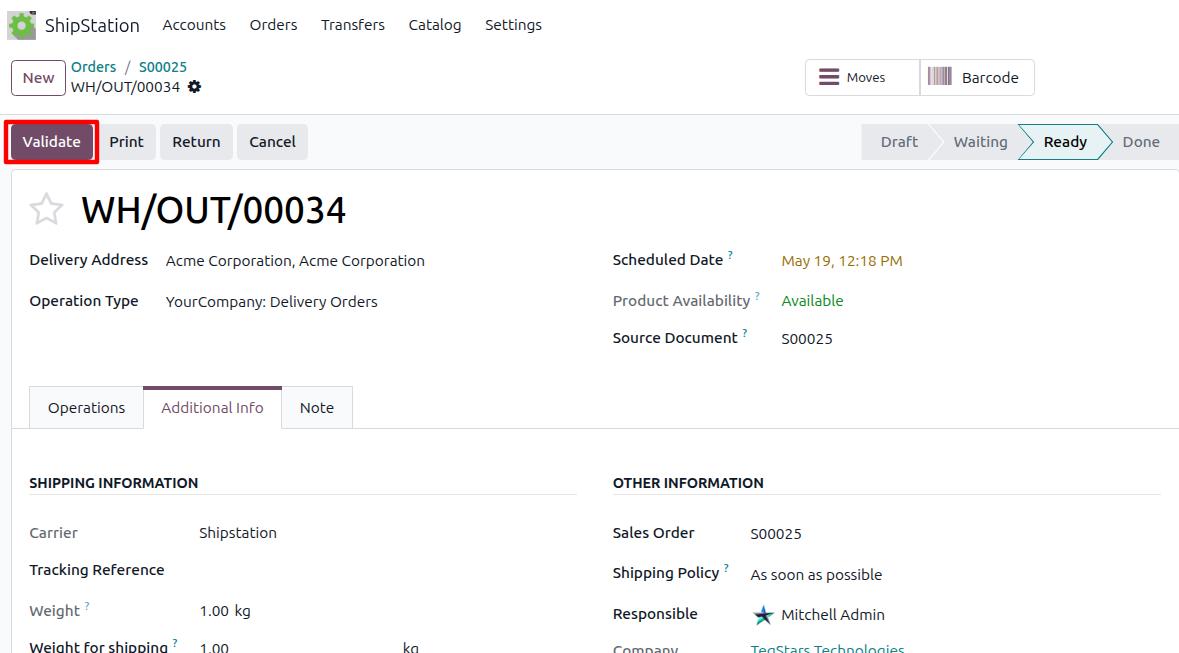
Validating the picking triggers the label request. Depending on whether the delivery order has already been pushed to ShipStation, the connector either:
Creates a brand-new shipment in ShipStation and prints the label for it, or
Prints the label for an order that was already exported (identified by its ShipStation Order ID).
In both cases the request includes the carrier, service, package, weight, dimensions (when Your Packaging), insurance options, confirmation type, and international data when shipping cross-border.
What You Get Back
After a successful call the connector:
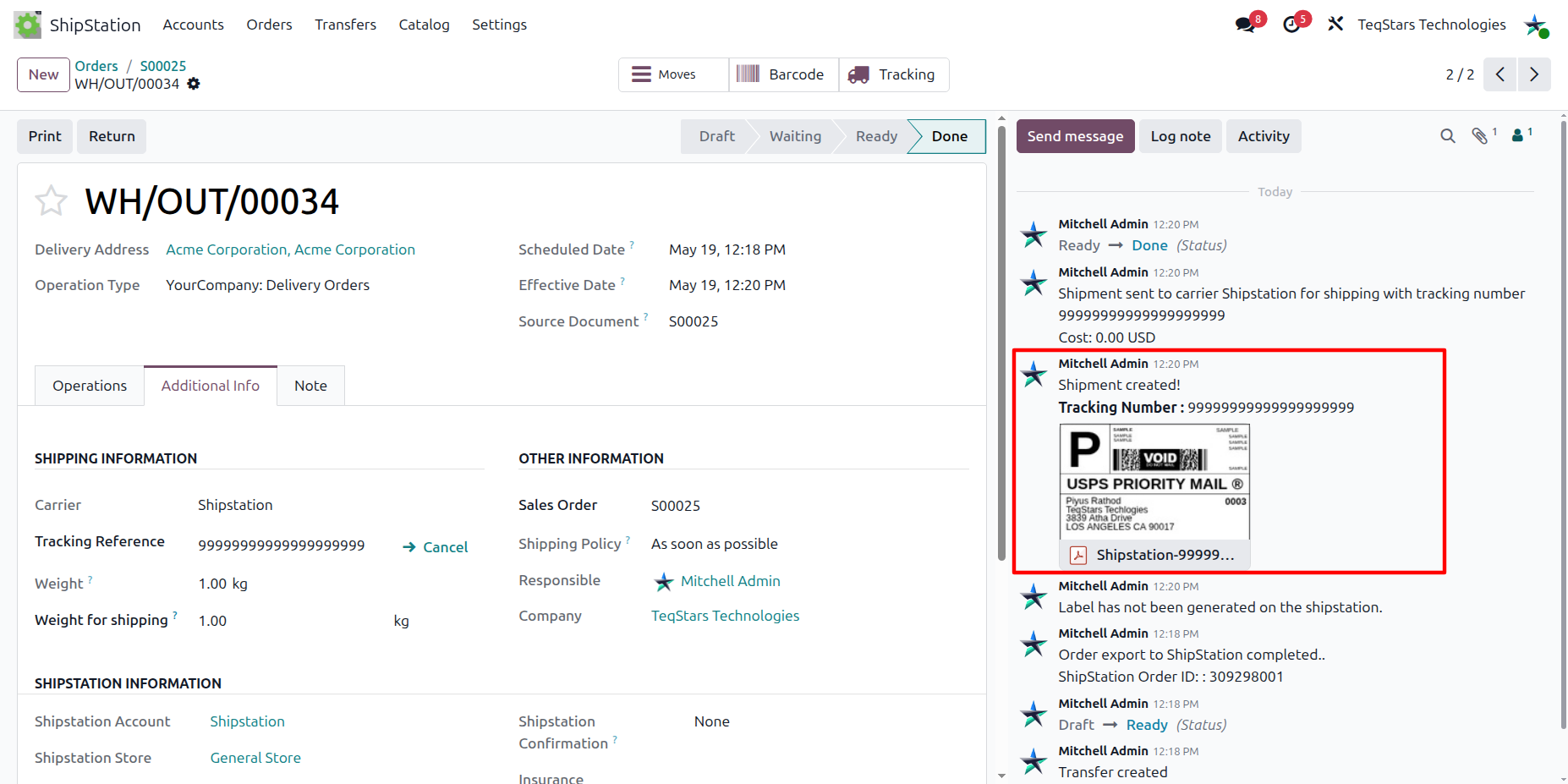
Writes ShipStation Shipment ID on the delivery order.
Attaches the label PDF to the delivery order chatter, with a message that includes the tracking number.
Sets Tracking Reference to the tracking number returned by the carrier.
Writes the shipping cost in Shipstation Shipping cost on the delivery order, so you see what the label cost.
Test vs Production Labels
The Test Environment toggle on the delivery method controls whether labels are issued in test mode. Test labels are issued by ShipStation but are not billed and cannot be scanned by carriers, so flip the delivery method to production once setup is validated.
Customs / International
When the destination country differs from the warehouse country, the connector populates the international options automatically:
Contents: from the delivery method’s Content.
Customs items: one entry per delivery line, with description, quantity, value, harmonised code (if set on the product), and country of origin.
Non-Delivery Option: from the delivery method’s Non-Delivery Option.