
Walmart Listing Attributes
Note
Walmart listing attributes come from the product-type specifications, which are available for the United States marketplace only. The Walmart tab described here is not shown on instances configured for Canada, Mexico, or Chile. See Walmart Supported Marketplaces.
Before Walmart will create a listing, it needs to know the item’s product type and the attributes that product type requires. You supply both on the Walmart tab of the listing.
Setting The Product Type
Open the listing under .
Go to the Walmart tab.
Under Walmart Taxonomy, choose the Walmart Category, then the Walmart Product Type Group, then the Walmart Product Type.
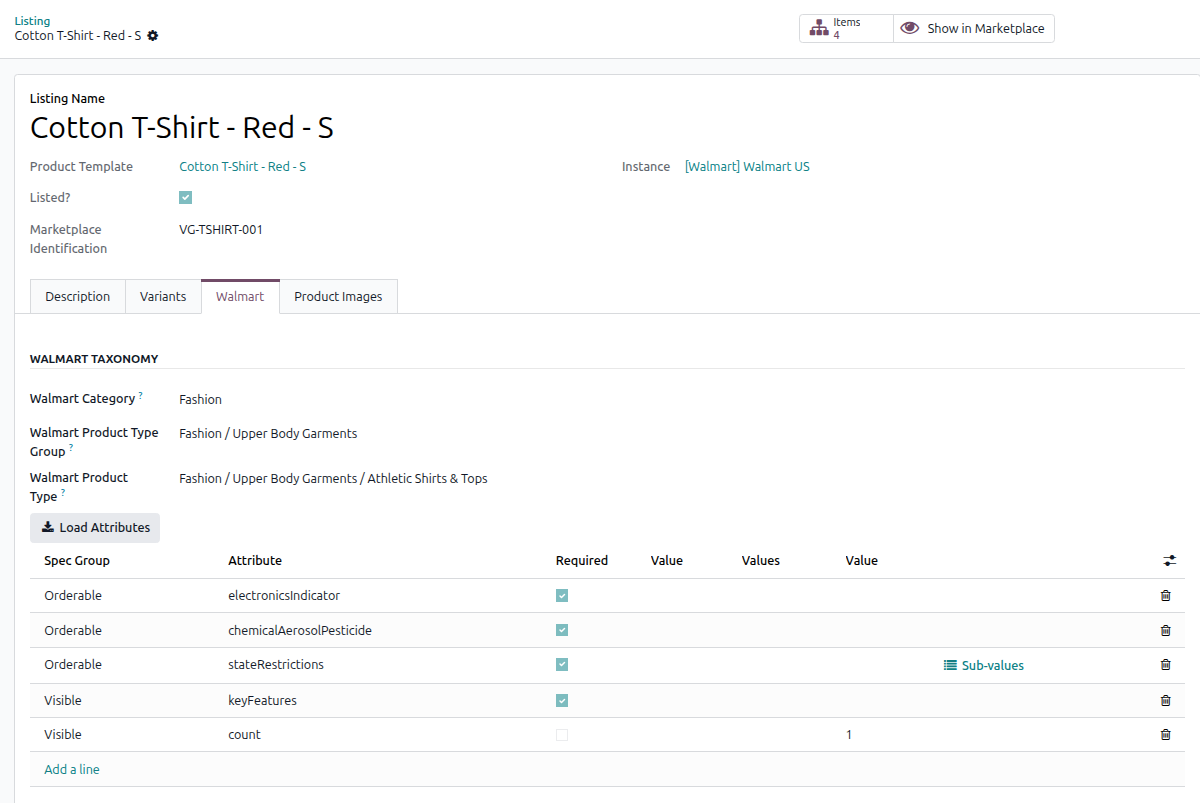
Each field narrows the next, so the group list only offers groups in the chosen category, and the product type list only offers types in the chosen group.
Loading The Attributes
Once the product type is set, load the attributes it requires.
Click the Load Attributes button.
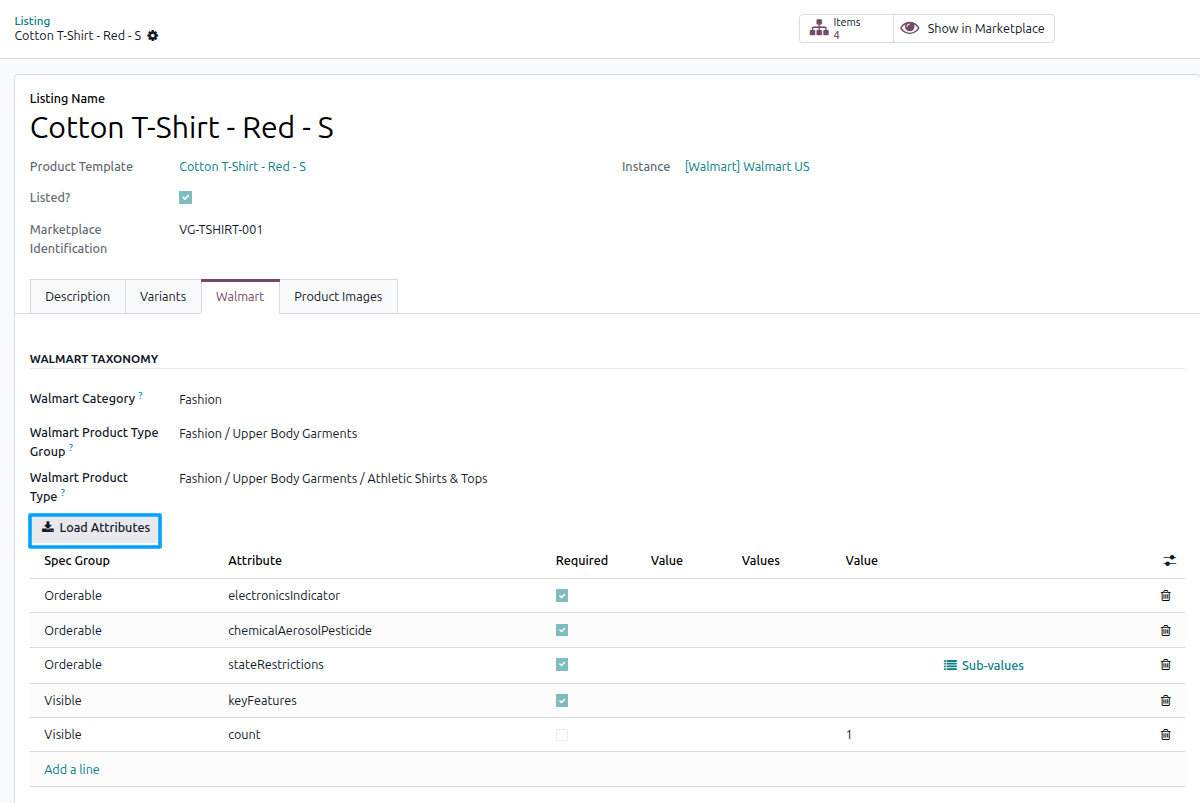
The Walmart Attributes list fills with the attributes required for this product type.
Values you have already entered are kept, and attributes that no longer belong to the product type are removed. Where Walmart allows only one possible value, it is filled in for you.
Note
Load Attributes adds the attributes that Walmart requires. Optional attributes are not added automatically. To send an optional attribute, add a row manually and select the attribute.
Note
You may see one of the following messages:
“Set the Walmart product type first.” Select a product type before loading the attributes.
“Fetch the spec for product type ‘…’ first.” The specification has not been retrieved yet. See Import Walmart Product Types In Odoo.
Filling In The Attributes
Each row is one attribute. How you enter the value depends on what Walmart expects:
Free text or numbers: type the value into the Value column.
A fixed list of values: pick from the dropdown in the Value column. Only values Walmart accepts are offered.
Several values from a list: select as many as apply; they appear as tags.
Nested attributes: some attributes are containers holding further attributes inside them. Click the Sub-values button on the row to open the nested values.
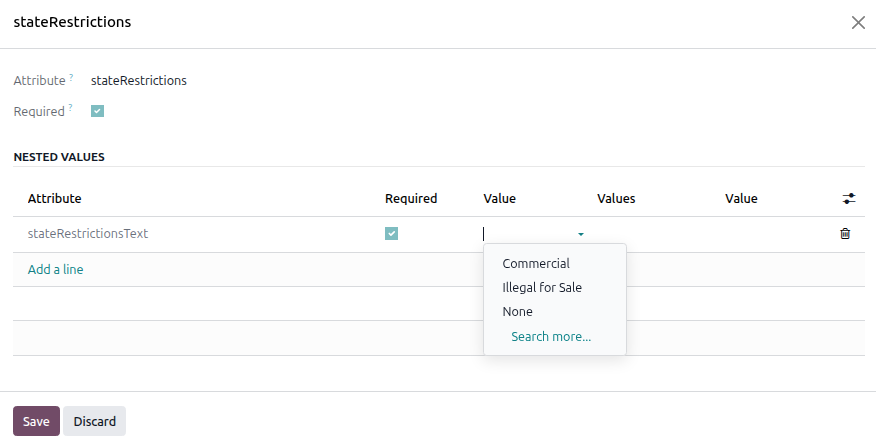
The list also shows:
Spec Group: where Walmart uses the attribute:
Orderable,Visible, orTrade Item.Required: whether Walmart requires it when the item is first created.
A further column, Exported, shows the exact value that will be sent to Walmart. It is hidden by default; switch it on with the optional-columns button.
Note
Attributes handled as Header or Variant do not appear here. Header values come from the listing’s own fields, such as its name and description, and variant values come from your Odoo product variants. See Walmart Attribute Mapping.
Required Attributes Not Set
Until a listing has been listed on Walmart, a warning appears if any required attribute is still empty.
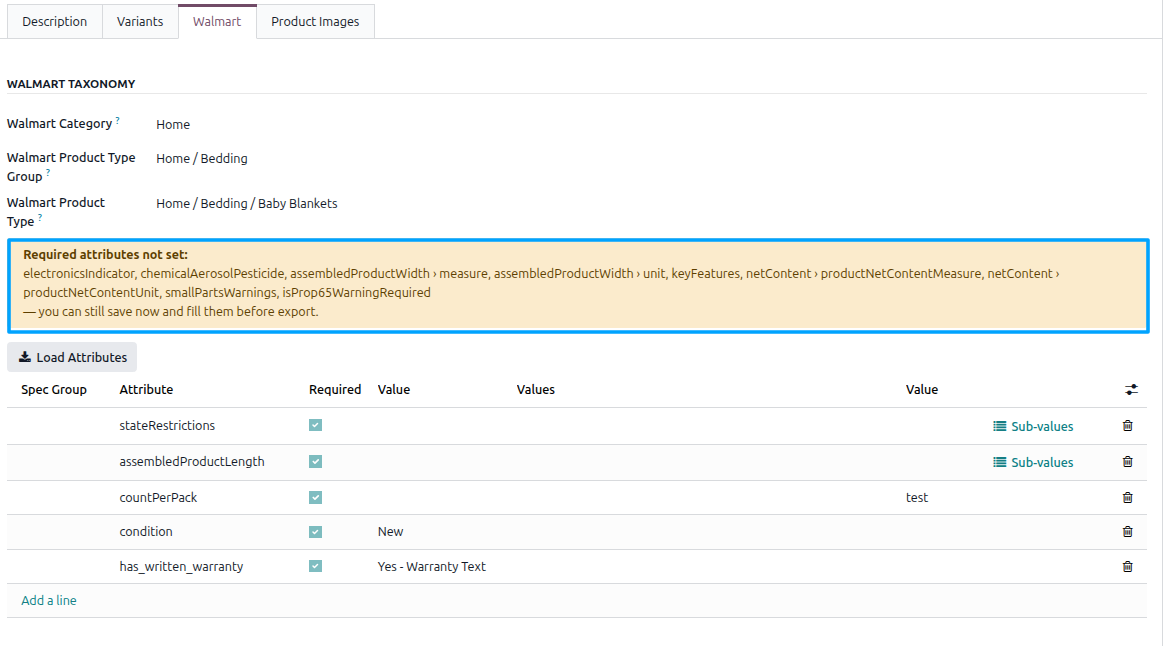
The banner names exactly which attributes are missing, including attributes nested inside another, shown as parent › child.
Important
The warning does not stop you saving. You can save the listing now and fill the attributes in later. It exists because Walmart rejects a new listing that is missing a required attribute, so exporting before the banner clears will fail.
Note
The banner disappears once the listing is live on Walmart. Updating a listing that already exists does not require every attribute to be present.
Tip
If the banner is still showing but you believe the values are filled, press Load Attributes again. The product type spec may have been refreshed and added attributes that were not there before.