
Walmart Feed Management
Walmart does not apply changes immediately. Everything you send, including new listings, listing updates, prices, and inventory, is submitted as a feed, which Walmart queues and processes in its own time. A feed is not a confirmation. It is a job that you can track while Walmart processes it.
The connector records every feed it submits, polls Walmart until the job finishes, and stores the result for each individual SKU. This is what makes partial failures easy to diagnose: you see not only that a feed failed, but which item failed and which field Walmart rejected.
Find your feeds under .
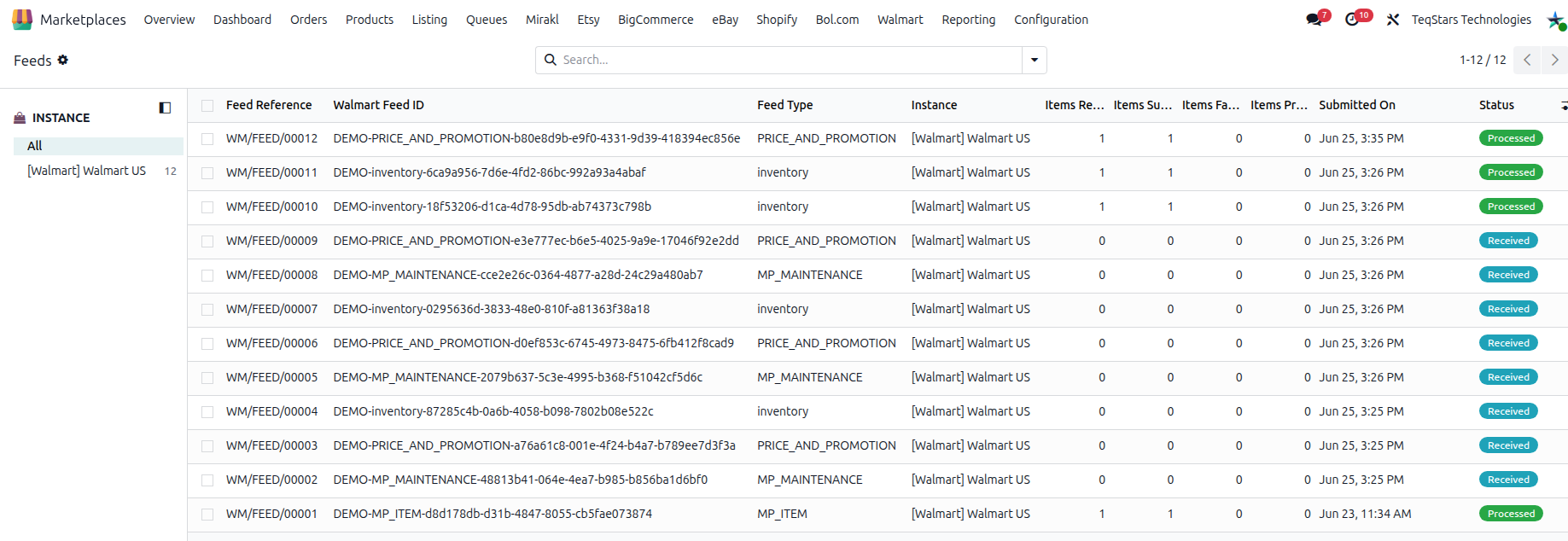
The Feed Lifecycle
A feed moves through these statuses:
Received: Walmart has accepted the submission and queued it.
In Progress: Walmart is working through the items.
Processed: Walmart has finished. Individual items may still have failed, so check the item counts.
Error: the feed as a whole failed.
Note
Processed does not mean everything worked. It means Walmart has finished processing the feed. Always check Items Failed. For example, a feed with 500 items and 3 failures is still reported as Processed.
Keeping Feeds Up To Date
The Refresh Feed Status scheduled action polls Walmart for feeds that have not finished yet, and runs every 15 minutes by default.
Important
Keep this scheduled action active whenever you use any export. Without it, feeds are submitted but their results are never collected, so Odoo cannot tell you whether Walmart accepted your listings, prices, or stock. Exported listings are also never marked as listed.
See Automatic Jobs.
To check a single feed immediately, open it and click Get Status. The button is only available while the feed is still running. Once the feed has finished, there is nothing left to poll.
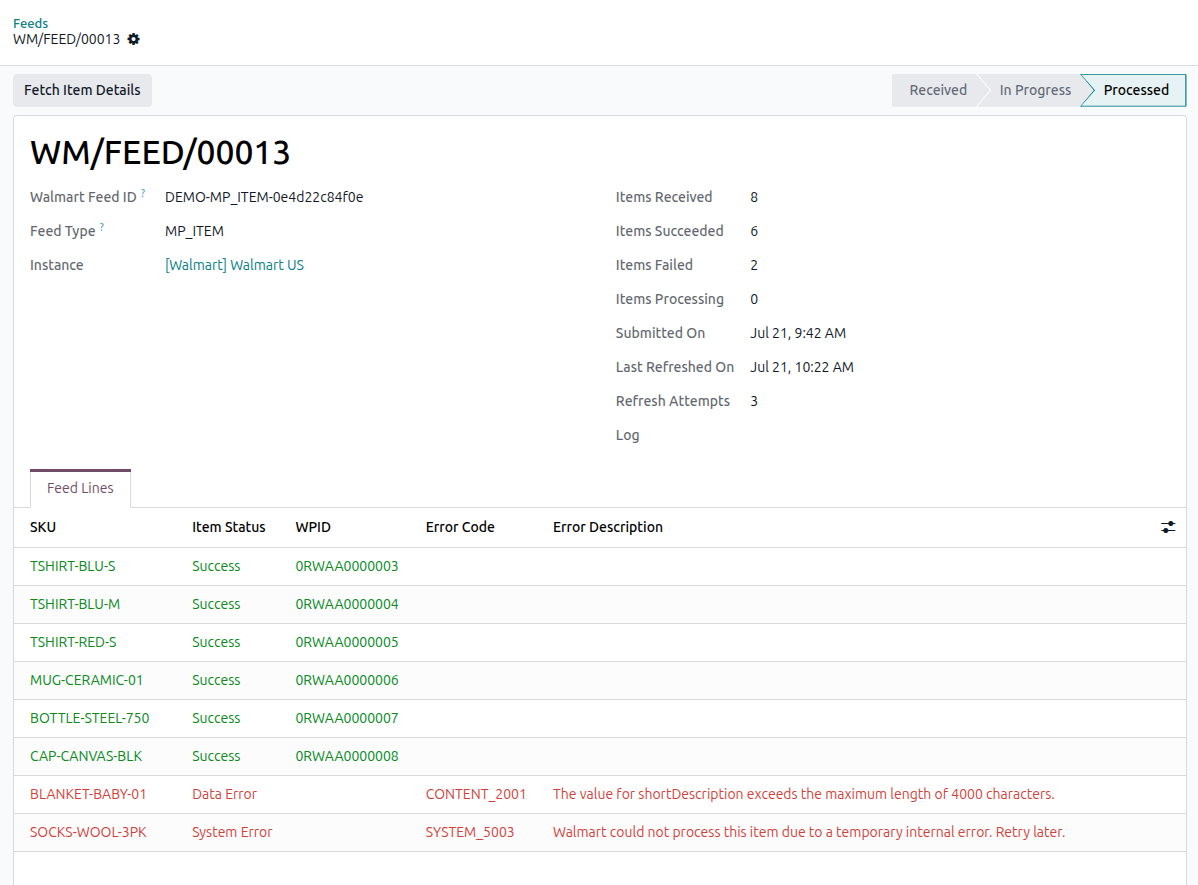
What A Feed Shows
Feed Reference: the connector’s own reference for the feed.
Walmart Feed ID: Walmart’s identifier, useful when contacting Walmart support.
Feed Type: what was submitted. Walmart uses a separate feed type for creating listings, changing existing listings, updating prices, and updating inventory. The code Walmart uses for each feed type is shown here.
Instance: the Walmart instance the feed belongs to.
Status: the current status of the feed.
Items Received, Items Succeeded, Items Failed, Items Processing: the counts reported by Walmart.
Submitted On, Last Refreshed On, Refresh Attempts: when the feed was submitted and how often the connector has checked its status.
Log: the log record for the submission.
Per-Item Results
The Feed Lines page has one line for each SKU in the feed. This is where you can see what happened to each item.
Each line shows:
SKU: the item.
Item Status:
Success,In Progress,Data Error,System Error, orTimeout Error.WPID: Walmart’s item identifier, once Walmart has assigned one.
Error Code and Error Description: Walmart’s explanation when the item failed.
Listing Item: the Odoo listing item the line refers to, when it can be matched. Hidden by default; switch it on with the optional-columns button.
Successful rows are highlighted in green, failed rows in red, and items still being processed are grayed out, so you can scan a long feed quickly.
If the lines are not available yet, click Fetch Item Details. The connector normally does this automatically when the feed finishes.
Tip
Use the Has Item Failures filter on the feed list to jump straight to feeds that need attention. The In Progress, Processed and Errored filters narrow by state, and you can group by Instance, Status or Feed Type to separate a price problem from a listing problem.
Understanding The Item Statuses
Success: nothing to do. The item was accepted.
In Progress: wait. Walmart is still working on this item.
Data Error: something in the item is wrong or missing. Read the Error Description, fix the data in Odoo, and send it again.
System Error: a problem on Walmart’s side. Re-send the item later.
Timeout Error: Walmart did not finish in time. Re-send the item.
Fixing Common Data Errors
Data Error is the only status that requires action from you. The Error Description names the field Walmart rejected; use it to find the right page:
A missing or invalid attribute: see Walmart Listing Attributes.
An attribute value Walmart does not accept: see Walmart Attribute Mapping.
The product type, or an unknown attribute: see Import Walmart Product Types In Odoo.
The product identifier, GTIN, UPC or barcode: see Export Odoo Products To Walmart.
The price: see Export Price To Walmart.
The quantity or the ship node: see Export Inventory To Walmart.
After fixing the data, re-run the operation that created the feed. Only the corrected items need to be sent again.
What Happens On Success
When a listing feed finishes, the connector writes the outcome back to your catalog: each successful item gets its Walmart item identifier and is marked as listed, and a listing whose variants have all been accepted is marked as published.
Note
Price and inventory feeds have no equivalent write-back. Their outcome is recorded on the feed lines only.
Housekeeping
Feeds are removed automatically 30 days after they were created, once they have finished or run out of retries. If a feed never reaches a conclusion, the connector stops polling it after roughly 15 hours.