
Managing Connections
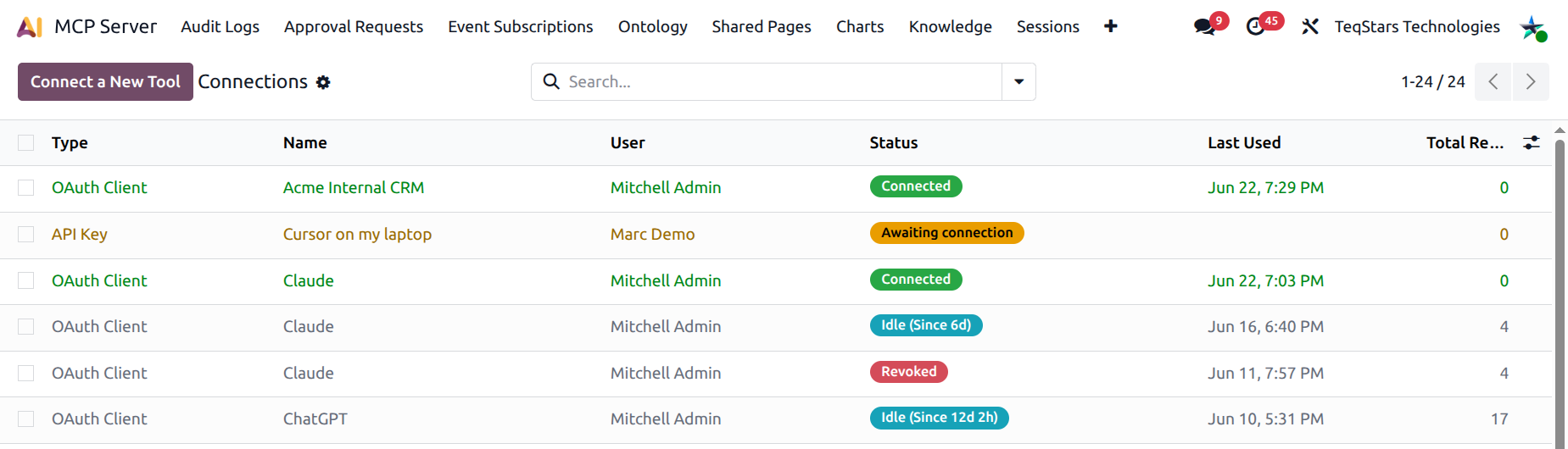
Every existing connection is listed under . The list mixes API key connections and OAuth clients in one place because both are governed by the same security policy.
The Connections list
The list is colour-coded by status:
Green rows — Connected (used recently).
Yellow rows — Awaiting connection (just issued, not used yet).
Grey rows — Idle (alive but silent for a while).
Red rows — Revoked.
Columns:
Type — API Key or OAuth Client.
Name — the friendly label given at creation.
User — the Odoo user the connection acts as.
Status — colour badge that mirrors the row decoration.
Last used — timestamp of the most recent request.
Requests — total request count across the connection’s lifetime.
Search and filters
The search bar pre-fills with Active so revoked rows don’t clutter the view. Use the filters along the right side to:
Limit to API Key connections or OAuth Client connections.
Limit to a status: Active, Connected, Awaiting connection, Idle, Revoked.
Show Dynamic Registrations only (OAuth clients created by claude.ai / ChatGPT via
/oauth/register).Group by Type or User.
The Connection form
Open any row to see the full Connection form. The form changes slightly based on the connection type, but it always includes the following sections:
Status pill
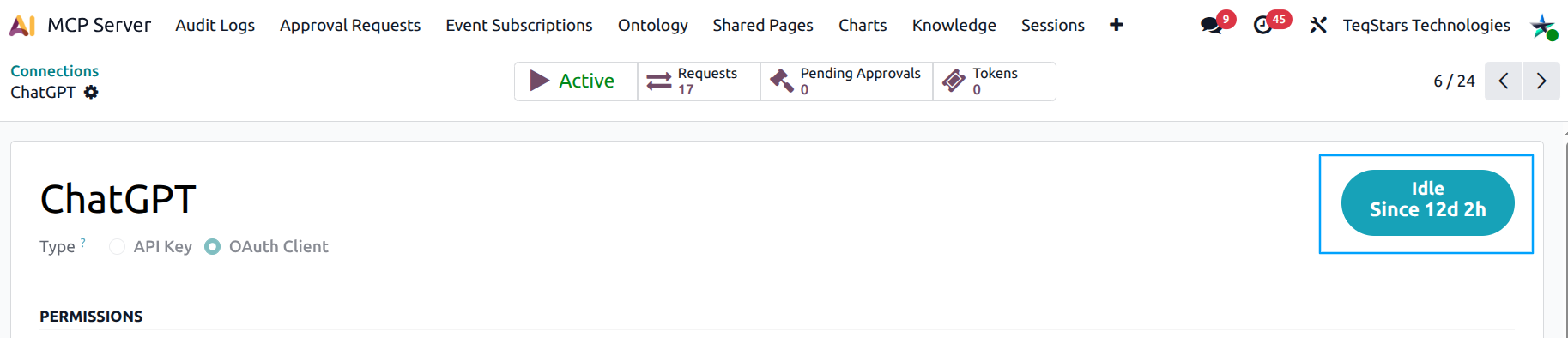
The top-right of the form shows a large coloured pill with the current connection status. For Idle connections it also shows “for X days, Y hours” so you can see at a glance how long the connection has been silent.
Type
A radio button (Bearer / OAuth) shows the connection type. This is read-only once the connection is saved — switching the authentication type would require creating a new connection.
Key Info / OAuth Info
Bearer connections show the User, Scope, and the underlying API Key record (read-only).
OAuth connections show the Client ID, Client Type, and the read-only list of Allowed Redirect URIs.
Permissions
Tighten what the connection can do:
Allowed Tools — leave empty to allow every tool the catalog exposes. Add tags to whitelist only the tools you want this connection to call. Calls to other tools are rejected with a clear error.
Allowed Models — leave empty for no restriction. Add tags to whitelist only specific Odoo models (e.g.
res.partner,sale.order). Calls touching any other model are rejected.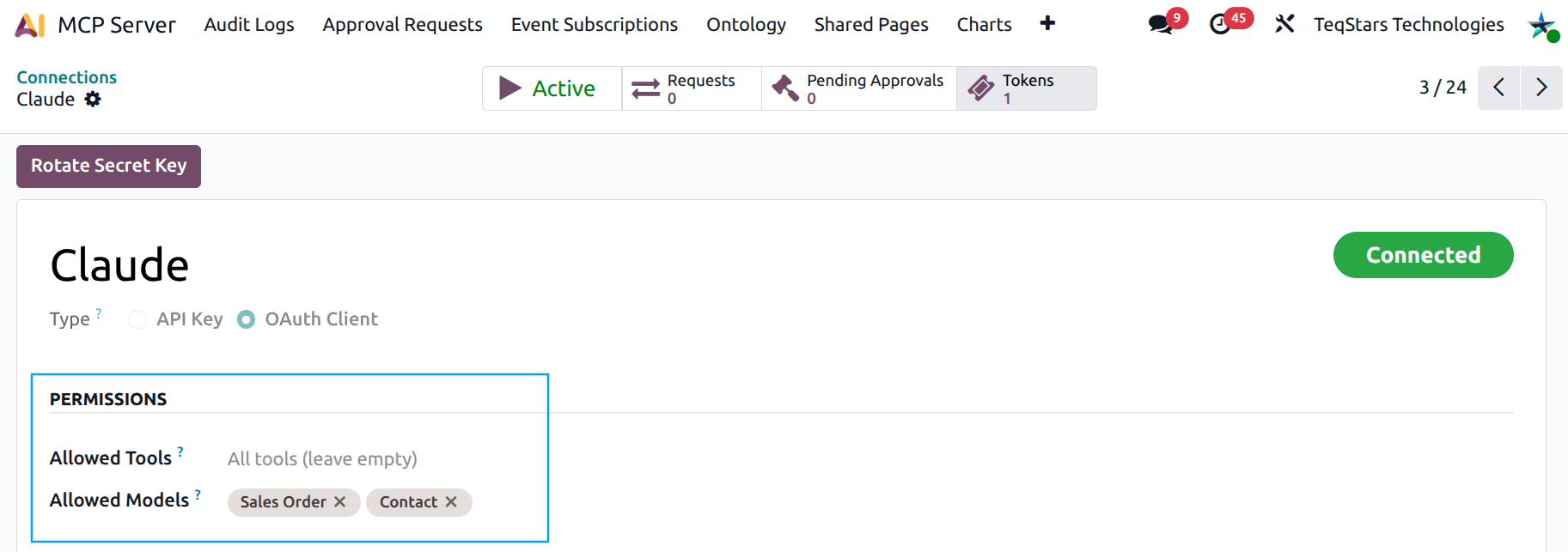
Human-in-the-loop Approvals
Tools that need approval — pick the high-risk tools whose every call should be gated by a human. The chosen approver gets an Odoo activity and decides per call.
Approver — the Odoo user who reviews approval requests for this connection.
Approval Expiry (hours) — how long a pending request stays open before the cron expires it.
See Human-in-the-Loop Approvals for the full approval workflow.
IP Restrictions
Limit where the connection can be used from.
Allowed IPs — one IP or CIDR block per line. If set, any other IP is rejected.
Blocked IPs — one IP or CIDR block per line. Any of these is rejected even if the allowlist is empty.
Either list accepts IPv4 and IPv6. 192.168.1.0/24 and
2001:db8::/32 are both valid.
Rate Limits (Bearer only)
Override the defaults from Server Settings:
Rate Limit (requests/min)
Rate Limit (requests/day)
Leave the defaults if you have no specific need.
Statistics & Notes
Last used — last request timestamp (read-only).
Description — free-text notes about the connection, e.g. “Marketing intern - paused until July”.
Tip
Use the Description field generously. It is the easiest way to remember why a connection exists six months from now when the audit team asks.
What MCP Users see
Users in the MCP User group reach the same menu but, thanks to record rules:
They only see their own connections.
They can rotate, revoke, or reactivate their own connections.
They cannot create new connections — the Connect a New Tool button is admin-only.
If a user wants a new connection, they ask an MCP Administrator to run the wizard on their behalf and hand over the resulting key / credentials.