
Rotate, Revoke, and Reactivate
Keys and secrets do not last forever. The MCP Server makes rotation and revocation routine, single-click operations that you can perform without leaving Odoo.
When to rotate
Rotate a key or secret whenever:
An employee with access to it leaves the company.
A laptop holding it might have been lost or compromised.
You see suspicious activity in the audit log.
Your security policy mandates periodic rotation.
When to revoke
Revoke a connection entirely when:
The integration is no longer used.
The user it belongs to has left and you don’t want a replacement to inherit the key.
You are investigating an incident and want to immediately cut the connection.
Rotating an API key
Open the connection from .
In the header, click Rotate Key.
Confirm the dialog (“This will generate a new key. The old key will stop working immediately.”).
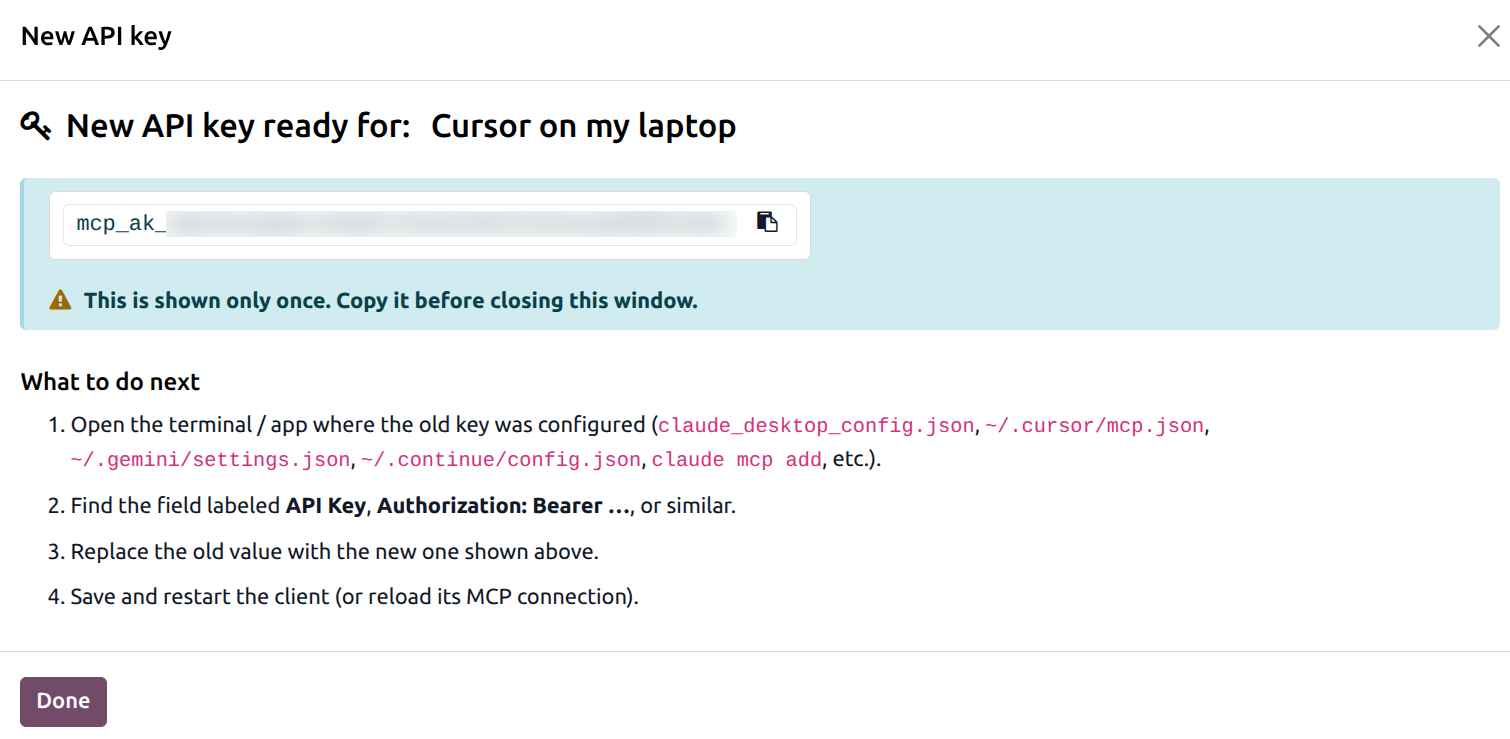
The page reloads with the new key displayed once — copy it and paste it into your AI tool.
Tip
If you accidentally dismissed the popup without copying the new key, just click Rotate Key again to issue yet another one. The previous old key is already dead, so nothing breaks.
Rotating an OAuth client secret
For confidential OAuth clients, click Rotate Secret Key in the header. Odoo:
Confirms (“Generate a new Secret Key? The current Secret Key will stop working immediately.”).
Generates a new secret.
Opens a popup with the new secret and a numbered guide (“What to do next”) tailored for non-technical admins.
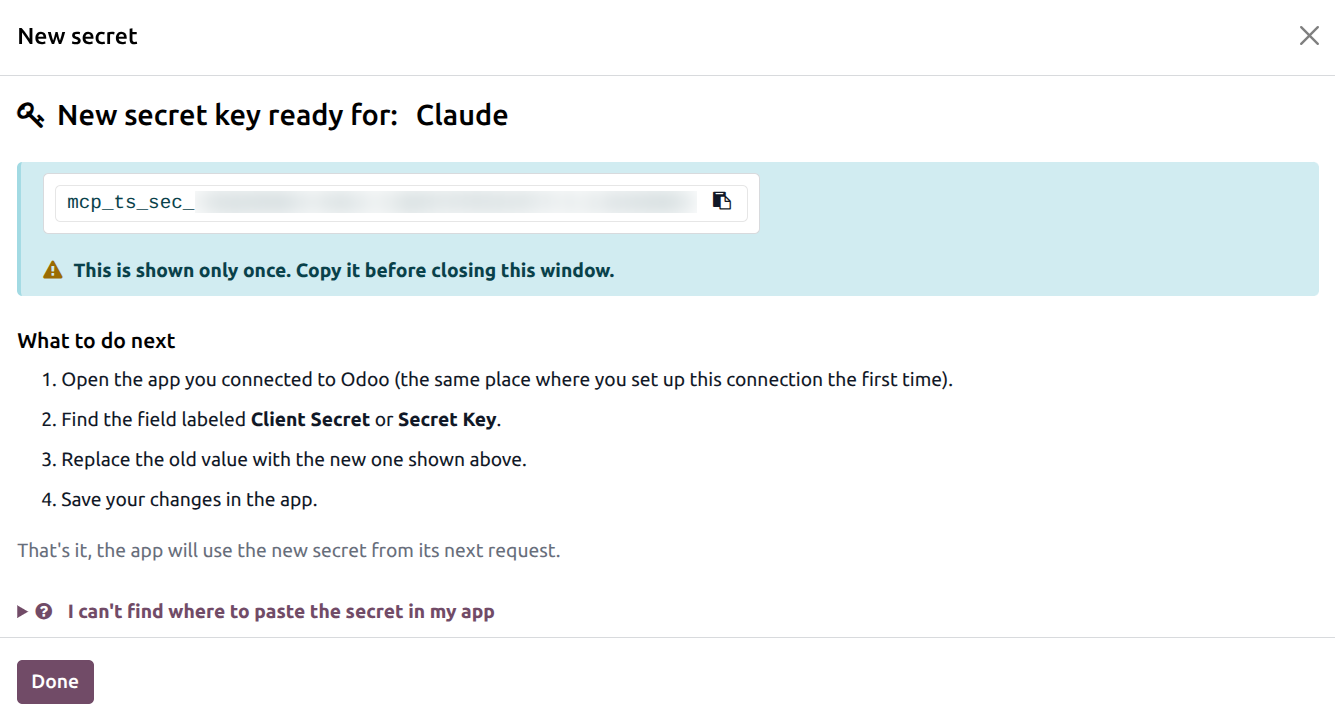
The popup also contains a collapsible help section labelled I can’t find where to paste the secret in my app. It explains the alternative when an app — like claude.ai — does not let you change the secret after first setup:
Close the popup.
Click the green Active button on the connection to flip it to Revoked.
Have the end user reconnect the app from scratch.
The app receives a fresh credential pair.
Revoking and reactivating a connection
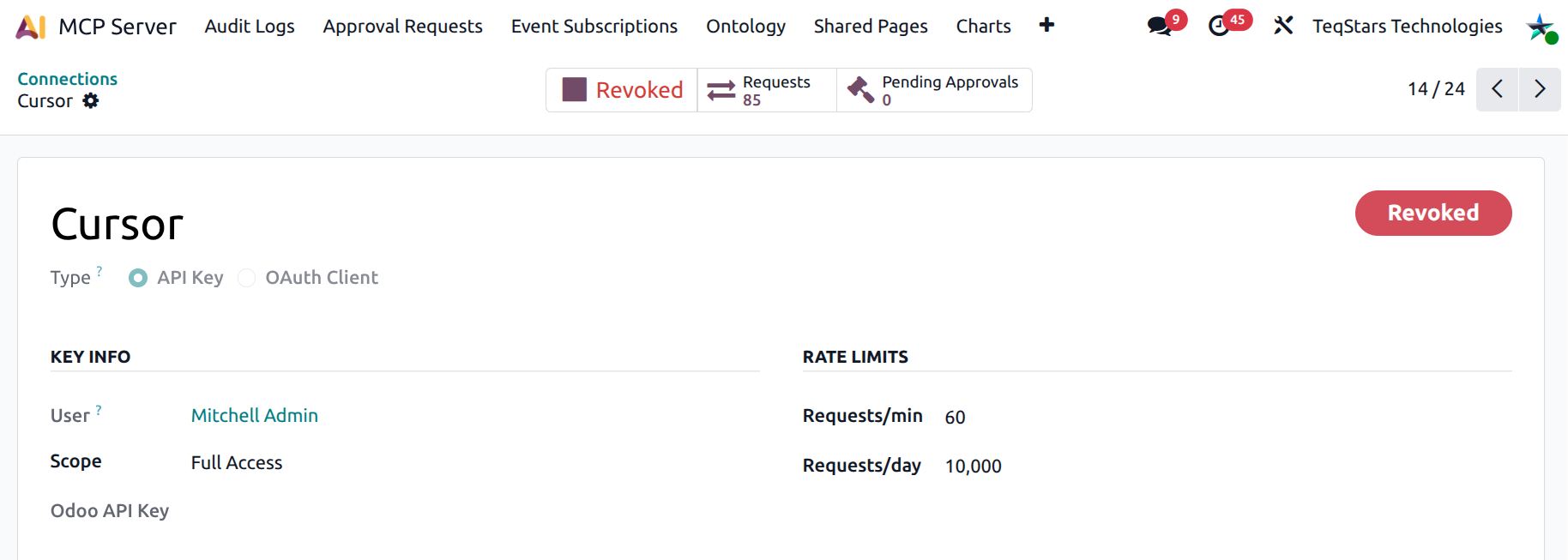
Toggle the Active / Revoked smart button on the form. Each combination has a dedicated confirmation dialog so you know exactly what will happen:
Bearer + Active → Revoke — confirms “Revoke this connection? The API key will be deleted and any active sessions will be deactivated.”
OAuth + Active → Revoke — confirms “Revoke this OAuth client? All issued access and refresh tokens will be invalidated and any active sessions will be deactivated.”
Revoked → Reactivate — no confirmation; the connection is just re-enabled. For Bearer, you’ll need to click Generate Key afterwards to create a new key (the old one is gone).
What revoke really does
Deletes the API key (Bearer) or invalidates every active access / refresh token (OAuth).
Deactivates every live MCP session linked to the connection. The AI tool will see authentication errors on its next call.
Marks pending approval requests on the connection as expired.
Keeps the connection record itself for audit purposes — you can still see every past request in the audit log.
Warning
Revoking is immediate and destructive for the credential. There is no soft delete. Make sure the credential is genuinely the one you want to kill before you confirm.
Bulk hygiene tip
The Connections list groups by Last used with a single click in the search bar. Sort descending, then look at the bottom — those connections have been idle the longest and are usually safe to revoke. A clean Connections list is a secure Connections list.
See also