
Export Products from Odoo
With Export Listings, you can publish your Odoo products to Bol.com as new offers (products), including price, condition, fulfilment method, and other offer attributes. The connector pushes the offer data to Bol.com via the Retailer API.
Important
Each variant you export must have a Barcode defined in Odoo. The barcode must be numeric and end up as a 13-digit EAN: 11 and 12 digit barcodes are padded with leading zeros and a 14 digit barcode starting with 0 is shortened. Any other barcode makes the export of that listing fail.
The offer also needs a price: the price is taken from the instance pricelist, and a listing without a price above zero cannot be exported.
Add to Listing creates one listing per product variant, and each listing holds a single listing item. A product with several variants therefore becomes several listings, which are exported (and published) individually.
For FBR offers the Fulfilment Schedule is required, and a Condition State (second hand) or Refurbished Grade (refurbished) is required for those condition categories.
Steps to Export
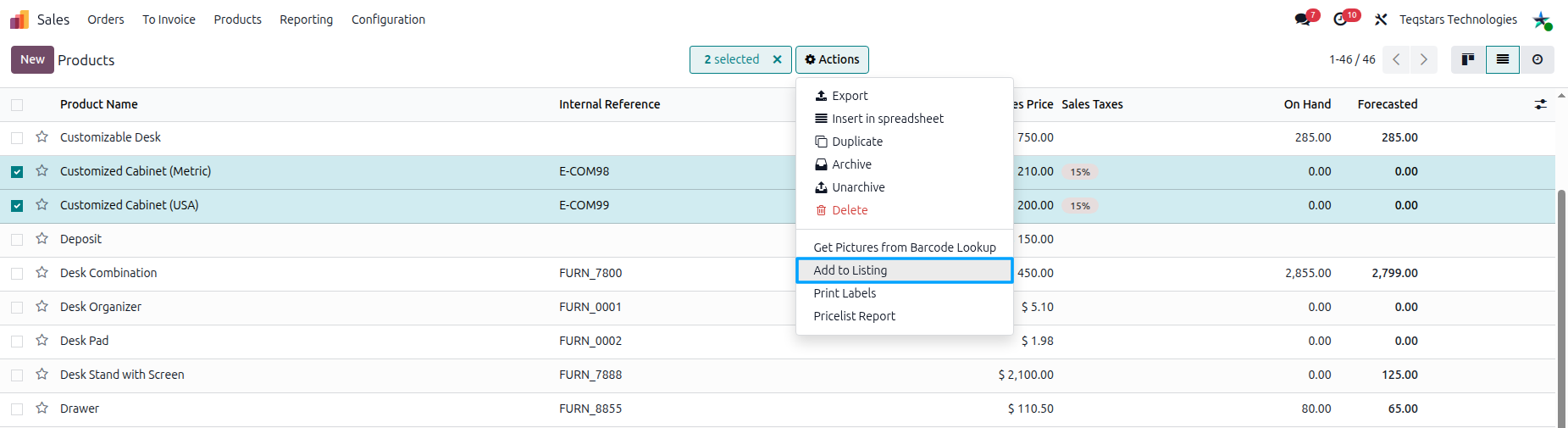
To begin exporting your products to Bol, navigate to the menu. In the product list view, select the products you want to export to Bol. Then, from the action dropdown, choose Add to Listing.
A popup will appear. In this window, select the Bol instances where you wish to add your products. If the instance is configured for FBR & FBB, also choose the Bol Fulfilment Method (FBR or FBB) for the new listings. After making your selections, click the
Add to Listingbutton.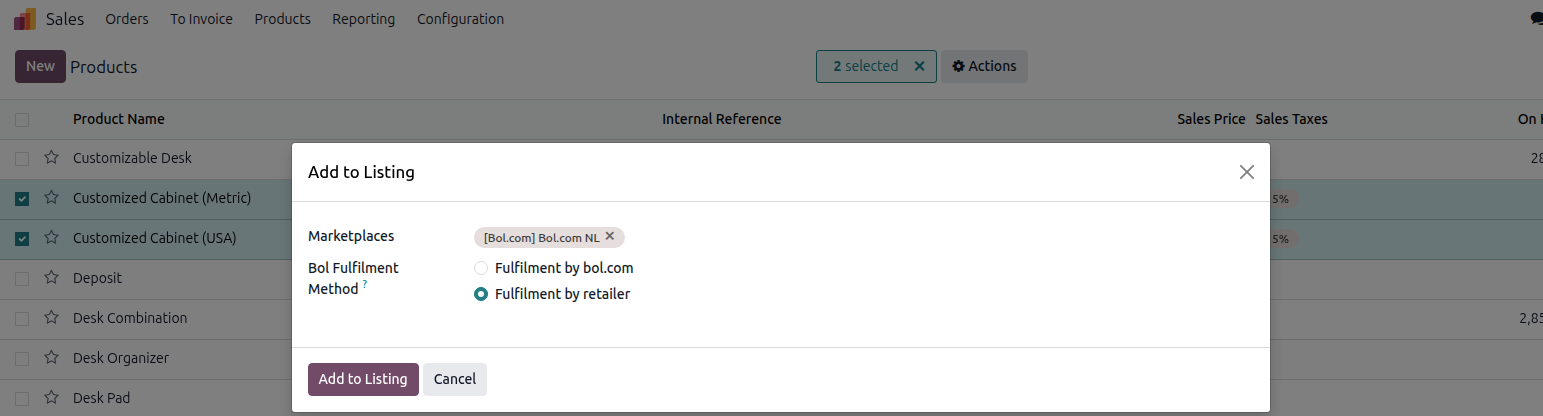
The selected products are now available as Listings in your Bol.com instance, where you can fine-tune the name, the price (through the instance pricelist), and, on the Information tab, the fulfilment method, fulfilment schedule and delivery promise, and the condition before exporting. New listings start with the defaults configured on the instance (condition and fulfilment schedule / delivery days).
From the Listing View
Go to .
Click the Listing smart button on the Bol.com instance card.
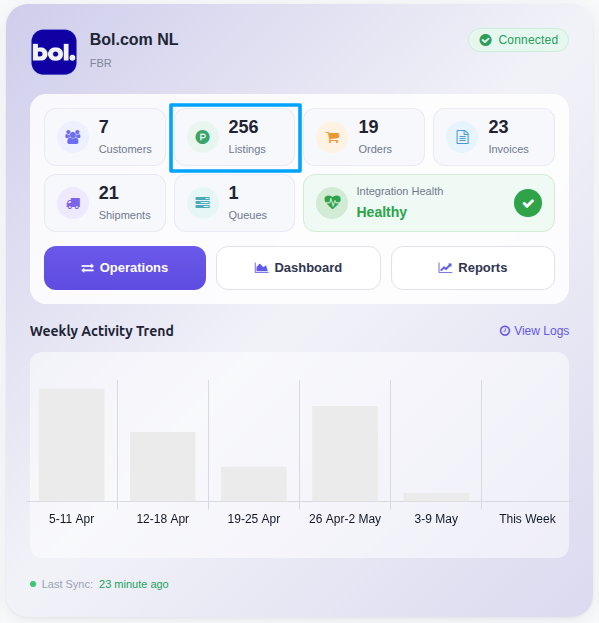
In the Listing menu, click the Export/Update to Marketplace button on the listing row (or open the listing and use ).

In the popup, choose Publish In Bol.com? (
PublishedorUnpublished) and click Export Offer.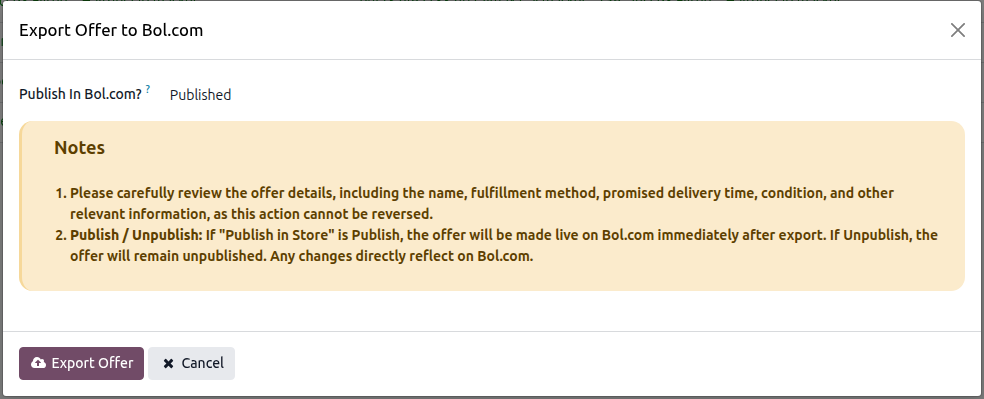
The export is queue based. Only listings that are not exported yet are accepted (you cannot mix exported and not exported listings in one selection). The connector creates Product Export queues (batches of the instance’s queue batch size, 100 by default) and opens them. The Marketplace : Process Queue Job scheduled action (every 15 minutes by default) then validates each listing (barcode, price, fulfilment and condition data) and creates the offer on Bol.com, or you can process the queue manually. Failures are recorded on the queue line and under , and can be retried from the queue.
When the offer has been created, the listing is marked as exported and receives the Bol.com offer ID. The offer is created as Published or Unpublished according to the option you chose in the popup. The Not Publishable Reasons field is filled when Bol.com reports why the offer is not for sale.
Note
Bol.com sells an offer only when a catalog product exists for its barcode (EAN). Before creating the offer, the connector checks the Bol.com catalog. If the barcode is not found, the connector asks Bol.com to create the catalog product (using the product name; Bol.com suggests the category, and the connector only uses a suggestion with a probability of at least 50%) and the offer becomes available for sale once Bol.com has published the catalog product. The offer itself is still created on Bol.com in that case. If Bol.com cannot determine a category, the reason is recorded under and no catalog product is requested. If the catalog cannot be read, no catalog product is requested either. The result of the catalog job (published or declined) is only read when Bol.com sends the process status notification, so the webhook of the instance must be configured to see it in the logs.