
BigCommerce Financial Workflow Configuration
The financial workflow tells Odoo what to do with each imported BigCommerce order. You link a BigCommerce payment gateway and a payment status to a marketplace workflow and to payment terms. Odoo then runs the steps of that workflow on the order, based on how the customer paid.
The financial workflow is set per instance, in the Workflow tab. A short overview is also in Financial Workflow Configuration on the instance page.
Payment Gateways
A payment gateway is the payment method the customer used in BigCommerce, such as Card or PayPal. When Odoo imports an order, the connector matches the payment method of the order to a payment gateway. If the payment gateway does not exist yet, the connector creates it the first time it finds it. The matched payment gateway is shown on the sale order in BigCommerce Payment Method.
To see your payment gateways, go to .
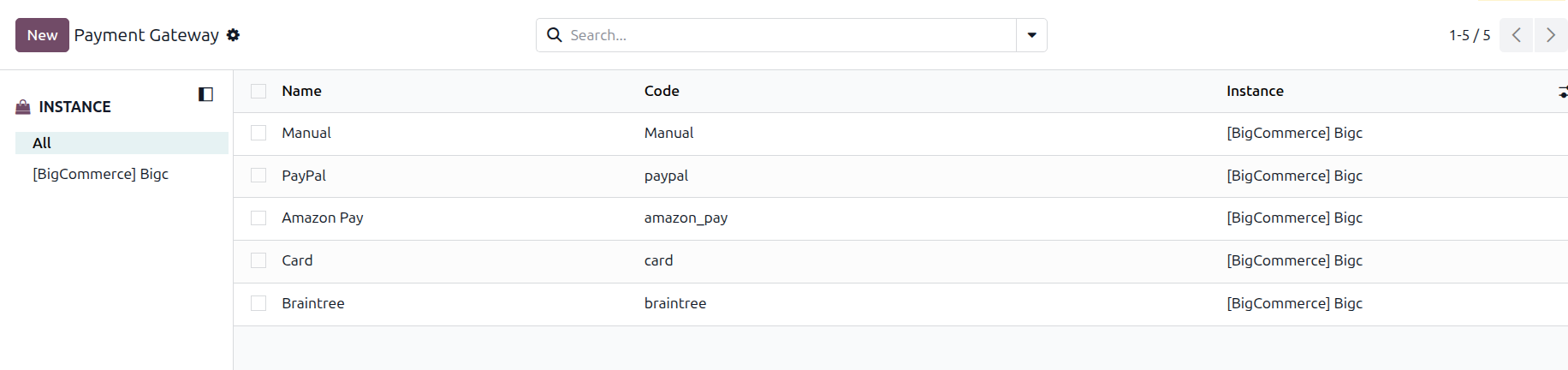
Each payment gateway shows:
Name: The name of the payment method.
Code: The payment method text sent by BigCommerce on the order. A payment gateway created by the connector has the same value in Name and Code.
Instance: The BigCommerce instance the payment gateway belongs to.
Set the Financial Workflow
Go to and open your BigCommerce instance.
Open the Workflow tab.
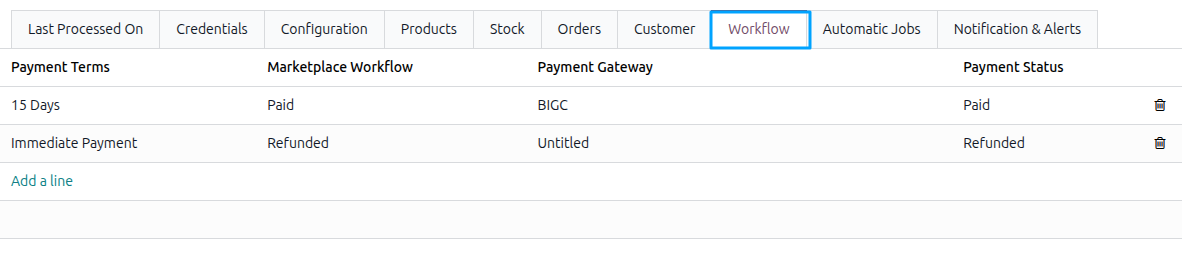
Add a line and fill in the fields below.
Save the instance.
Payment Terms: The payment terms Odoo sets on the customer of the imported order. The order takes them from the customer.
Marketplace Workflow: The workflow Odoo runs on the matching orders. See Configure Marketplace Order Workflow.
Payment Gateway: The BigCommerce payment method this line applies to.
Payment Status: The BigCommerce payment status this line applies to. Choose Any to use the line for every payment status of the payment gateway.
Add one line for each combination of payment gateway and payment status you receive. A line applies to an order when its payment gateway matches and its payment status is the status of the order or Any.
Payment Status Options
The Payment Status field has these options:
Authorized
Captured
Capture Pending
Declined
Held for Review
Paid
Partially Refunded
Pending
Refunded
Void
Void Pending
Any
The imported order keeps its BigCommerce payment status in BigCommerce Payment Status on the sale order.
If the payment status sent by BigCommerce is not one of these options, Odoo uses the status derived from the BigCommerce order status, and Pending when none applies. Choose Any when you want one line to cover all statuses of a payment gateway.
What the Marketplace Workflow Does
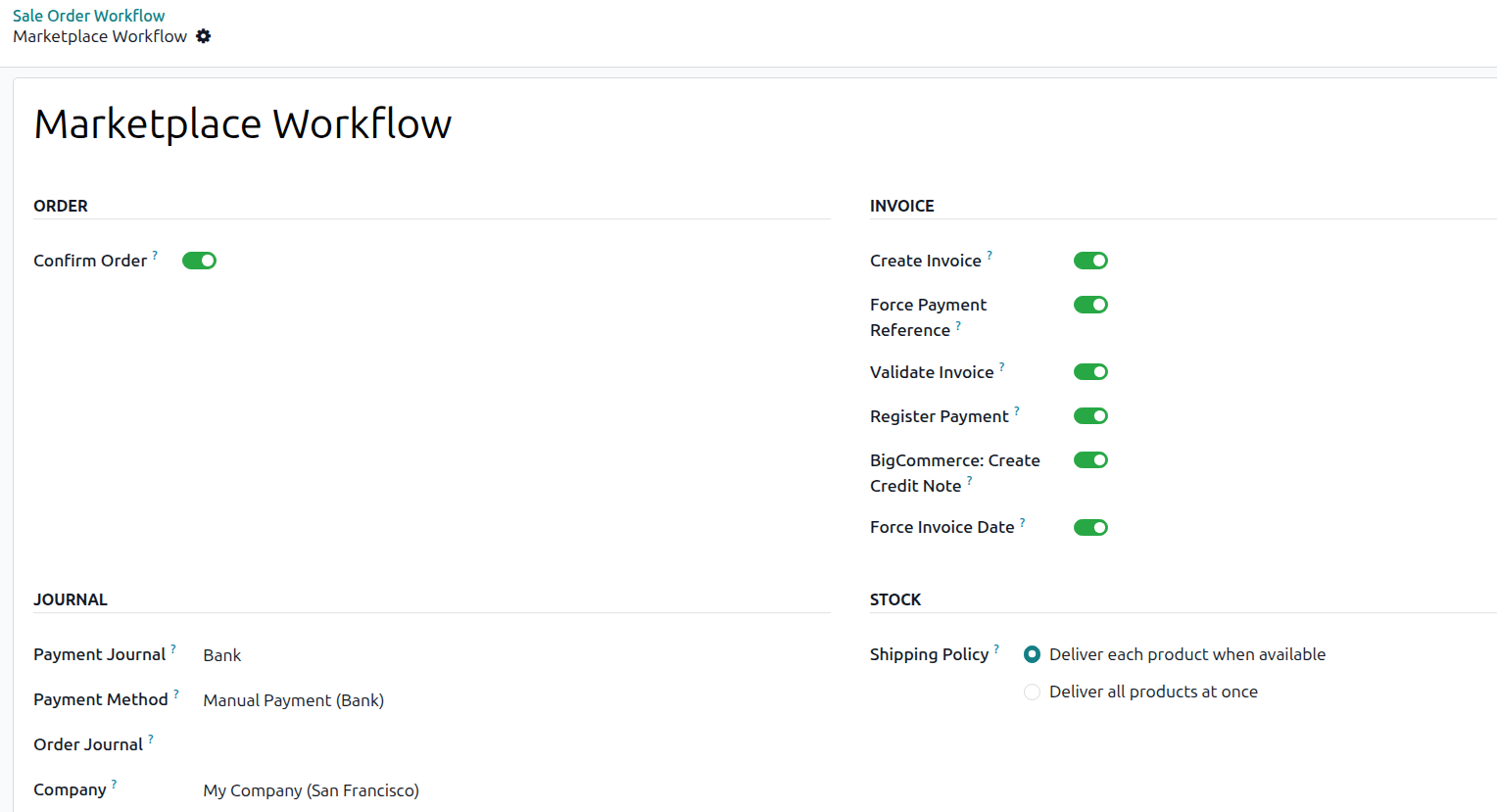
The Marketplace Workflow decides which steps Odoo runs on the order. Depending on its options, it can confirm the order, lock the confirmed order, create the invoice, validate the invoice and register the payment. See Configure Marketplace Order Workflow for all options.
When the Workflow Is Not Configured
If an imported order has a payment gateway and a payment status with no matching line, the order is not imported and the connector adds a log line. Go to to see it. The message of the log line names the payment gateway and the payment status that are missing.
To fix it:
Open the log line.
Click Configure Workflow. This button is shown only while the workflow is not configured. A form opens with the payment gateway and the payment status already filled in.
Choose the Marketplace Workflow and the Payment Terms.
Save.
Once the line exists, retry the failed queue line. The next orders with the same payment gateway and payment status follow the workflow.
Create Credit Notes for Refunded Orders
The connector can create a credit note in Odoo for a BigCommerce order that was refunded or partially refunded in BigCommerce.
Go to and open the workflow you use for your BigCommerce orders.
Enable BigCommerce: Create Credit Note. It is enabled by default. The option is available when Validate Invoice is enabled.
Save.
Odoo creates the credit note when all of these are true:
The BigCommerce order status is Refunded or Partially Refunded.
BigCommerce shows a successful captured payment for the order.
The order has a posted invoice in Odoo.
Every product that is invoiced on delivered quantities is fully delivered.
You have not already created a credit note for the order by hand.
The credit note total matches the refund total in BigCommerce. If it does not, Odoo does not create the credit note and writes an error to the log, so you can create it by hand.