
Export Inventory From Odoo
Send Odoo stock levels to Octopia so your offers reflect real availability. The exported quantity is computed from your instance’s Stock Based On setting, and a negative quantity is sent as zero.
Prerequisites
Listing items that are listed and have Manage Stock enabled.
A Stock Based On setting chosen on the instance (On Hand, Forecasted or Free To Use).
The offer is seller managed.
Method - 1: Manual Export
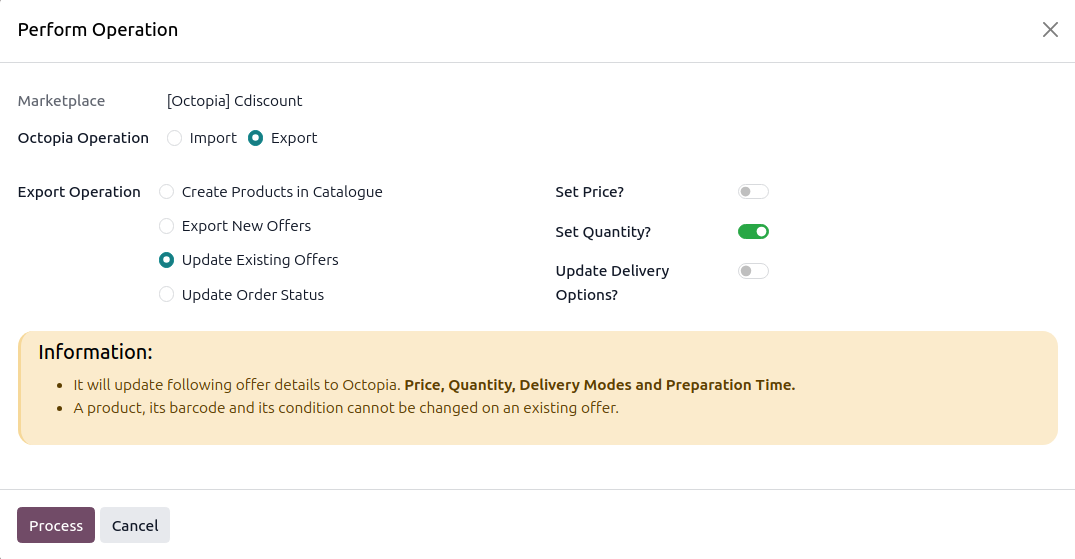
Click the Operations button on the instance card in .
Choose Export, select Update Existing Offers, switch Set Quantity on, and click Process.
To send the stock of only a few offers, select them in the listing view and use Export/Update Listing in Marketplace. See Update Existing Offers In Octopia.
Method - 2: Automatic Inventory Export
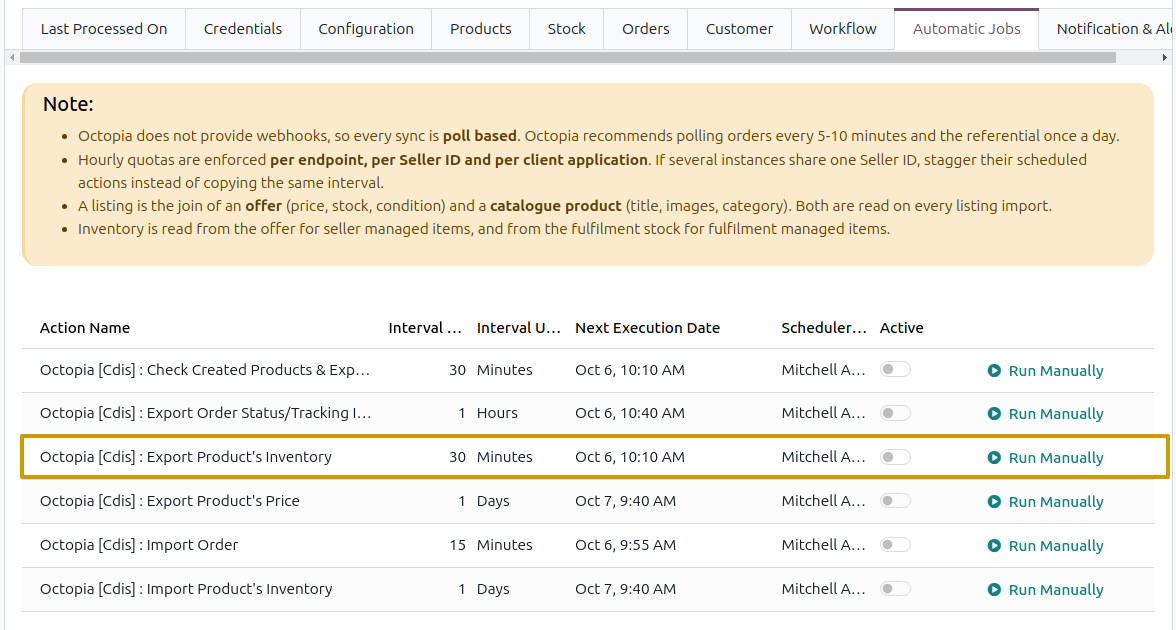
Go to your Octopia instance by navigating to .
Open the Automatic Jobs tab and configure the Export Product’s Inventory automatic action by setting Interval Number, Interval Unit, and enable Active (every 30 minutes by default).
Once enabled, Odoo automatically exports stock to Octopia at the selected time intervals.
How It Works
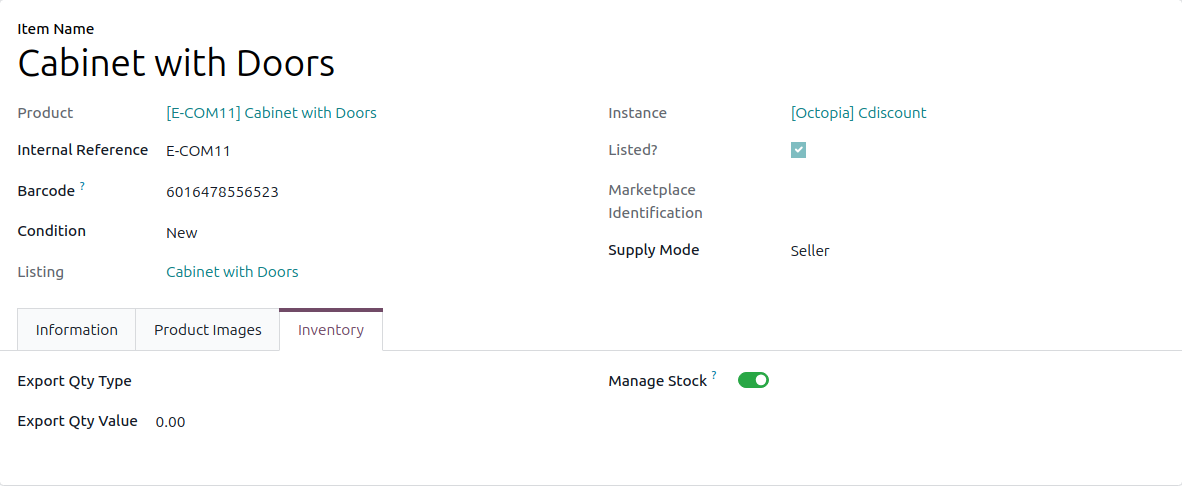
The automatic action sends only the quantities that moved since the last export, together in one Update package.
Offers with Manage Stock switched off, and fulfilment managed offers, are skipped.
Manage Stock is a per-offer decision on the Inventory tab of the listing item. It also holds when stock is sent by hand from the listing.
The date of the last stock export is stored on each offer and on the instance.