
Access Board
The Access Board gives you a single place to manage users, roles, and templates. You can quickly assign or remove roles without opening each role individually.
Open it from .
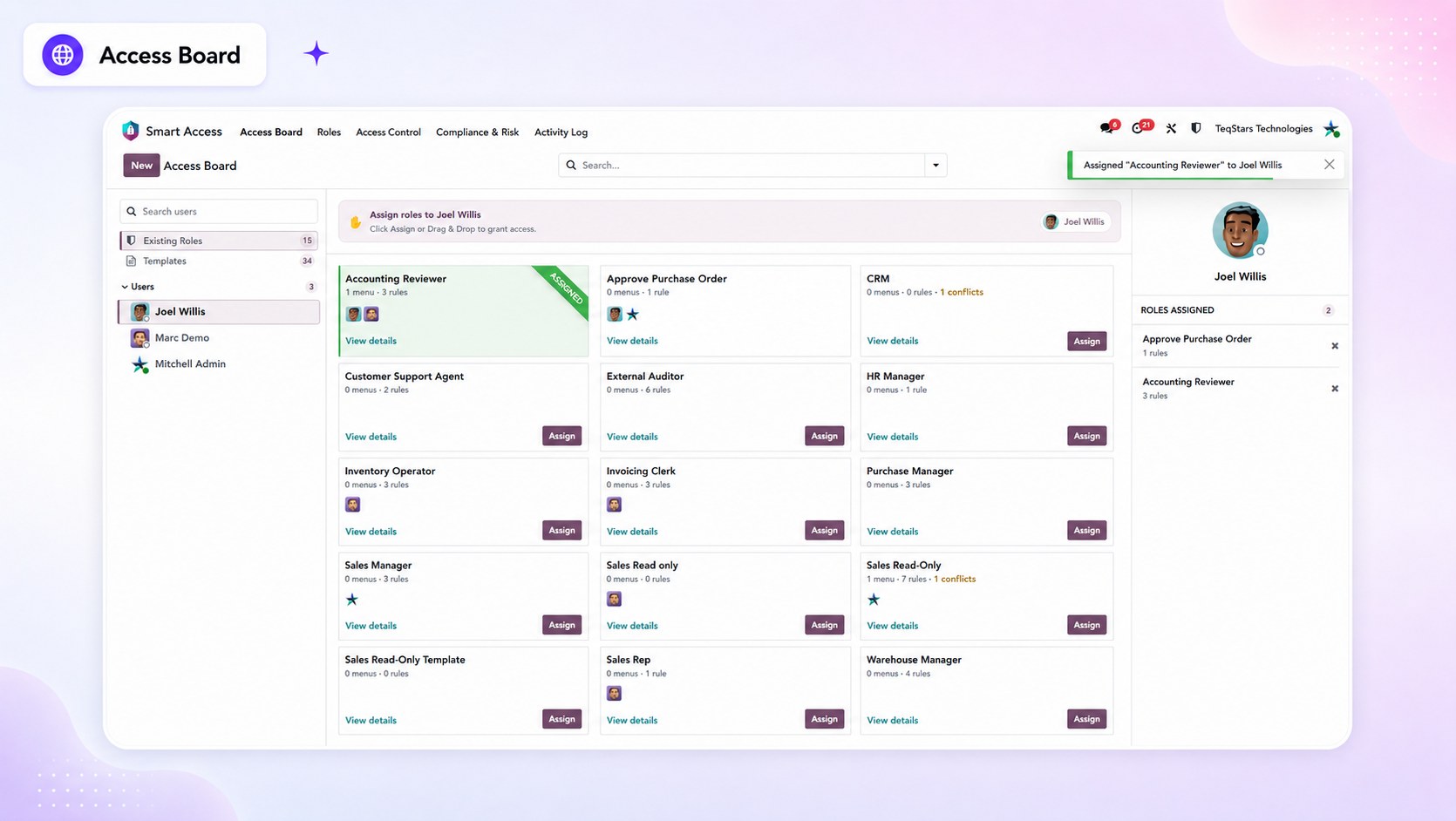
How the board is organised
Left panel — Users
Shows all active internal users along with their department, job position, and online status.
Select a user to view their access details on the right.
Centre — Roles or Templates
Use the toggle to switch between existing Roles and available Templates.
Each card shows the role or template name, the number of rules it contains, and the users who currently have access to it.
Right panel — Selected user
Shows the roles assigned to the selected user, including roles they receive indirectly, and any access conflicts detected for that user.
Assign and remove access
Assign a role — Select a user, then click Assign on a role card. You can also drag the user onto the role card.
Apply a template — Switch to Templates and click Apply. Smart Access Manager creates the role from the template the first time it is applied, and reuses that same role for every user afterwards, so no duplicate roles are created.
Remove a role — Click the remove option next to the role in the selected user’s panel.
Note
Roles assigned from the Access Board remain active until they are removed. If access should expire automatically, use a time-bound role assignment instead.
Indirect roles
The selected user’s panel also shows roles that apply to them indirectly. These roles are not assigned directly to the user.
Time-bound assignments — Roles given to the user for a specific period.
Inherited roles — Roles the user receives through another role that implies them.
These roles are shown as read-only. To remove this access, remove the time-bound assignment or the role that provides the inherited access.
Live conflict detection
When you select a user, Smart Access Manager immediately checks their current access and shows any conflicts. Two types of conflicts are displayed:
Conflicting Roles — The user has two roles that a Conflict Rule does not allow together.
- Overlapping permissions — Two roles assigned to the user have different settings for the same field or operation.
The board shows the roles involved and the permission that applies.
Indirect roles are also included in the check. If an inherited role causes a conflict, the Access Board shows the conflict along with the role that introduced it.
See also