
Export Products From Odoo
With Export Listings, you add your Odoo products to ManoMano. The connector writes the products that are not yet listed to the product feed of both seller contracts (B2B and B2C). ManoMano reads the feed, creates the offers, and the connector then marks each product as listed once ManoMano confirms it. To export listings from Odoo to ManoMano, follow these steps.
Before You Export
Check these points first. Otherwise the products are not written to the feed, or ManoMano never picks them up.
Your ManoMano instance is confirmed, with the B2B or B2C seller contract ID set in the Credentials tab. See Create a ManoMano instance in Odoo.
Each seller contract has its own pricelist and feed URL. See ManoMano Seller Contracts.
The feed URL of each contract is pasted in ManoMano Toolbox, so ManoMano can read the feed. Your Odoo must be reachable over HTTPS for this. See ManoMano Product Feed.
Each product has at least one image and at least one shipping grid (carrier). The connector checks this before it writes anything to the feed.
Step 1: Add Products To Listings
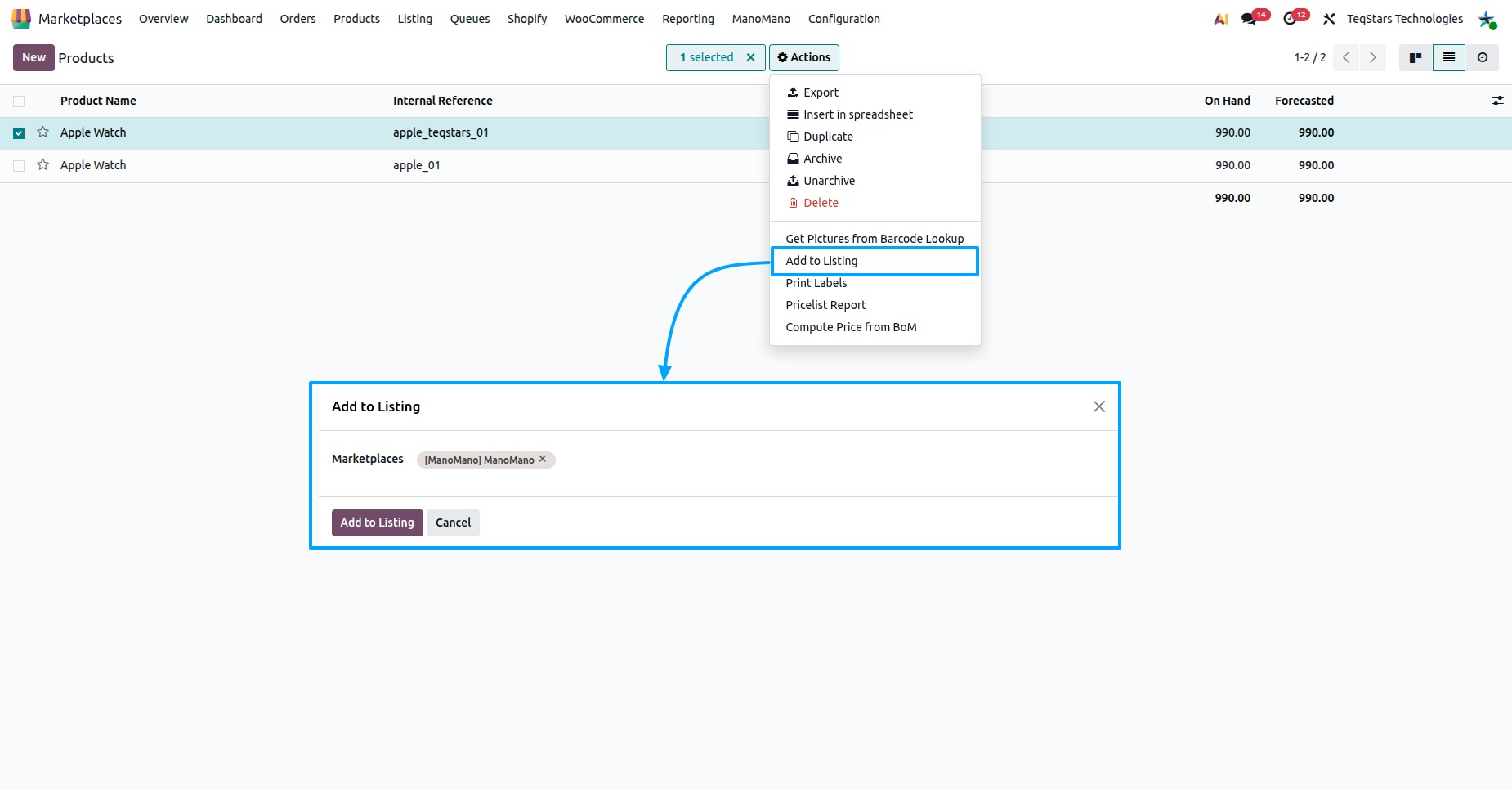
Go to . Select the products you want to sell on ManoMano. Then click .
In the popup, select your ManoMano instance and click Add to Listing.
The selected products now appear in , with Listed? not ticked.
Step 2: Complete The Listing
Before a listing goes to the feed, fill in its ManoMano details: the ManoMano Category, the ManoMano Brand, and the B2B and B2C offer details in the Listing Offer tab of each variant. See Offer Details On A Listing.
Add at least one image in the Product Images tab. A product without an image is not exported.
Set a Carrier Grid. A product without a shipping grid (carrier) is not exported.
Step 3: Choose An Export Method
You can export listings in two ways. Both write the products to the feed of both contracts (B2B and B2C), so you never choose a seller contract.
Method - 1: From The Operations Wizard
Use this method to export every product of the instance that is not yet listed.
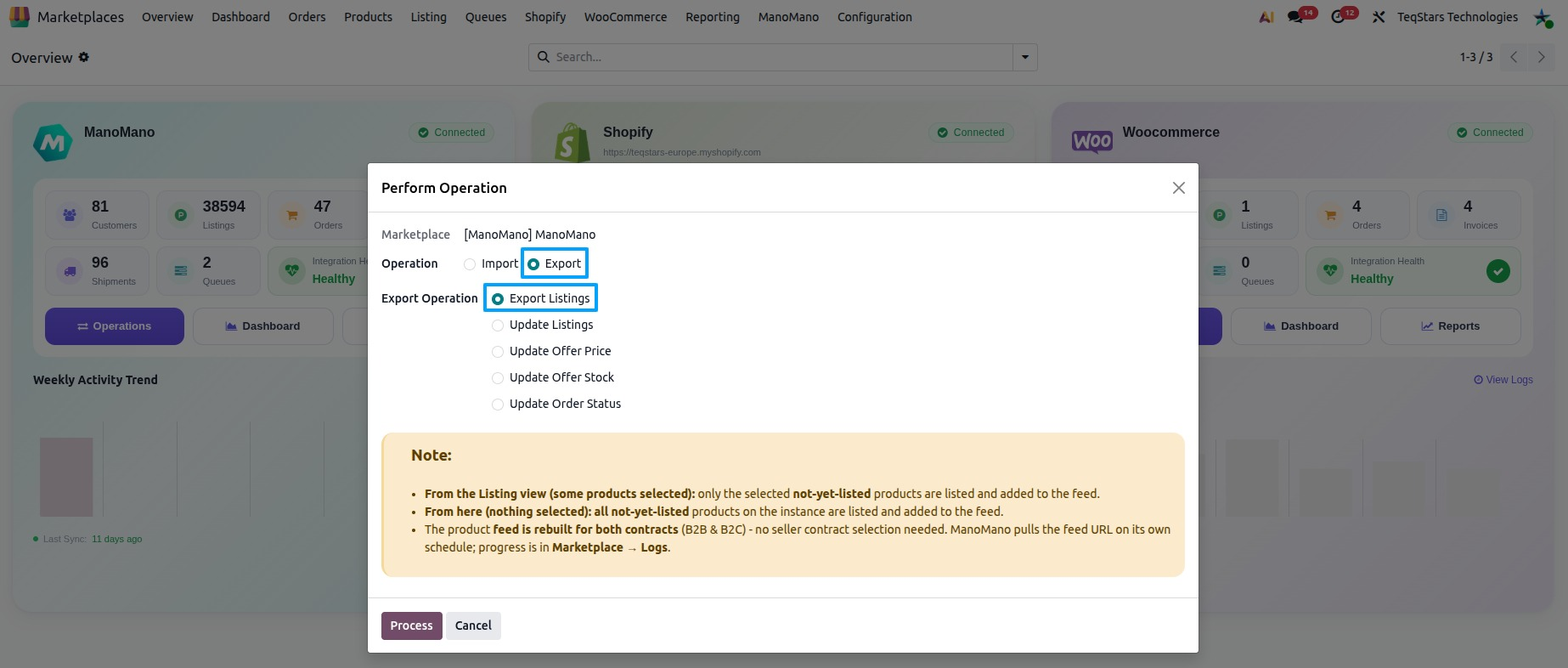
Go to and open the operations of your ManoMano instance.
In Operation, select Export. In Export Operation, select Export Listings.
Click Process. With nothing selected, all not-yet-listed products on the instance are listed and added to the feed.
Method - 2: From The Listing View
Use this method to export only some products.
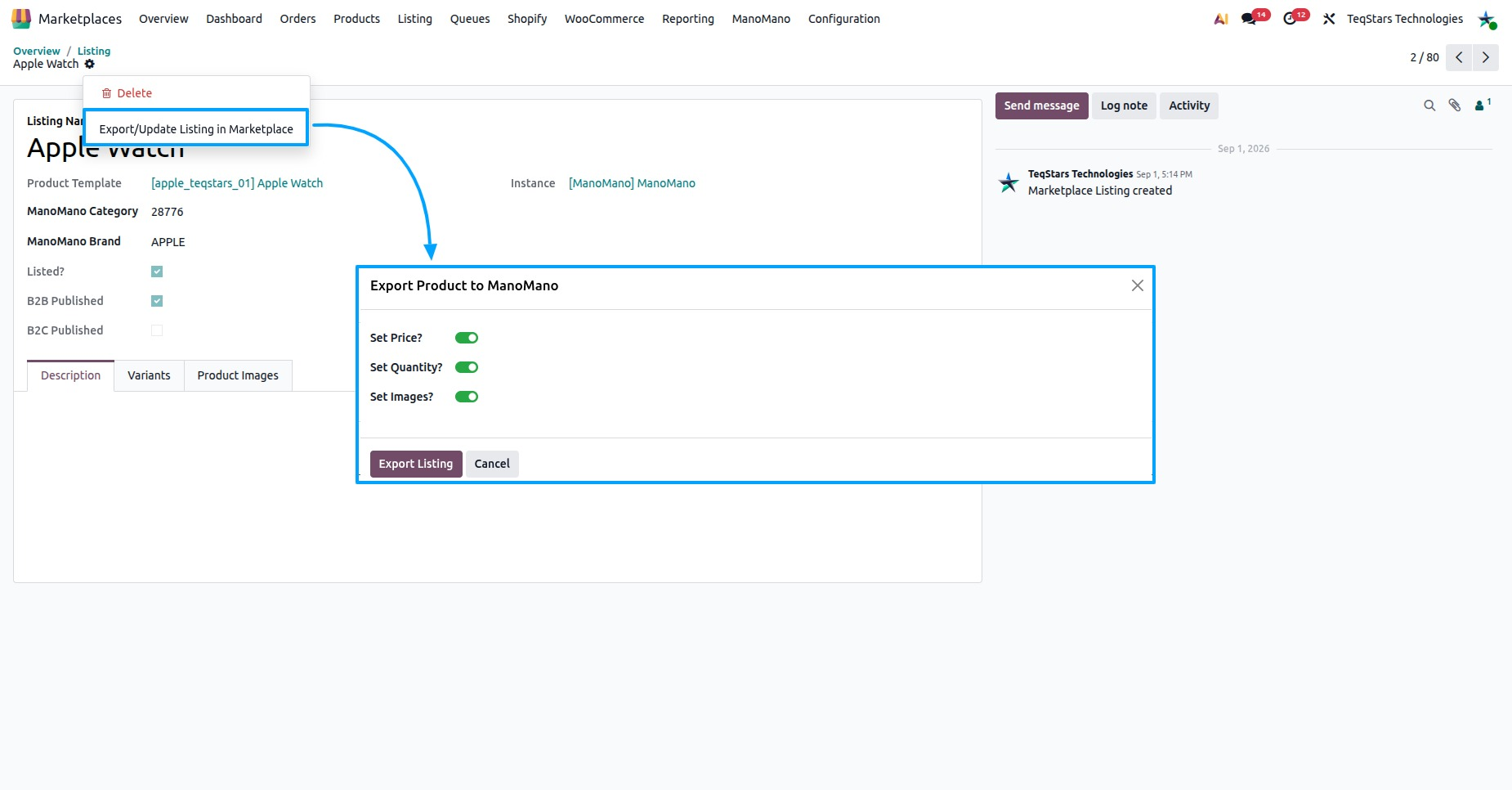
Go to and select the listings that are not yet exported (Listed? is not ticked).
Click Export/Update to Marketplace.
The Export Product to ManoMano popup opens. Click Export Listing.
Only the selected products that are not yet listed are listed and added to the feed.
Note
Products that are already listed open the Update Listings in ManoMano popup instead. See Update Products From Odoo.
When the export is done, the log shows how many products were written to the feed for both contracts. They will be marked as listed once ManoMano confirms the offer. ManoMano pulls the feed URL on its own schedule. You find the progress in .
Why A Product Is Not Exported
Open and read the message. The common reasons are:
No image: “At least one image is required before these listings can be exported/updated.” Add an image to the listing and export again.
No shipping grid: “At least one shipping grid (carrier) is required before these listings can be exported/updated.” Set a carrier grid and export again.
Skipped in the feed: when the feed is generated, a product with no image or no shipping grid is skipped, and the log names the skipped SKUs.
Instance not ready: “Please first set the B2B or B2C value in the Credentials tab and confirm the instance before running this operation.” Fill in the seller contract ID and confirm the instance.
Already listed: the product is listed already, so it is not exported again. Use Update Products From Odoo to send its changes.
ManoMano does not read the feed: check the feed URL in ManoMano Toolbox. See ManoMano Product Feed.
How A Listing Is Confirmed
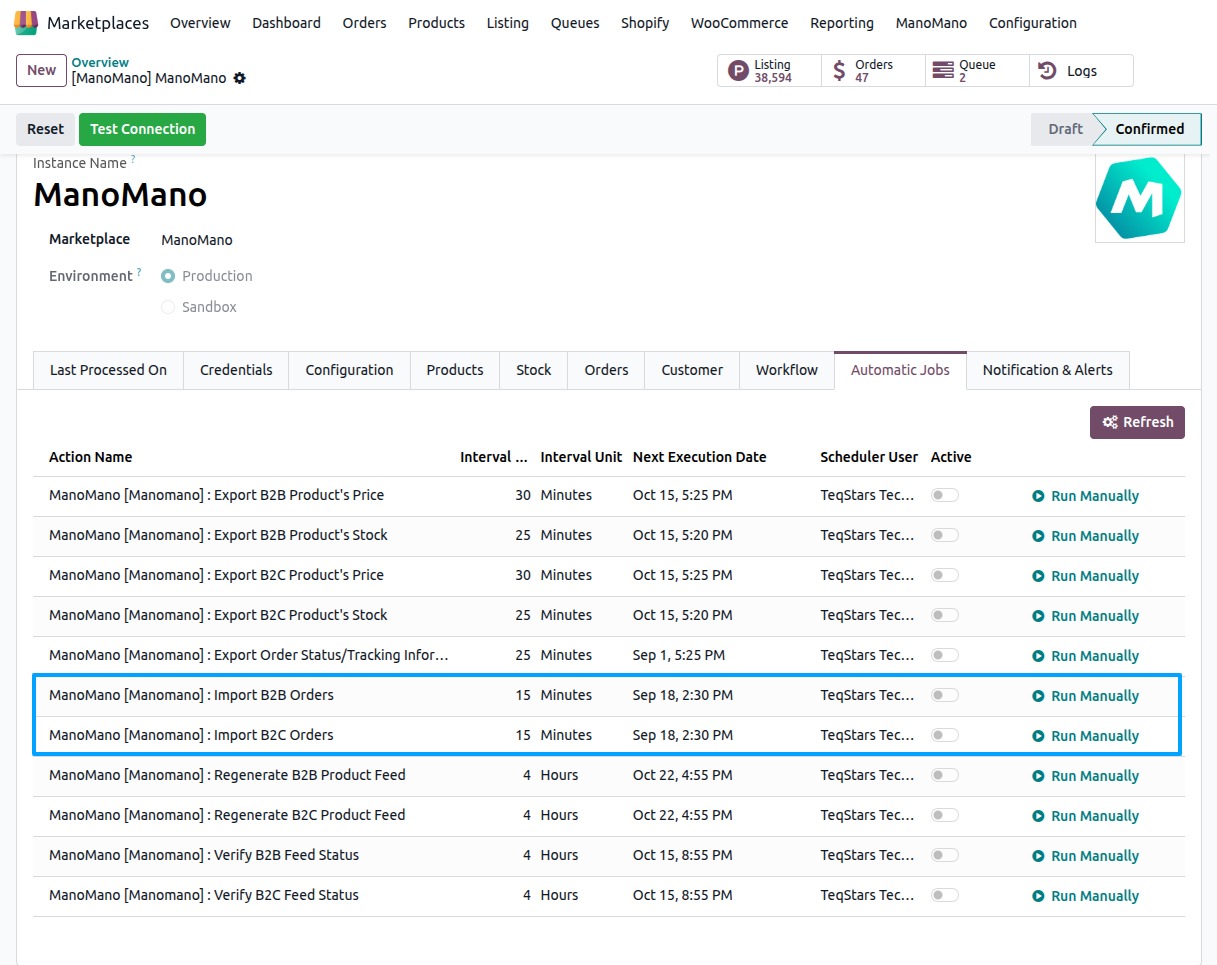
After the export, the product is in the feed but not yet marked as listed. Two scheduled jobs check the result on ManoMano:
Verify B2B Feed Status: reads the offers of the B2B contract from ManoMano.
Verify B2C Feed Status: reads the offers of the B2C contract from ManoMano.
These jobs run on a schedule you can change in the Automatic Jobs tab of your instance, in .
When ManoMano confirms that a SKU is live for the contract, the job marks the product as listed and removes it from the feed. The log shows “SKU ‘…’ is confirmed live on ManoMano for contract …”.
If the job could not read the offer information from ManoMano for a contract, the log says so with the technical detail. The job checks again the next time it runs.
To read back the current price, stock and offer status of your listed products, see Import Offers From ManoMano.