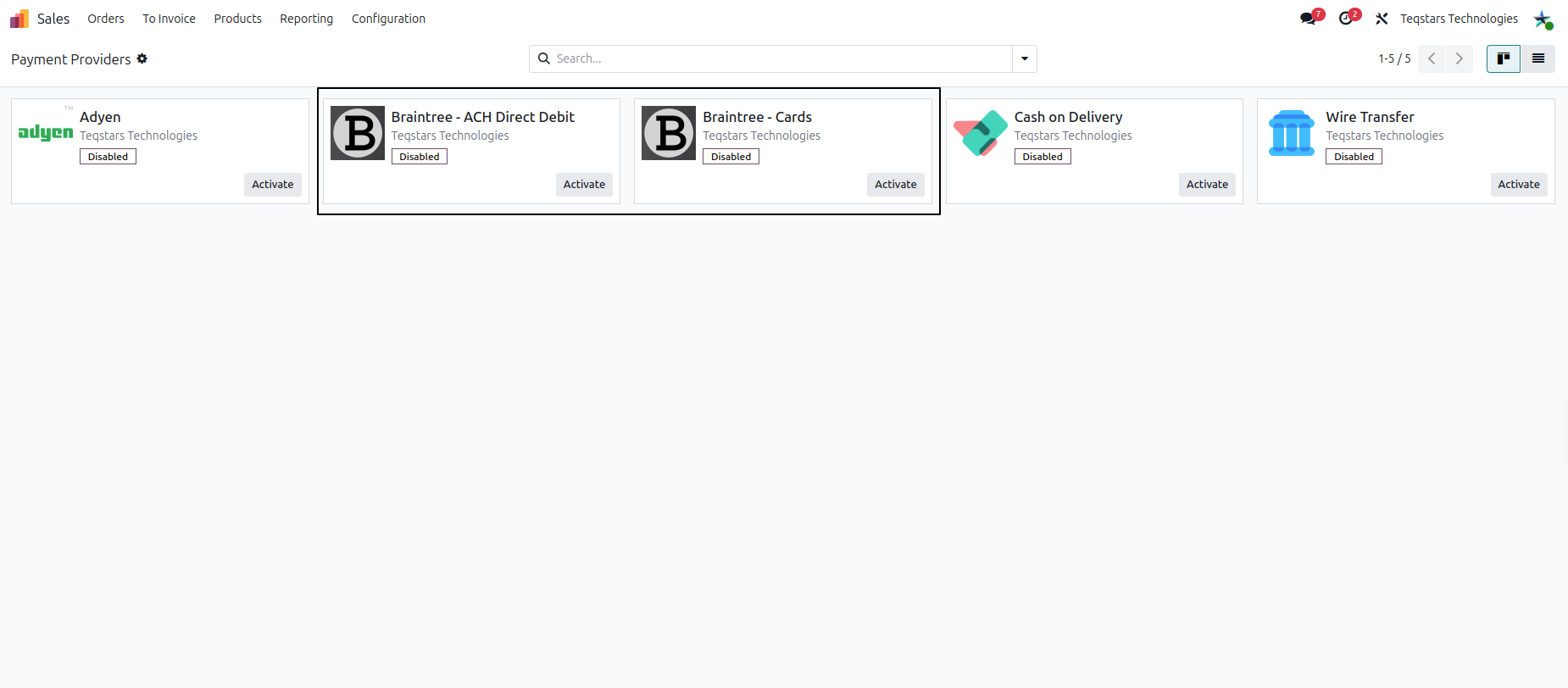
Step 1: Configure Braintree Cards Provider
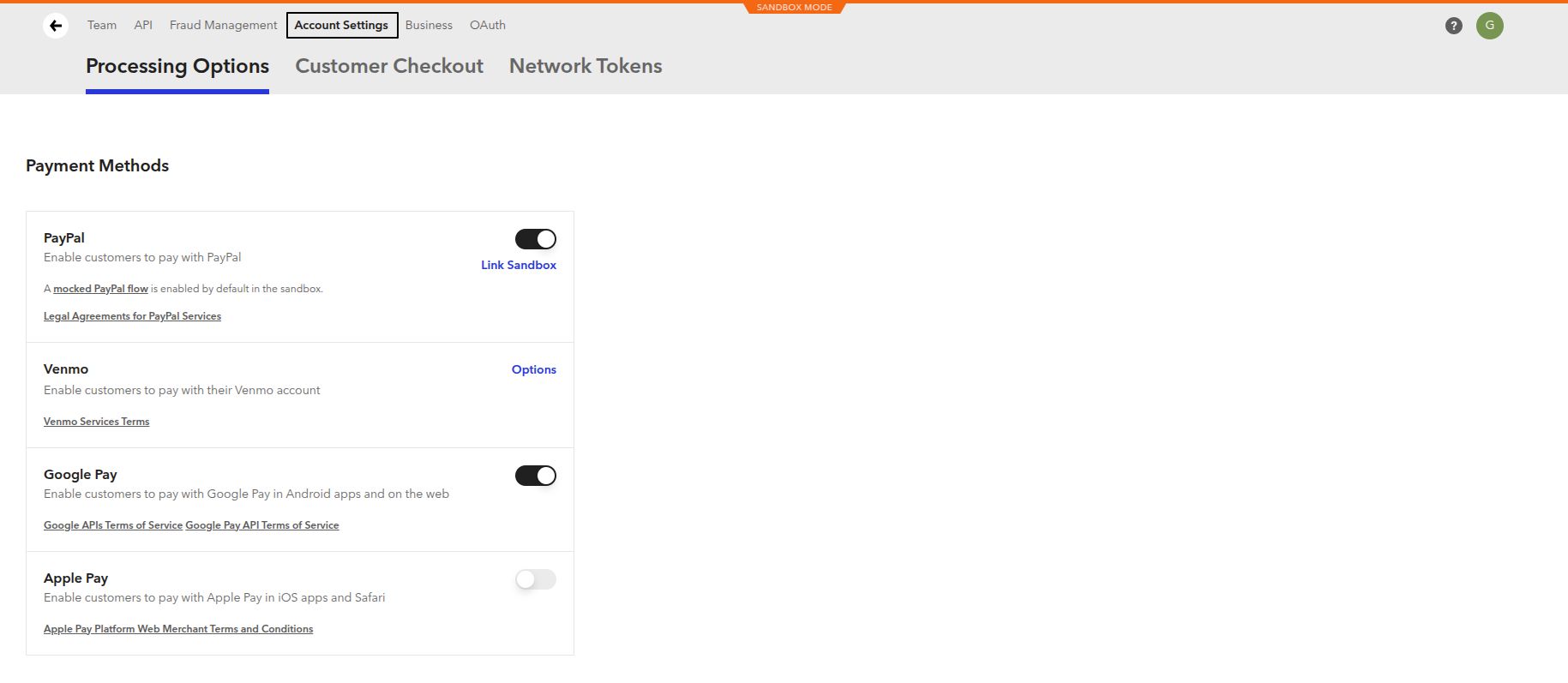
The Braintree Cards provider handles Credit Cards, Debit Cards, and Digital Wallets (Google Pay, Apple Pay, Venmo).
Provider Setup
Navigate to (or ).
Locate and open Braintree - Cards.
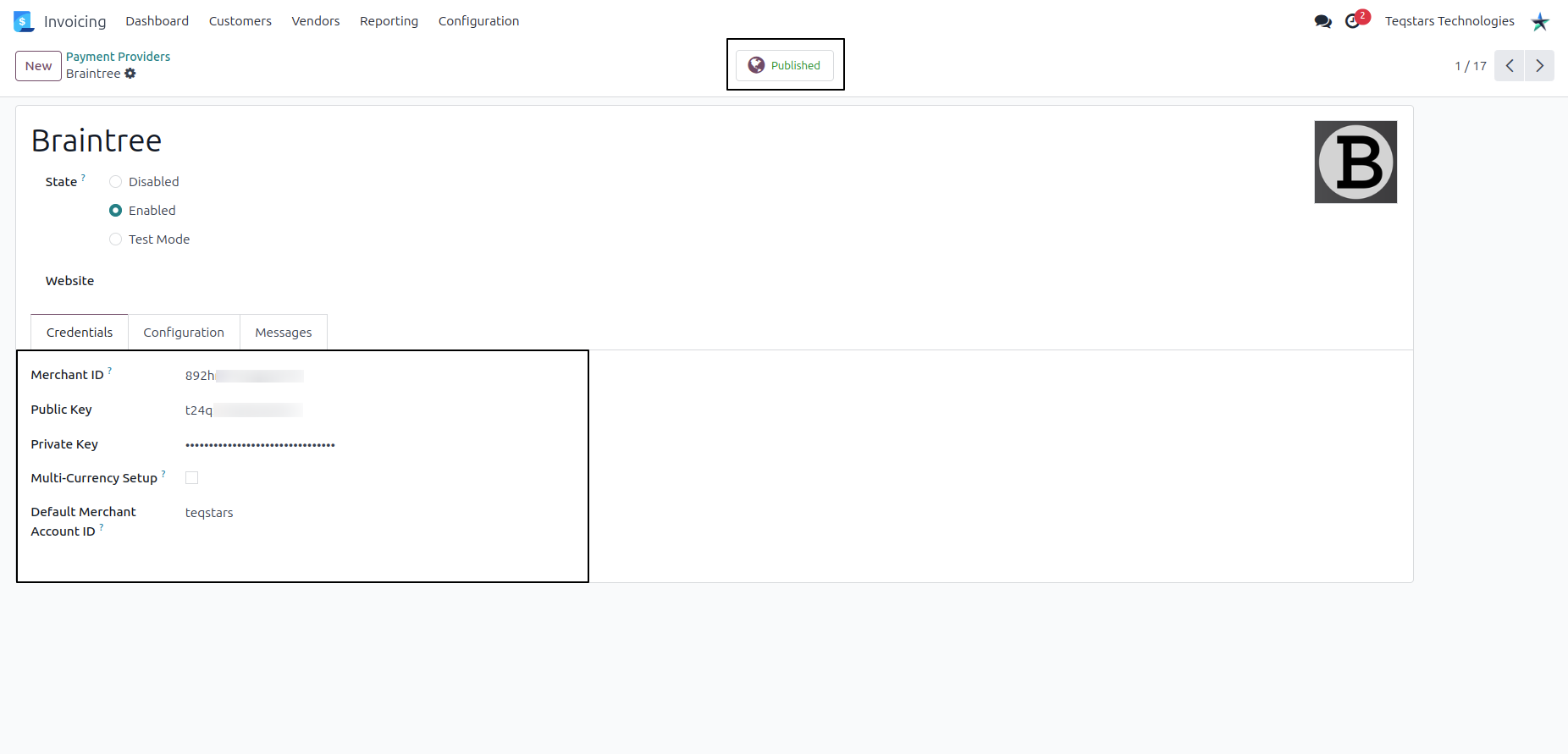
In the Credentials tab, enter your Braintree API keys: - Merchant ID: Your Braintree account merchant identifier. - Public Key: API public key. - Private Key: API private key (stored securely).
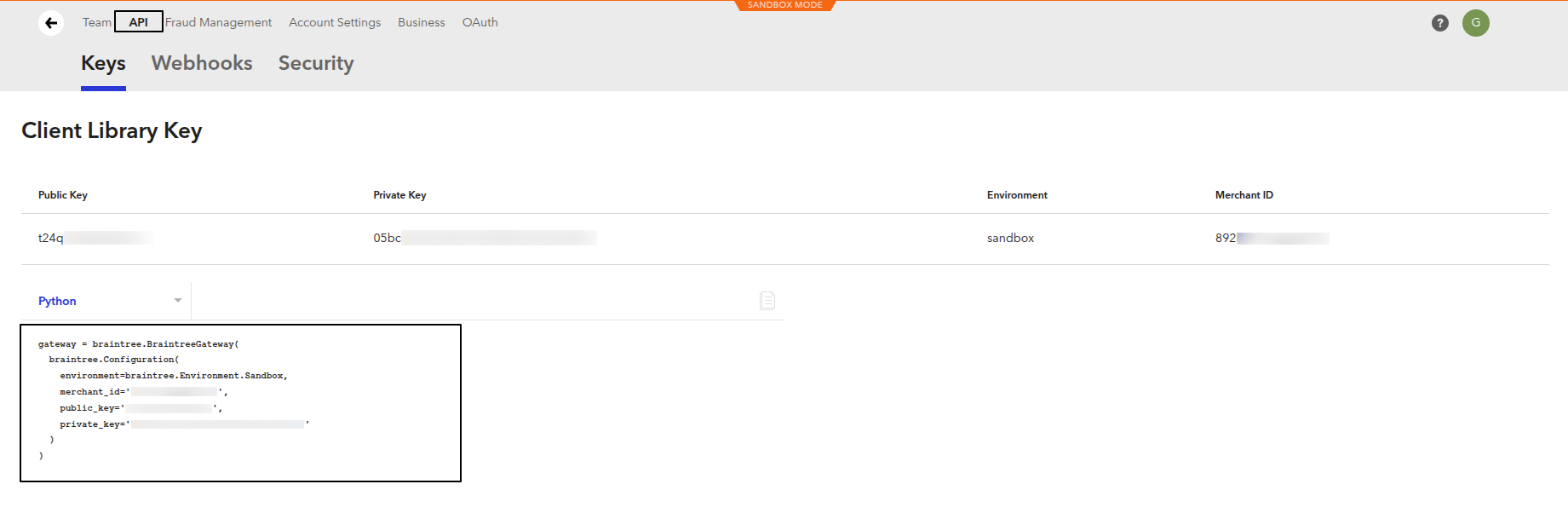
Retrieve these keys from your Braintree Control Panel under .
Set State to
Testfor Sandbox orEnabledfor Live Production.
Configuring Security & Digital Wallets
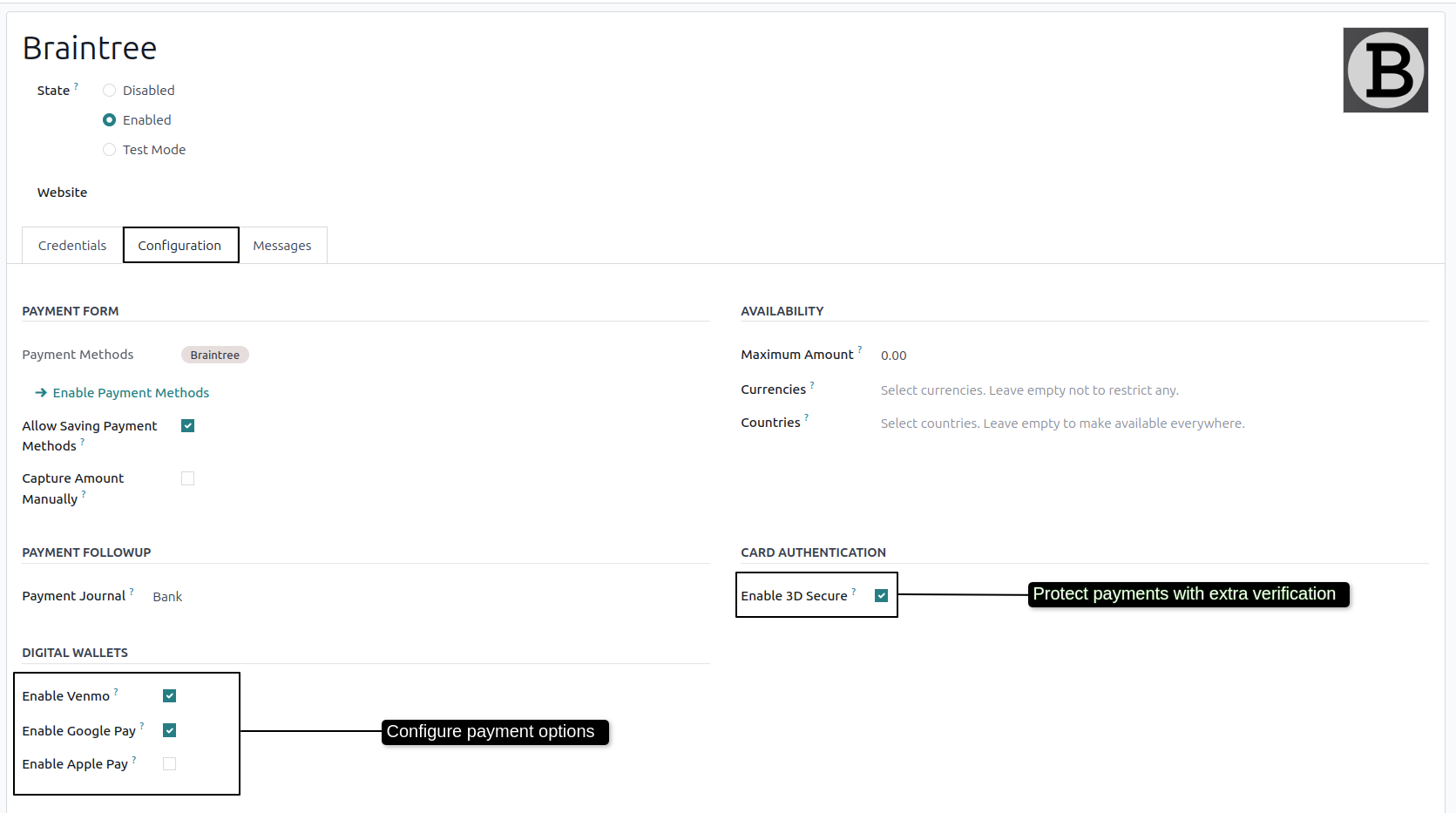
Open the Configuration tab to enable additional features:
3D Secure: Toggle Enable 3D Secure to trigger bank authentication during checkout.
Digital Wallets: Enable checkboxes for Enable Venmo, Enable Google Pay, and Enable Apple Pay. Each wallet must be enabled in Braintree first.
Allow Saved Cards: Enable tokenization for one-click customer checkouts.
Note
Digital wallets must also be enabled in your Braintree Control Panel under .