
Export Inventory From Odoo
Send the stock of your listed products to ManoMano so your offers show what you can really ship. The stock comes from the warehouse of your instance. Each export runs for one seller contract, B2B or B2C.
This export uses the ManoMano Offers API. It does not wait for the product feed, so a stock change reaches ManoMano faster than through a feed update.
Which Quantity Is Sent
The quantity comes from the Stock Based On setting on the Stock tab of the instance. It is counted in the Warehouse of the instance:
Forecasted Quantity: Quantity on Hand - Outgoing + Incoming
Free To Use Quantity: Quantity on Hand - Reserved Quantity
Only listed products are sent. To list new products first, see Export Products From Odoo.
Method - 1: Manual Inventory Export
Important
Before you start, enter the seller contract ID of the contract you want to update on the Credentials tab of the instance, and confirm the instance. Without it, the operation stops and asks you to set the B2B or B2C value first. See Create a ManoMano instance in Odoo.
Go to and open the operations of your ManoMano instance.
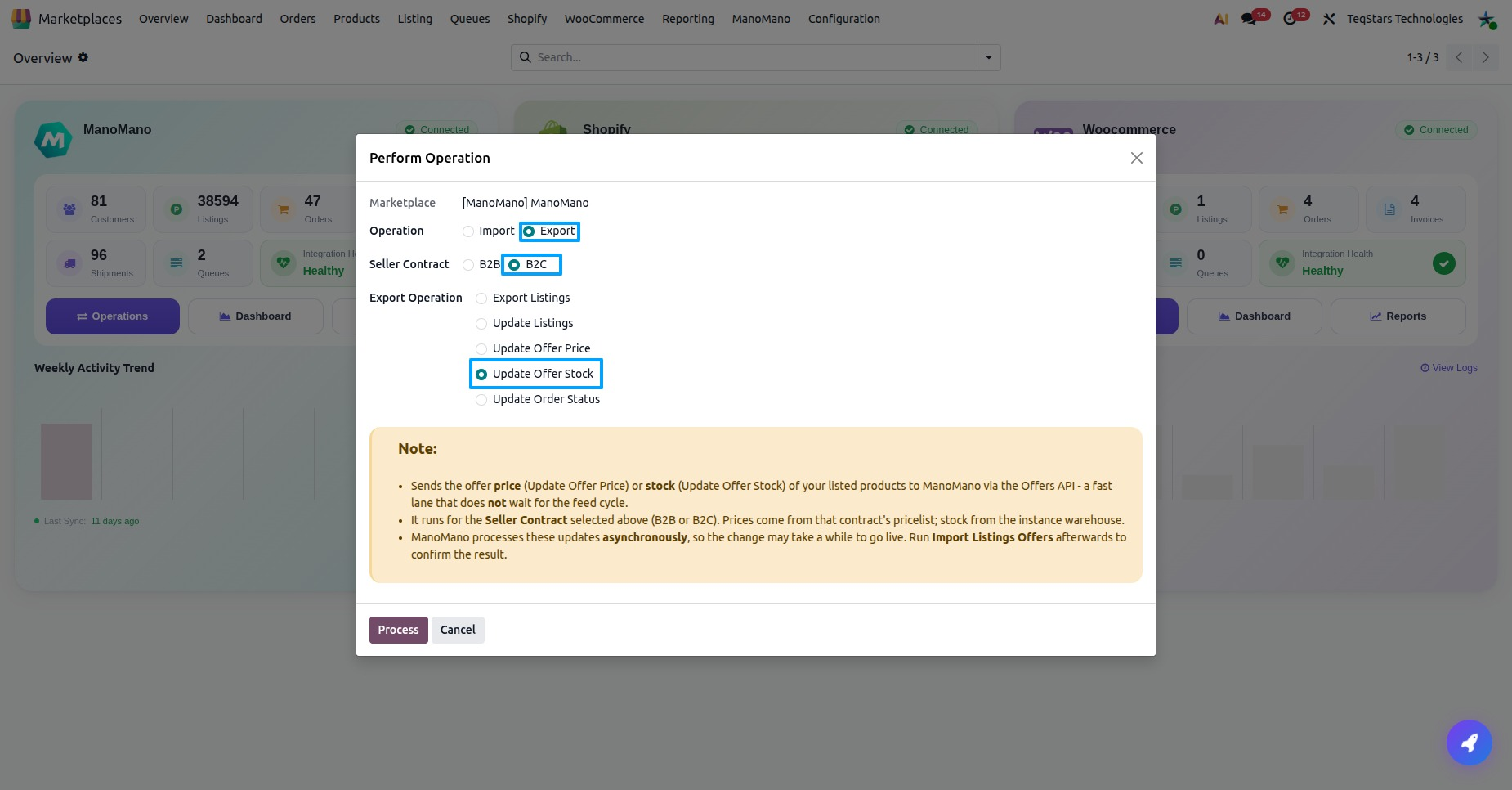
Select Export as the Operation and Update Offer Stock as the Export Operation.
Select the Seller Contract: B2B or B2C. The stock is sent for this contract only.
Click Process.
To update both contracts, run the operation once for each contract.
Method - 2: Automatic Inventory Export
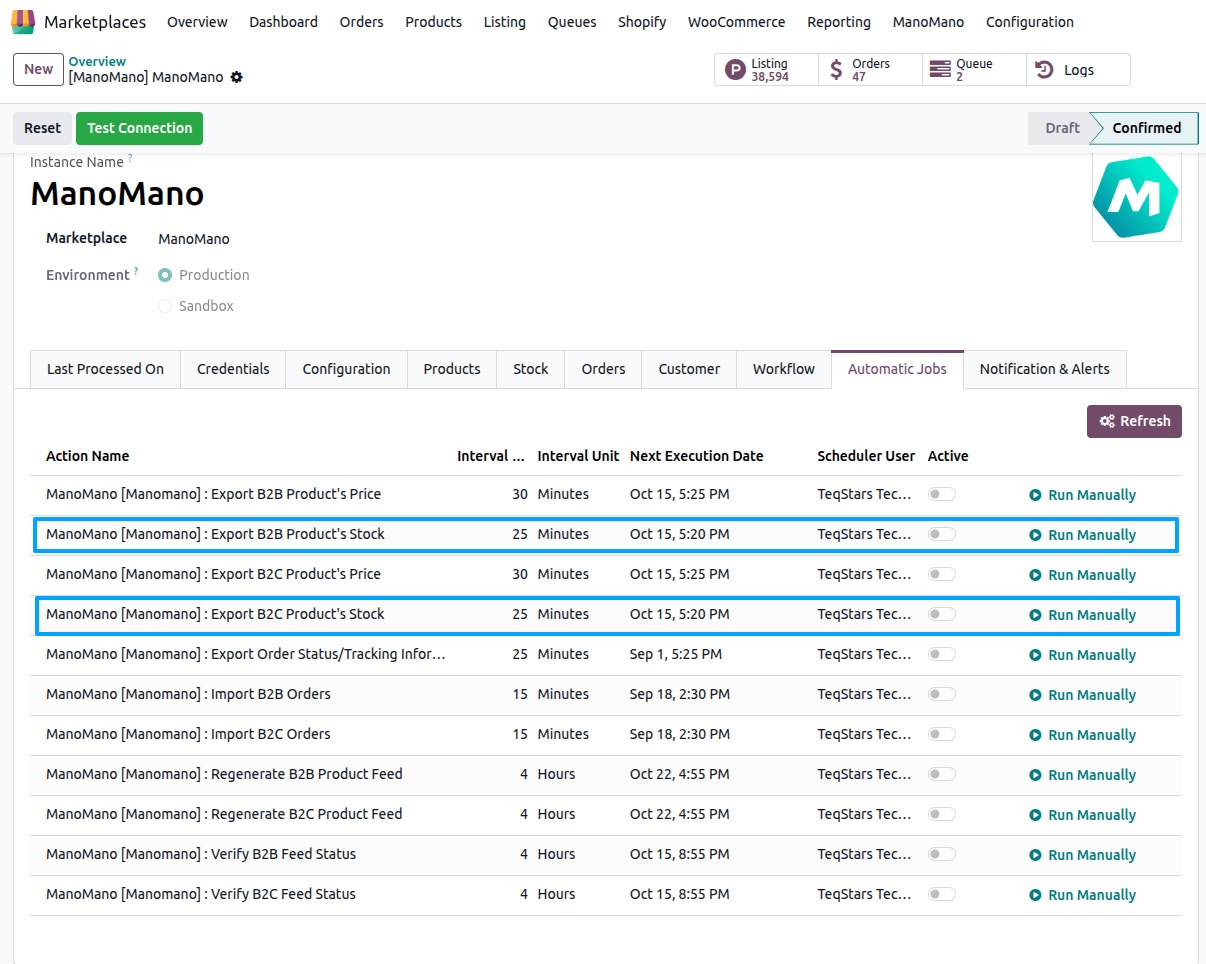
The app has one scheduled job for each seller contract:
Export B2B Product’s Stock sends the stock of your listed products for the B2B contract.
Export B2C Product’s Stock sends the stock of your listed products for the B2C contract.
Go to and open your ManoMano instance.
Open the Automatic Jobs tab.
Switch on the job of each contract you sell on. The job then sends your stock to ManoMano on its own, on the schedule you keep for it on this tab.
To start a job right away, click Run Manually on its row.
Important
Keep these jobs switched on. Old stock on ManoMano can lead to orders you cannot ship.
After The Export
ManoMano processes stock updates in the background, so a change can take a while to go live.
Open the logs in . A successful run shows how many offers were submitted to ManoMano. If ManoMano refuses the update, the log says that ManoMano rejected it and shows the reason.
The date of the last stock export is shown on the Last Processed On tab of the instance.
Run Import Listings Offers afterwards to read back the stock from ManoMano and confirm the result. See Import Offers From ManoMano.
On the Listing Offer tab of a listing item, check Offer Status and Offer Errors in the B2B and B2C groups. The status is IN PROGRESS while ManoMano updates the offer, ERROR when the update failed and COMPLETED when it is done. See Offer Details On A Listing.