
Create TikTok Shop Instance In Odoo
To create your TikTok Shop instance in Odoo, navigate to and click on New.
Choose a meaningful name for your Instance (e.g.
TikTok Shop US), and selectTikTok Shopon Marketplace.On the Credentials tab, fill in the TikTok App Key, TikTok App Secret and TikTok Service ID, and choose the Authorization Portal. Follow the Generate TikTok Shop API Credentials guide to create the app in TikTok Shop Partner Center.
Fill in the required fields on the other tabs: at least the TikTok Seller Order Workflow on the Workflow tab and, with the default Tax System, the Tax Account and Tax Account on Credit Notes on the Orders tab.
Save the instance, then click Connect TikTok Shop Account and approve the app in the tab that opens. TikTok Shop sends you back to Odoo and the shop’s identity is filled in.
Important
The market of the instance is not chosen in Odoo. It is read from the shop that authorizes the app and reported back in Shop Region. The market decides which features the instance offers: how parcels are shipped, whether orders can be part-cancelled, whether invoices are uploaded, whether payouts are read. See TikTok Shop Supported Markets.
Let’s begin with the instance configuration process for the TikTok Shop Odoo Connector. By following the configurations below you’ll be able to set up and customize the integration according to your business needs. Let’s get started!
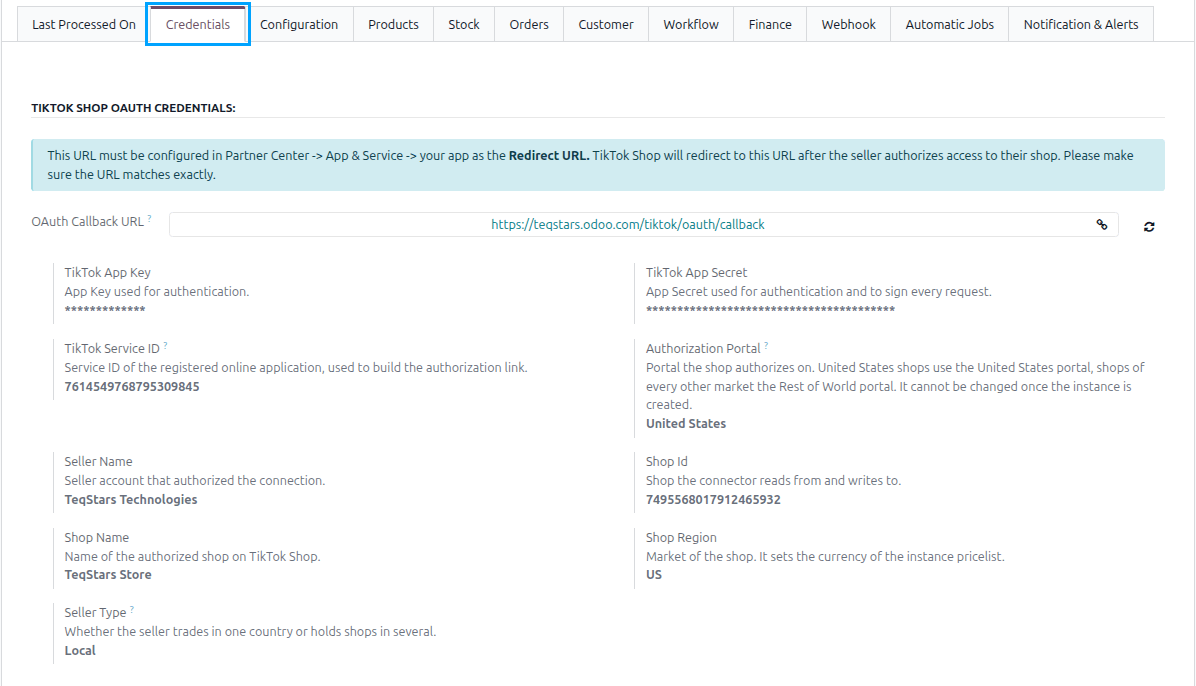
Credentials
OAuth Callback URL
The address TikTok Shop returns the seller to after they approve the app. Register this URL as the app’s Redirect URL in Partner Center, exactly as shown. The button beside it rebuilds the address from your Odoo database’s web address, so use it after that address changes.
TikTok App Key: App Key of your TikTok Shop app, used for authentication.
TikTok App Secret: App Secret of your TikTok Shop app. It is also used to sign every request, so it is masked once entered.
TikTok Service ID: Identifier of the registered online application, used to build the authorization link.
Authorization Portal
The portal the shop authorizes on: United States shops authorize on the United States portal, shops of every other market on the Rest of World portal. It selects the authorization host, which has to be known before the first token exists, so it can no longer be changed once the instance has been saved.
Once the shop has approved the app, TikTok Shop reports its identity back and the following fields are filled in and read-only: Seller Name, Shop Id, Shop Name, Shop Region (the market the shop trades in) and Seller Type (Local or Cross Border, as TikTok Shop reports it).
Important
Changing the App Key, App Secret or Service ID clears the authorization and the Seller Name, Shop Id, Shop Name and Shop Region, so the shop has to approve the app again. The three fields become read-only once the instance is confirmed; click Reset to change them.
Warning
Reset also deletes every active webhook subscription this instance holds on TikTok Shop. Activate the events again after re-confirming. See Webhook Configurations.
Note
One instance holds one shop. If the authorizing account has several TikTok Shop shops and none of them is already bound to this instance, Odoo refuses the authorization and asks you to create one instance per shop.
Configurations
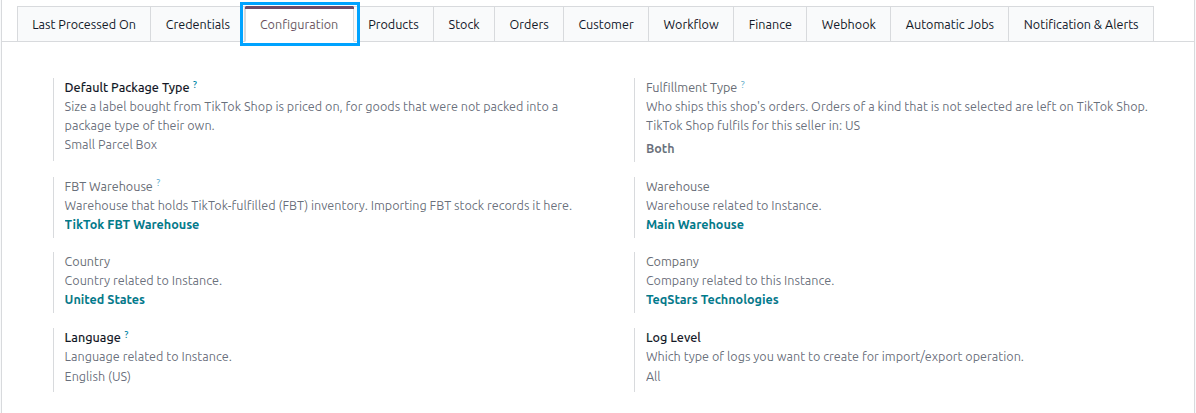
Warehouse: This warehouse will act as the default warehouse for the instance. An order that names a TikTok Shop warehouse uses the Odoo warehouse mapped to it instead. See TikTok Warehouses.
Country: Country related to the instance.
Company: Choose the company related to the instance.
Language: Language related to the instance. The categories and their attributes are read from TikTok Shop in this language; a language TikTok Shop does not publish falls back to English.
Log Level: Choose which type of log level you would like to have. You can choose between
All,Success, orError. The system will create logs for each marketplace operation. To view the logs, navigate to .Queue Batch Limit: Defaults to 100 records. We do not suggest changing this.
Note
To modify the Queue Batch Limit, activate the developer mode and navigate to and click on the Configuration tab.
Default Package Type
Size used to price a shipping label bought from TikTok Shop, for goods that were not packed into a package type of their own. See TikTok Shop Update Order Status From Odoo.
Fulfillment Type: How this TikTok Shop instance is fulfilled. Choose between:
Seller Fulfilled: you hold the stock and you ship the orders. You export their tracking and handle their returns yourself.
Fulfilled by TikTok (FBT): TikTok Shop holds the stock and ships the orders for you. Tracking is not exported for these orders, and the stock TikTok Shop holds is imported instead of exported.
Both: you run both models on the same shop.
Orders of a kind that is not selected are left on TikTok Shop, and noted in the log when the Log Level is
AllorSuccess, so set this before importing orders.The setting is shown only when TikTok Shop reports that the shop is registered for Fulfilled by TikTok, and the markets it is registered in are listed beside it. A shop with no registration is always seller fulfilled, and Odoo refuses
Fulfilled by TikTokorBothon it.FBT Warehouse: Warehouse the stock TikTok Shop holds is kept in, so that it is never counted as stock you can ship. Importing FBT stock records it here. This field appears, and is required, when the Fulfillment Type is
Fulfilled by TikTokorBoth.Tip
Use a warehouse dedicated to FBT, separate from the one you ship from yourself. FBT stock is physically held by TikTok Shop, so mixing it with your own stock overstates what you can actually ship.
Product Configurations
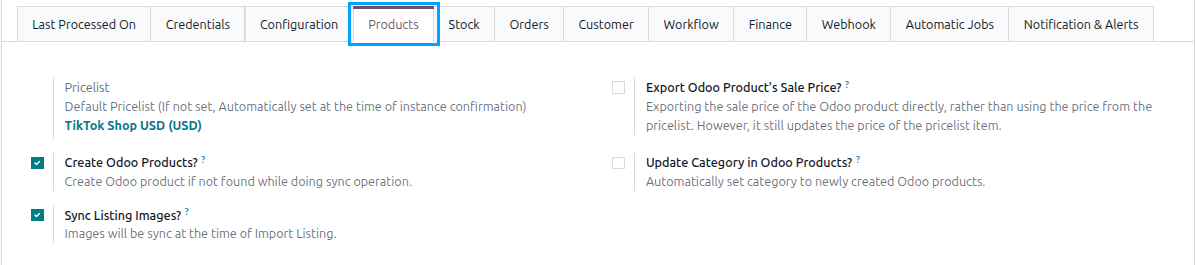
Pricelist
Pricelist refers to a pricing configuration that determines the prices of products during the product sync operation between TikTok Shop and Odoo. When prices are exported during synchronization, this pricelist is used to set the appropriate prices.
Confirming the instance sets the pricelist matching the currency of the shop’s market. See TikTok Shop Supported Markets for the currency of each market.
Export Odoo Product’s Sale Price?
When exporting Odoo products, the standard behavior is to export the prices based on the pricelist configured in the Instance. However, if you want to export the product’s sale price directly, bypassing the pricelist, you can customize the export functionality by enabling this option.
Create Odoo Products?
Enabling the Create Odoo Products? option allows the TikTok Shop Odoo Connector to automatically create new products in your Odoo catalog when a matching product is not found. The match is made on the seller SKU.
Tip
If you already have existing products in your Odoo ERP system, it is not recommended to enable the Create Odoo Products? option in the Instance.
Update Category in Odoo Products?
This ensures that when a new product is added to the Odoo ERP system, it is automatically set to the category received from TikTok Shop.
Sync Listing Images?
When enabled, the images of a listing are imported along with it.
Note
TikTok Shop carries the seller’s own code on every unit it sells, so a listing is always matched to the Odoo product with the same internal reference.
Stock Configurations
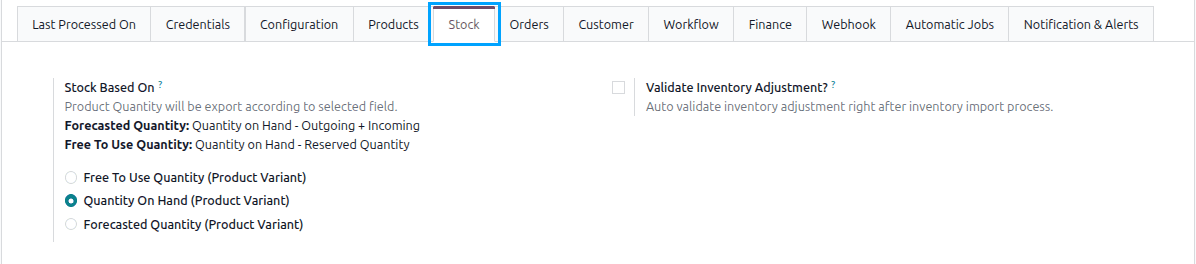
Stock Based On (visible to Odoo administrators only)
When exporting Inventory from Odoo to TikTok Shop, you can choose
Free To Use Quantity,Quantity On HandorForecasted Quantityconfiguration based on your requirements, ensuring accurate inventory management between TikTok Shop and Odoo.Tip
Forecasted Quantity: Quantity on Hand - Outgoing + Incoming
Free To Use Quantity: Quantity on Hand - Reserved Quantity
Validate Inventory Adjustment?
When enabled, the inventory adjustment created while importing stock from TikTok Shop is validated automatically instead of being left in draft.
Orders Configurations
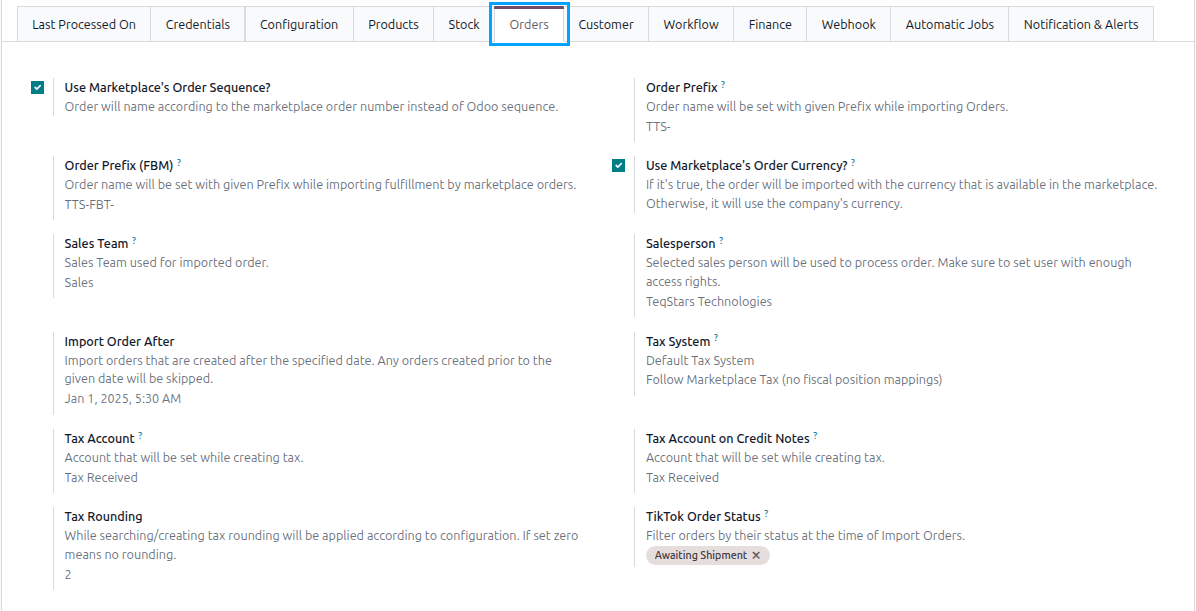
TikTok Order Status
Filter orders by their status at the time of Import Orders. Only orders currently holding one of the selected statuses are imported.
The field is required, and a new instance starts with Awaiting Shipment selected.
Important
Because the default is Awaiting Shipment only, a new instance imports the orders waiting to be shipped and nothing else until you change this.
This matters most if you use Fulfilled by TikTok. TikTok Shop picks, packs and ships those orders for you, so they move on without Odoo doing anything. Add the later statuses on any instance that uses FBT, otherwise an order that has already moved past Awaiting Shipment when the import runs is not imported.
Use Marketplace’s Order Sequence?
This feature allows you to name orders in Odoo based on the TikTok Shop order number rather than using the default Odoo sequence. This ensures that the order names in Odoo correspond directly to the order numbers generated by TikTok Shop, providing consistency and easier cross-referencing between Odoo and TikTok Shop.
Order Prefix
This feature allows you to specify a prefix that will be added to the names of imported orders. When importing orders from TikTok Shop to your Odoo ERP system, the connector will automatically set the order name with the given prefix. This helps to easily identify and distinguish the imported orders in your Odoo system.
This prefix is used for the orders you fulfill yourself. It is shown, and applied, only when Use Marketplace’s Order Sequence? is enabled.
Order Prefix (FBM)
The prefix used for the orders TikTok Shop fulfills, so FBT orders can be told apart from your own at a glance. It is shown, and applied, only when Use Marketplace’s Order Sequence? is enabled.
Use Marketplace’s Order Currency?
When enabled, imported orders are assigned the currency used on TikTok Shop. In this case, the order currency will match TikTok Shop’s currency.
If the feature is disabled, the company’s default currency will be used for the imported orders.
Sales Team
By configuring this feature, you can ensure that all imported orders from TikTok Shop are automatically assigned to the specified default Sales Team in Odoo.
Salesperson
Select a salesperson who will be responsible for processing the orders received from TikTok Shop. It is important to ensure that the assigned user has sufficient access rights in Odoo.
Import Order After
This feature allows you to import orders from TikTok Shop that were created after a specific date. By setting this date, any orders created before the specified date will be skipped during the import process.
Tax System
The tax system in the TikTok Shop Instance offers three options for handling taxes when importing orders from TikTok Shop:
Odoo’s Default Tax Behaviour (Taxes will be taken from Odoo Product):
With this option selected, Odoo will use the tax information defined on the Odoo products and related fiscal rules. When importing orders from TikTok Shop, the connector ignores TikTok Shop tax lines and applies the taxes configured on the corresponding Odoo products. This keeps tax calculation fully aligned with your Odoo tax configuration.
Follow Marketplace Tax (no fiscal position mappings):
With this option, the connector follows the tax amounts coming from TikTok Shop. For each tax in the TikTok Shop order, Odoo looks for a matching tax; if it does not exist, a new tax can be created and linked to the configured Tax Account fields. The resulting Odoo taxes from TikTok Shop are applied directly on the order and shipping lines without applying any fiscal position mappings.
Follow Marketplace Tax and applies fiscal position mappings:
This option also starts from the taxes provided by TikTok Shop, creating or reusing matching Odoo taxes as needed. After determining the Odoo taxes based on TikTok Shop tax lines, the connector applies the fiscal position of the order to remap those taxes before posting them on the order lines. This lets you respect TikTok Shop tax amounts while still using Odoo fiscal position rules for accounting and reporting.
Tax Account
This allows you to specify the account to be associated with a tax when it is created in Odoo. This account is used for recording tax-related transactions and ensures accurate tracking and reporting of tax amounts within your Odoo ERP system.
Tax Account on Credit Notes
This allows you to specify the account to be associated with a tax on credit notes when it is created in Odoo.
Tax Rounding
The number of decimals the tax rate is rounded to when a tax is found or created (2 by default). Set it to zero for no rounding. This feature ensures that tax calculations are accurate and aligned with your specific tax regulations and requirements.
Delivery Product (Only visible in developer mode)
This allows you to define a specific product in Odoo that will represent the shipping charges on orders imported from TikTok Shop.
Fee Product (Only visible in developer mode)
Product used for the fees charged on an order, such as the retail delivery fee. Only a Service type product can be selected.
Create Single Invoice? (Only visible in developer mode)
When enabled, the invoice is created only when all products in the order are ready to be invoiced. This ensures a single consolidated invoice instead of multiple partial invoices.
Export Invoices to TikTok Shop?
Send the NF-e XML issued on an order’s posted invoice to TikTok Shop for the parcels waiting on it, so they may be shipped once TikTok Shop accepts it.
Note
Shown to local sellers in Brazil only, because Brazil is the only market where TikTok Shop asks for an invoice before the goods ship. See Upload Invoices To TikTok Shop.
Customer Configurations

Receivable Account
This allows you to specify the default account for receivables when creating customers. By setting this field to Account Receivable instead of the default account, you ensure that the receivable transactions, such as invoices and payments, associated with the customer are correctly accounted for in the Odoo ERP system.
Workflow Configurations

Workflow is a configuration setting used in the TikTok Shop Odoo Connector that enables the automatic processing of orders imported from TikTok Shop. This workflow automates various actions, including confirming orders, creating invoices, validating invoices, and registering payments.
Because seller-fulfilled and TikTok-fulfilled orders are handled differently, a TikTok Shop instance has a separate workflow for each.
TikTok Seller Order Workflow
Applied to imported orders the seller fulfills. Shown when the Fulfillment Type is
Seller FulfilledorBoth.
TikTok FBT Order Workflow
Applied to imported orders TikTok Shop fulfills, recorded in the FBT warehouse. Shown when the Fulfillment Type is
Fulfilled by TikTokorBoth.The workflow confirms, invoices and registers payment as configured. The delivery of an FBT order is recorded in the FBT Warehouse and is validated by the order import once TikTok Shop reports the parcel shipped.
To learn more about the details and configuration options of the Marketplace Workflow, please refer to the following link: Configure Marketplace Order Workflow
Finance Configurations
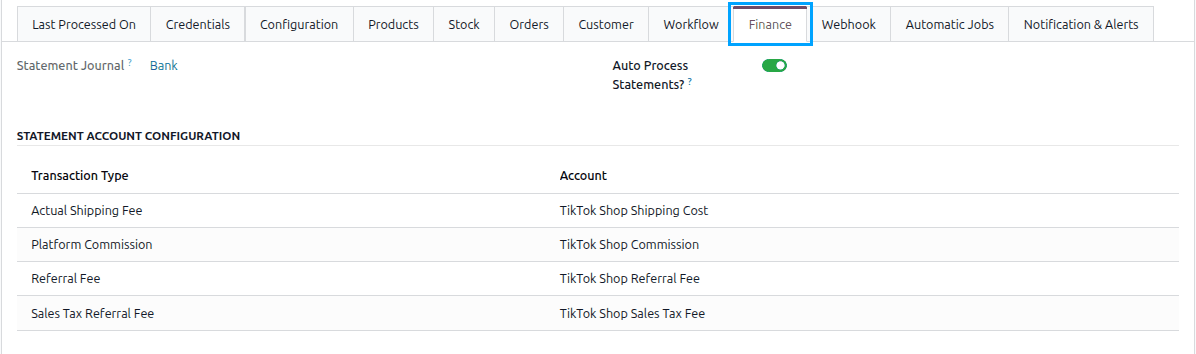
Statement Journal
The bank or cash journal the statements of this shop are reconciled in. Only bank and cash journals can be selected, and the remaining settings appear once a journal is chosen. The statement import is refused while it is empty.
Auto Process Statements?
Reconcile a payout against the invoices and the configured accounts as soon as it is imported.
Note
Auto Process requires the Accounting application from Odoo Enterprise.
Statement Account Configuration
Maps each TikTok Shop Transaction Type (commission, shipping cost, fee, tax, adjustment) to the Odoo Account it is posted to. Add one line per transaction type you expect to receive.
See Import TikTok Shop Statements In Odoo for how statements are imported and Reconcile TikTok Shop Payouts for how payouts are reconciled.
Webhook Configurations
Webhooks let TikTok Shop notify Odoo as things happen, instead of Odoo asking at the next scheduled import. They complement the scheduled actions; they do not replace them, because a notification can be lost.
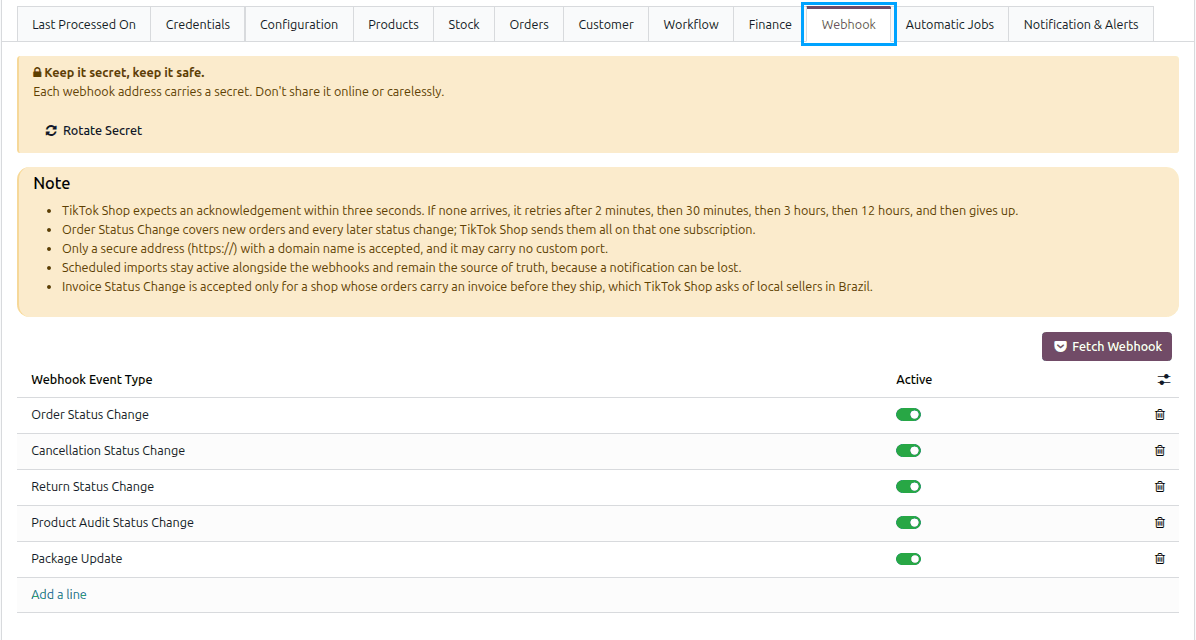
Webhook events
Add a line on the Webhook tab for each event you want, choose its Webhook Event Type and tick Active. The instance must be Confirmed first, and the tab is visible to Marketplace managers only. Ticking Active registers the subscription with TikTok Shop immediately; clearing it removes the subscription. The optional Webhook URL column shows the address TikTok Shop sends that event to.
Warning
Keep it secret, keep it safe. Each webhook address carries a secret. Don’t share it online or carelessly.
The available events, and what each one changes in Odoo:
Order Status Change: the order is read again and imported the way the scheduled import does. It covers new orders and every later status change.
Recipient Address Update: the new address is put on the order while the goods have not gone out.
Package Update: the parcels TikTok Shop now reports are read onto the order’s TikTok packages, so a split or combine made outside Odoo is recognised.
Cancellation Status Change: a cancellation asked for, answered or withdrawn is recorded on the order.
Return Status Change: the return is read again and imported the way the scheduled import does.
Product Status Change: where the product now stands is read onto the listing.
Product Audit Status Change: the review result is read onto the listing, with what to fix where it was refused.
Product Information Change: a product edited on TikTok Shop is read again.
Product Category Change: a product moved to another category is read again, and the attribute values it held for the old category are dropped.
Product Creation: a product created on TikTok Shop is brought in without waiting for an import.
Seller Deauthorization: the seller took this app’s access away. The instance is set to Error and an activity asks you to authorize it again.
Upcoming Authorization Expiration: the shop’s authorization is running out. An activity asks you to authorize the shop again, raised once.
Invoice Status Change: TikTok Shop has checked an uploaded invoice; the delivery is released only once it accepted it. Accepted only for local sellers in Brazil. See Upload Invoices To TikTok Shop.
Four buttons on the tab manage the subscriptions:
Rotate Secret issues a new secret, rebuilds the addresses and re-registers your active webhooks. Use it if an address may have been exposed.
Fetch Webhook reads your live subscriptions from TikTok Shop and adds or activates the ones registered by this instance.
Delete Webhook removes every webhook of this instance, in Odoo and on TikTok Shop. It is only visible in developer mode.
Use Database Token in URL puts a token in the webhook addresses in place of the database name, so the addresses no longer show it. On a confirmed instance, your active webhooks are registered again in TikTok Shop with the new addresses. New instances already use the token, so the button only shows on instances that still use the database name. It is only visible in developer mode.
Important
TikTok Shop accepts only a secure address (https://) with a domain name and no custom port. The
addresses are built from your Odoo database’s web address, so make sure Odoo is reached at its public
https:// address before activating an event.
Automatic Jobs Configurations
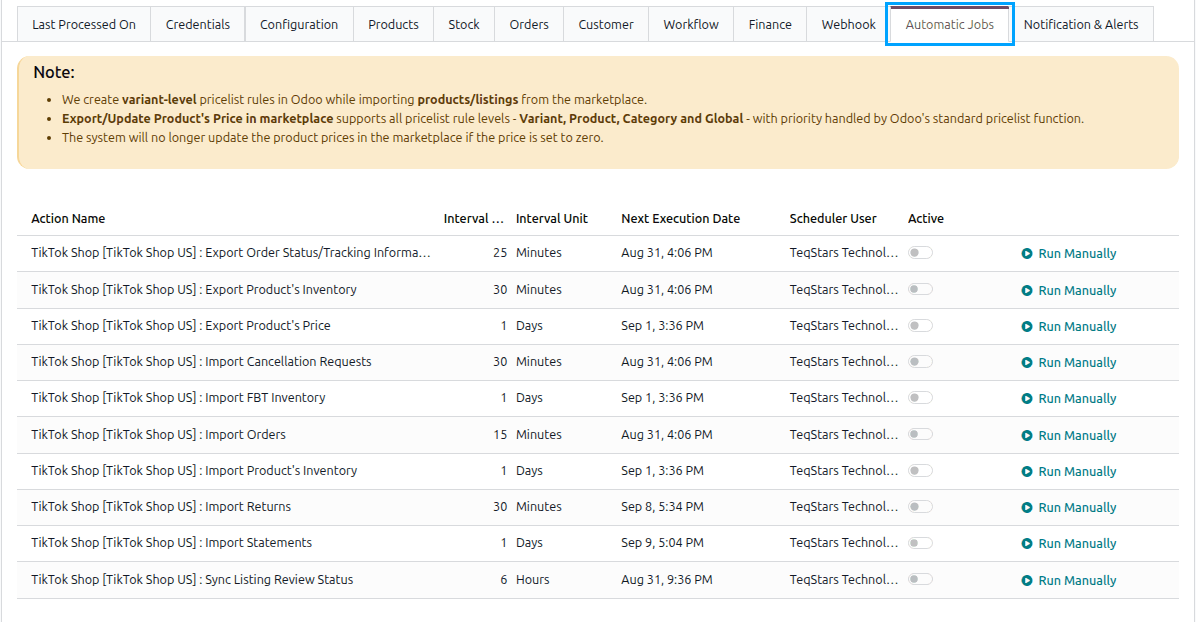
Automatic Jobs Configurations allow for the automation of various tasks related to exporting and importing data between TikTok Shop and Odoo. You can configure Interval Number, Interval Unit, and Active for each job.
The jobs are created as soon as the instance is saved, before you confirm it, and brought up to date each time it is confirmed. Which jobs you get depends on the market and the fulfillment type of the instance.
Note
This tab is only visible to users with Odoo administrator rights.
Important
The scheduled actions are created inactive. Nothing runs automatically until you switch on the Active toggle for each job you want to use.
Each job is named after its instance, in the form TikTok Shop [<instance name>] : <job>:
Job |
Interval |
Created for |
|---|---|---|
Import Orders |
15 minutes |
Every instance |
Export Order Status/Tracking Information |
25 minutes |
Every instance |
Import Cancellation Requests |
30 minutes |
Every instance |
Import Returns |
30 minutes |
Every instance |
Export Product’s Inventory |
30 minutes |
Every instance |
Sync Listing Review Status |
6 hours |
Every instance |
Import Product’s Inventory |
1 day |
Every instance |
Export Product’s Price |
1 day |
Every instance |
Import Statements |
1 day |
Every instance |
Import FBT Inventory |
1 day |
Instances that fulfill through FBT |
Export Invoice |
1 hour |
Local sellers in Brazil |
Note
We create variant-level pricelist rules in Odoo while importing products/listings from the marketplace.
Export/Update Product’s Price in marketplace supports all pricelist rule levels (Variant, Product, Category and Global), with priority handled by Odoo’s standard pricelist function.
The system will no longer update the product prices in the marketplace if the price is set to zero.
Note
It’s important not to schedule all your processes to run at the same time interval because it can consume a significant amount of your system resources. Instead, it’s recommended to leave a gap between them. This helps ensure that your system resources are not overused and can handle the workload more efficiently.
Notification & Alerts
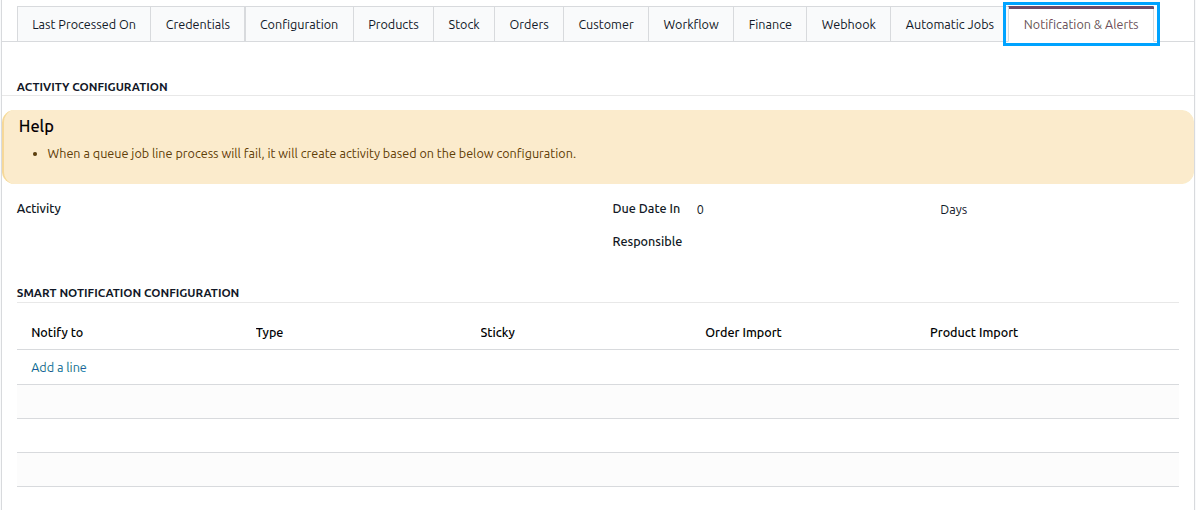
Activity Configuration
When a queue job line process fails, the system creates an activity based on the specified configuration.
By configuring Activity, Due Date In and Responsible the system can automatically generate an activity when a queue job line process fails. The activity will be assigned to the responsible person and categorized based on the specified type of activity. This helps ensure that appropriate follow-up actions are taken to address and resolve any issues or errors encountered during the Queue job process.
Smart Notification Configuration
By configuring Smart Notification Configuration, users will receive timely updates regarding the success or failure of order processing and product imports. This helps them stay informed and take appropriate actions promptly when needed.
Last Processed On
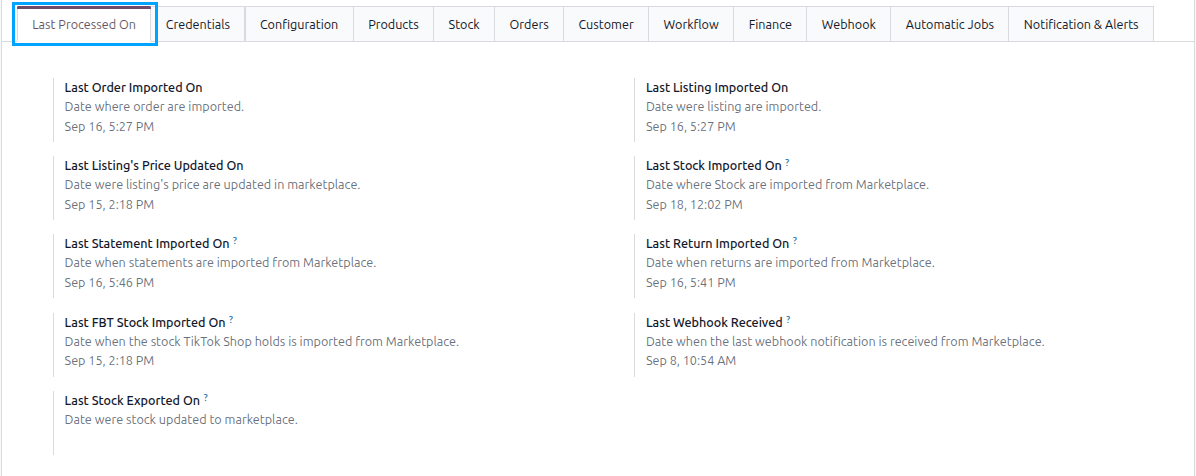
Last Processed On refers to the date that indicates the last time a specific operation or task was processed or executed. It typically represents the date and time of the most recent successful execution of a particular operation.
In most cases, the Last Processed On date is set when the Automatic Jobs are executed.
Alongside the standard dates, a TikTok Shop instance shows:
Last Statement Imported On: when statements were last read, so the next run only asks for what closed since.
Last Return Imported On: when returns were last read, so the next run only asks for what changed since.
Last FBT Stock Imported On: when the stock TikTok Shop holds was last read. Shown when the instance fulfills through FBT.
Last Webhook Received: when the last webhook notification arrived. It tells you whether TikTok Shop can still reach this Odoo. See Webhook Configurations.
Important
The import dates are editable, and each one is the starting point of the next incremental import. Moving one back makes the next run ask for more; moving it forward makes the run skip everything before it.
Note
This tab appears once the instance has been saved and is no longer a draft.
Confirming Instance
Once you are satisfied with the configuration, click the
Confirmbutton. Upon pressing the Confirm button, your TikTok Shop Odoo Instance will be confirmed.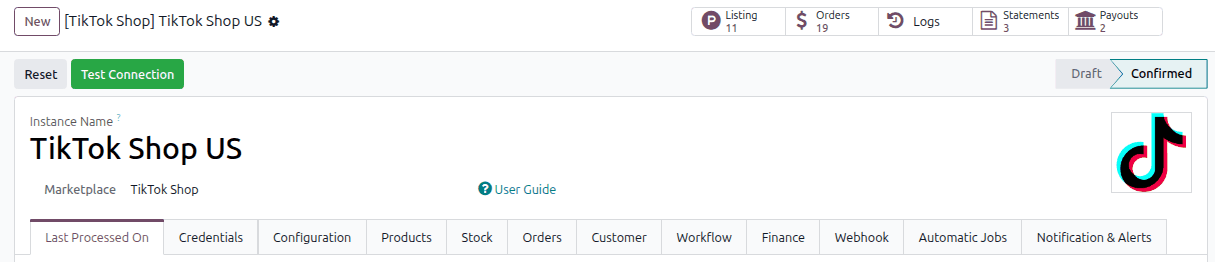
Note
Once the instance is confirmed, these settings become read-only: the App Key, App Secret and Service ID, the instance Name, Warehouse, Country, Company and Pricelist, the Fulfillment Type and FBT Warehouse, and the Statement Journal and Statement Account Configuration. To change one, click Reset, make the change, and Confirm again.
When confirming the instance for the first time, the connector performs the following actions automatically:
Imports the warehouses: fetches the shop’s warehouses along with their delivery options and shipping providers. See TikTok Warehouses.
Reads the Fulfilled by TikTok registration: a registered shop is set to
Both. To change it and set the FBT Warehouse, click Reset, make the change and Confirm again.Imports the FBT warehouses: when the shop is registered for Fulfilled by TikTok and the instance is set to use it.
Imports the category tree and the brands: fetches TikTok Shop’s categories and the brands it returns for the shop. See Import TikTok Shop Categories And Brands In Odoo.
Imports the compliance registers (European markets): fetches the manufacturers and responsible persons registered for the shop. See Manufacturers And Responsible Persons.
Offers to fetch category metadata: a popup appears so you can read the attributes, brands and listing rules of the categories you sell in. Confirmation completes once you click Fetch or Ignore & Confirm; closing the popup leaves the instance in draft. See Import Category Attributes, Brands & Rules.
Sets the Pricelist: creates a pricelist in the currency of the shop’s market when the instance has none, and checks that a pricelist already set uses that currency.
Brings the scheduled actions up to date: adds or removes the jobs that depend on the market and the fulfillment type. New jobs are switched off.
Note
The master data is read on the first confirmation only. Re-confirming an instance deliberately skips it, so a shop with a large catalog is not re-read every time. Refresh it later with the operations under Import TikTok Shop Categories And Brands In Odoo.
After confirmation the instance state is set to Confirmed and it is ready for operations. You can then
run the import and export operations from the Operations button on the instance’s card under
: click it, choose
Import Operation or Export Operation, pick the operation you want, fill in any fields it shows, and
press PROCESS. Which operations appear depends on the market and fulfillment type of the instance.