
Cancel Order In TikTok Shop From Odoo
An order can be cancelled from either side, and the two are handled differently:
The buyer asks for it. TikTok Shop records a request and waits for your answer. The requests are imported into Odoo and answered from the order with Approve Cancellation or Reject Cancellation.
You cancel the order. Cancel it in Odoo, then report the cancellation to TikTok Shop with Cancel In TikTok Shop, giving the reason TikTok Shop asks for.
Import Buyer Cancellation Requests
Method - 1: Manual Cancellation Request Import
Go to the menu in Odoo.
Click on the
Operationsbutton from the instance record.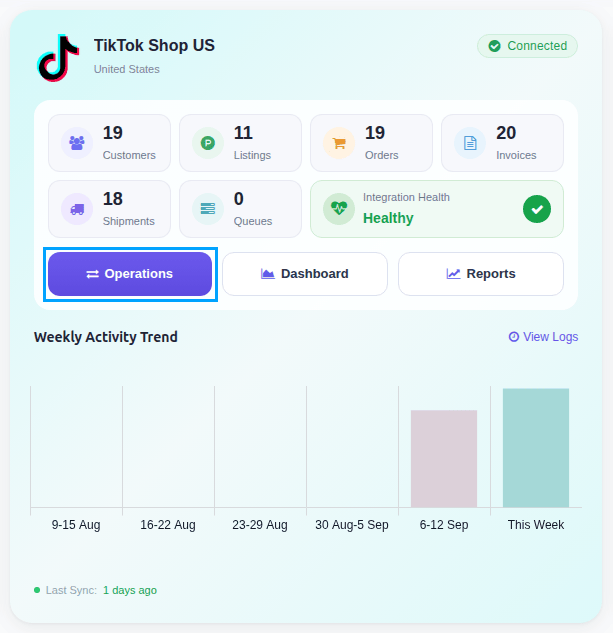
Select Import Operation and then select Import Cancellation Requests option.
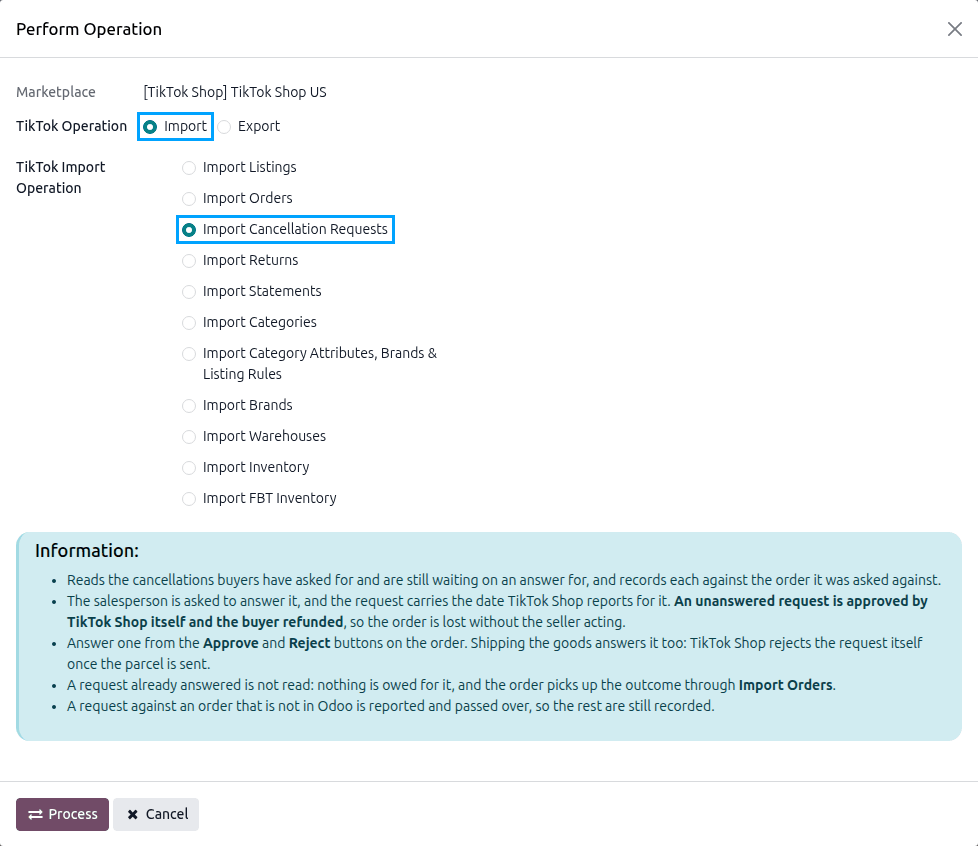
Press
PROCESSbutton.
Only the requests still waiting for an answer are read. One already answered needs nothing from you; if the order was cancelled, the order import cancels it in Odoo when it reads the order again. See Import TikTok Shop Orders In Odoo.
Note
A request for an order that has not been imported is reported in the log, naming the TikTok Shop order number, so you can import the order and run the operation again.
Method - 2: Automatic Cancellation Request Import
Go to your TikTok Shop instance setting by navigating to .
On the Automatic Jobs tab, configure the Import Cancellation Requests job by setting Interval Number, Interval Unit, and then Active.
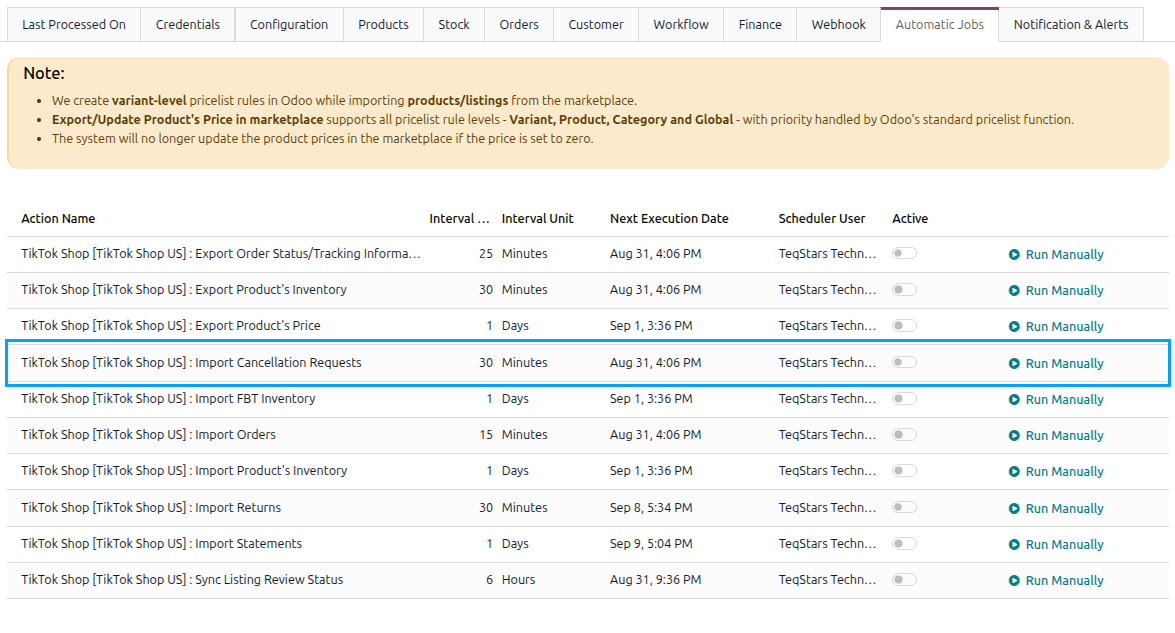
This scheduled action is created inactive and runs every 30 minutes by default. See Automatic Jobs.
Answer A Buyer Cancellation Request
An order with a request waiting shows Buyer Requested Cancellation, the Cancellation Reason the buyer gave, and Answer Cancellation By, the moment TikTok Shop answers it itself if you have not.
Open the TikTok Shop order under .
Click Approve Cancellation or Reject Cancellation in the header.
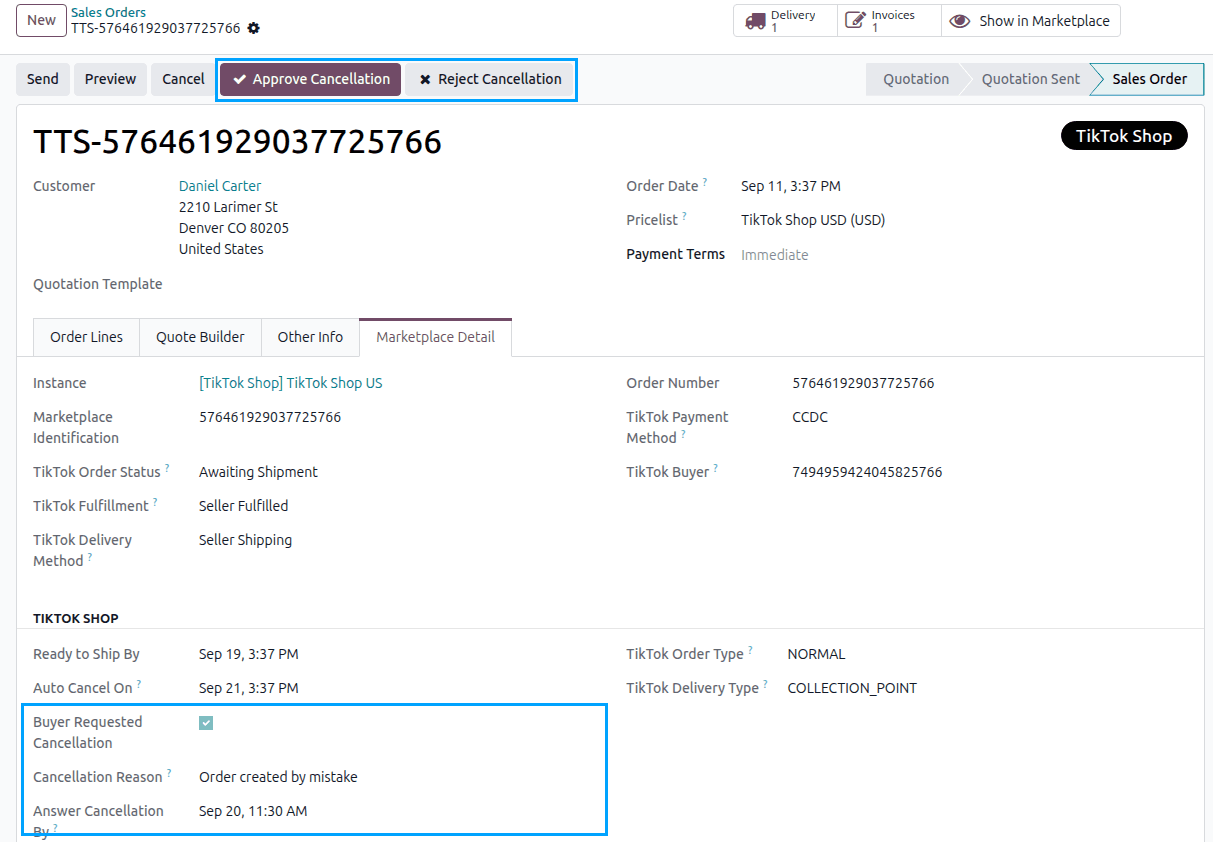
To approve, confirm the message. TikTok Shop cancels the order and refunds the buyer. The Odoo order is cancelled when the order import reads it again, or when the Cancellation Status Change webhook reports it, rather than from here.
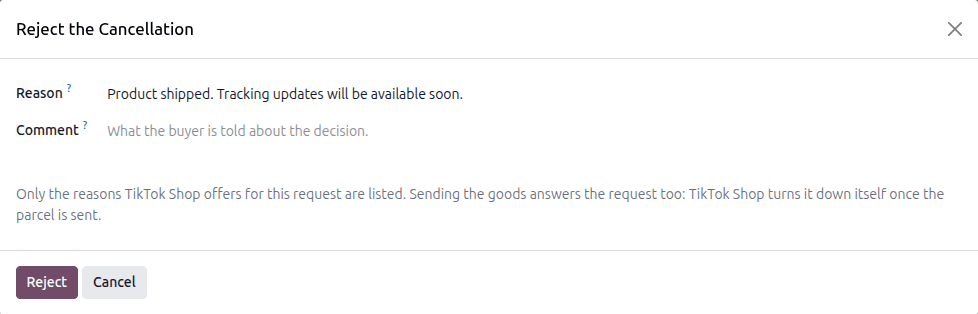
To reject, pick one of the Reason values TikTok Shop offers for turning the request down, add a Comment for the buyer if you want to, and press Reject.
Important
An answer TikTok Shop will not take is refused before it is sent, in TikTok Shop’s own words, for instance when the request has already been answered or the window to answer has passed.
Cancel An Order In TikTok Shop From Odoo
Open the TikTok Shop order under .
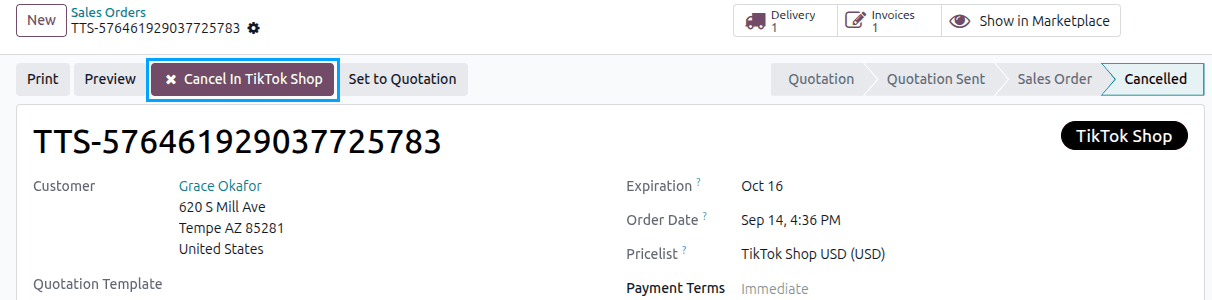
Cancel the order in Odoo first, using the standard Cancel button.
The Cancel In TikTok Shop button now appears in the header. Click it.
The Cancel Order In TikTok Shop popup lists the order’s units. Tick the units to cancel and choose the Cancel Reason.
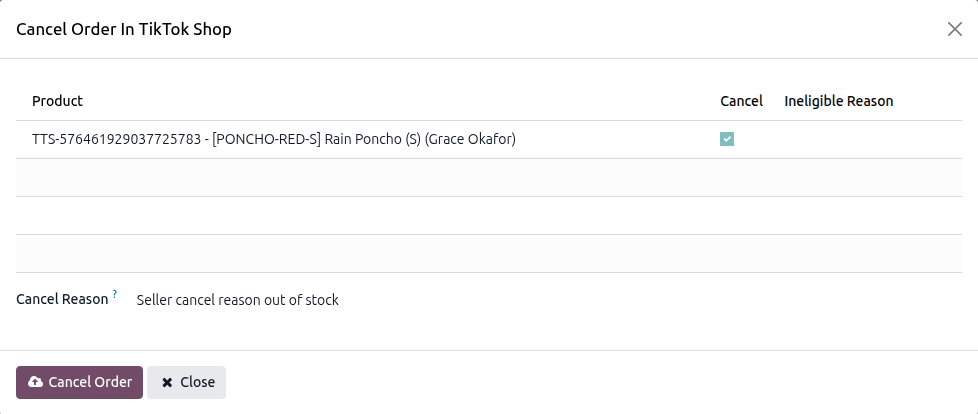
Click Cancel Order and confirm.
The reasons are the ones TikTok Shop offers for those units, read from TikTok Shop when the popup opens. They differ from unit to unit and from market to market.
A unit TikTok Shop will not cancel is greyed out, with the Ineligible Reason in TikTok Shop’s own words.
Part of an order can only be cancelled where the market allows it. Everywhere else the popup says so, and every unit is cancelled together. See TikTok Shop Supported Markets.
Warning
TikTok Shop cancels what is chosen and refunds the buyer. This cannot be undone.
Once TikTok Shop has carried out the cancellation, the Cancel In TikTok Shop button is no longer shown on the order. While TikTok Shop is still working on one it has taken, the chatter says so and the button stays. After a partial cancellation the order is confirmed again with the cancelled units set to zero.