
Scheduled Auto-Refresh Setup
You can automate background data synchronization so your Google Sheet reports and dashboards remain up to date without manual intervention.
Configuring Schedule
Open the worksheet tab you want to automate.
Click in the menu bar.
The Scheduled Refresh Setup modal dialog opens:
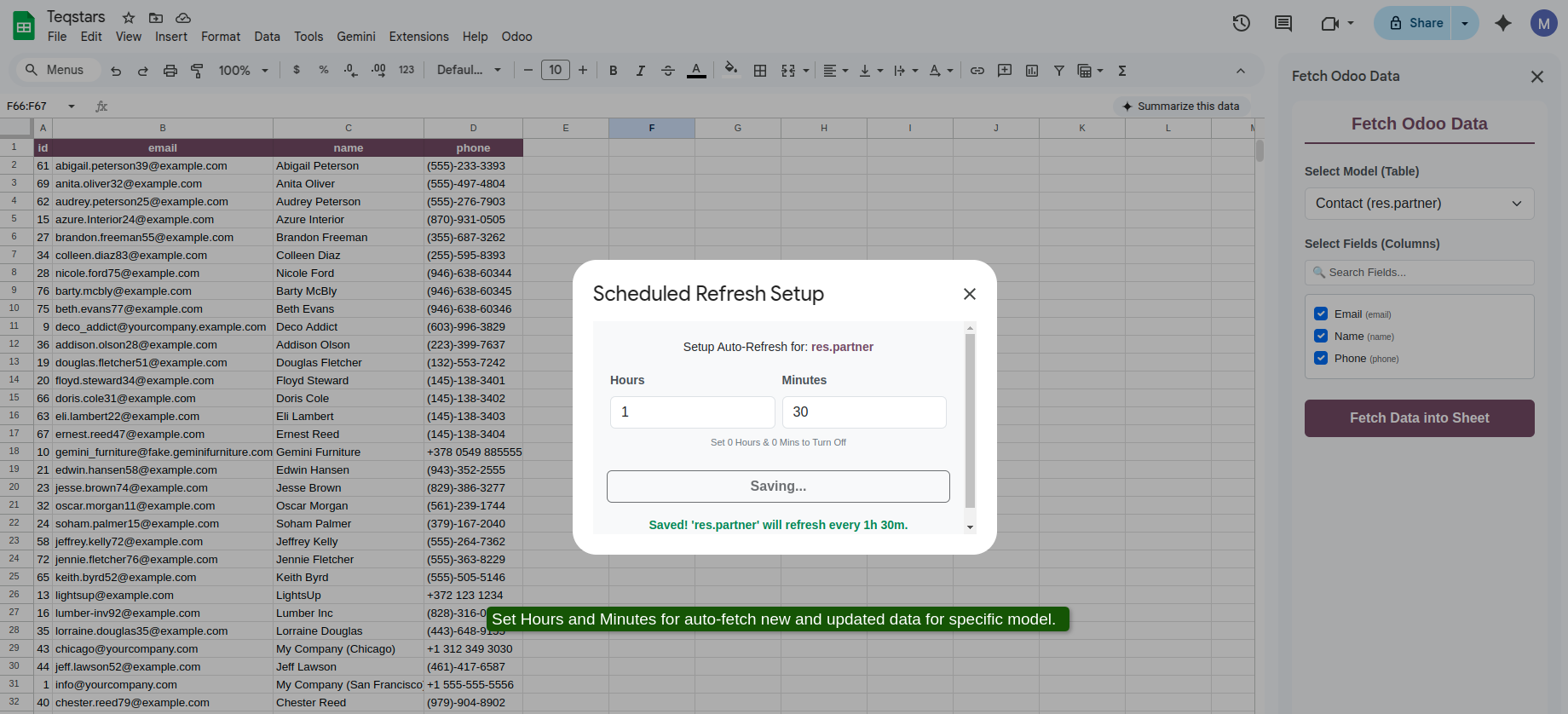
Enter the desired interval using the Hours and Minutes input fields.
Click Save Schedule.
Interval Rules & Limits
Minimum Interval: The minimum interval allowed is 15 minutes. Setting a value below 15 minutes prompts a validation error.
Deactivating Schedule: To turn off automatic background refresh for the current sheet, set both Hours and Minutes to
0and click Save Schedule.Per-Sheet Independence: Each worksheet tab maintains its own schedule settings independently.
Note
Background refresh triggers are managed by Google Apps Script’s native time-driven trigger engine.