
Upload Invoices To TikTok Shop
In Brazil, the goods of an order may not go out until TikTok Shop has the invoice issued for them. The connector sends the NF-e XML of the order’s posted invoice, per parcel.
Everything on this page applies to local sellers in Brazil only. In every other market TikTok Shop asks for no invoice, and none of these buttons or settings are shown. See TikTok Shop Supported Markets.
Enable Export Invoices to TikTok Shop? on the instance’s Orders tab. The Export Invoices operation is offered, and the Export Invoice scheduled action sends invoices, only while it is enabled. See Orders Configurations.
Method - 1: Manual Invoice Export
For Multiple Orders
Go to the menu in Odoo.
Click on the
Operationsbutton from the instance record.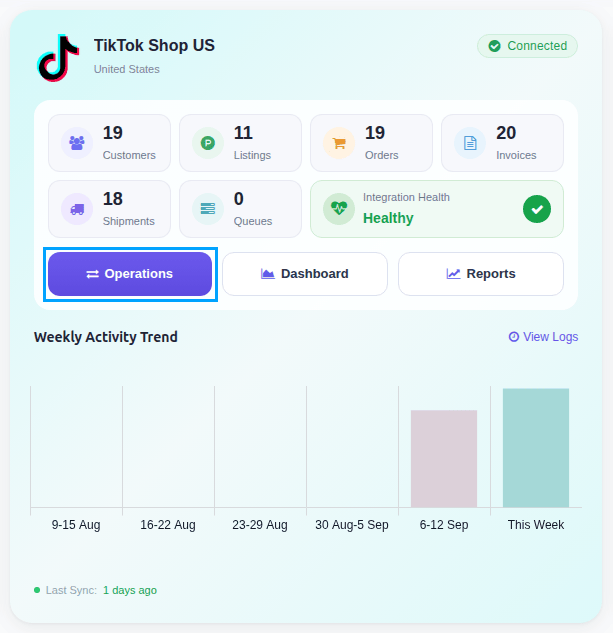
Select Export Operation and then select Export Invoices option.
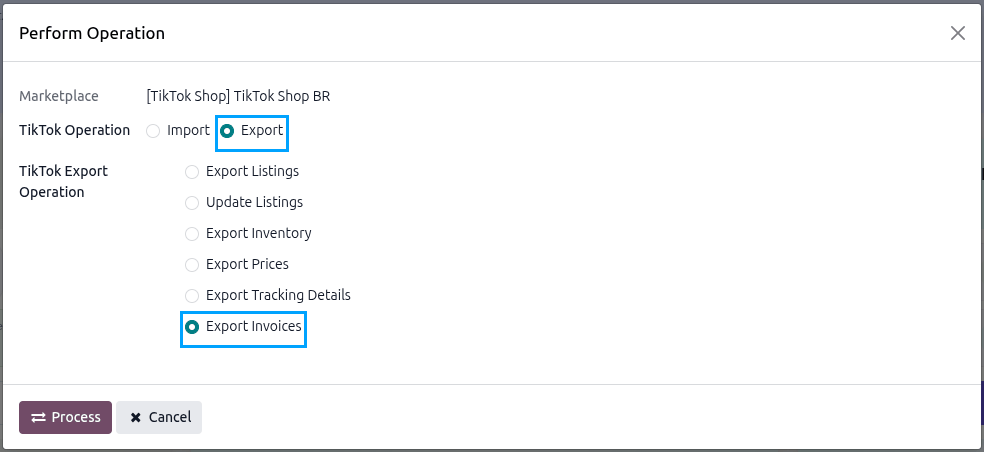
Press
PROCESSbutton.
The invoice of every delivery whose order TikTok Shop reports as needing one, and for which Odoo holds the NF-e XML, is sent.
For Single Orders
Open the delivery order of the TikTok Shop order.
Click the Upload Invoice button.
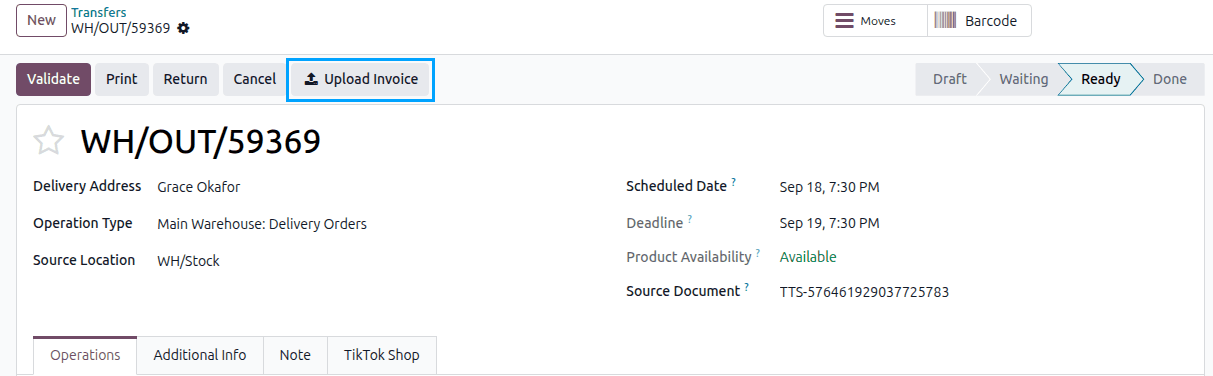
The Upload Invoice to TikTok Shop popup uses the NF-e issued on the order’s invoice when Odoo holds one. Otherwise choose the NF-e XML file yourself.
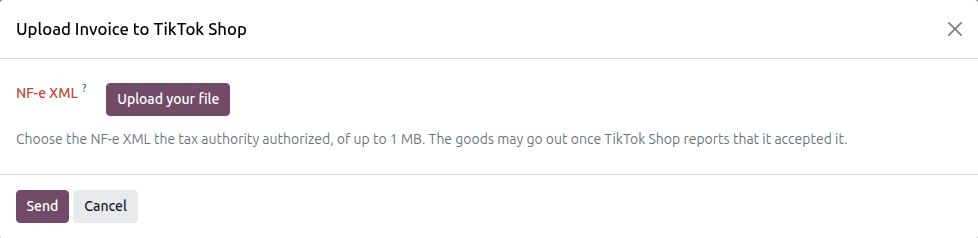
Press Send.
Method - 2: Automatic Invoice Export
Go to your TikTok Shop instance setting by navigating to .
On the Automatic Jobs tab, configure the Export Invoice job by setting Interval Number, Interval Unit, and then Active.
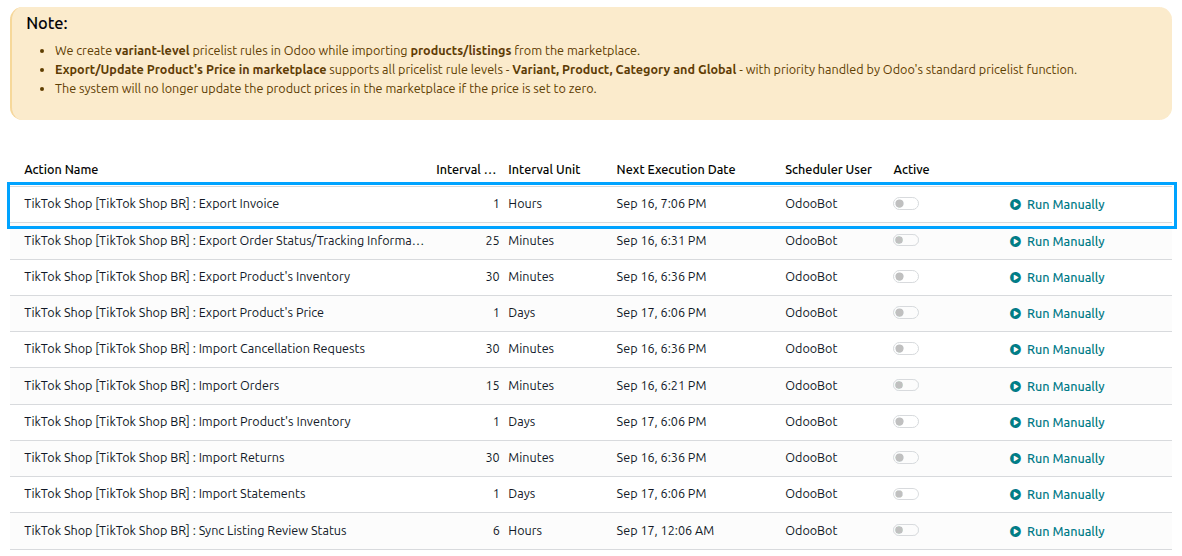
This scheduled action exists only on a Brazilian instance. It is created inactive, runs every hour by default, and sends nothing while Export Invoices to TikTok Shop? is disabled. See Automatic Jobs.
Important
A parcel that holds several orders is left out of the operation and the scheduled action, because TikTok Shop does not say how several invoices map onto one combined parcel. Send it from the delivery’s Upload Invoice button instead.
What TikTok Shop Accepts
The NF-e XML authorized by the tax authority.
Up to 1 MB.
The delivery must already have a parcel on TikTok Shop; until then there is nothing to send an invoice for.
After Sending
Sending the invoice starts TikTok Shop’s own check of it. The answer arrives through the Invoice Status Change webhook, and the delivery shows Invoice Uploaded once TikTok Shop has accepted it. See Webhook Configurations.
While the invoice is not accepted, the parcel is not shipped. Reporting the shipment instead schedules an activity on the delivery asking for the invoice.
An automatic send that fails is counted on the delivery as Invoice Upload Retries. The automatic export stops after three failures, and at once when TikTok Shop refuses the file for a reason a retry cannot fix. Correct the NF-e and send it again with Upload Invoice.