Configure USPS Connector
The USPS Delivery module for Odoo streamlines your shipping operations by offering seamless integration with USPS services. It enables automated label generation, real-time cost calculations, and convenient tracking management. With support for both local and international deliveries, this integration ensures your business can offer various shipping options to meet diverse customer needs. It enhances efficiency, improves order accuracy, and provides real-time updates, leading to faster deliveries and better customer satisfaction.
Setup in USPS
This section provides a complete step-by-step guide to prepare your USPS account for the Odoo integration.
Let’s begin with the account setup.
Account Setup & API Credentials
This guide explains how to generate your USPS API credentials.
Account Registration & Prerequisites
Before generating your keys, ensure you meet the following requirements:
USPS Business Account: You must first register for a business account via the USPS Business Customer Gateway.
Developer Portal Registration: Log in to the USPS Developer Portal using your business credentials to create an “App”.
Step 1: Create App
Complete the following steps to create your application:
Log in or Register: Open the USPS Developer Dashboard and log into your account.
On the main dashboard, scroll down to the Build section and click the View Your Apps link.
Click the Add App button.
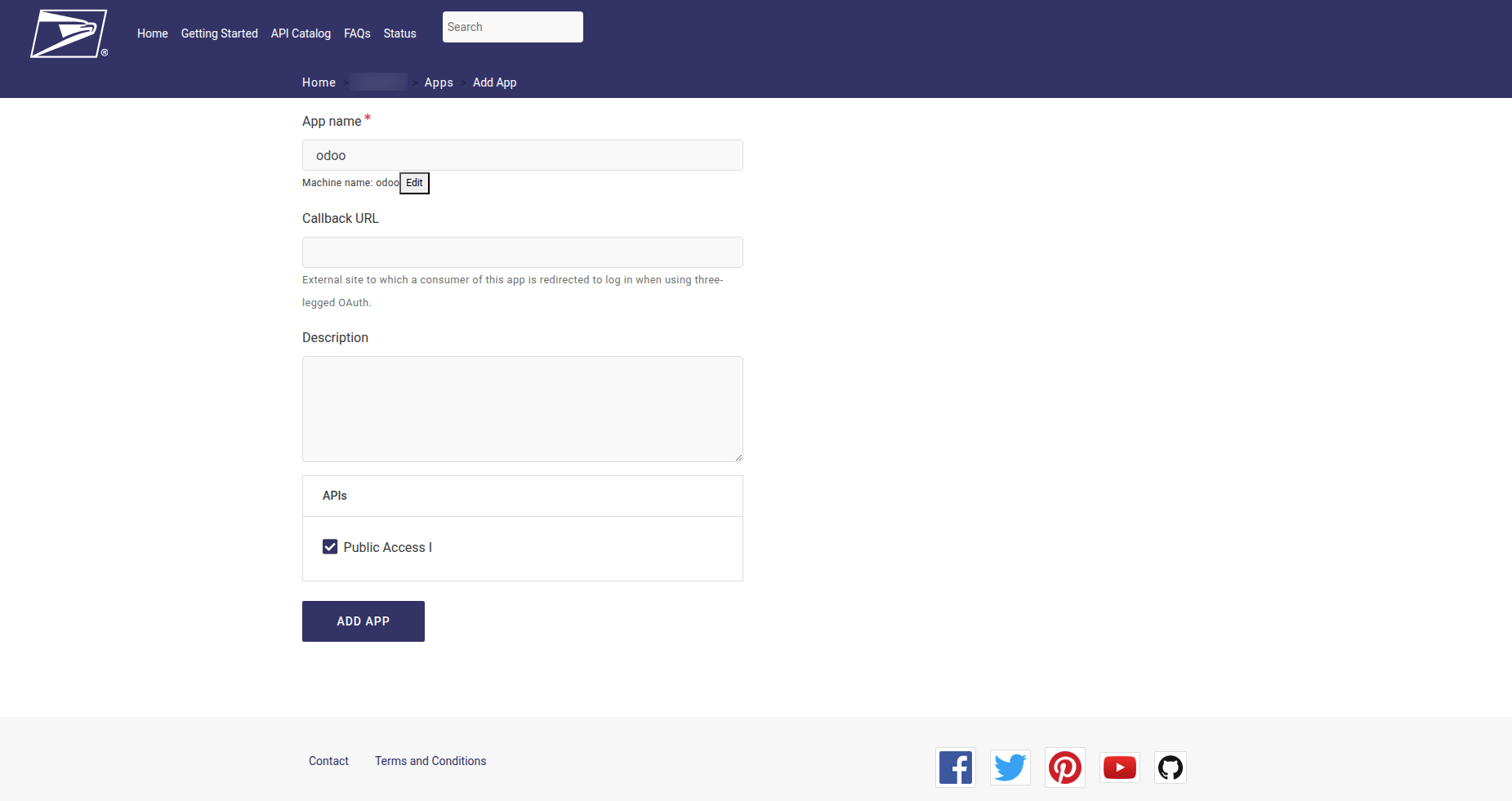
App Name (Required): Enter a recognizable name for your integration (e.g.,
Odoo USPS Connector).Callback URL (Optional): You can leave this blank for standard Odoo configurations.
Description (Optional): Add a brief note about what this app is used for.
Select API Product (Required): Choose the specific USPS API products you need access to for your shipping operations.
Important
During this step, you must explicitly check the box for Public Access I to enable the specific endpoints required for this integration.
Click the final Add App button at the bottom to save your settings and generate your API keys.
Step 2: Copy API Credentials
Once your app is successfully created and approved, you will be taken to your app’s details page.
Navigate to the Credentials tab.
Locate your generated Consumer Key and Consumer Secret.
Click the copy icon next to each value and save them securely; you will need to paste these into your Odoo database.
Note
Mapping to Odoo: When configuring your Shipping Partner in Odoo, paste the USPS Consumer Key into the Client ID field, and paste the USPS Consumer Secret into the Client Secret field.

Setup in Odoo
This document provides a complete step-by-step guide to configure and use the USPS connector in Odoo.
Let’s begin with the configurations.
Configure Shipping partner
To configure shipping partner in Odoo, navigate to and click on New.
To activate a delivery method in a Test Environment, click the Production Environment smart button at the top of the delivery method form. After doing so, the smart button changes to read Test Environment.
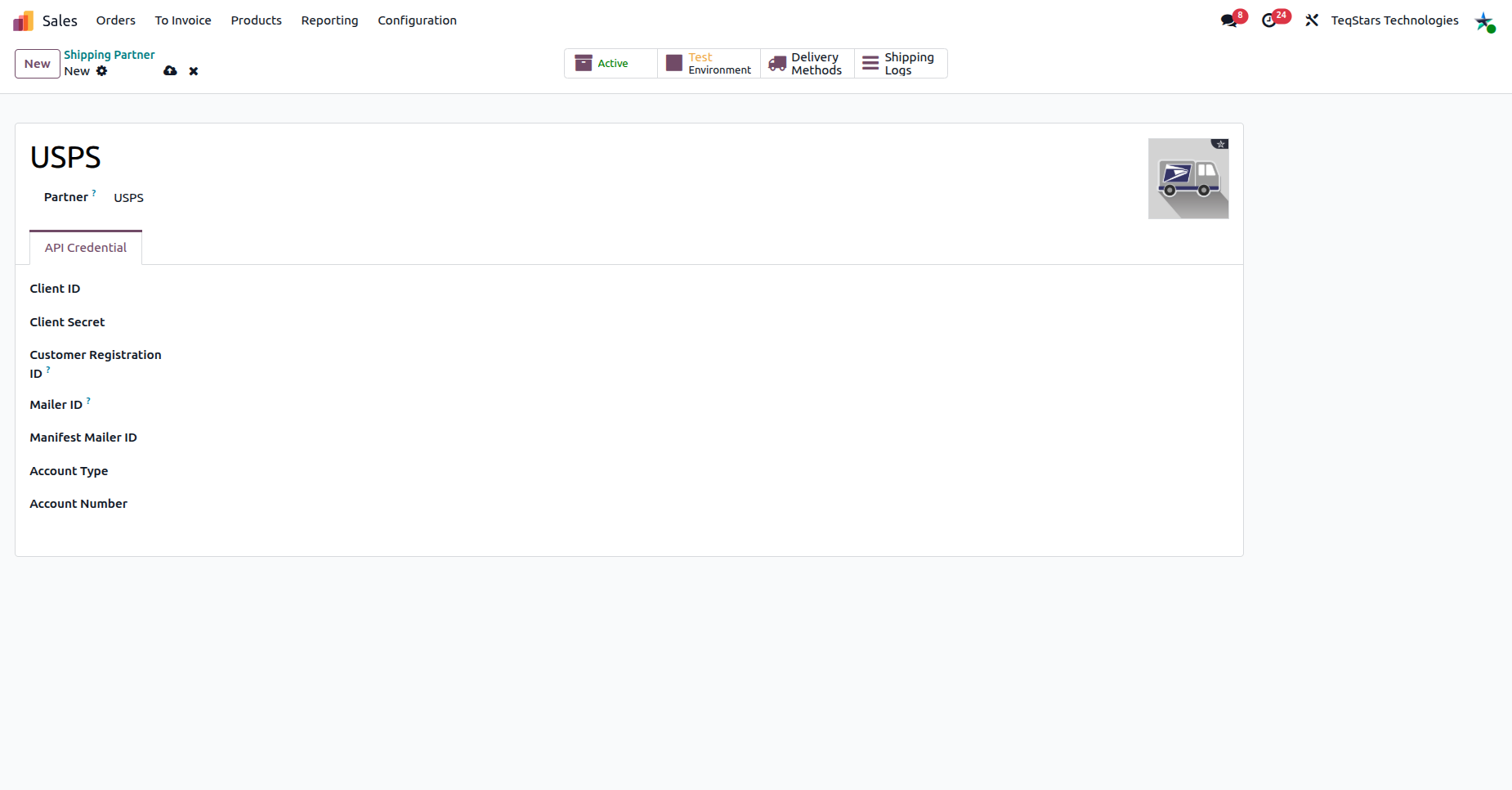
Fill in the required fields to connect your account:
Name: Choose meaningful name for your account (e.g. USPS).
Partner: Choose USPS.
Client ID: Enter your USPS account client ID.
Client Secret: Enter your USPS account client secret key.
Customer Registration ID: Enter your customer registration ID. A Customer Registration Identification Number (CRID) is a USPS-generated numeric code that uniquely identifies a business at a location.
Mailer ID: The Mailer Identifier (MID) is a field within the Intelligent Mail barcode that is used to identify mailers. MIDs are assigned by the USPS to a Mail Owner, Mailing Agent or other service providers who request them.
Manifest Mailer ID: Enter your USPS account Manifest Mailer ID.
Account Type ID: Enter your USPS account type (e.g. EPS, PERMIT or METER).
Account Number: Enter your USPS account number.
USPS Custom Content Type: This field is only visible when the delivery type is international. Specifies the content of the package or envelope (e.g. Merchandise, Gift, Document, Commercial Sample, Returned Goods, Humanitarian Donations, Dangerous Goods, Cremated Remains, Non Negotiable Document, Medical Supplies, Pharmaceuticals or Other).
Configure Delivery Method
Now click on Delivery Methods and click on New or navigate to and click on New.
Tip
Delivery Methods can also be accessed by going to .
Note
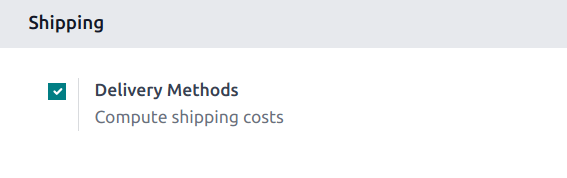
If the Delivery Methods option is not available from the Configuration drop-down menu, verify whether the feature is enabled by following these steps:
Go to .
Scroll to the Shipping section and enable the Delivery Methods feature by checking the corresponding checkbox.
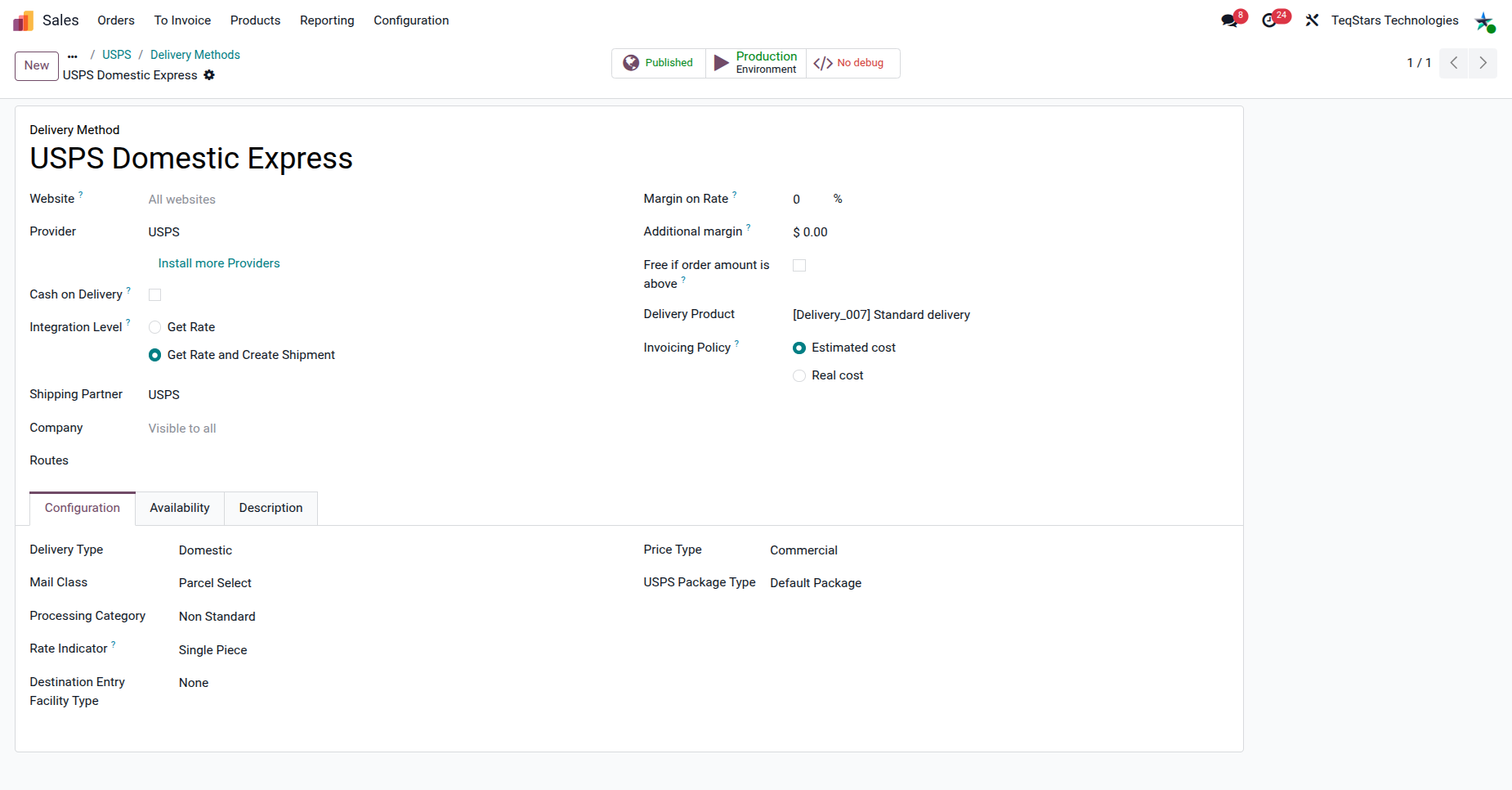
General Configuration
Delivery Method: Choose meaningful name for delivery method.
Provider: Choose USPS.
Shipping Partner: Select shipping partner USPS.
Delivery Type: Defines how delivery is made (e.g. Domestic or International).
USPS Specific Configuration
- Mail Class: Set the mail class for shipments. Mail classes are different for domestic and international.
Domestic: Parcel Select, Priority Mail Express, Priority Mail, Library Mail, Medial Mail, Bound Printed Matter, USPS Connect Local, USPS Connect Mail, USPS Connect Regional or USPS Ground Advantage.
International: First Class Package International Service, Priority Mail international or Priority Mail Express International.
Processing Category: Set the processing category. (e.g. LETTERS, FLATS, MACHINABLE, IRREGULAR, NON MACHINABLE or NONSTANDARD).
Price Type: Set the pricing category your shipment falls into (e.g. RETAIL, COMMERCIAL, CONTRACT or NSA).
USPS Package Type: Set the default package type for shipments. If no package type is chosen in the delivery order, this one will be applied automatically.
Use Delivery Method In Sale Order
Your sales team can easily fetch live USPS shipping rates directly on Quotations.
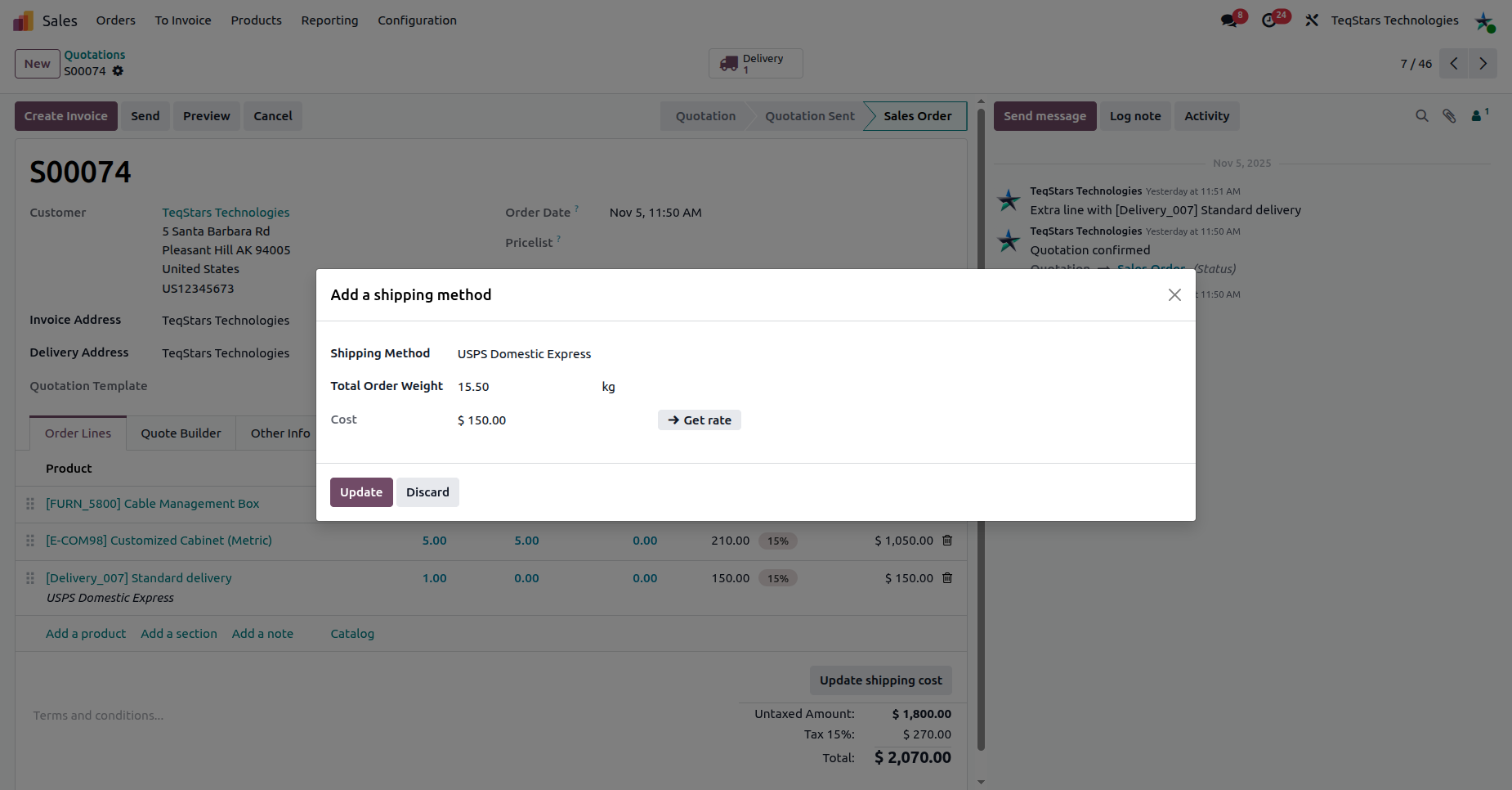
Click the Add Shipping button on the Sale Order.
Shipping Method: Choose your configured USPS delivery method.
Total order weight: Odoo automatically calculates the order weight based on the selected products, but you can enter a weight manually if needed.
Get Rate: Click this button to fetch the live shipping rate from USPS based on the delivery method and order details.
Click the Add button to insert the shipping charge as a line item on the sale order.
Use Delivery Method In Website Order
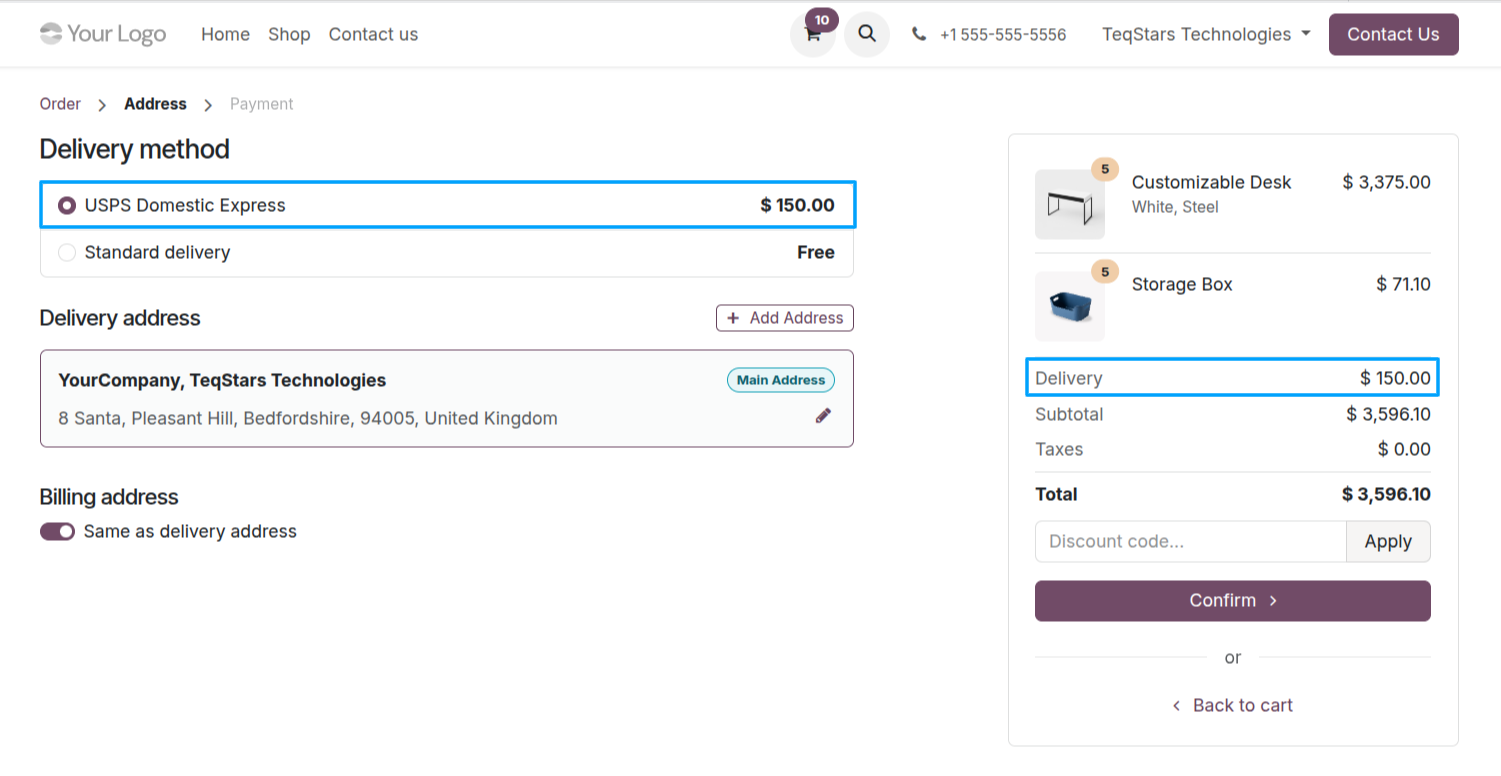
If you use the Odoo eCommerce app, customers can select your configured USPS delivery methods directly during the checkout process. Rates will calculate automatically based on their cart.
Configure Delivery Order
Once an order is confirmed, proceed to the Inventory app to process the shipment.
Multiple Packages
If an order is large and requires multiple boxes, you can split it using the Put in Pack feature. This ensures USPS generates a separate shipping label and tracking number for each physical box.
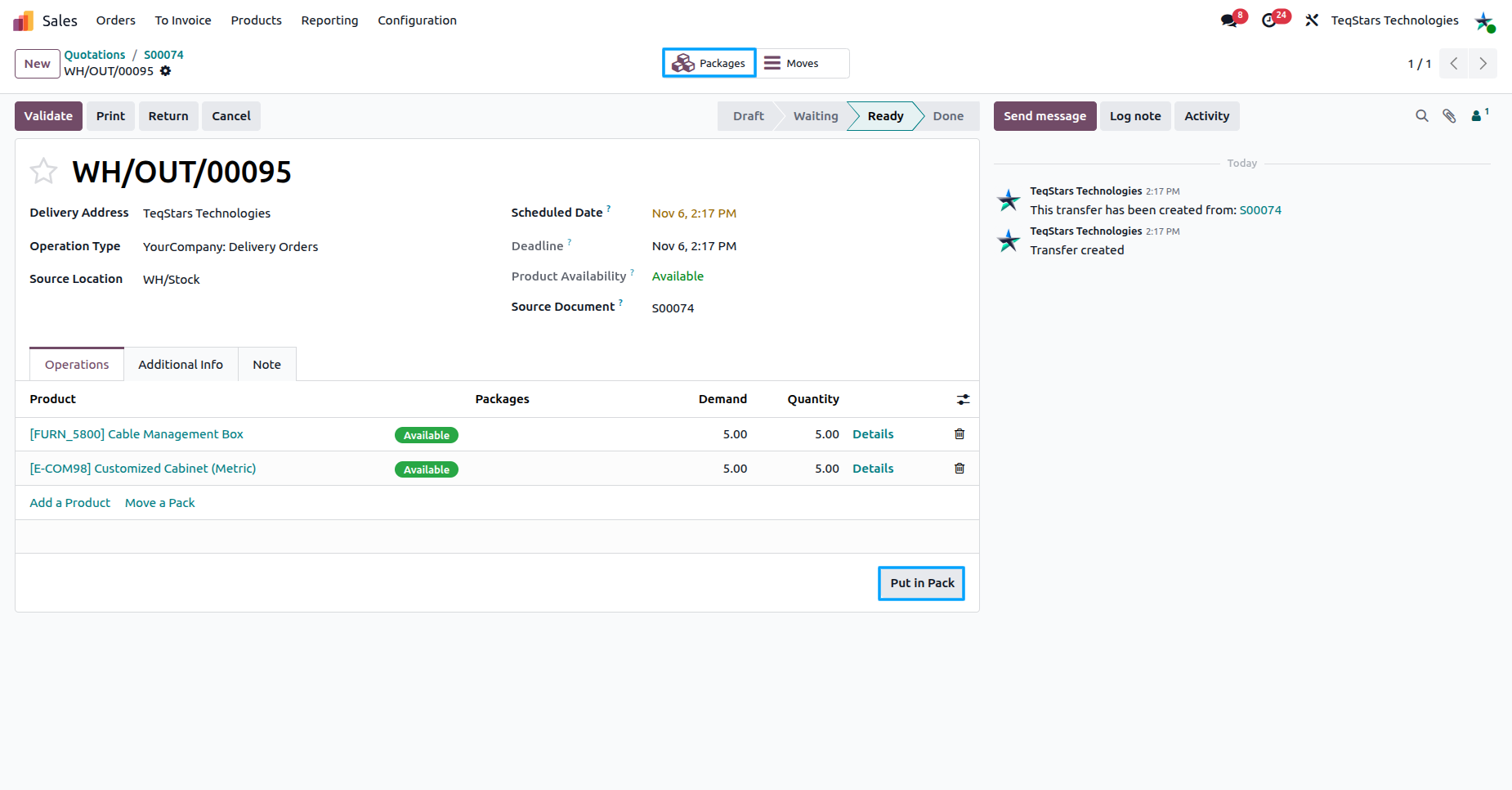
Click on Validate button to ship order.
Validating the Shipment
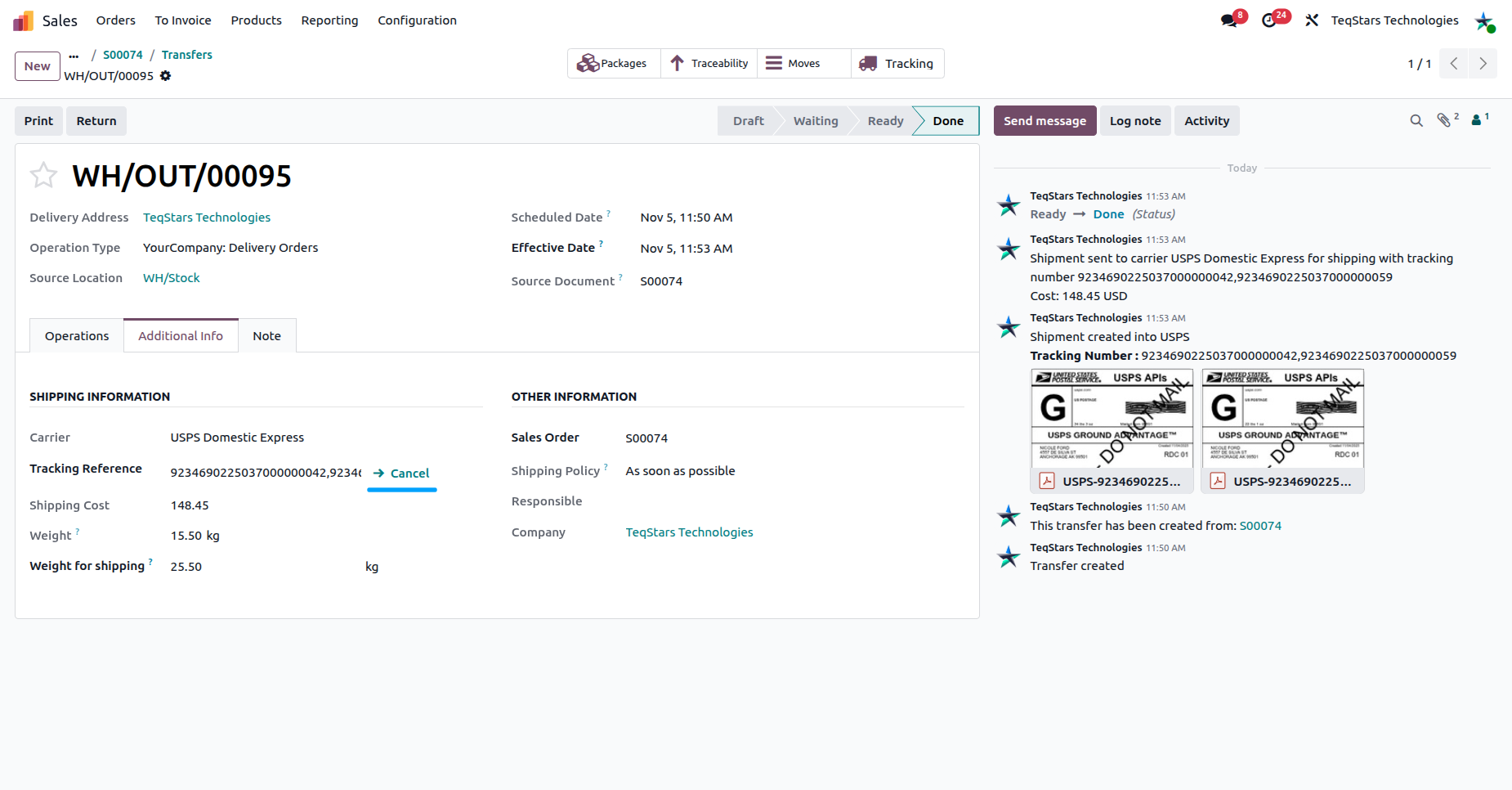
Verify that the Carrier field on the Delivery Order is set to your USPS method. Once the products are packed, click the Validate button. This action automatically communicates with USPS to generate the tracking numbers and shipping labels.
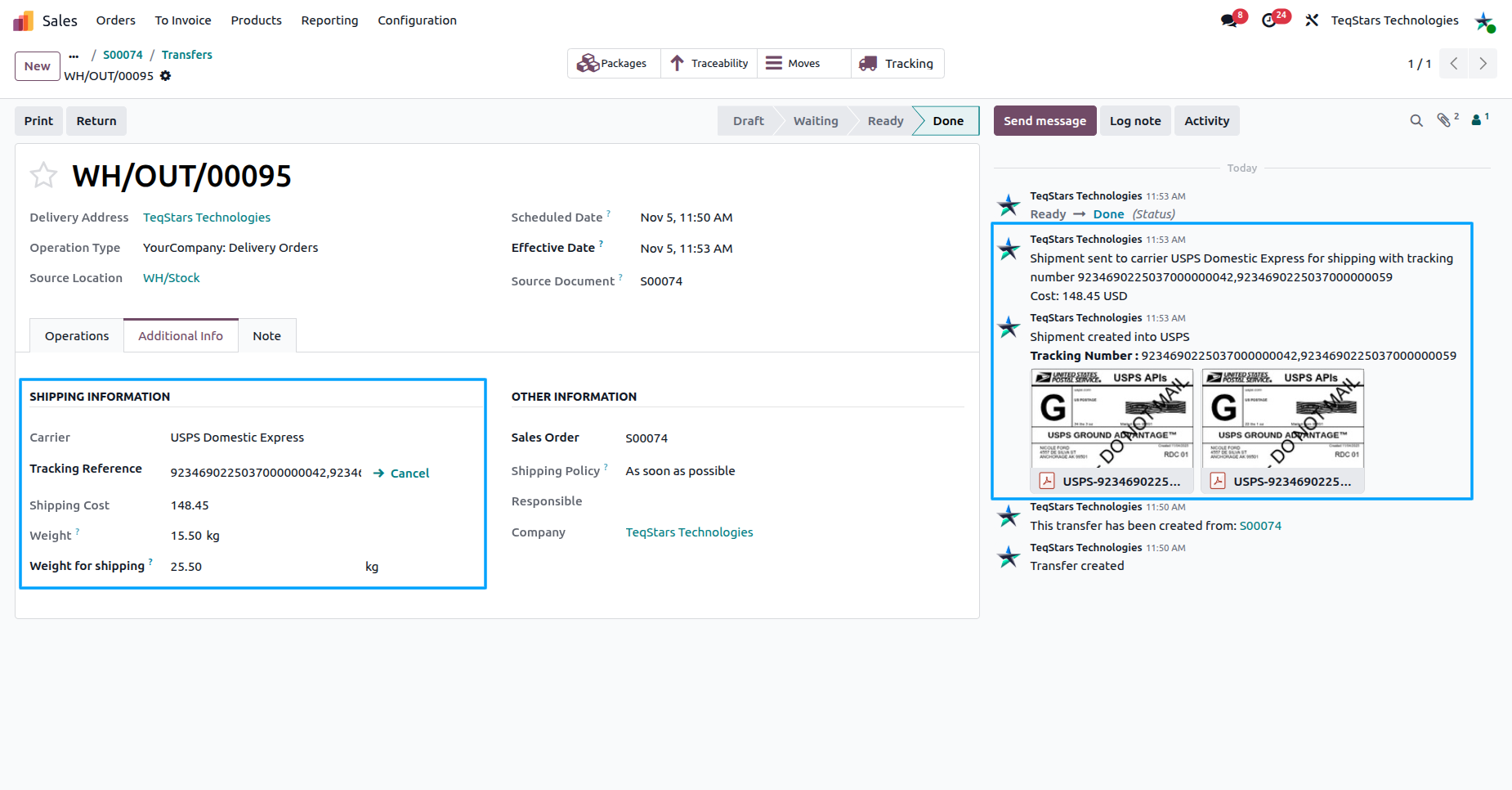
Tracking and Shipping Information
Upon validation, Odoo updates the Delivery Order with the official tracking reference and generated labels.
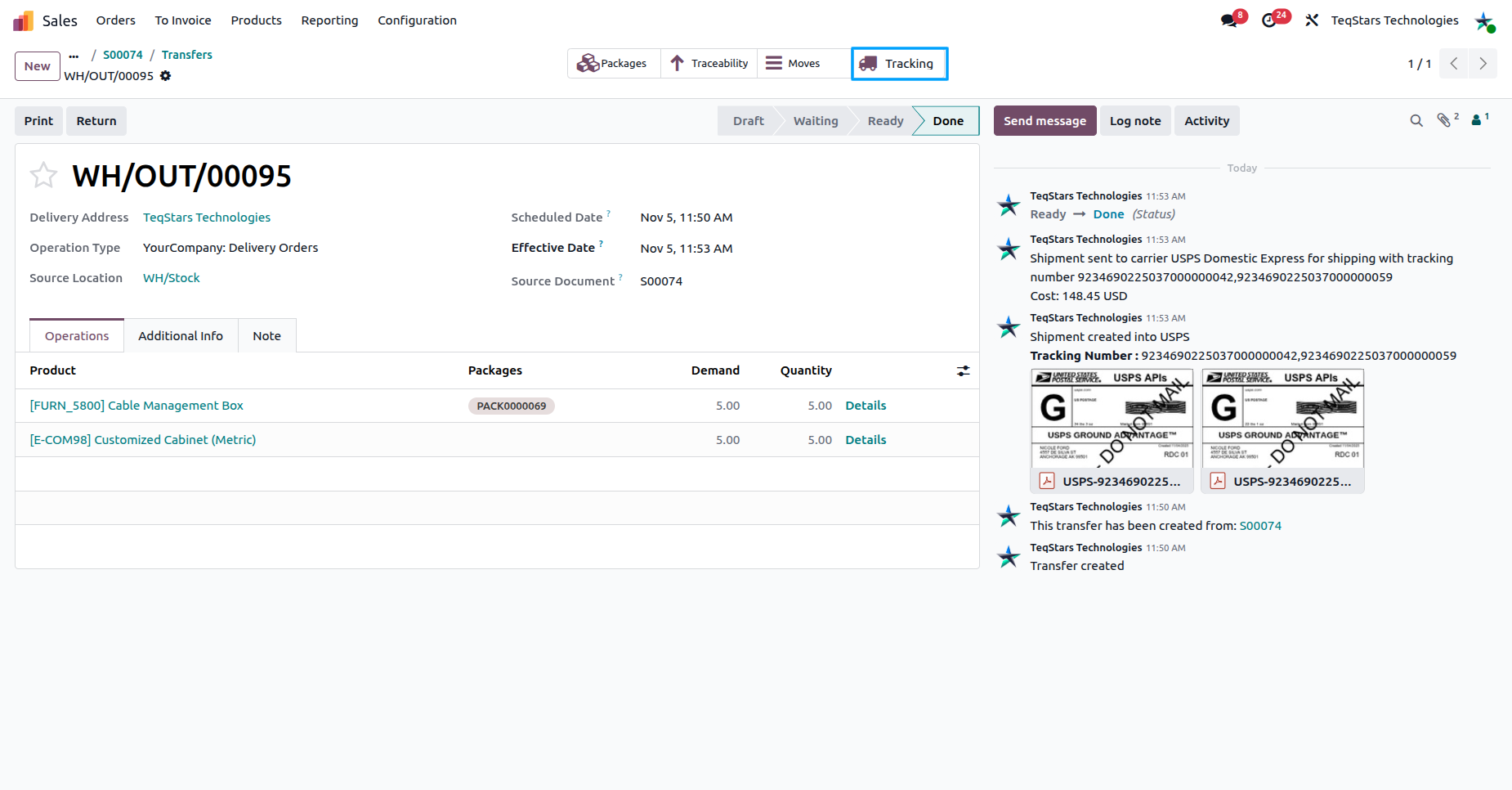
Real-time Tracking
Click the Tracking smart button on the delivery order to view the detailed status, location, and real-time updates for the shipment directly from USPS.
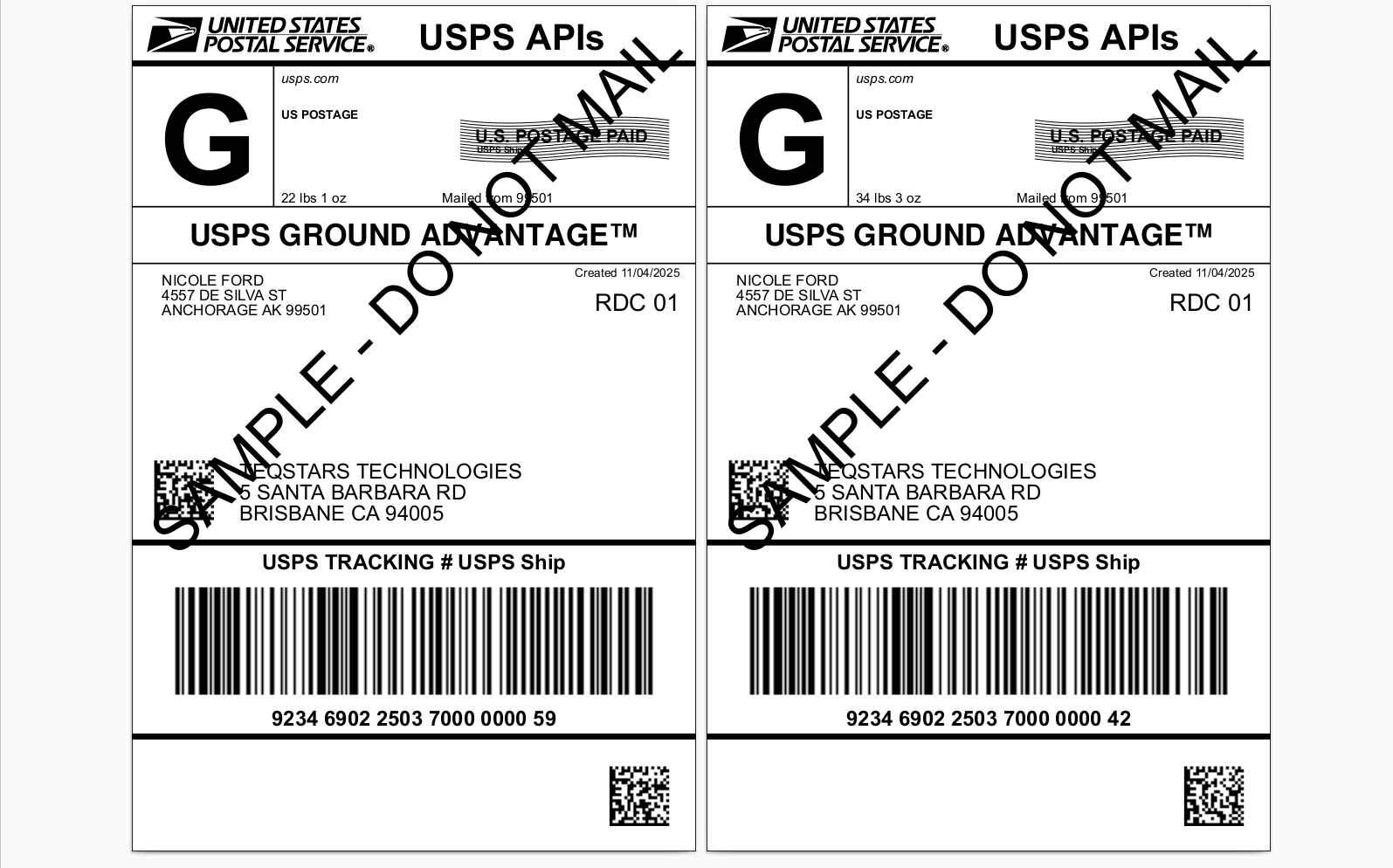
View Generated Label
The official USPS shipping label is automatically generated as a PDF and attached to the delivery order in the chatter. Click the attachment to view and print the label.
Cancel Shipment
Click the Cancel button on the Delivery Order in Odoo. This will automatically void the label with USPS, saving you from having to log into the carrier portal to cancel it manually.