
Cancel Order In Shopify From Odoo
You can cancel a Shopify order from Odoo and choose whether to notify the customer, restock inventory, and refund payments in Shopify. The connector sends the cancellation to Shopify using the GraphQL Admin API so that the order is canceled in the store and, if you opt in, inventory and payments are updated there as well.
When You Can Cancel In Shopify
The
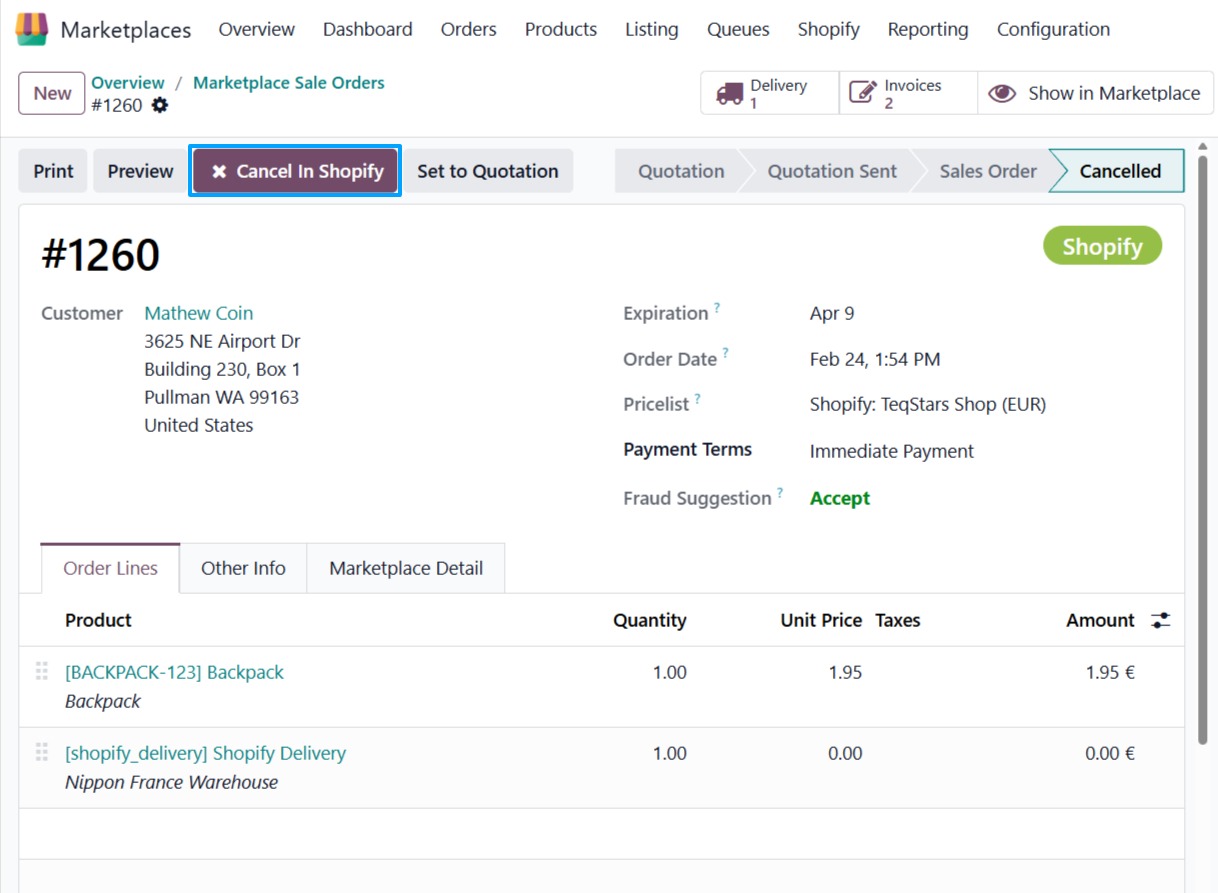
Cancel In Shopifybutton on the sale order is available only when:The order is a Shopify order (linked to a Shopify instance).
The order is already canceled in Odoo (state = Canceled).
The order is not already canceled in Shopify (the connector has not yet synced the cancellation).
The order is not fulfilled in Shopify (fulfillment status is not FULFILLED); otherwise cancellation in Shopify may not be allowed.
If you do not see the button, cancel the order in Odoo first (e.g. use the Cancel action on the quotation/order), then open the canceled order and look for Cancel In Shopify.
How To Cancel The Order In Shopify
In Odoo, cancel the sale order if it is still in progress (e.g. , open the order, then use Cancel or the equivalent action). The order must be in Canceled state.
Open the canceled Shopify order and click Cancel In Shopify.
In the Cancel In Shopify wizard, set:
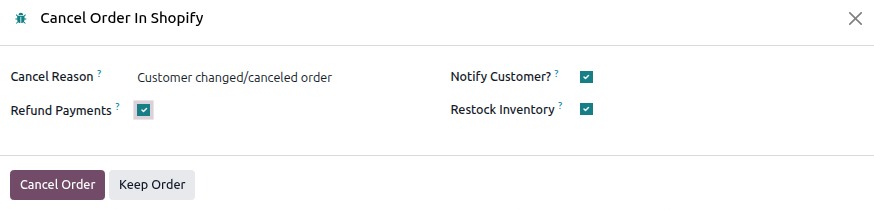
Cancel Reason (required): Choose why the order is being canceled. Shopify uses this for reporting and for the customer if you notify them. Typical options include:
Customer changed or canceled order
Item unavailable
Fraudulent order
Payment declined
Other
Staff error
Notify Customer?: If checked, Shopify sends an email to the customer about the cancellation.
Restock Inventory: If shown and checked, the canceled quantity is added back to inventory in Shopify. This option may be hidden depending on the order’s financial and fulfillment status (e.g. already refunded or partially fulfilled).
Refund Payments: If shown and checked, payments are refunded in Shopify when the order is canceled. This option is typically shown when the order is paid or partially paid and unfulfilled.
Click Cancel Order to send the cancellation to Shopify. When the request succeeds, the order is marked as canceled in Shopify and the connector updates the order in Odoo (e.g. Cancel in Marketplace).
Click Keep Order to close the wizard without sending the cancellation to Shopify.
If the order was already canceled in Shopify, the connector may show a message that the order cannot be canceled again and will update the Odoo order accordingly.
Note
Canceling in Shopify is final for that order in the store. Use Keep Order if you only wanted to change options.
Restock and refund options depend on the order’s payment and fulfillment status in Shopify; some options may be hidden or disabled by the connector when they are not applicable.
See also
Refund Orders From Odoo To Shopify (for refunding without canceling the order)