
Manage Bol.com Invoice Requests & Exports
When customers (especially business buyers) request a VAT invoice on Bol.com, the connector can fetch those requests, link them to the matching Odoo sale order, and upload the Odoo-generated invoice PDF back to the marketplace once it is ready.
The workflow has two stages:
Import Invoice Request: pull open invoice requests from Bol.com.
Export Invoice to Bol.com: upload the Odoo PDF using the configured report and export delay.
Step 1: Configure Invoice Imports And Exports
Important
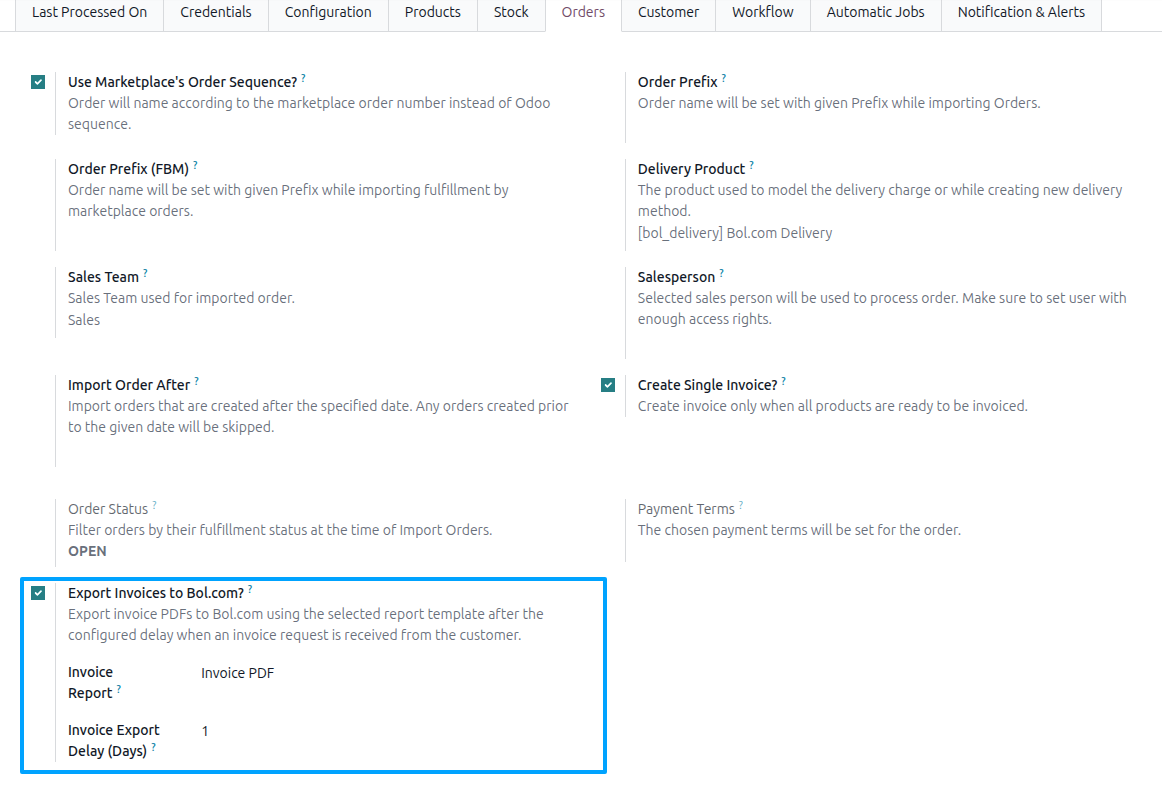
The entire invoice workflow is controlled by Export Invoices to Bol.com? on the instance. When this flag is disabled, both manual and scheduled invoice operations are skipped.
Go to and open your Bol.com instance.
Open the Orders tab.
Enable Export Invoices to Bol.com?.
Configure the two related fields:
Invoice Report: the Odoo PDF report template (an invoice report on Journal Entries, PDF type) used to generate the invoice document (e.g. the standard
Invoice PDF). Required while the flag is enabled.Invoice Export Delay (Days) (default
1): the invoice is uploaded only when its invoice date is earlier than today minus this number of days, so with1an invoice dated yesterday is not exported yet. Acts as a safeguard against early exports for cancelled or modified orders. Required while the flag is enabled;0means no delay.
Method - 1: Manual Invoice Workflow
Use the Operations wizard when you need to import or export invoice data on demand.
Manually Importing Invoice Requests
Go to and click Operations on the instance card.
In the wizard, set:
Operation For:
FBR & FBB.Operation:
Import Invoice Request.
Click PROCESS. The connector fetches the open invoice requests and also refreshes the status of every request that is not
FINISHEDyet.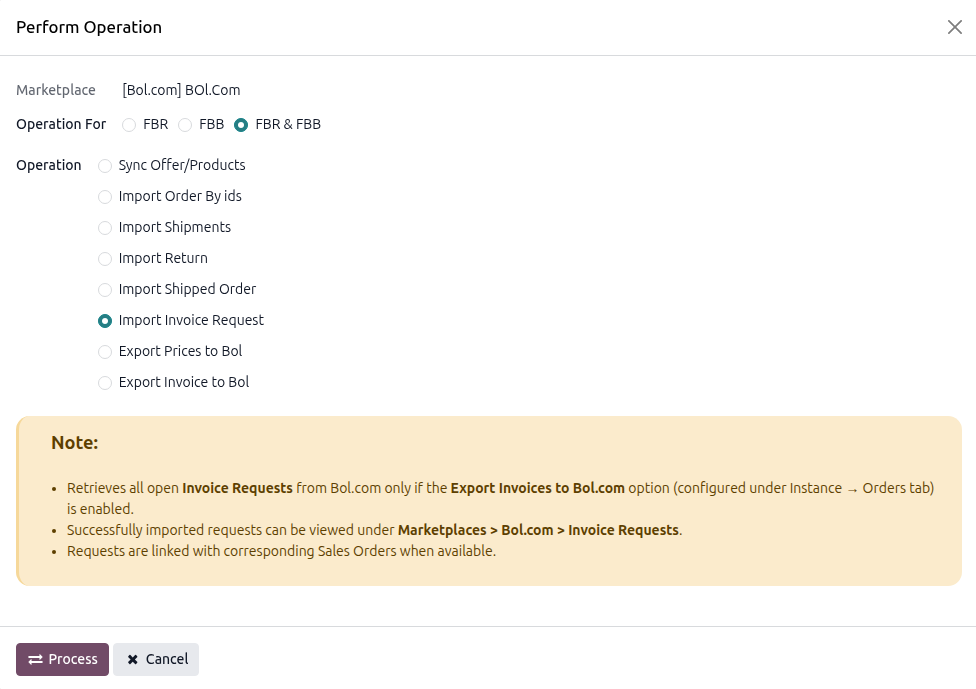
Note
Imported requests are listed under (the list opens filtered on Invoice Requested). The connector links each request to the Odoo sale order with the same Bol.com order ID and instance when one exists; a request without a matching order is still created and the order is looked up again at export time.
Manually Exporting Invoices
From the same Operations wizard, set Operation For to
FBR & FBB, select the Export Invoice to Bol option and click Process.Important
The connector uploads the PDF to Bol.com only when all of the following conditions are met:
Export Invoices to Bol.com? is enabled on the instance.
The invoice request has the status
Invoice Requested,Invoice IncorrectorInvoice Virus Detected, and is not still awaiting Bol.com’s confirmation of an earlier upload.The sale order is fully invoiced.
The invoice is in the Posted state.
The configured Invoice Export Delay (Days) has elapsed.
The PDF is generated using the Invoice Report template configured on the instance.
For the scheduled export, the request has failed fewer than 3 times (the Retry Count on the request).
The upload is asynchronous: Bol.com can take several minutes to confirm it. Until then the request shows Awaiting Bol.com Confirmation; the status moves to
Invoice Uploadedand thenFinishedon a later synchronisation.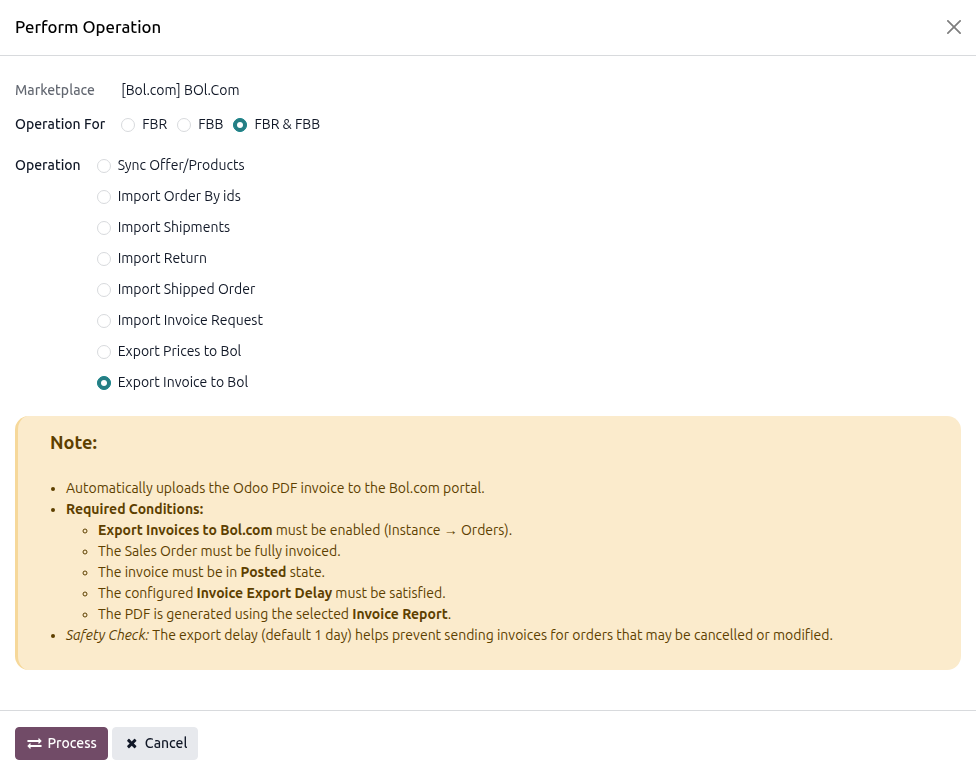
Uploading A Single Invoice
You can also upload the invoice of one request from the request record.
Open the request under .
Click Upload Invoice in the header. The button is shown only while the status is
Invoice Requested, Export Invoices to Bol.com? is enabled, the order has an invoice, no earlier upload is awaiting confirmation and the export delay has elapsed.The request form also shows the Status Transitions history and a Retry Count (
x / 3). Errors raised by a manual upload are displayed immediately. The upload is refused while the scheduled Export Invoice to Bol job is running.
Invoice request statuses:
Invoice Requested: the customer asked for an invoice; nothing uploaded yet.Invoice Uploaded: Bol.com received the PDF and is checking it.Invoice Incorrect/Invoice Virus Detected: Bol.com rejected the file (shown in red); the scheduled job uploads it again, within the retry limit.Finished: the request is completed.
Method - 2: Automating The Invoice Workflow
Use the scheduled actions for hands-off invoice handling.
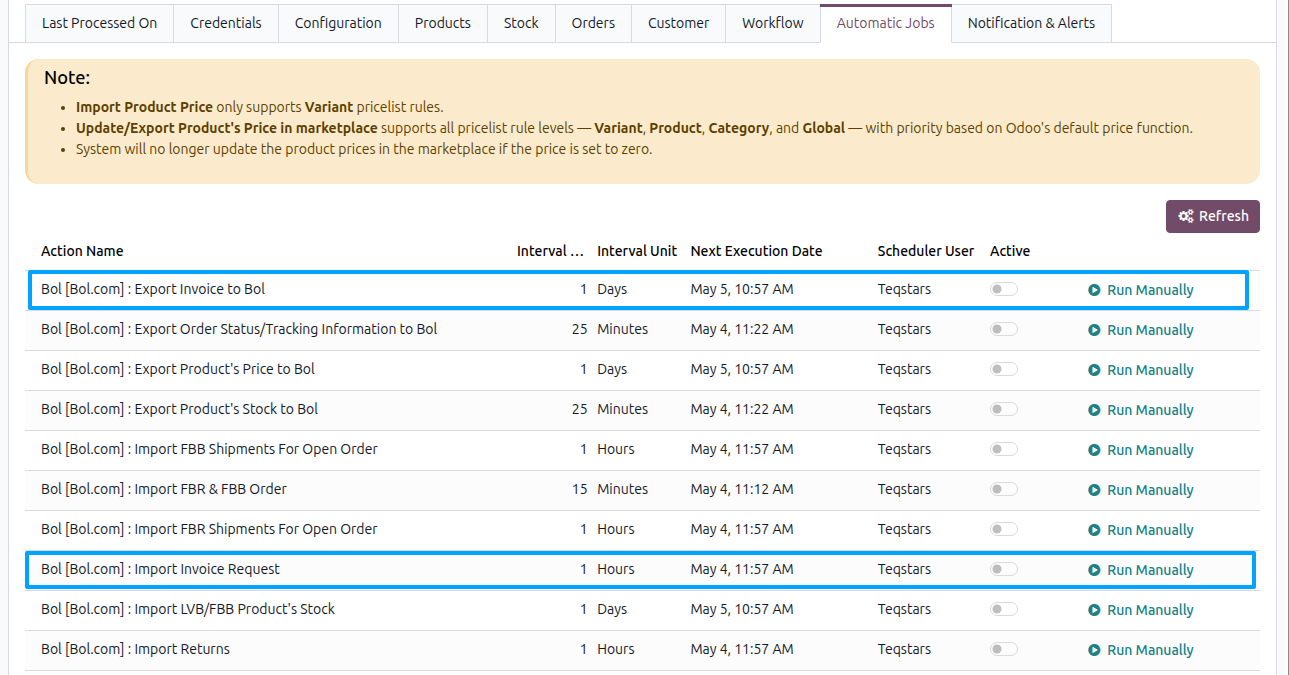
Open the Bol.com instance and go to the Automatic Jobs tab (visible to Settings administrators only).
Configure the two jobs that drive the workflow:
Import Invoice Request: fetches new requests from Bol.com.
Export Invoice to Bol: uploads the PDF once the invoice is posted and the export delay has elapsed.
For both jobs, set your desired frequency using the Interval Number and Interval Unit fields (for example, checking for requests every 1 Hours, and exporting them every 1 Days).
Toggle the Active switch to turn on the automations. Both jobs are active only while Export Invoices to Bol.com? is enabled on the instance: enabling it activates them and disabling it deactivates them.
See also
Official Bol.com API Documentation
For technical details on the invoices Bol.com issues to you (commission breakdowns, FBB charges), refer to the official documentation. Uploading customer invoices for invoice requests is described in the Retailer API reference (shipments / invoice requests):