
Sync Shipment Details and Tracking
Once a delivery is exported to ShipStation, the carrier label may be printed and the package shipped without anyone touching Odoo. The shipment-details sync brings that information back into the delivery order so warehouse staff and customer service have an authoritative view.
You can sync shipment details manually from the Operations wizard or on schedule through the Auto Import Shipment Details scheduled action.
Method 1: Manual Shipment-Details Sync
Go to .
Click the Operations button on the target account’s kanban card.
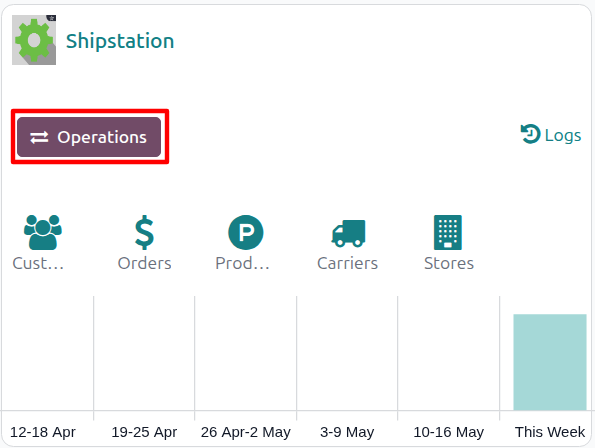
Choose Import as the operation type, then from Shipstation Import Operation select Import Shipment Details.
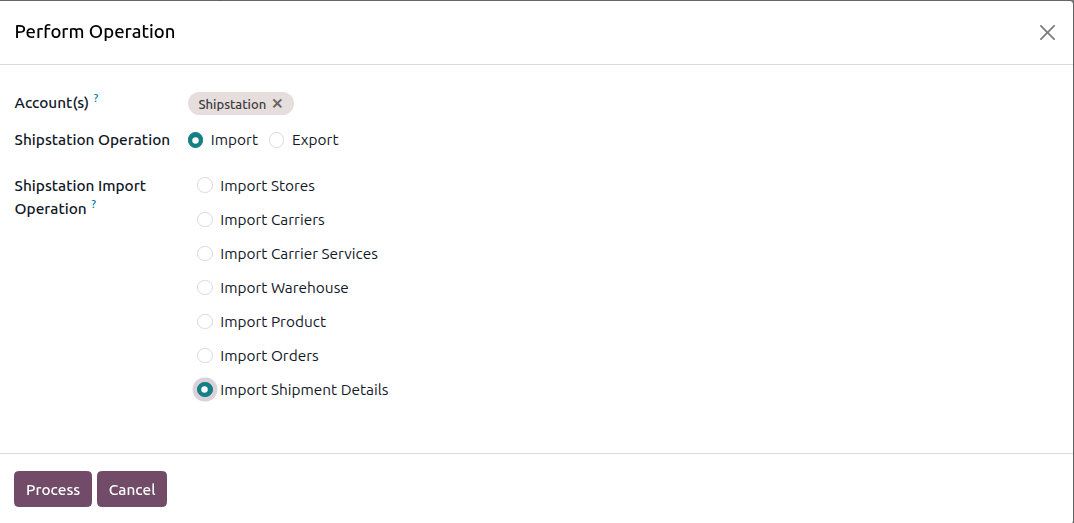
The wizard exposes the following options:
Account: the ShipStation account to run the operation on. Pre-filled from the kanban card you launched the wizard from.
Shipstation Operation: radio, Import or Export. Select Import for this flow.
Shipstation Import Operation: pick Import Shipment Details.
Click Process.
For each in-transit delivery order linked to the chosen accounts, the connector reads the order status from ShipStation, joins the tracking numbers from all non-voided shipments into Tracking Reference, and auto-validates or cancels the delivery in Odoo as appropriate.
Method 2: Automatic Shipment-Details Sync
Shipment-details sync can be automated using the Auto Import Shipment Details scheduled action so the latest tracking and status changes flow back into Odoo without manual intervention.
Open , open the account record, and switch to the Automated Actions tab.
Check Auto Import Shipment Details?.
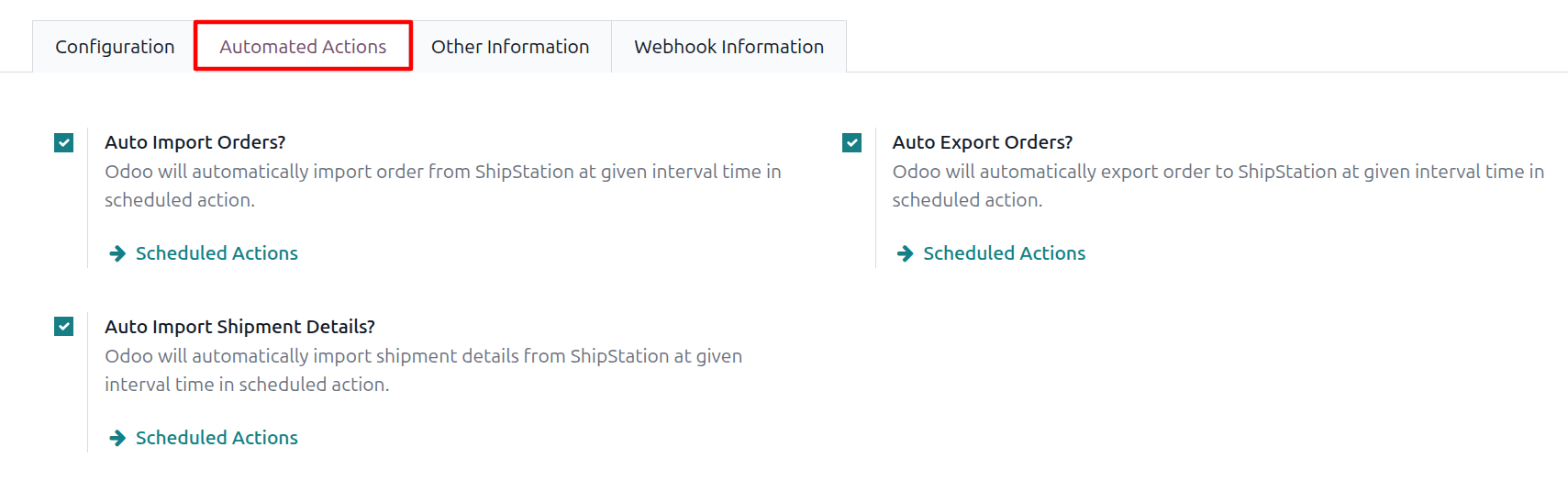
Click the Scheduled Actions link next to the checkbox to configure the run interval (default 1 day), then enable the scheduled action itself.
Once active, Odoo runs Auto Import Shipment Details at the configured interval across every account whose Auto Import Shipment Details? is checked.
Important
The sync targets only delivery orders already flagged Exported to shipstation?, operation type Delivery Orders, and state not in Draft, Done, or Cancelled (i.e. still in transit).
Shipped orders are auto-validated in Odoo and the matching backorders inherit that same Exported to shipstation? flag so they are not pushed a second time.
Cancelled orders are cancelled in Odoo on the next sync.
Voided shipments are skipped. The connector reads each shipment’s status and only consumes shipments that were not voided.
Note
The same sync logic also runs automatically when you validate an internal transfer linked to an exported delivery in multi-step warehouses. See Multi-Step Warehouse Behaviour.
Tracking numbers from all non-voided shipments of the same ShipStation order are joined with commas into Tracking Reference so multi-parcel shipments are represented faithfully.
The total Shipstation Shipping cost is the sum of the per-shipment costs reported by ShipStation.